![enginehire logo thin dark 1.0.png]](https://learn.enginehire.io/hs-fs/hubfs/enginehire%20logo%20thin%20dark%201.0.png?height=40&name=enginehire%20logo%20thin%20dark%201.0.png)
Let’s get started 🚀
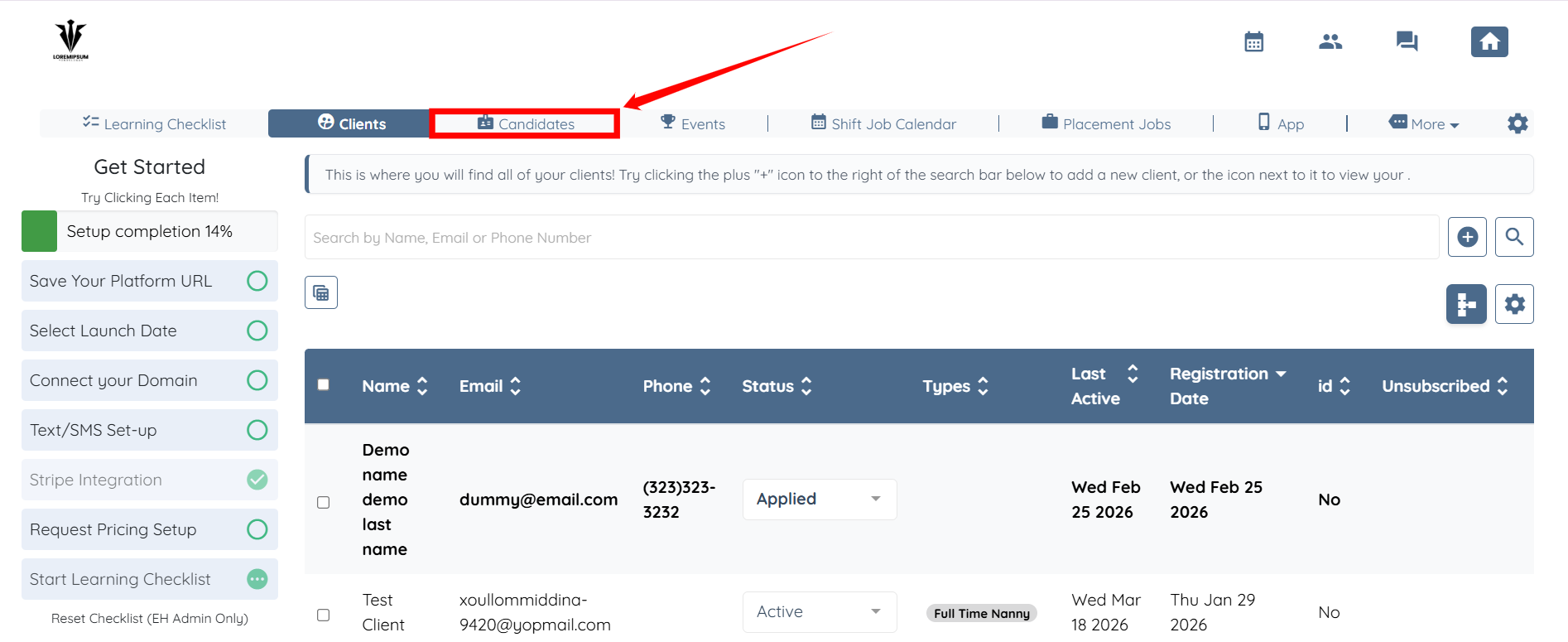
Step 1: Log in to your agent dashboard and click Candidates in the navigation bar.
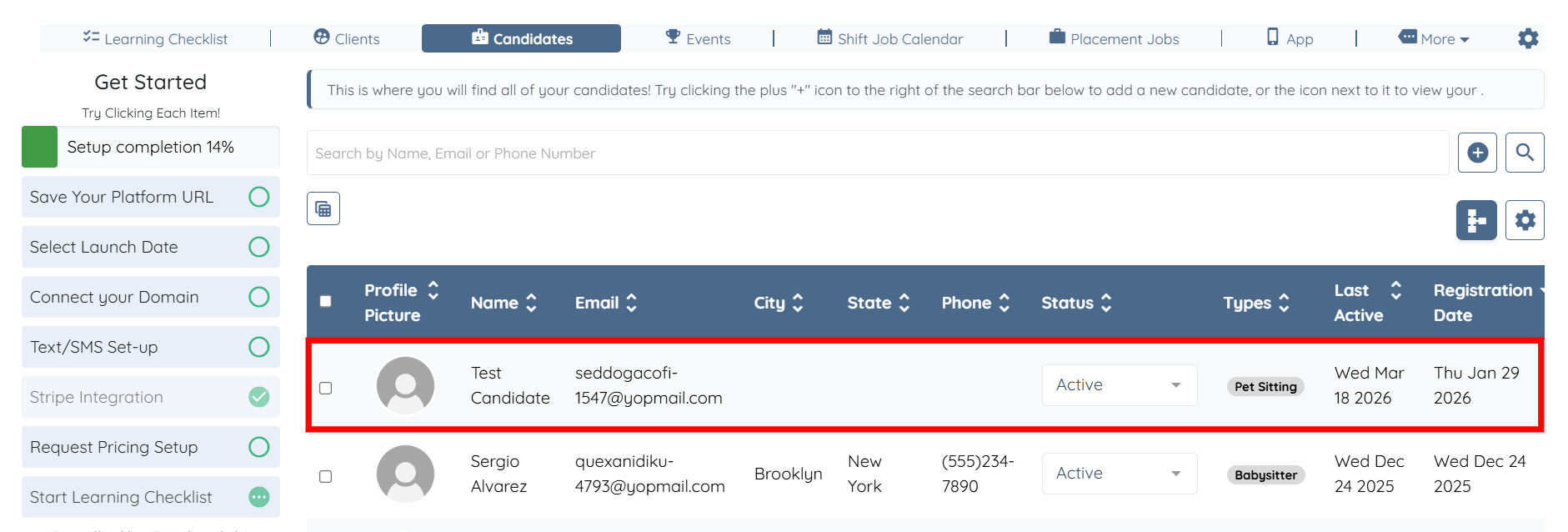
Step 2: Click any candidate in the list.
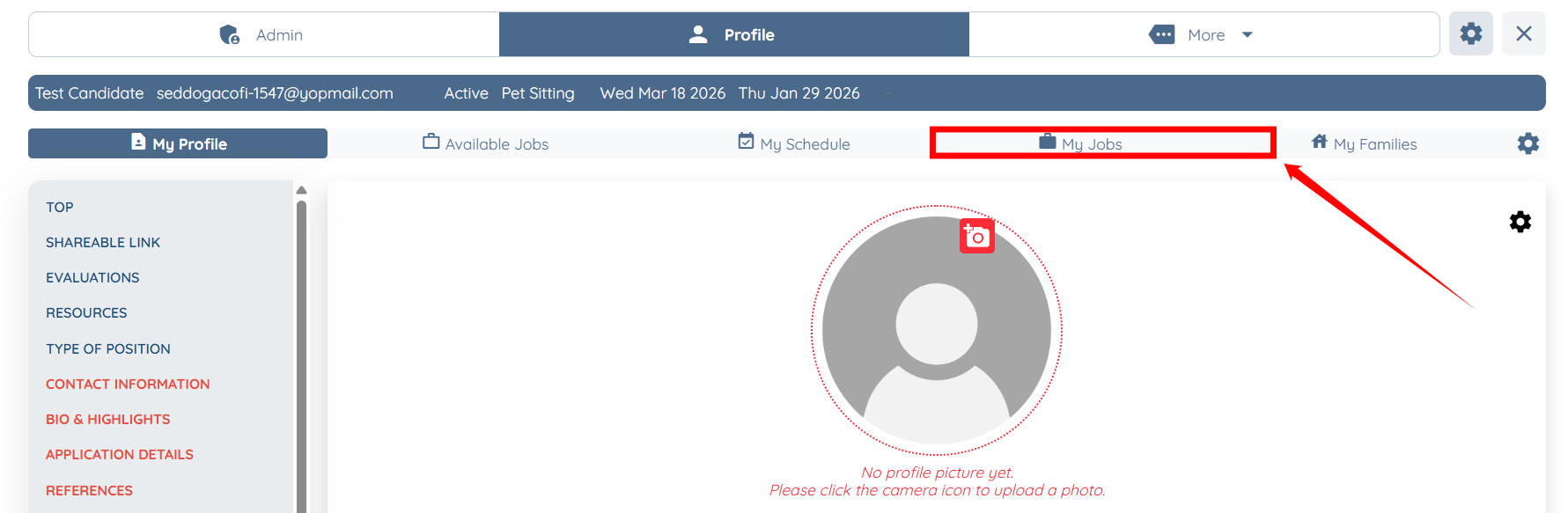
Step 3: Click the My Jobs tab from the list of available tabs.
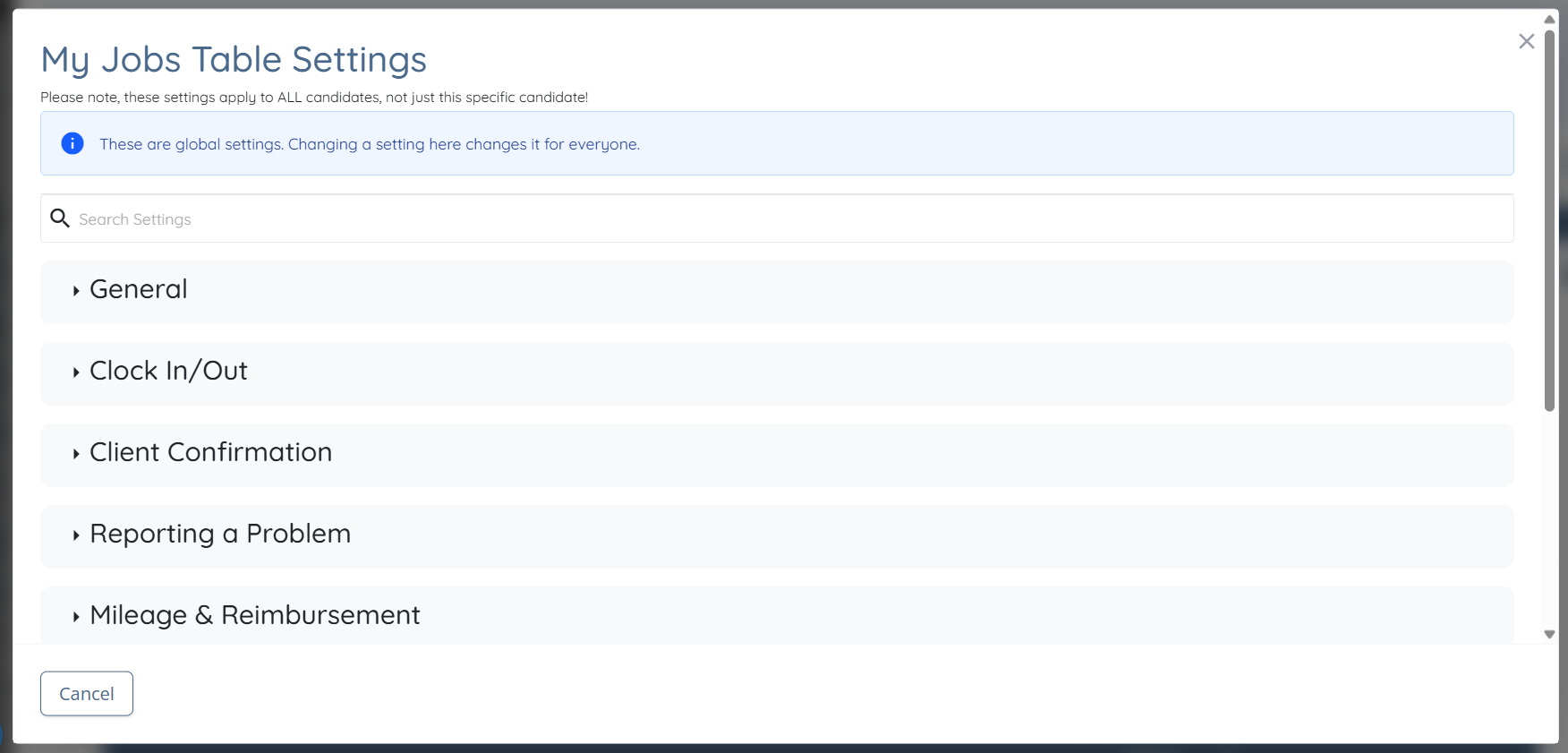
Step 4: Click Customize Candidate experience settings with upcoming jobs button.
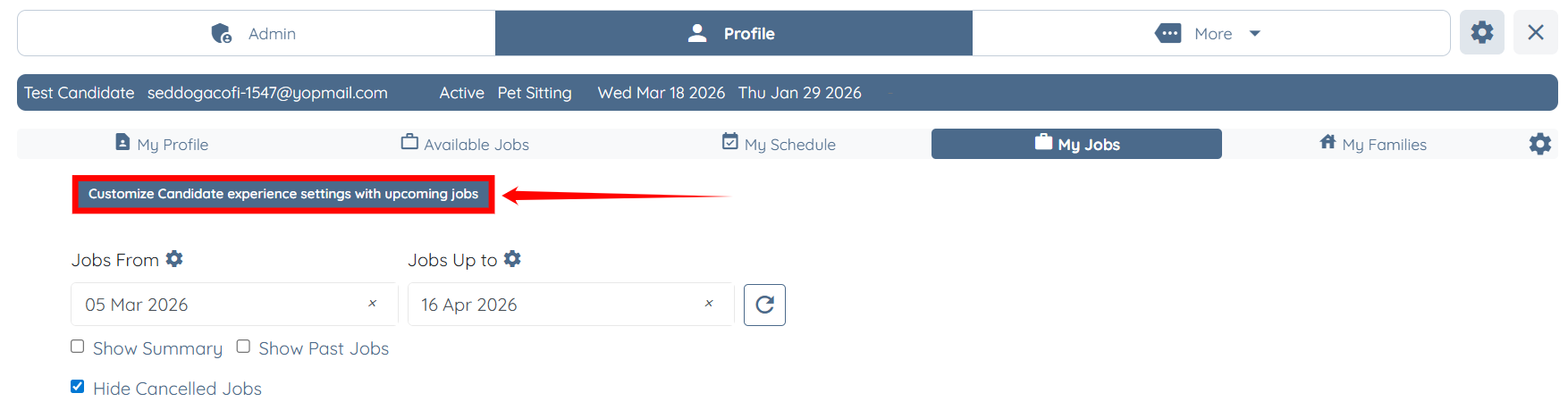
The following options are available in the My Jobs tab. Click on any option to learn more about its settings and configuration.
These are global settings that apply to all candidates. Any changes made here will impact all candidates across the platform, not just a specific individual.
|
S.no |
Option |
Description |
Learn More |
|
1 |
General |
Configure job visibility, table layout, job statuses, and candidate actions such as reviews and job change requests |
|
|
2 |
Clock In/Out |
Control time tracking behavior including clock in/out actions, status updates, location tracking, and restrictions |
|
|
3 |
Client Confirmation |
Allow clients to confirm candidate clock in and clock out actions |
|
|
4 |
Reporting a Problem |
Enable candidates to report issues during jobs and configure notifications and status updates |
|
|
5 |
Mileage & Reimbursement |
Manage mileage tracking and reimbursement settings during or after shift jobs |
|
|
6 |
Candidate Self Job Creation |
Allow candidates to create their own jobs for clocking in and out |
|
|
7 |
Record Breaks & File Uploads |
Enable break tracking and allow candidates to upload files related to shift jobs |
|
|
8 |
Job Reports |
Configure shift job reporting, including submission rules, visibility, and notifications |
|
|
9 |
Location Logger |
Enable location tracking for candidates during job activities |