![enginehire logo thin dark 1.0.png]](https://learn.enginehire.io/hs-fs/hubfs/enginehire%20logo%20thin%20dark%201.0.png?height=40&name=enginehire%20logo%20thin%20dark%201.0.png)
What the backup care assistant does
The backup care assistant is the part of Enginehire that talks to your backup care portal for you. It watches the portal for new reservations, pulls them into Enginehire as shift jobs, and pushes information back the other way when a caregiver is assigned. Instead of copying bookings between two systems by hand, you configure the assistant once and it keeps the two sides in step.
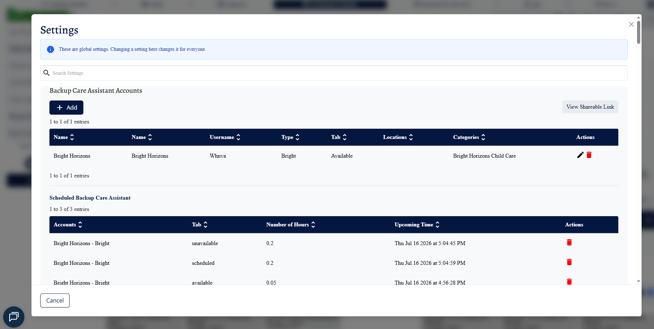
The settings window is where you tell the assistant how to behave: which portal accounts to watch, what status to give jobs as they arrive, what to do when a booking is cancelled, and who to notify when something needs attention.
Before you begin
These are global settings. Changing one here changes it for everyone at your agency, not just for you, and not just for the job you happen to be looking at.
To open the settings window, see How to edit the backup care assistant settings.
Backup care assistant accounts
At the top of the settings window is the Backup Care Assistant Accounts table. Each row is one portal login the assistant signs into on your behalf, and the Type column tells you which system that account belongs to.

Agencies commonly have more than one account per system, usually one per region, so you might see a separate Bright Horizons account for each state you operate in. The Tab column records which tab of the portal that account is responsible for watching, and Locations and Categories let you route the jobs from that account to a particular Enginehire location or booking category as they arrive.
Use Add to create a new account, the pencil icon to edit an existing one, and the trash icon to remove one. View Shareable Link produces a link you can pass to someone else.
How often the assistant runs
Below the accounts table, the Scheduled Backup Care Assistant table shows the assistant's polling schedule. These rows are created automatically when the assistant runs, so you don't build this table yourself. Each row pairs an account with a tab it watches, how often it checks, and when it's next due to run.
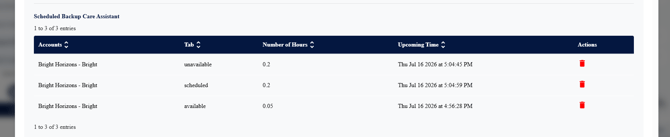
Different tabs are checked at different rates because they carry different urgency. A tab holding jobs that need filling right now is checked far more often than a candidate list that only needs a refresh a couple of times a day.
Three checkboxes control when the assistant is allowed to run at all. Only run the assistant during these hours restricts it to a window you define, which is useful if you don't want jobs arriving overnight when nobody is available to act on them. Location and Date Controls narrows what the assistant picks up by location and date. Disable Backup Care Assistant stops it entirely.

For more on scheduling, see Run the back up care assistant during specific hours / days and times.
Checking for name mismatches
Check mismatch candiate names between EH and BH is a button rather than a setting. Click it and it runs a report showing caregivers whose names don't match between Enginehire and the Bright Horizons portal.
This matters because the assistant matches caregivers between the two systems by name. When the names don't match, the assistant can't assign the caregiver in the portal, and the job ends up in a mismatch status instead. Running this report periodically lets you catch those before they cause a failed assignment.
When a job arrives from the portal
When the assistant finds a new reservation, several settings decide what the resulting Enginehire shift job looks like.
Status to set jobs pulled by the backup care assistant to gives every incoming job its starting status. Backup Care assistant section builder decides which section of your job form the portal data is written into, and Select field for backup care assistant job id decides which field stores the portal's own reference number for the booking, which is what lets the assistant recognize the same job later.
The assistant also needs a client to attach the job to. Client to assign backup care jobs to when created lets you nominate a single placeholder client to hold every incoming booking. If you leave it empty, the assistant creates a new client account for each one as their jobs come in. Where new clients are created, Status to set client to when created gives them a starting status, and Types to set clients to when created gives them a type. Bright Horizons agencies get two more specific controls, one for childcare clients and one for elderly care clients, so the two can be typed differently. When a job is created by the backup care assistant, set the client address to the job address copies the care location onto the client record, and Update the client contact information from the BH keeps client contact details in step with the portal.
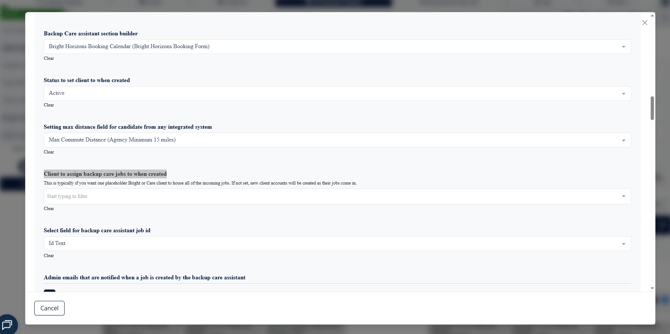
A few settings shape the job itself as it lands. Run job price calculation when job is created by the backup care assistant applies your pricing rules to the new job automatically. If the job zip code is included in the zip code list for a location, assign that location to the job routes jobs to the right location based on the care address. Booking Category to apply to BH job if elderly care separates adult care bookings into their own category. Amount of incentive for zip codes and booking category adds an incentive to jobs in particular zip codes or categories, and can be left empty if you don't offer one. Setting max distance field for candidate from any integrated system tells the assistant which field on the candidate record holds their maximum working distance, so it knows how far each caregiver is willing to travel.
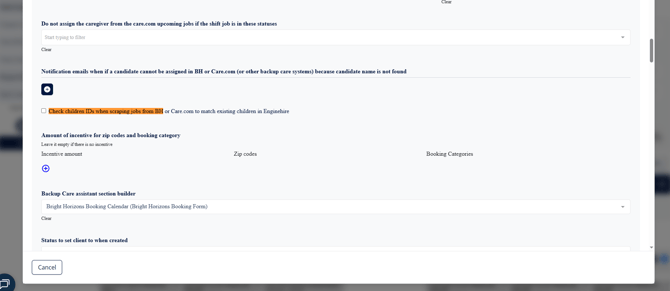
Check children IDs when scraping jobs from BH or Care.com to match existing children in Enginehire matches care recipients on the booking to children already on file rather than creating duplicates.
When a caregiver is assigned
Assignment can happen in either system, and the assistant can carry it across to the other one.
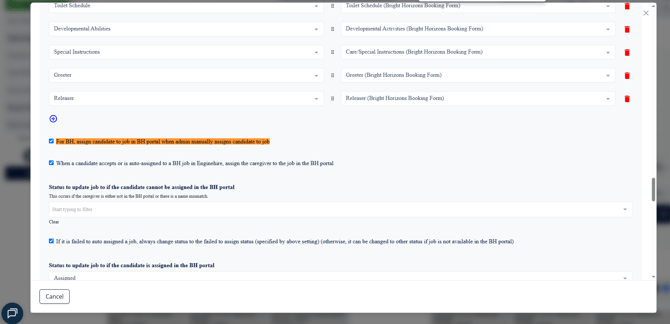
For BH, assign candidate to job in BH portal when admin manually assigns candidate to job covers the case where a coordinator assigns someone inside Enginehire, and When a candidate accepts or is auto-assigned to a BH job in Enginehire, assign the caregiver to the job in the BH portal covers the case where the caregiver accepts a broadcast themselves. Both push the assignment out to the portal. Assign the caregivers from the BH scheduled tab works in the opposite direction, bringing assignments made in the portal back into Enginehire.
Assignment in the portal can fail, most often because the caregiver isn't in the portal at all or because their name doesn't match. Status to update job to if the candidate cannot be assigned in the BH portal decides what status the job gets when that happens, and Status to set to job if the caregivers from BH scheduled tab not existed in EH does the same for the reverse direction, when the portal has a caregiver Enginehire doesn't recognise. Both are commonly set to a mismatch status so these jobs can be found and fixed.
The four Unassign the job in Enginehire if the candidate cannot be assigned in the portal checkboxes decide what happens in Enginehire when that push fails. With them on, Enginehire releases the caregiver rather than leaving them booked against a job the portal doesn't think they have. There are four because the assignment can originate from the caregiver or from an admin, in either the Bright Horizons or the care.com portal.
Where assignment succeeds, Status to update job to if the candidate is assigned in the BH portal sets the resulting status. A separate after hours version of that setting exists so that assignments made outside your normal hours can be given a different status, with the window itself defined by After hours BUC portal booked start time, end time and time zone.
Two settings act as brakes. List of job statuses will not be changed after assigning in BH portal protects jobs already in a status you don't want touched, and Do not assign the caregiver from the BH scheduled tab if the shift job is in these statuses stops the assistant pulling portal assignments into jobs that have moved on.
For more on how the assistant chooses between available caregivers, see Configure caregiver auto-assignment priority.
When a job changes in the portal
A booking can leave the portal before or after a caregiver is assigned, and the assistant treats the two differently. Two settings cover the two situations.
| What happened in the portal | Setting | Default |
|---|---|---|
| The booking disappeared from the Available tab before anyone was assigned | Status to update job to if it is removed from the available tab of BH portal | No longer available |
| The booking disappeared from the Scheduled tab after a caregiver was assigned | Status to update job to if it is removed from the scheduled tab of BH portal | Cancelled |
The distinction matters because a booking pulled after a caregiver was scheduled needs the caregiver notified and may be chargeable, while one that left before anyone was booked usually needs no follow-up. Giving them different statuses is what lets you tell them apart in Enginehire. If you leave either setting empty, the default for that setting is used.
The assistant no longer reads the portal's Unavailable tab, so it no longer distinguishes a cancelled booking from one marked Confirmed Elsewhere. The information in that tab has proven unreliable, and bookings that leave the Available tab for either reason now receive the same status.
List of job statuses which will not be changed to the above status when the job is removed from the BH portal protects jobs you've already put in a status of your own. If you track portal cancellations with a custom status, add it here so the assistant doesn't overwrite it once you've set it.
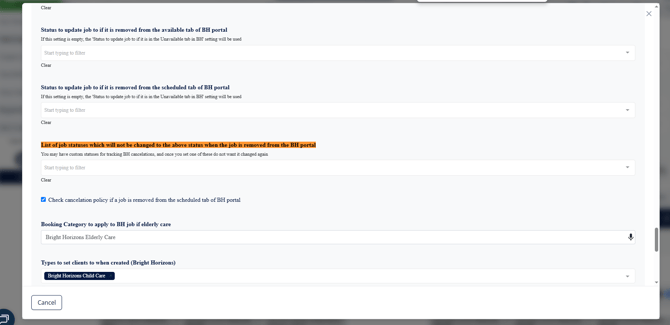
Check cancelation policy if a job is removed from the scheduled tab of BH portal applies your cancellation policy when a scheduled booking is pulled, which is what decides whether the cancellation is chargeable.
For a walkthrough of one of these settings, see Status to update job to whenever a reservation leaves the portal.
When a job goes unfilled
Status to update to if a pulled job is unfilled after X hours moves a job that nobody has taken into a status you choose, and Number of hours to change job status if a pulled job is unfilled sets how long the assistant waits first. Together they surface jobs that are quietly going nowhere, so they can be escalated rather than sitting unnoticed until the shift starts.
Broadcasting
By default, jobs created by the assistant are broadcast to caregivers using your existing auto-broadcast settings. Do not auto broadcast jobs from the backup care assistant turns that off, which is what you want if you'd rather review incoming bookings before caregivers see them.
The broadcast settings themselves live outside this window. See Find all auto-broadcast settings and How to send automatic broadcastings for bookings.
Notifications
Admin emails that are notified when a job is created by the backup care assistant sends a note to whoever you list every time a booking arrives.
Notification emails when a candidate cannot be assigned in BH or Care.com because candidate name is not found is the one to pay attention to. It's the alert that a caregiver's name doesn't match between the two systems, which is the most common reason an assignment fails. Adding an address here means someone hears about it rather than the job quietly sitting in a mismatch status.
Notify candidates when the backup care assistant creates new jobs, Notify candidate if back up care job has been changed and Notify admin that the back up care job has been changed cover changes to bookings after they've arrived.
Candidates from the portal's active list
The assistant also reads the caregiver list from your portal. Status to set candidates from any integrated system's active candidates list gives those caregivers a status in Enginehire.
Two settings stop that overwriting decisions you've already made. Do not revert candidates from any integrated system's active candidates list to Inactive status if their status is manually changed protects a caregiver whose status you've set by hand, and Do not change candidate status to Active when scraping a candidate from any integrated system's active list stops the portal reactivating someone you've deliberately made inactive.
Field mapping
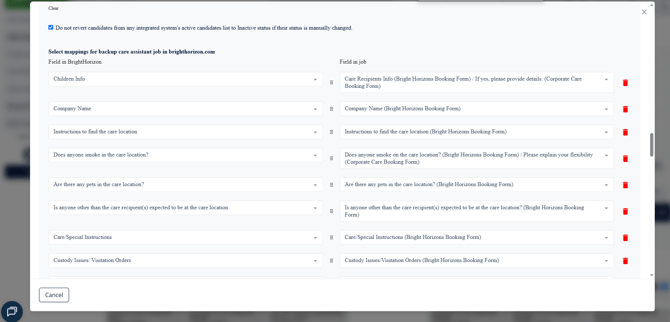
The Select mappings for backup care assistant job section decides which portal information lands in which Enginehire field. The left column is the field in the portal, and the right column is the field on the Enginehire job it's written into.
This section is built per agency, so the rows you see depend on which information your agency wants carried across. Use the plus icon to add a mapping, the handle to reorder, and the trash icon to remove one. Common mappings cover the details a caregiver needs before they arrive: allergies, special instructions, sleeping and toilet schedules, who greets them and who releases the child, and whether there are pets at the care location.
Because this section is configured rather than fixed, don't assume a field is being carried across just because the portal collects it. If a caregiver is missing information you'd expect them to have, check whether a mapping for it exists here.
Tags
Three settings tag jobs automatically based on what the portal reports, so that a job's requirements are visible at a glance and can be used when broadcasting.
If the pets field includes "Cat", the job is tagged Cats. If it includes "Dog", the job is tagged Dogs. If the Diagnosed Special Needs / Medical Conditions field is anything other than "None", the job is tagged Special Needs. Each tag name is editable, so change it if your agency uses different tag names.
Integration-specific settings
The settings below only appear once the relevant integration is configured for your agency.
MyJovie
MyJovie agencies get settings that identify MyJovie records — Select job field for MyJovie ID and Select job field for MyJovie Account Name — along with Select candidate status for MyJovie Pre-Orientation flag.
For MJ, create a job in MJ when a job is assigned in EH pushes assigned jobs into MyJovie, and When creating a job in MyJovie, create a new client if it does not exist in MyJovie creates the client alongside it where one isn't already there. A group of fee and wage type settings decides how those jobs are priced, with separate values for elderly care and for jobs with three, four or five children. Map cancel reason in Enginehire with cancelled by in MyJovie lines the two systems' cancellation reasons up, Configure the "Fields in BrightHorizon" to be used for writing notes in MyJovie decides which booking details are written into the MyJovie job as notes, and a notification email address can be set for when job creation fails.
For more, see MyJovie settings.
AxisCare
AxisCare agencies get Select job field for AxisCare ID, which decides where the AxisCare reference is stored, and For AxisCare, create a job in AxisCare when a job is assigned in EH, which pushes assigned jobs across. Select pet field for AxisCare identifies the AxisCare field holding pet information, and Map Caregiver Preferences (Favourites & Do Not Send) carries a client's caregiver preferences over, so that favourites and do-not-send lists are respected.
care.com
care.com settings behave differently to the others: they appear whether or not your agency has a care.com account configured. If you don't use care.com, the care.com settings in this window don't apply to you and can be ignored.
KanTime and WellSky
See KanTime settings and WellSky settings.
If this doesn't answer your questions you can always contact us by clicking here.