![enginehire logo thin dark 1.0.png]](https://learn.enginehire.io/hs-fs/hubfs/enginehire%20logo%20thin%20dark%201.0.png?height=40&name=enginehire%20logo%20thin%20dark%201.0.png)
1. Click on a client file
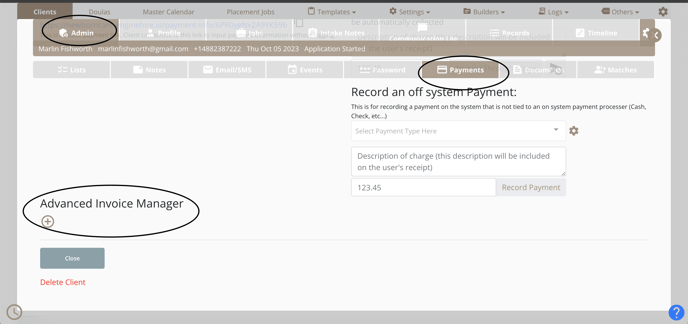
2. Click on the admin tab
3. Slightly scroll down and click the payment section
4. Click the + button to create an invoice
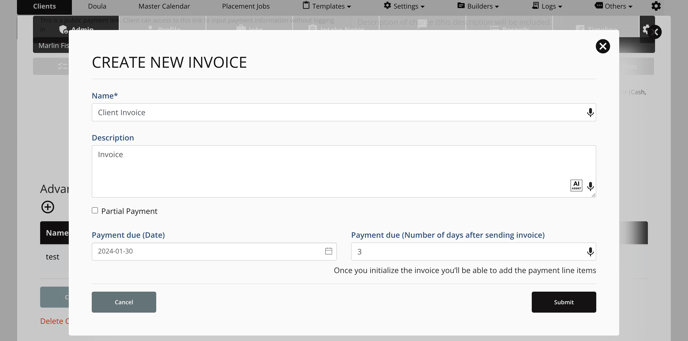
5. Fill in all the required fields and click submit (if you would like to set up a partial payment, make sure to check off partial payment)
6. Now that you have created your invoice, you can now add line items by clicking on manage invoice items. 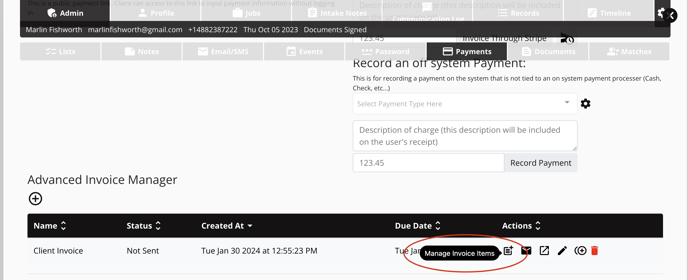
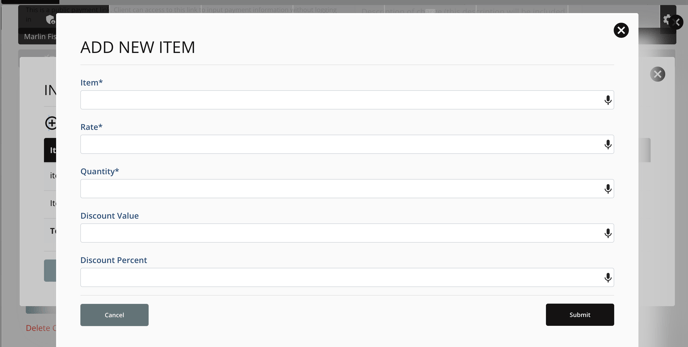
7. Click the + icon "Add Item".
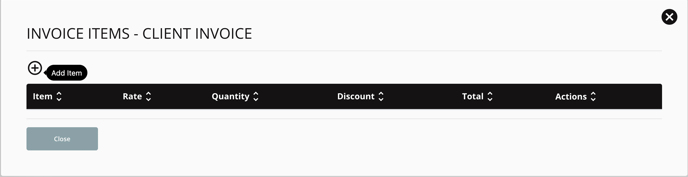
- fill in all the required fields, and click submit.
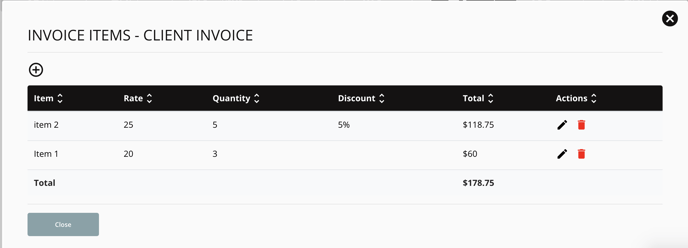
8. Click on the mail icon to send the invoice to the client.

- To learn how to edit this email template and how to create an invoice reminder email template, watch the video below:
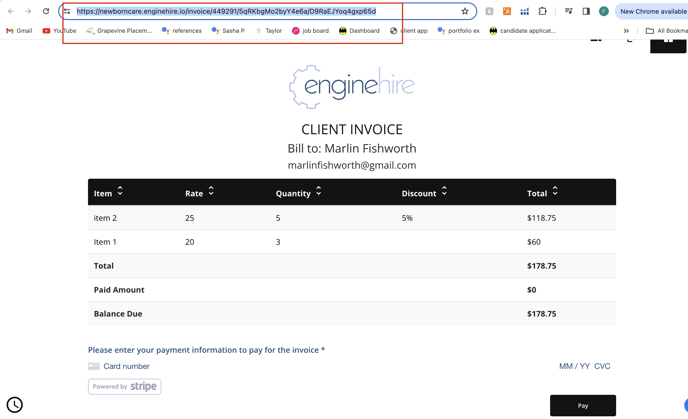
9. You can also click to view the invoice page.

- Once you're on the invoice page, you can copy and paste the URL to share the invoice.
- If the client has their payment information on file, they can click pay.
- If the client does not have their payment information on file, they will be asked to put in their information as shown below.
10. You can edit the invoice by clicking on the pencil icon.

11. You can duplicate an invoice by clicking the icon shown in the picture below. 
12. To set up partial payments watch the video below: