![enginehire logo thin dark 1.0.png]](https://learn.enginehire.io/hs-fs/hubfs/enginehire%20logo%20thin%20dark%201.0.png?height=40&name=enginehire%20logo%20thin%20dark%201.0.png)
Please make sure your Stripe API keys are put in. Must be done before sending an invoice. https://learn.enginehire.io/en/knowledge/how-to-get-stripe-api-keys
1. In your dashboard, select the Clients Tab.

2. Select the Client that should receive and invoice.
3. From the Admin screen.

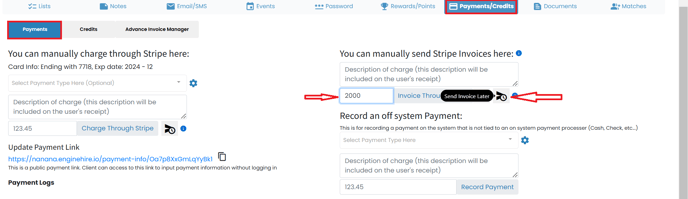
In the second row, select Payment/Credit.

4. In Payments tab -> Enter the amount you want to schedule a invoice and click on a button with arrow and little timer. Please refer the attached image.
5. It will open a popup to select a time to schedule a invoice - Select appropriate option. You can also select specific date from future and time.
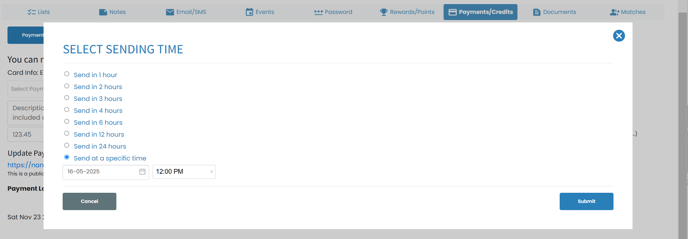
6. Click on the Submit button and it will schedule a invoice.
You can also send invoice / charge client directly, refer this article given below,
Important Note: If the Client has not entered stripe information, invoices can be sent but can not be automatically collected.