![enginehire logo thin dark 1.0.png]](https://learn.enginehire.io/hs-fs/hubfs/enginehire%20logo%20thin%20dark%201.0.png?height=40&name=enginehire%20logo%20thin%20dark%201.0.png)
Step 1:
Once in your dashboard click on any client you wish you add a document. Or, open your candidates tab and click on any candidate you wish you add a document.

Step 2:
In their profile you are automatically opened into the "Admin" tab.
Step 3:
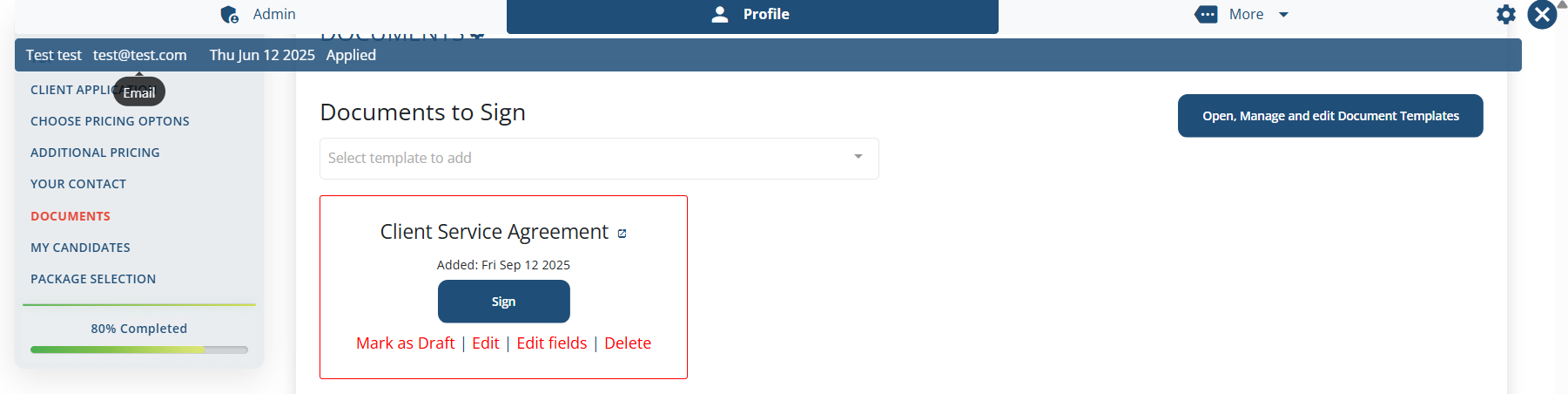
Click on "Documents" tab. Select a document you want to add and Click on "Add" button
.gif?width=688&height=303&name=Adobe%20Express%20-%20Enginehire%20-%2012%20September%202025%20(1).gif)
Result:
Added document will be found under profile -> Documents section.
The following video is from a previous interface but the information is still accurate.