![enginehire logo thin dark 1.0.png]](https://learn.enginehire.io/hs-fs/hubfs/enginehire%20logo%20thin%20dark%201.0.png?height=40&name=enginehire%20logo%20thin%20dark%201.0.png)
Please note that the Group Chat feature is only available if your agency is using the Branded App — it's an exclusive functionality designed to enhance communication between admins, clients, and candidates.
If you don’t currently have the Branded App but would like to learn more, feel free to book a meeting with us here. We'd love to walk you through the benefits!
What is the Group Chat Feature?
With Group Chat, admins can create group conversations that include:
-
Candidates
-
Clients
-
Other administrators
These chats are delivered directly to participants through their mobile apps.
🔧 How to Create a Group Chat:
Step 1: Log in to your Engine platform.
Note: Please ensure the chat feature is enabled by going to More → Global Settings, searching for "Use chat feature", turning it ON, and clicking Update Settings. 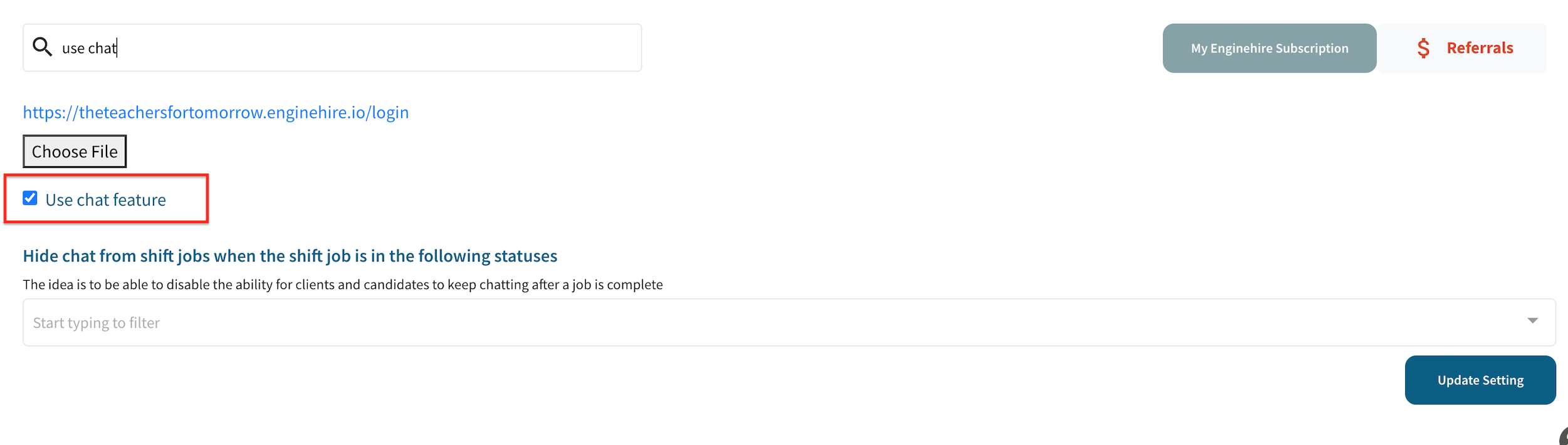
Step 2: Click on the Messages icon at the top right.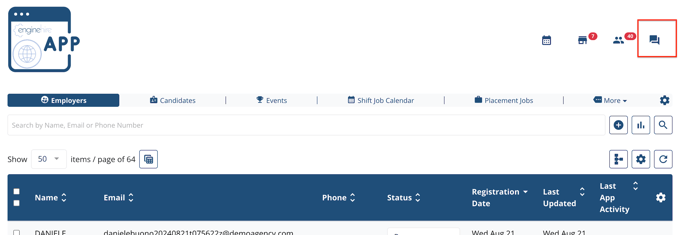
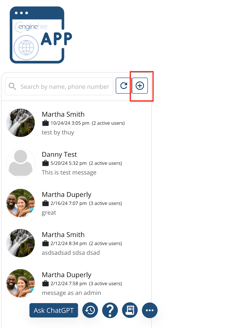
Step 3: Click the Add Message (➕) icon
.
Step 4: Select Group Chat.
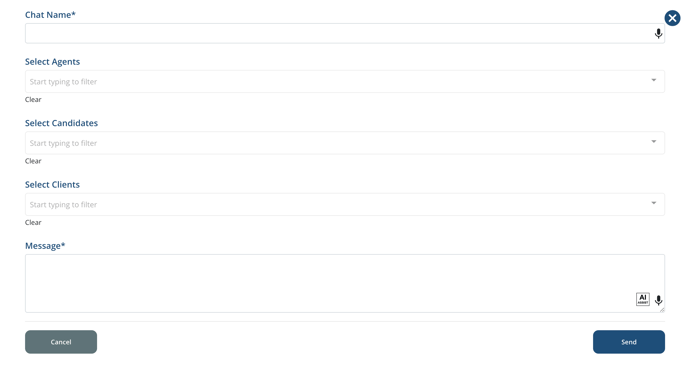
From here:
-
Choose which admin(s) will participate.
-
Select one or more candidates and clients to include in the conversation.
You can add multiple clients and candidates to a single group chat — perfect for coordinating care or sending group instructions.
❓ Need Help?
If you have any questions or would like assistance, please don't hesitate to reach out to our support team — we're here to help!