![enginehire logo thin dark 1.0.png]](https://learn.enginehire.io/hs-fs/hubfs/enginehire%20logo%20thin%20dark%201.0.png?height=40&name=enginehire%20logo%20thin%20dark%201.0.png)
Step 1:
Go to MORE-> Application and Profile Builder
Step 2:
Once there, look for the client or candidate application where you want to add the notification upon form submission and click the settings / gear icon like shown in the screenshot.


Step 3:
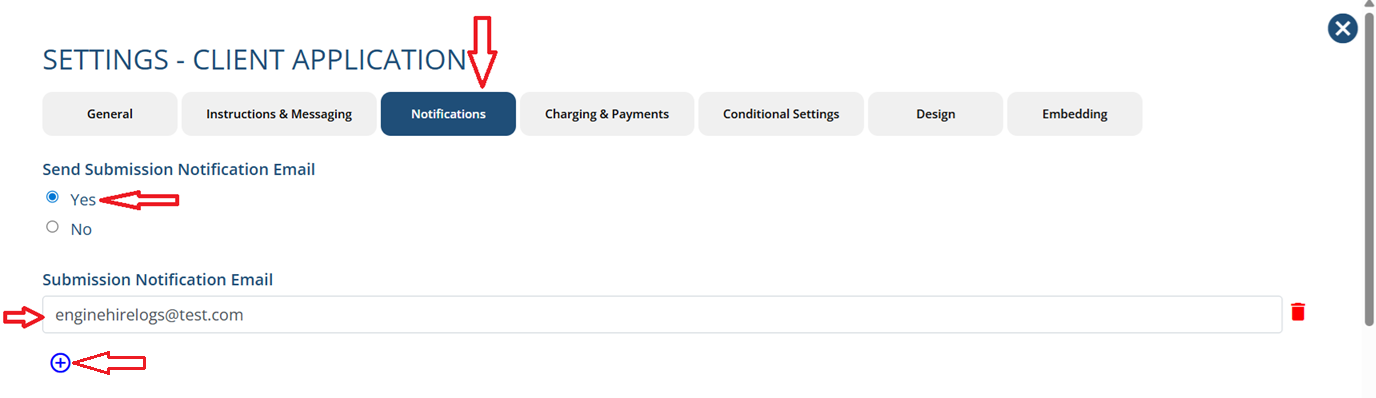
It will open a settings popup window -> Select the "Notifications" tab.
- "Send Submission Notification Email" -> make sure to select "Yes" option
- Using plus icon you can add multiple emails to get notifications
- Enter required email in "Submission Notification Email" textbox
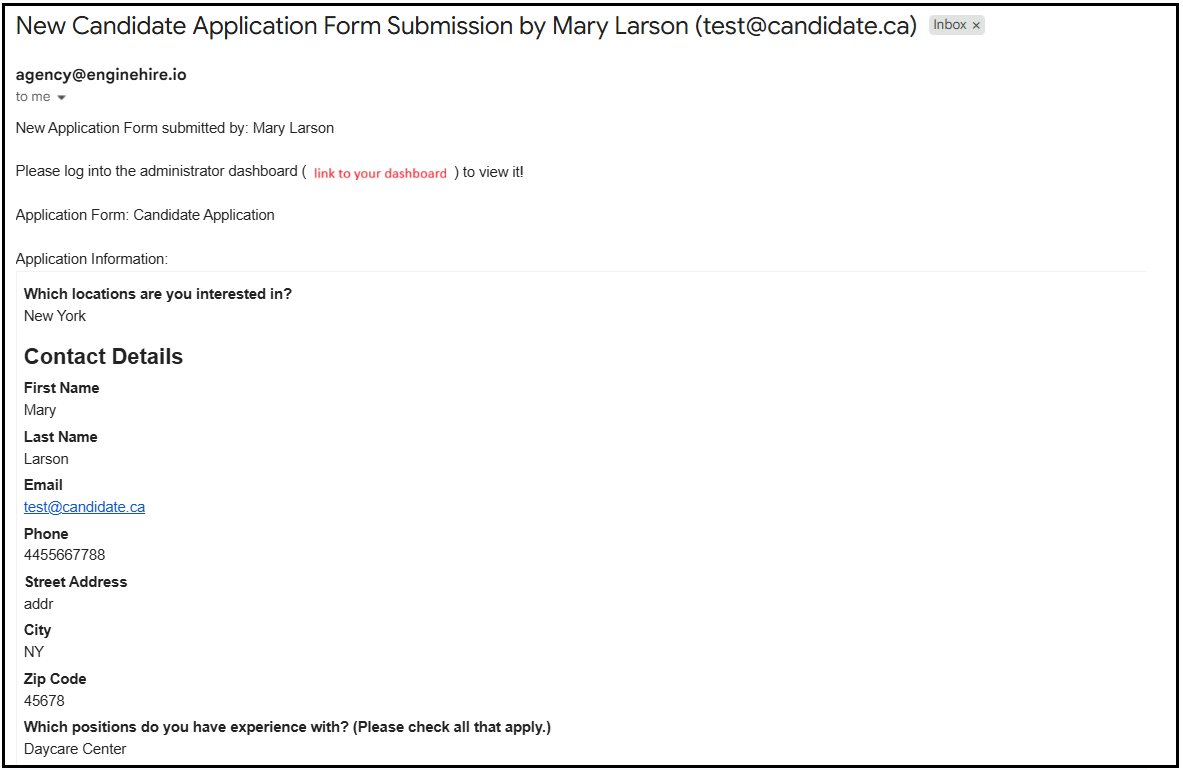
Result: You will get notified upon application submission like this, as shown in the screenshot.
The following video is from a previous interface but the information is still accurate.