![enginehire logo thin dark 1.0.png]](https://learn.enginehire.io/hs-fs/hubfs/enginehire%20logo%20thin%20dark%201.0.png?height=40&name=enginehire%20logo%20thin%20dark%201.0.png)
Booking form - It is a form used to create a shift job. You can pick selected fields from the booking form to be visible to candidates in the available shift job. Follow the steps given below,
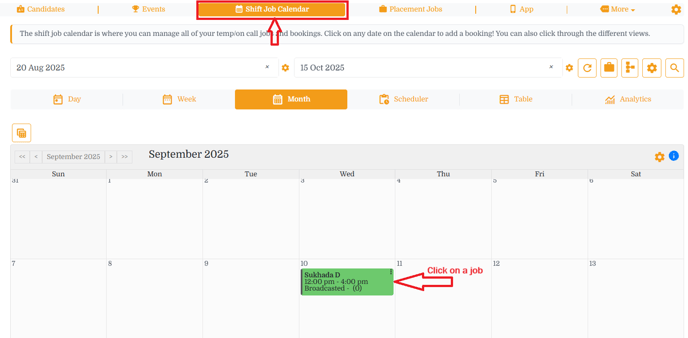
Step 1: Go to "Shift Job Calendar" from main menu
Step 2: Click on any shift job - It will open a shift job details in a popup window
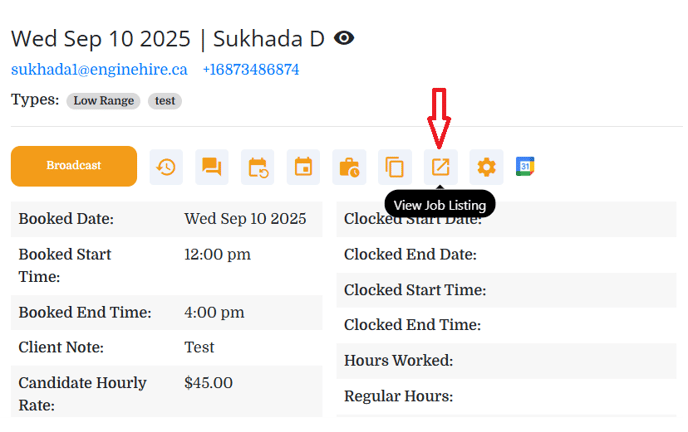
Step 3: Look for the "open in new window" icon and click on it. It will open a job listing page.
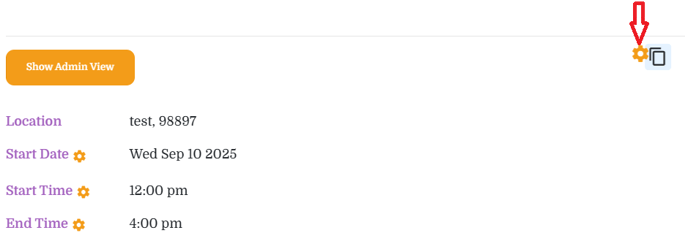
Step 4: On job details page - click on gear / settings icon. It will open a popup window.
Step 5: Scroll down and look for setting options,
- Shift job fields to show to candidate - Unlock fields for non-users
-
Shift job fields to show to logged-in candidate - Unlock fields for logged-in users
-
Shift job fields to show to assignee - Unlock fields for assigned candidates
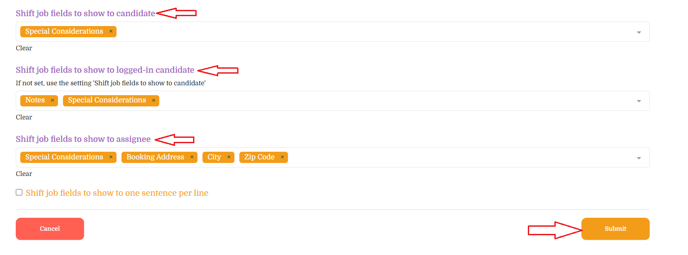
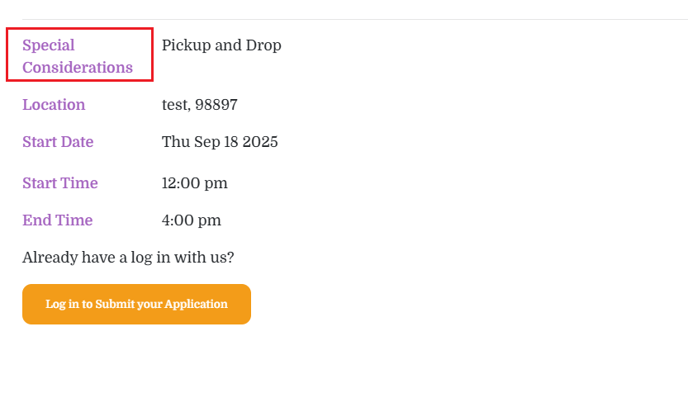
Result: Candidate will see booking form information depending on their status (non-user, logged-in candidate, assigned candidate). Here the example shows for the non-user,
The following video is from a previous interface but the information is still accurate.