![enginehire logo thin dark 1.0.png]](https://learn.enginehire.io/hs-fs/hubfs/enginehire%20logo%20thin%20dark%201.0.png?height=40&name=enginehire%20logo%20thin%20dark%201.0.png)
Step 1: Go to "Candidates" from main menu
Step 2: Click on any candidate - It will open a popup window
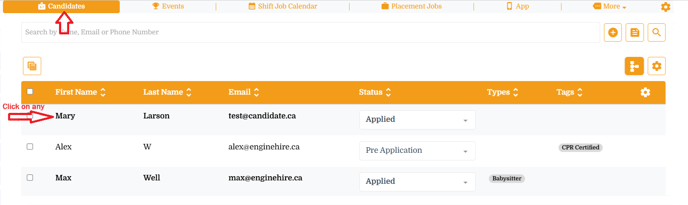
Note - Changing this setting for one will impact all candidates!
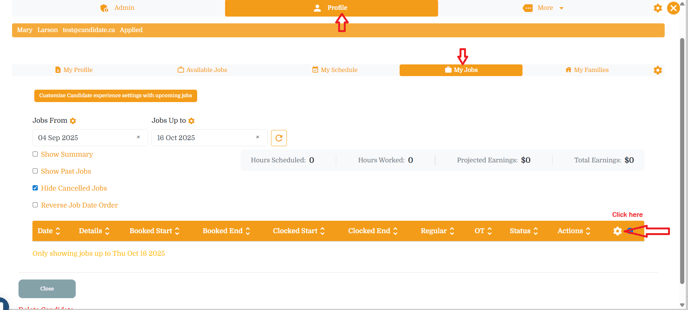
Step 3: Click on "Profile" tab and then select "My Jobs" from secondary tab
- Look for the gear icon which is located in right corner table headers - it will open a settings window
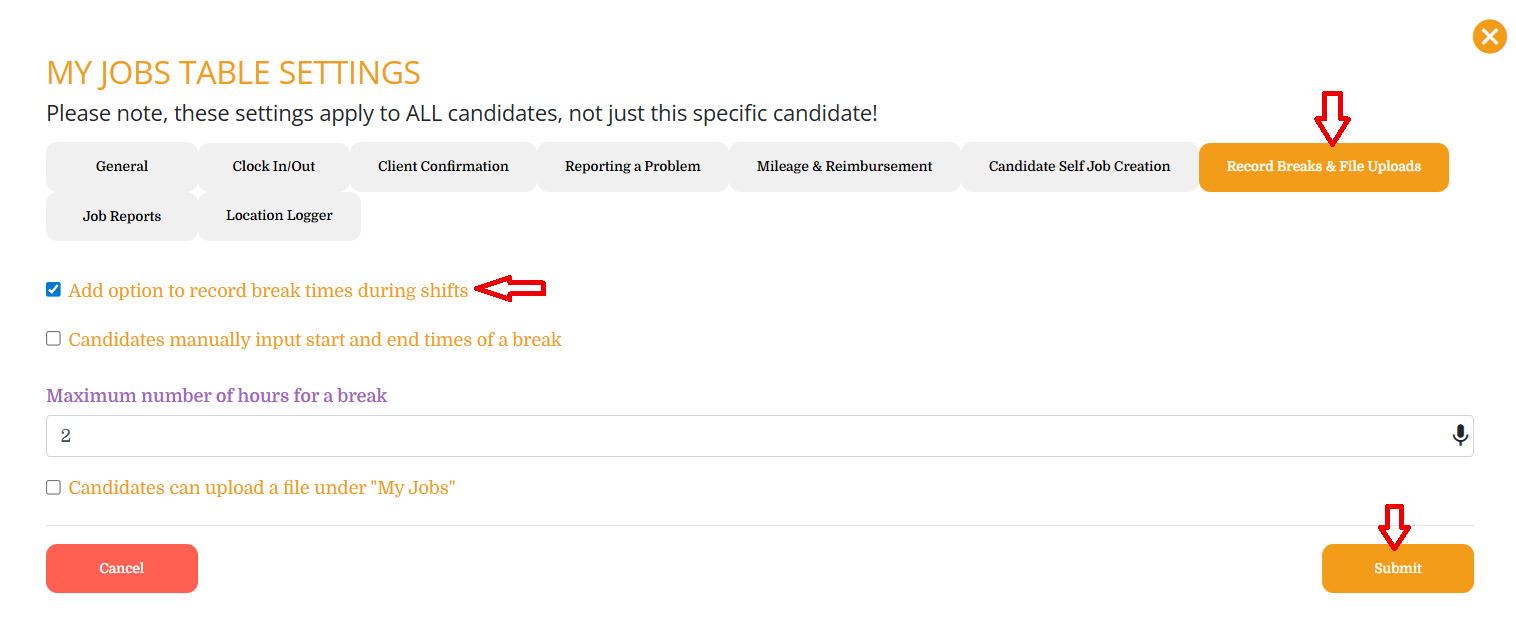
Step 4: Select the "Record Breaks & File Uploads" tab
- Add option to record break times during shifts - Check this setting
Step 5: Click on "Submit" button to save the changes.
Result
1. When a candidate is clocked into a position there is an option to "Start a Break".
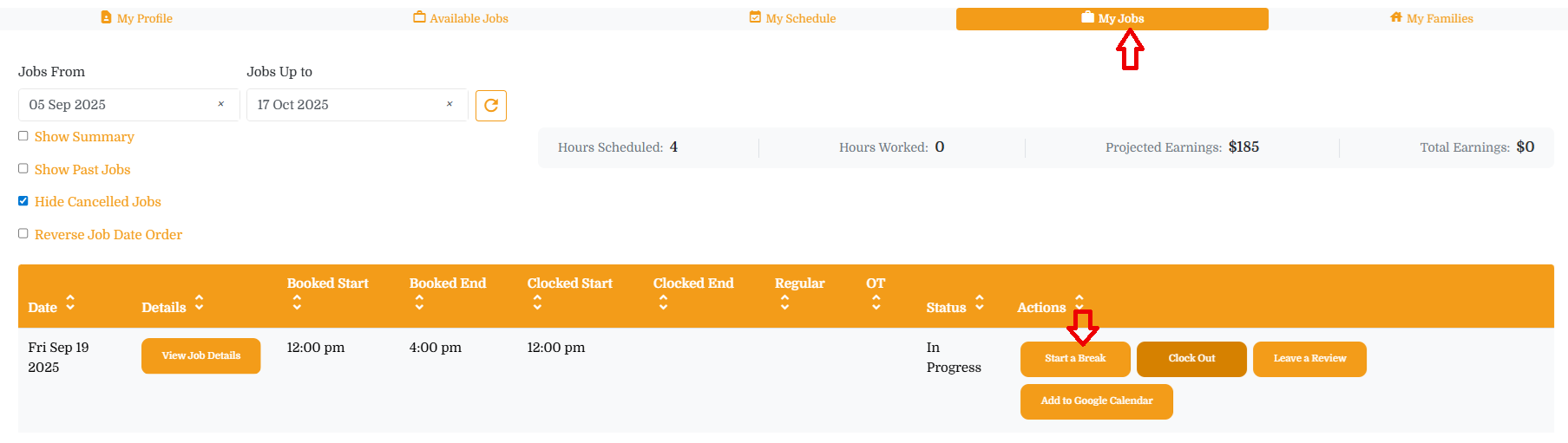
2. When click on "Start a Break" button - it will open a popup to add a note and hit the button "Start" to start a break.
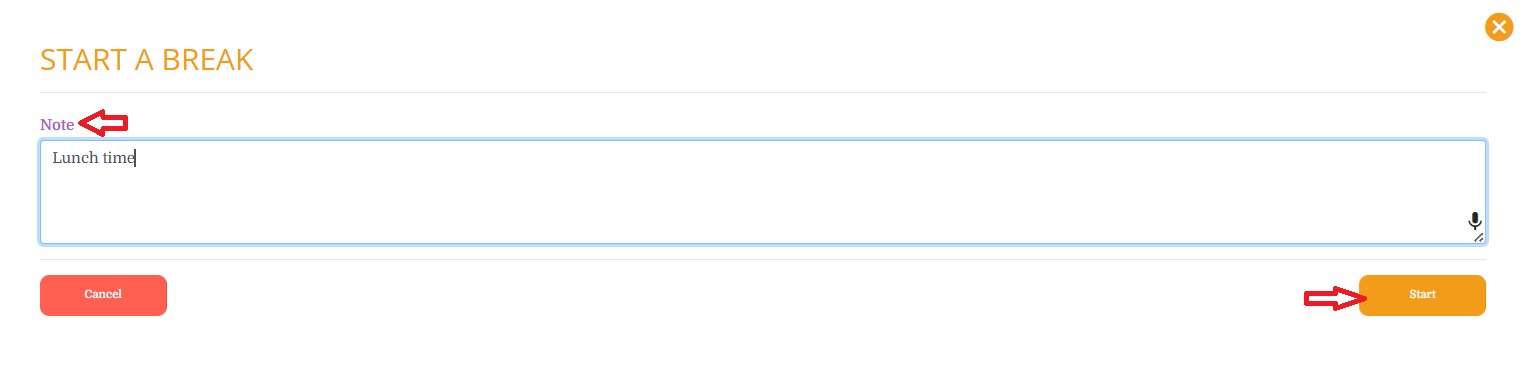
Then candidate will see the option to "Stop a Break" - once the break over hit this button and it will ask a prompt to confirm - "Are you sure you want to stop the break?" and click the button "Yes" to stop a break.

3. Admin can track the duration of a break by adding Break(s) into the Shift Job Table View.

Breaks are unpaid time & taken out of compensation & not included in KPI analytics. The following video is from a previous interface but the information is still accurate.