![enginehire logo thin dark 1.0.png]](https://learn.enginehire.io/hs-fs/hubfs/enginehire%20logo%20thin%20dark%201.0.png?height=40&name=enginehire%20logo%20thin%20dark%201.0.png)
AI phone call templates are how you build voice agents in Enginehire. Each template is its own agent, with its own voice, instructions, and tools, so you can run several at once: for example, one that calls newly added candidates and another that answers when existing clients call in.
Every template has a call direction. Outbound templates place calls from your agency to candidates, clients, or references, triggered by their status. Inbound templates answer calls made to your agency's AI voice agent number.
This guide covers the full setup: your agency's AI voice agent settings, Google Calendar booking, the options on outbound and inbound templates, drafting prompts with the AI Assistant, and reviewing each call afterward.
Configuring an AI agent doesn't activate it on its own. When your setup is ready, contact support to connect your system to the AI agent and complete activation.
Set up your agency's AI voice agent settings
Some settings apply to your AI voice agent as a whole rather than to one template. To find them, click More > Global Settings (old) > Integrations, and expand AI Voice Agent Integration.
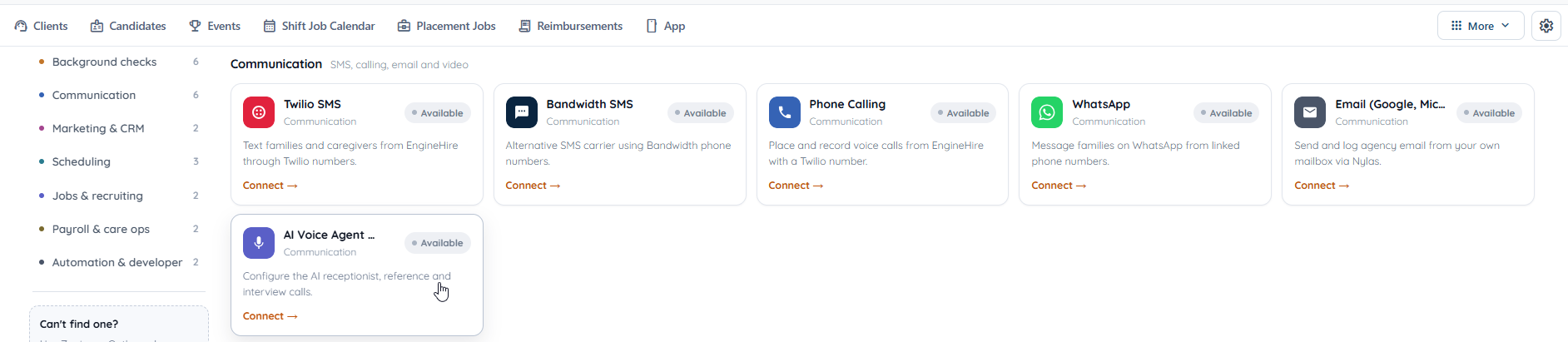
The section includes your AI voice agent's phone number, which is also the number people call to reach it, and the ID that links that number to the voice service. Both are set up when your AI voice agent is activated, so if either one is empty, contact Support.
Next, choose a voice for your voice agent and a voice for your AI receptionist. The AI receptionist is the first agent a caller hears when they call your AI voice agent number. It works out why they're calling and passes the call to the right inbound template, as explained in the inbound section below.
Who speaks first when the call is connected sets whether the AI agent or the caller starts the conversation. You can also set the voice and who speaks first on each template.
In Add Support, enter the phone number for live transfer; the number calls should go to when the agent hands a caller over to a person, for example, when someone asks to speak to a human. You can also upload an audio file to play while the transfer connects, then play it back or delete it from the same place. For step-by-step instructions, see Configure Live Call Transfer for AI Voice Calls.
Click Save Configuration when you're done.
Connect Google Calendar so your AI voice agent can book meetings
Two tools, Check calendar slots and Book calendar meeting, let an agent find an open time and book a meeting on your Google Calendar. They need a connected calendar to work, so set this up before you add them to a template.
First, pick one of your agency's administrators to be the booking host. Log in to Enginehire as that administrator and connect Google Calendar using the same email address. The connection steps are in Integrate Google Calendar into Enginehire.
Then go back to AI Voice Agent Integration, enter that email in AI Voice Agent Booking Host Email, and check Enable Google Calendar Integration (Offline Access). Two more fields shape the bookings themselves. The meeting duration sets how long each meeting lasts, in minutes. The meeting buffer sets a gap between meetings: with a 30-minute buffer, for example, the agent leaves 30 minutes between a new meeting and the one before it. Click Save Configuration.
Make sure your agency timezone is set correctly too, so meetings are booked at the right time. See Set the Agency Timezone.
Create an AI phone call template
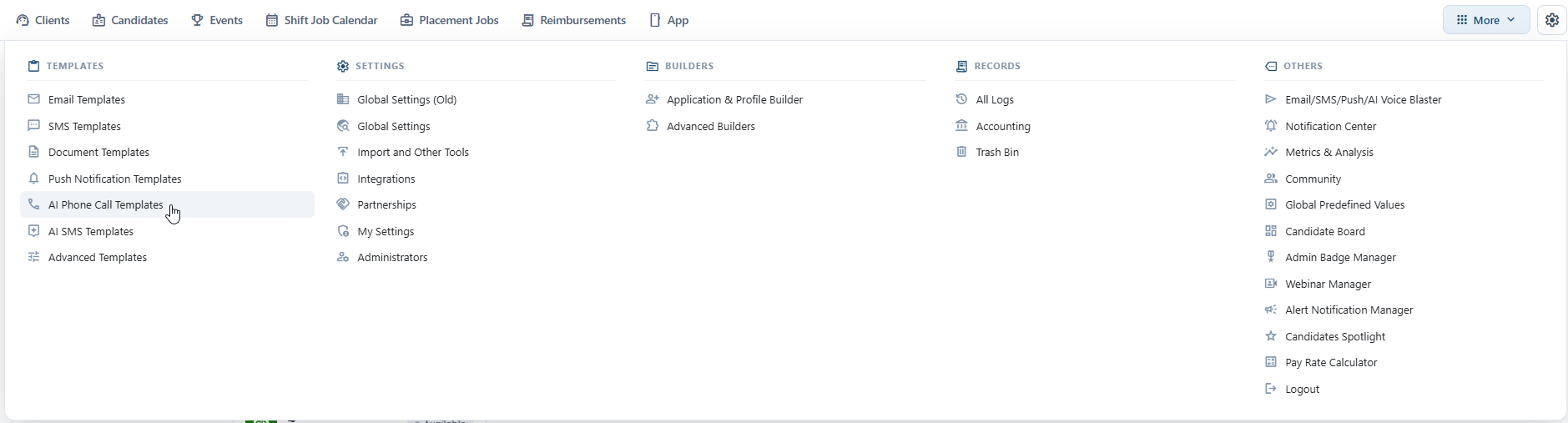
Click More > AI Phone Call Templates. Your existing templates are listed here with their user type, trigger and statuses, and you can edit or delete any of them from the Actions column.
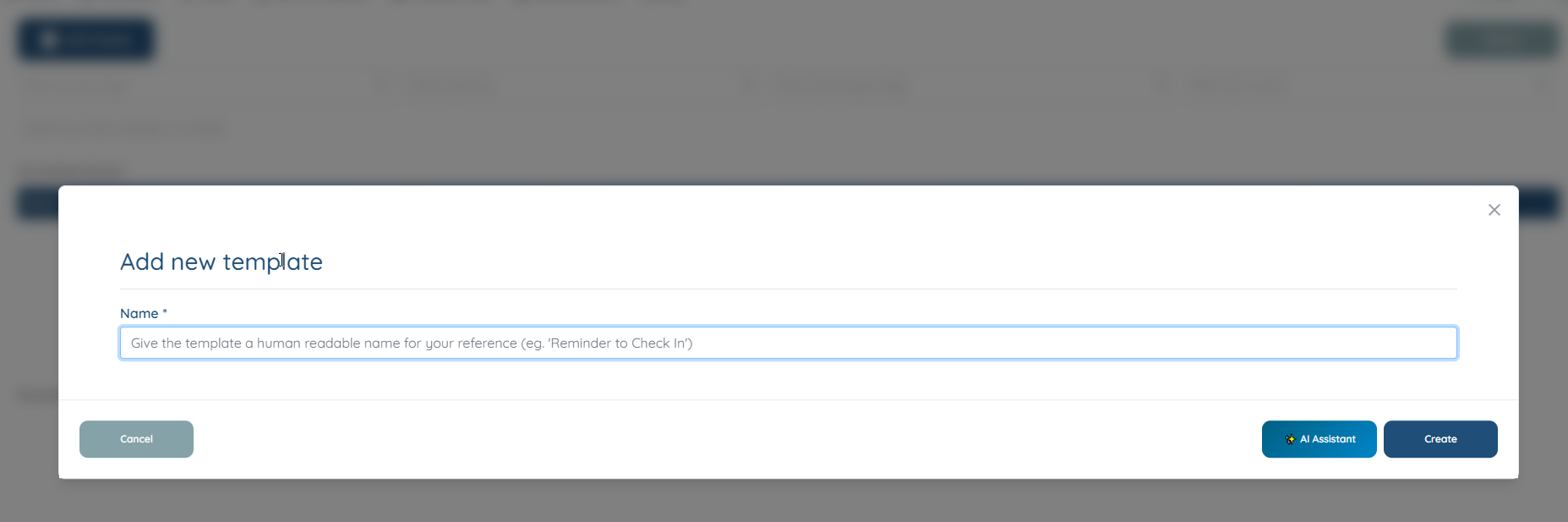
Click Add Template, give the template a name your team will recognize, and choose its call direction: Outbound for calls your agency places, or Inbound for calls your agency receives. The rest of the form depends on the direction, so the next two sections cover each one. When everything is filled in, click Create.
Outbound AI phone call template settings
Start with who the agent calls and when. Set the type to Candidate, Client or Reference, then choose the trigger: a status change notification or a status reminder, which work like the matching triggers on your email templates. Use Categories and Status to set exactly which records the template applies to. Leave Categories blank to include every category.
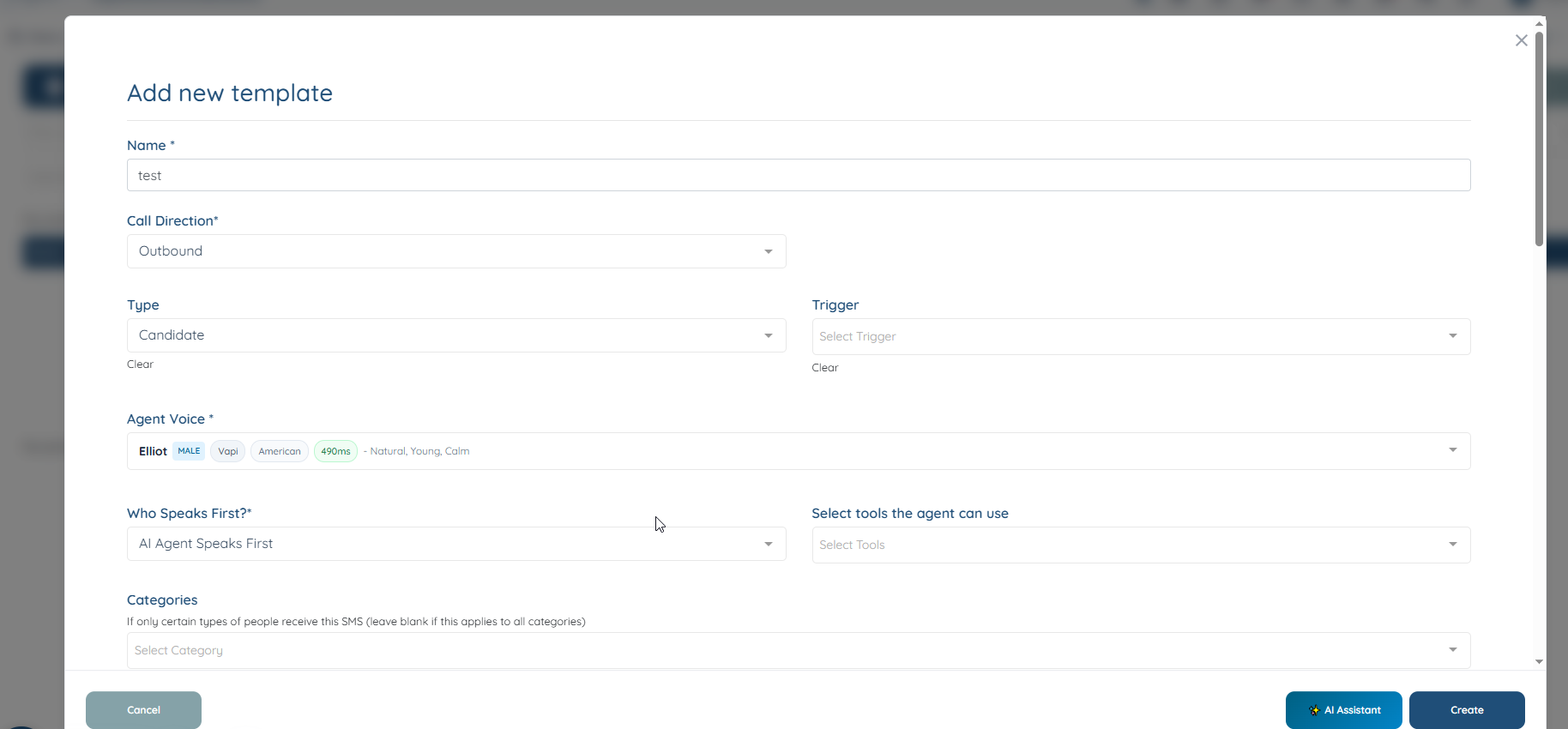
Next, choose how the agent sounds and behaves. Each option in Agent Voice lists details such as gender and accent, along with a short description of the voice. Who Speaks First? decides whether the agent or the person who answers opens the conversation. In Select tools the agent can use, pick the actions the agent can take during the call, such as transferring the call to your team or booking a meeting. Every tool is described in the tools section further down.
In Notification email, add the addresses that should get an email when a call is completed. You can add more than one.
The retry schedule prompt tells the agent, in plain words, what to do when nobody picks up. For example, you might ask it to try again after 5 minutes, then after an hour, then 24 hours later. There's also a setting that emails your notification addresses when the agent still can't reach the person after its maximum number of tries, so your team can follow up.
The prompts are the heart of the agent. The first message is its opening line. The system prompt describes who the agent is, what the call is for and how it should handle the conversation. The end call message is what it says before hanging up. If a call goes to voicemail, the agent can leave a message too, and you write what it should say. You can write all of these yourself or have the AI Assistant draft them, as described below.
The last options depend on the type. Candidate templates have none. On a client template, you can add the client's profile to the system prompt and choose which profile sections the agent should see, which gives it useful context during the call. On a reference template, you can have the agent ask the questions from your reference check form.
Finally, add a structured output schema if you want the agent to pull specific details out of each call. It has its own section below.
Inbound AI phone call template settings
Inbound templates answer calls to your AI voice agent number. Set the type to Candidate, Client or General, where General is for calls that aren't specific to candidates or clients. The trigger is always Incoming Call.
The setting that matters most here is About template, and only inbound templates have it. When someone calls, your AI receptionist answers first, works out what the caller needs, and passes the call to the inbound template whose About template description fits best. So describe plainly what the template handles and who it's for. For example: "Handles calls from candidates who need to cancel a shift or who forgot to clock in or out." If you have several inbound templates, give each one a clearly different description so every call reaches the right one.
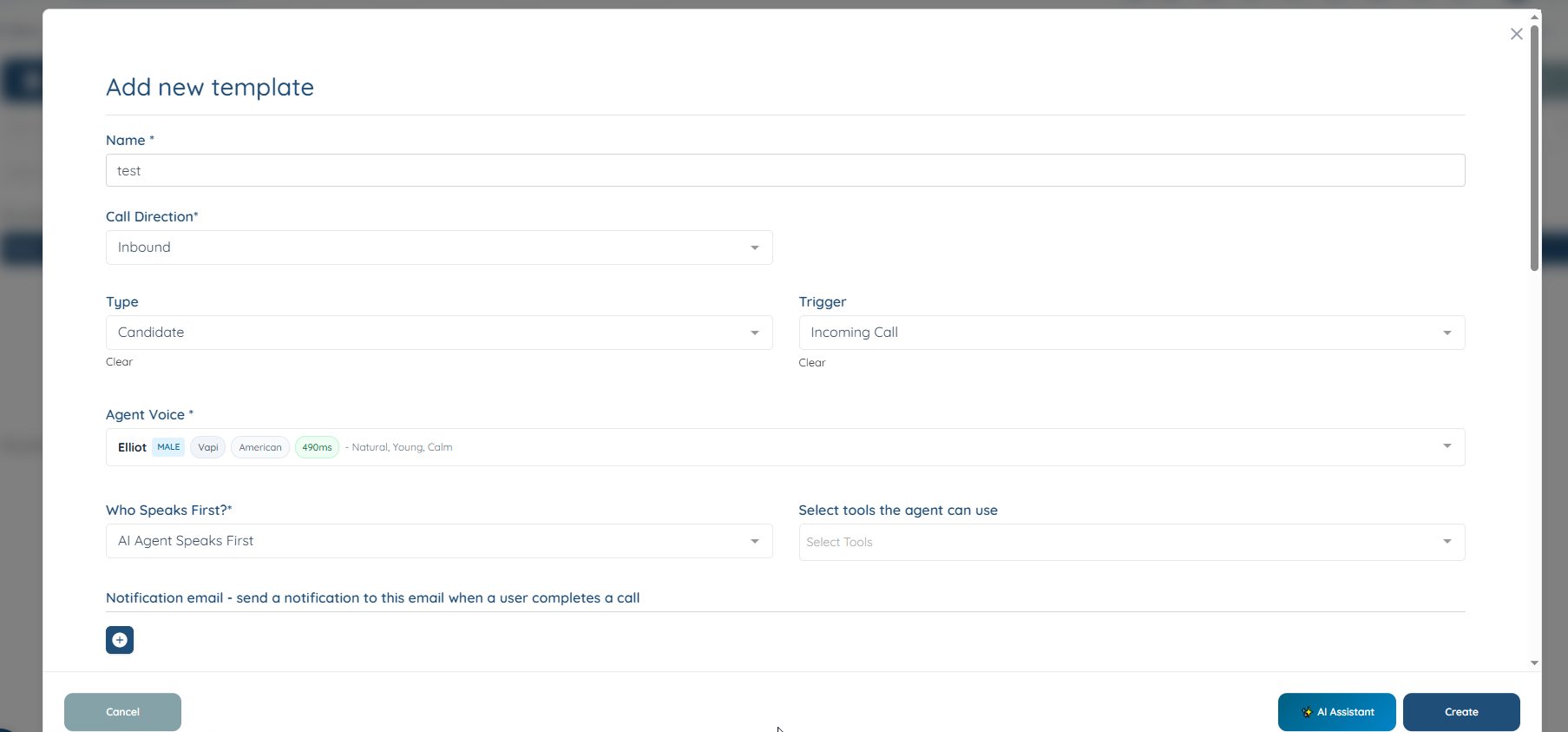
The agent voice, who speaks first, notification email, prompts (first message, system prompt and end call message) and structured output schema all work the same way as on outbound templates. Inbound templates have their own tools, built for handling requests from callers, and no extra options that depend on the type.
Tools your AI voice agent can use
Tools are the actions an agent can take during a call. You choose them for each template in Select tools the agent can use, and outbound and inbound templates offer different ones.
| Tool | Available on | What it does |
|---|---|---|
| Call handover | Outbound and inbound | Transfers the call to a person on your team. When you select it, a field appears for the number the call should be transferred to. |
| Schedule callback | Outbound | If the person says they're busy or can't talk right now, the agent schedules the call again for later. |
| Check calendar slots and Book calendar meeting | Outbound and inbound | Used together to find an open time and book a meeting on your Google Calendar. They need the Google Calendar setup described above. |
| Shift lookup, Cancel shift and Add note to shift | Inbound | Used together when a candidate calls about a shift they can't work. The agent finds the shift, cancels it and adds a note to the shift saying the candidate can't work it. |
| Applicant intake | Inbound | For callers who want to apply for a job. The agent talks with them and sends an email notification so your team can follow up. |
| Clock in and clock out | Inbound | If a candidate forgot to clock in or out, they can call and the agent clocks them in or out on their behalf. |
Write your prompts with the AI Assistant
You don't need to write prompts from scratch. Fill in the template's basic settings, then click AI Assistant at the bottom of the form and describe what you want the agent to do in plain words. For example: "I want to build a voice assistant that calls newly added candidates and asks a few basic onboarding questions, such as their email address."
The assistant drafts the prompts for you: the first message, system prompt and end call message, plus the voicemail and retry schedule prompts on an outbound template. Read them over, then click Apply all to template to fill in every prompt field at once.
You can keep refining in the same conversation. Ask it to give the agent a name or add more detail, and it updates the prompts. Click Apply all to template again to bring the new version into the form. You can still edit any prompt by hand before you save the template.
Capture call details with the structured output schema
The structured output schema tells the agent which details to pull out of each call, so the information you need arrives organized rather than buried in a transcript. It's available on both outbound and inbound templates.
Add a field for each piece of information you want. Each field has a key name, a data type for the kind of value it holds (such as text, a number or true/false), and a description. Write the description with care, because the agent reads it to understand exactly what to capture. For example, an inbound template might capture:
| Key name | Data type | Description |
|---|---|---|
| caller_name | Text | The name of the person calling |
| mobile_number | Text | The caller's mobile number |
| notes | Text | A short summary of the call |
After each completed call, the captured details appear with that call in your AI voice call logs, alongside a few standard fields, and they're included in the notification email sent to the addresses on the template.
Review calls in AI Voice Call Logs
To see how your agents' calls went, click More > All Logs and open AI Voice Call Logs. Each call shows the person on the call, the phone numbers involved, the direction, the call type, the number of attempts and the status. From each row you can play the recording, read the transcript, and open the structured output to see what the agent captured.

To filter the logs by date or call type, see View AI Voice Call Logs.
Related articles
If this doesn't answer your question you can always contact us by clicking here