![enginehire logo thin dark 1.0.png]](https://learn.enginehire.io/hs-fs/hubfs/enginehire%20logo%20thin%20dark%201.0.png?height=40&name=enginehire%20logo%20thin%20dark%201.0.png)
Let’s get started 🚀
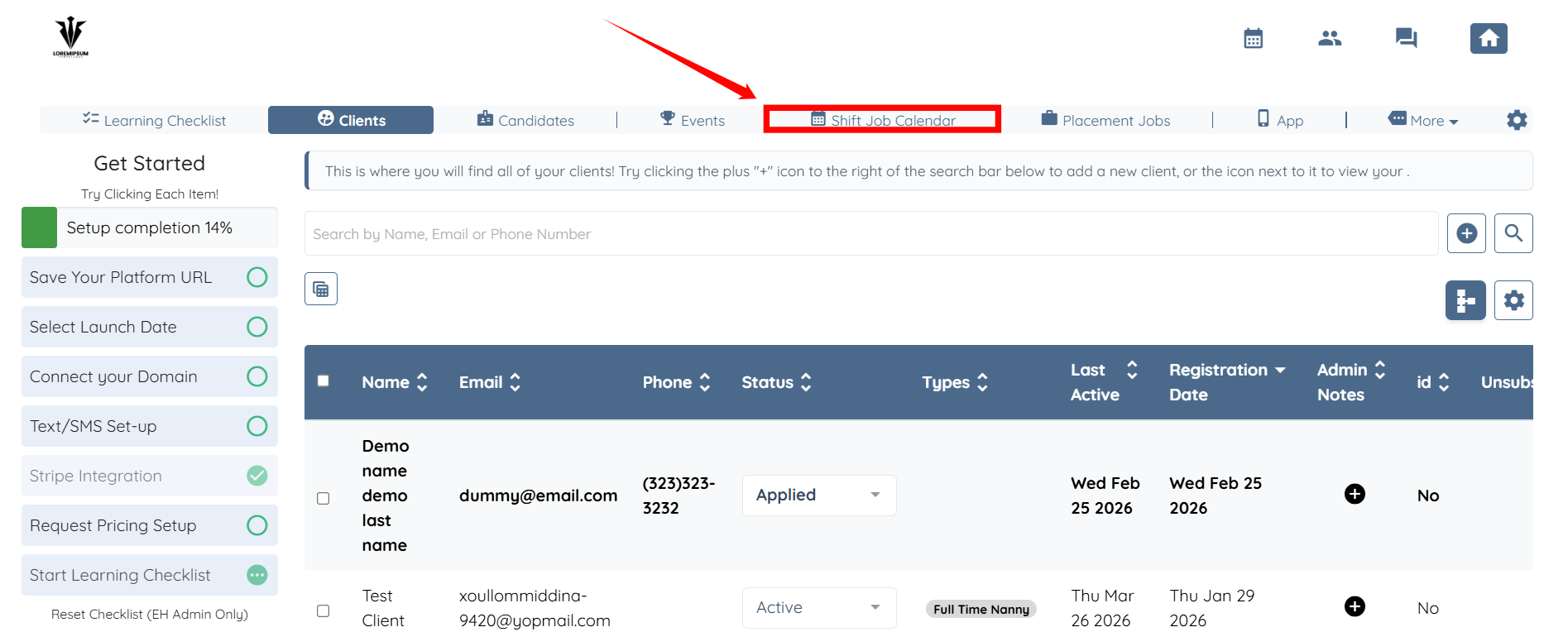
Step 1: Log in to your agent dashboard and click Shift Job Calendar in the navigation bar.
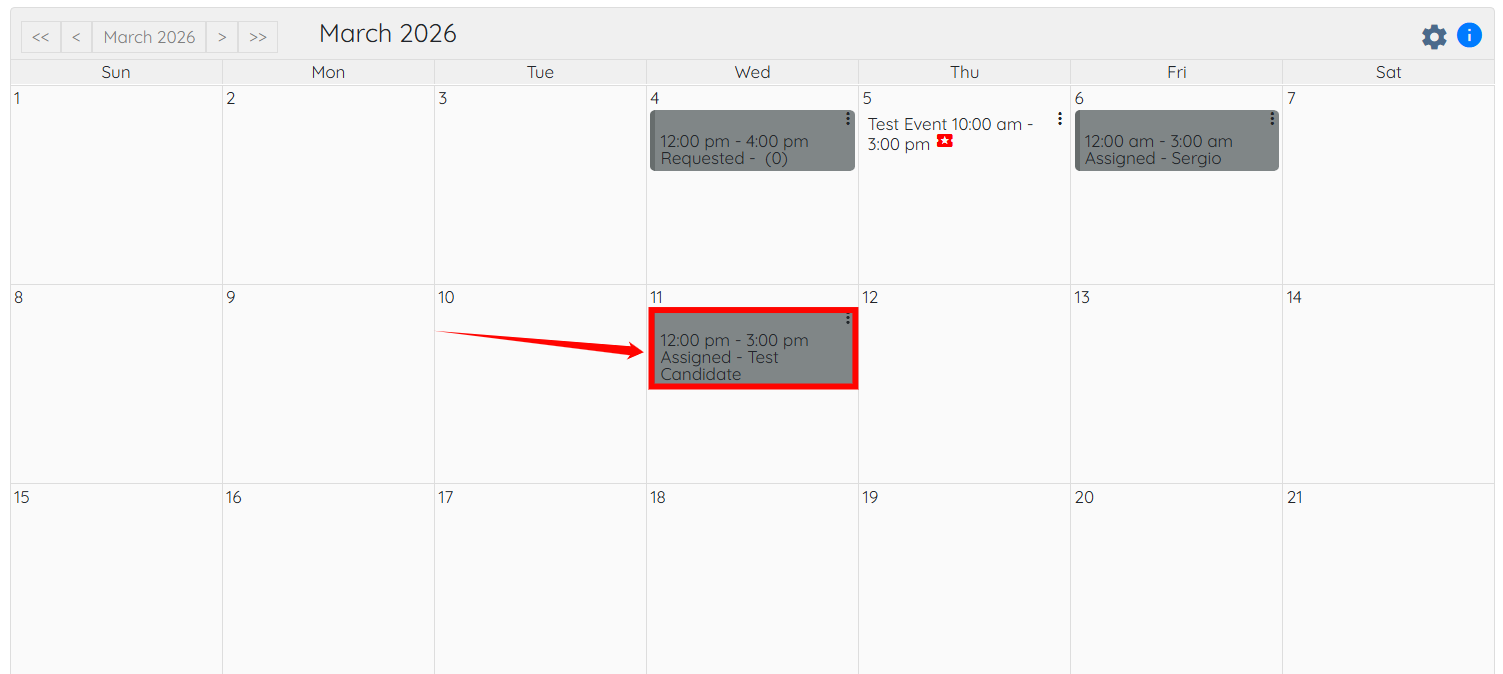
Step 2: Click on the shift job where you want to add a note.
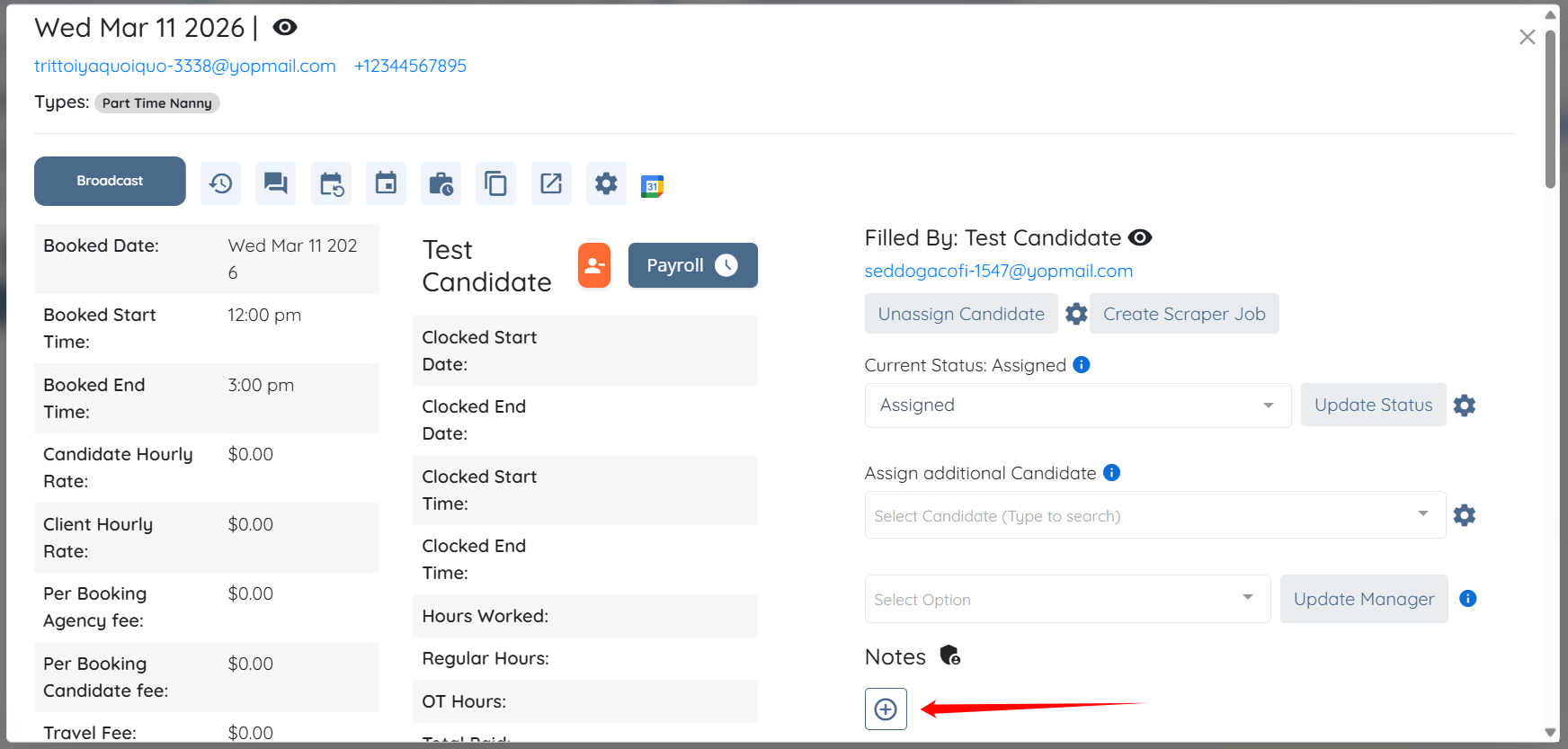
Step 3: Click the “+” button located just below the Notes heading.
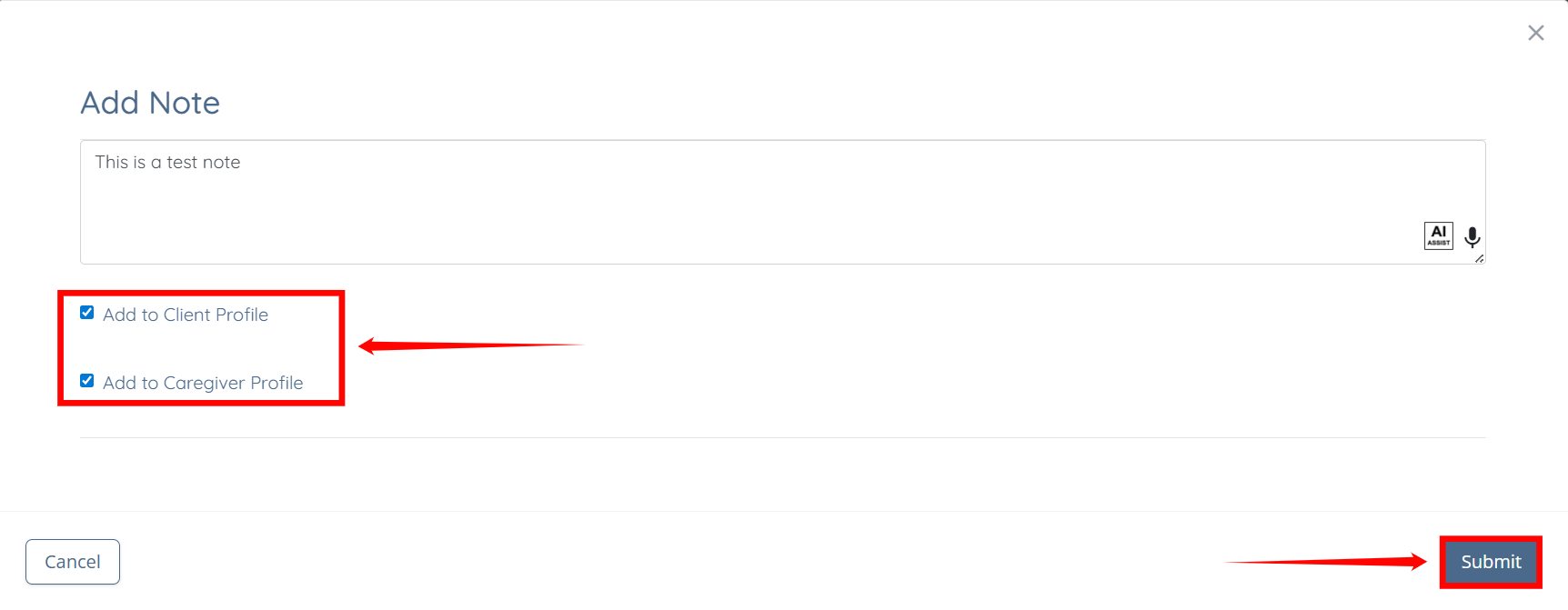
Step 4: Add the note as required.
You may also make use of the AI ASSIST feature to enhance the quality of the text. To learn how to use it, refer to the Use AI ASSIST Feature document.
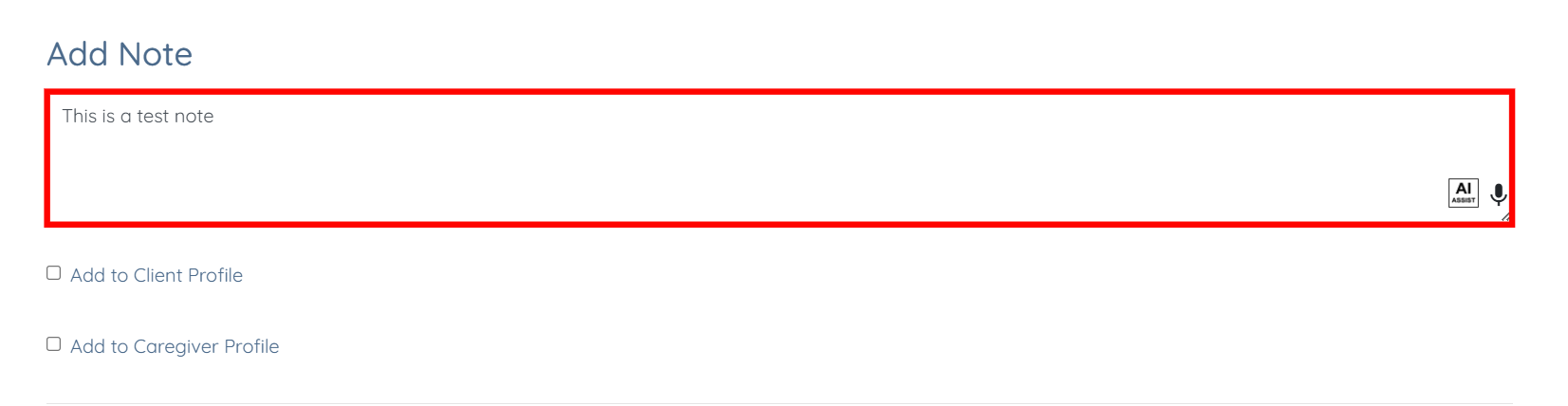
Step 5: Check the Add to Client Profile and Add to Caregiver Profile checkboxes, and then click the Submit button to proceed.
The note will be successfully added to the shift job.
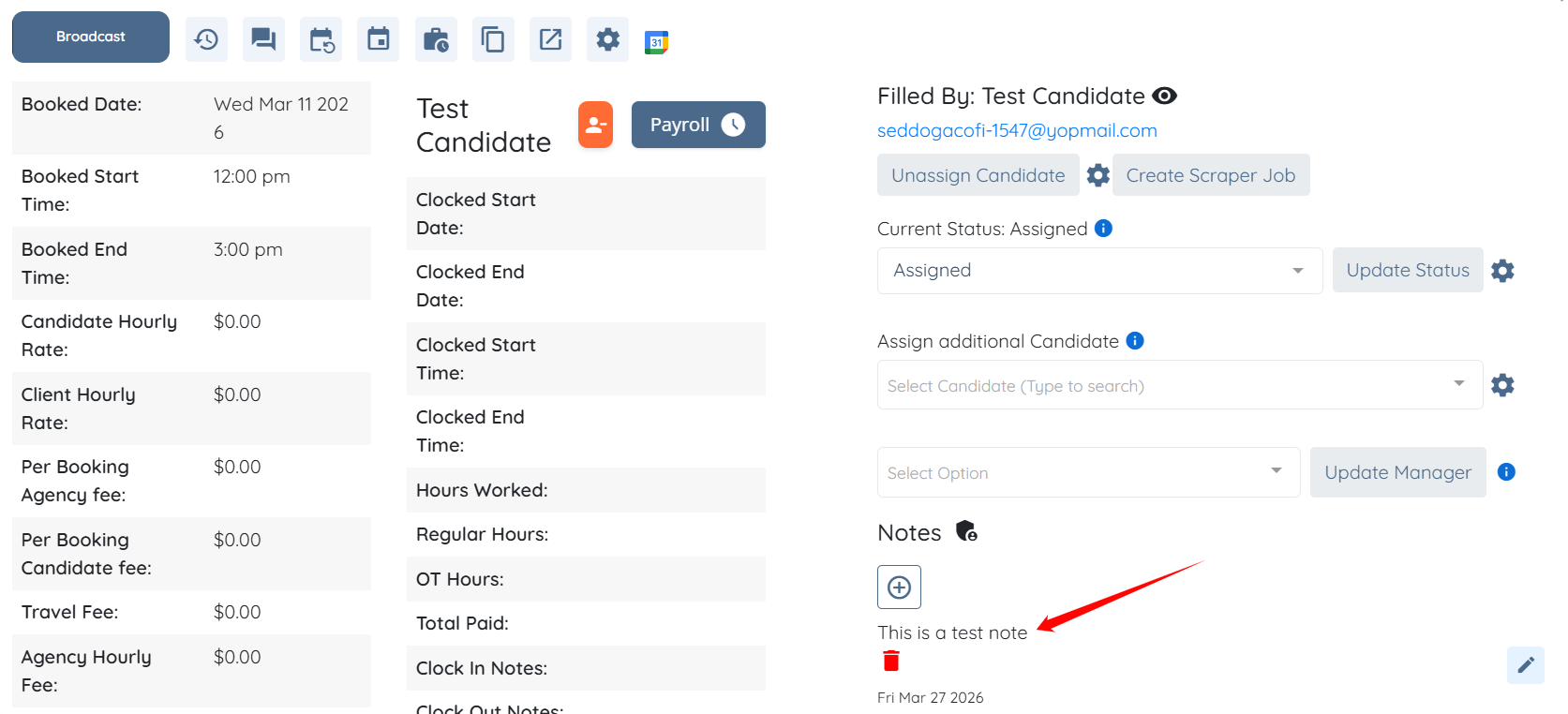
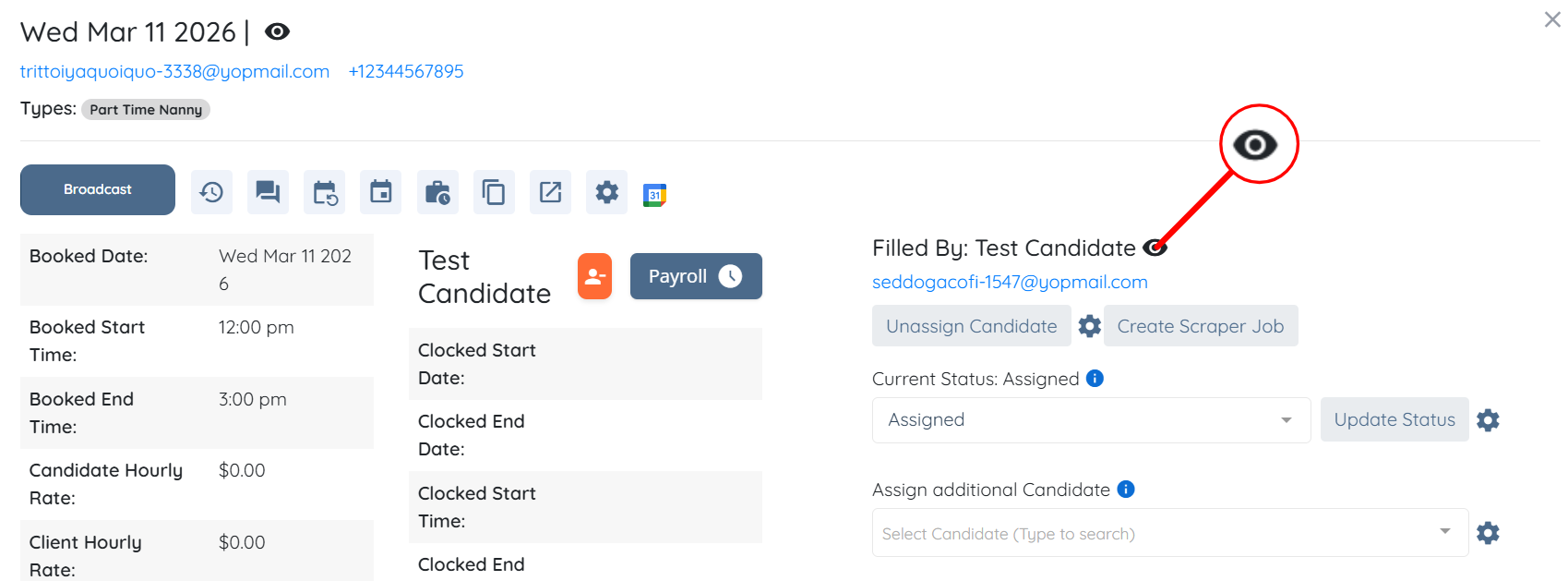
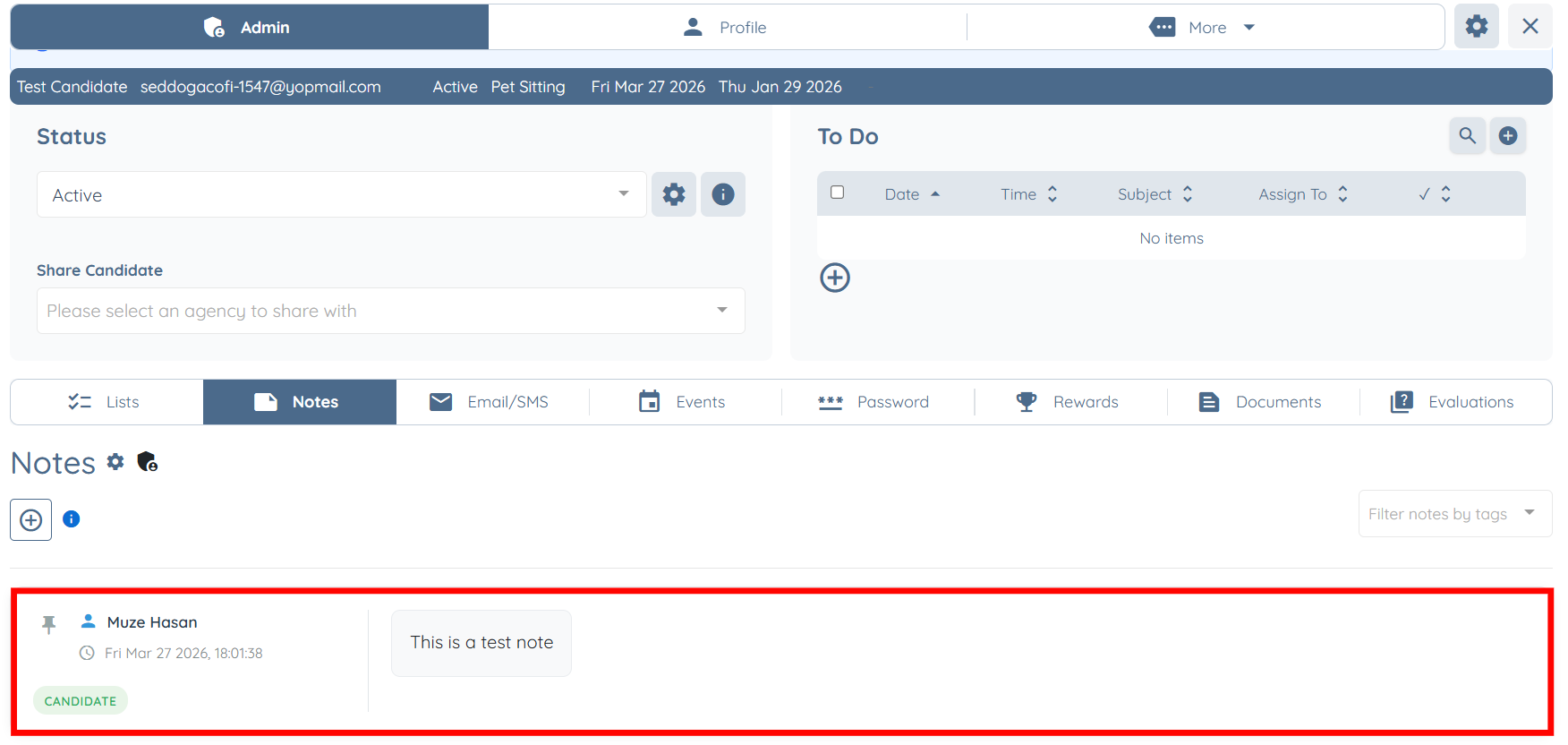
Step 6: Click the eye icon next to the caregiver’s name to open the caregiver profile.
Step 7: Click the Notes tab from the available tabs.
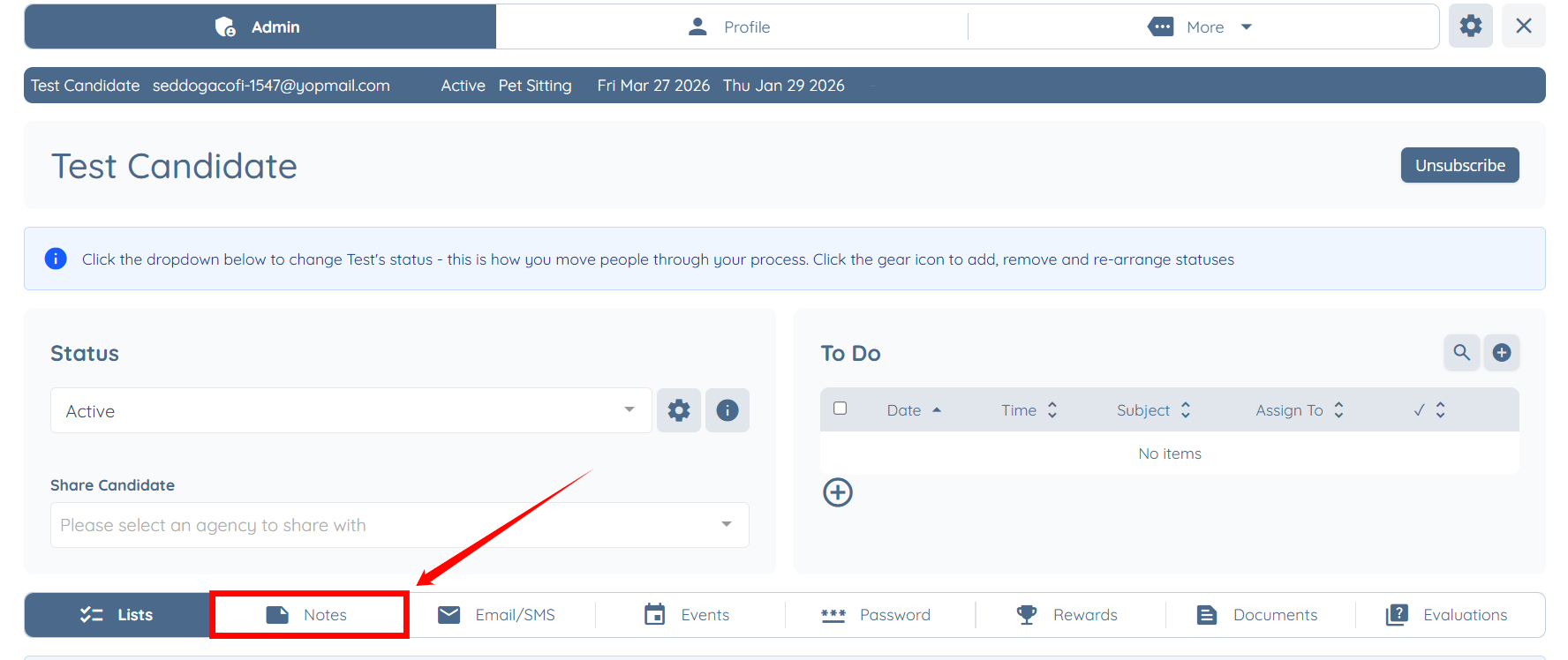
The same added note on the shift job will also be updated on the candidate side.
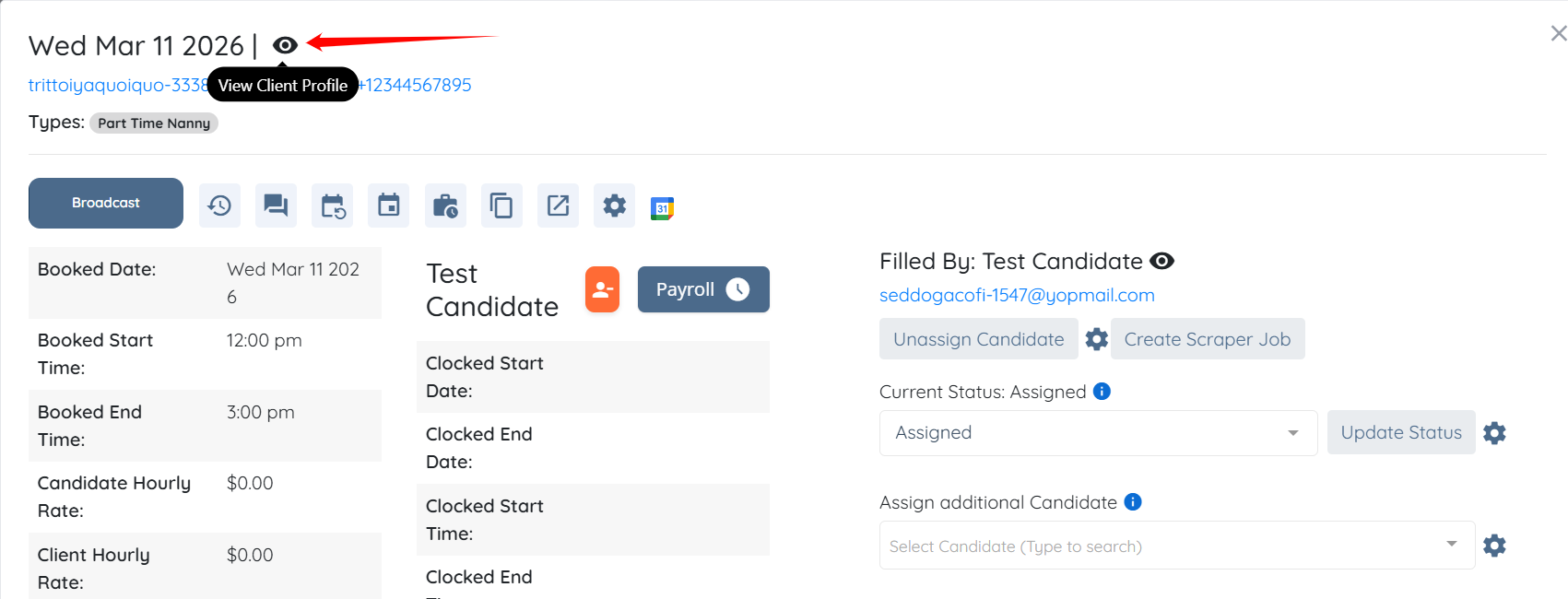
Step 8: Return to the shift job, then click the eye icon next to the shift job date to open the client profile.
The same added note on the shift job will also be updated on the client side.
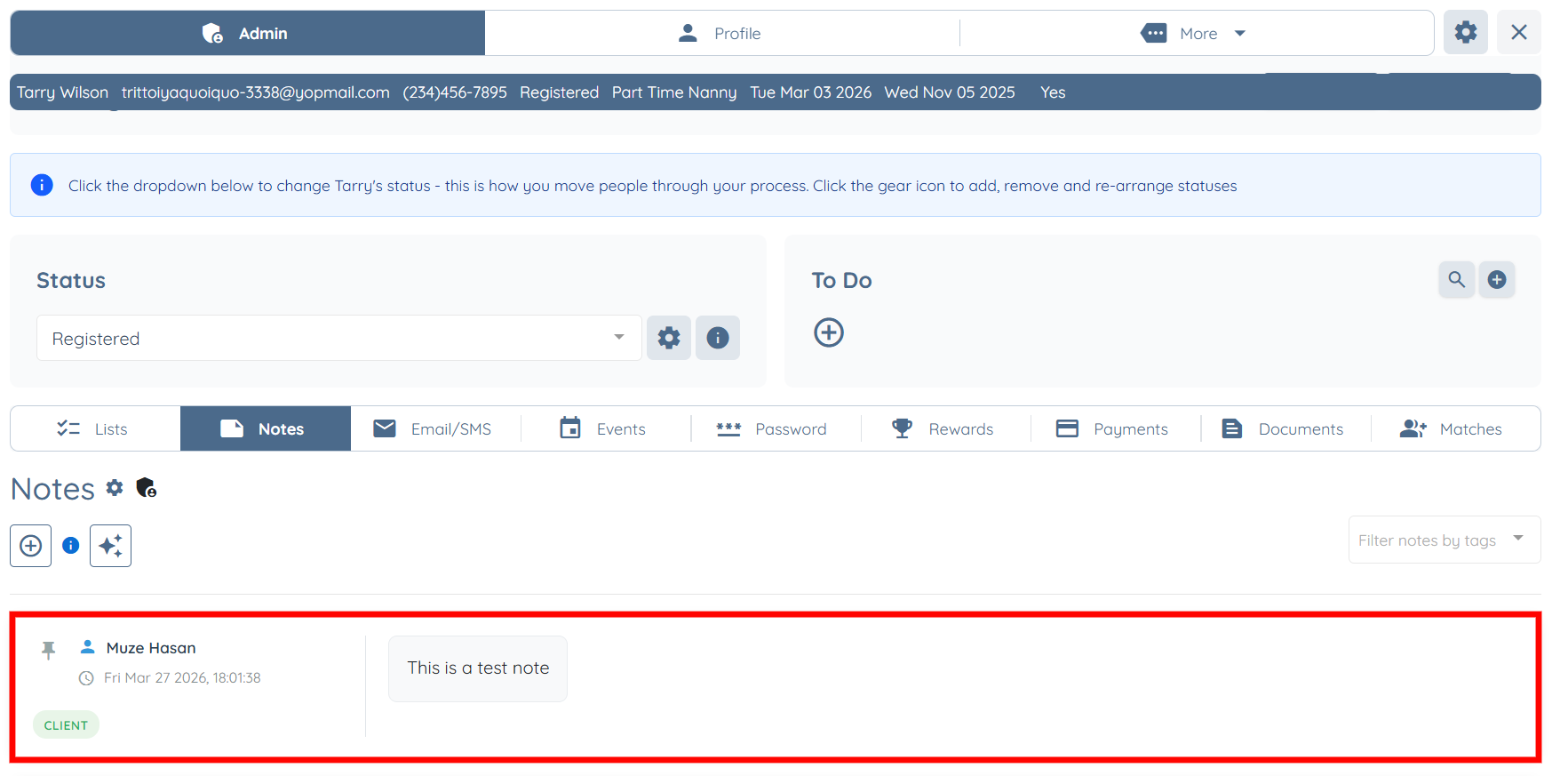
Any edits made to the note are automatically updated in the Client and Caregiver profiles, ensuring the latest changes are reflected accurately.