![enginehire logo thin dark 1.0.png]](https://learn.enginehire.io/hs-fs/hubfs/enginehire%20logo%20thin%20dark%201.0.png?height=40&name=enginehire%20logo%20thin%20dark%201.0.png)
Let’s get started 🚀
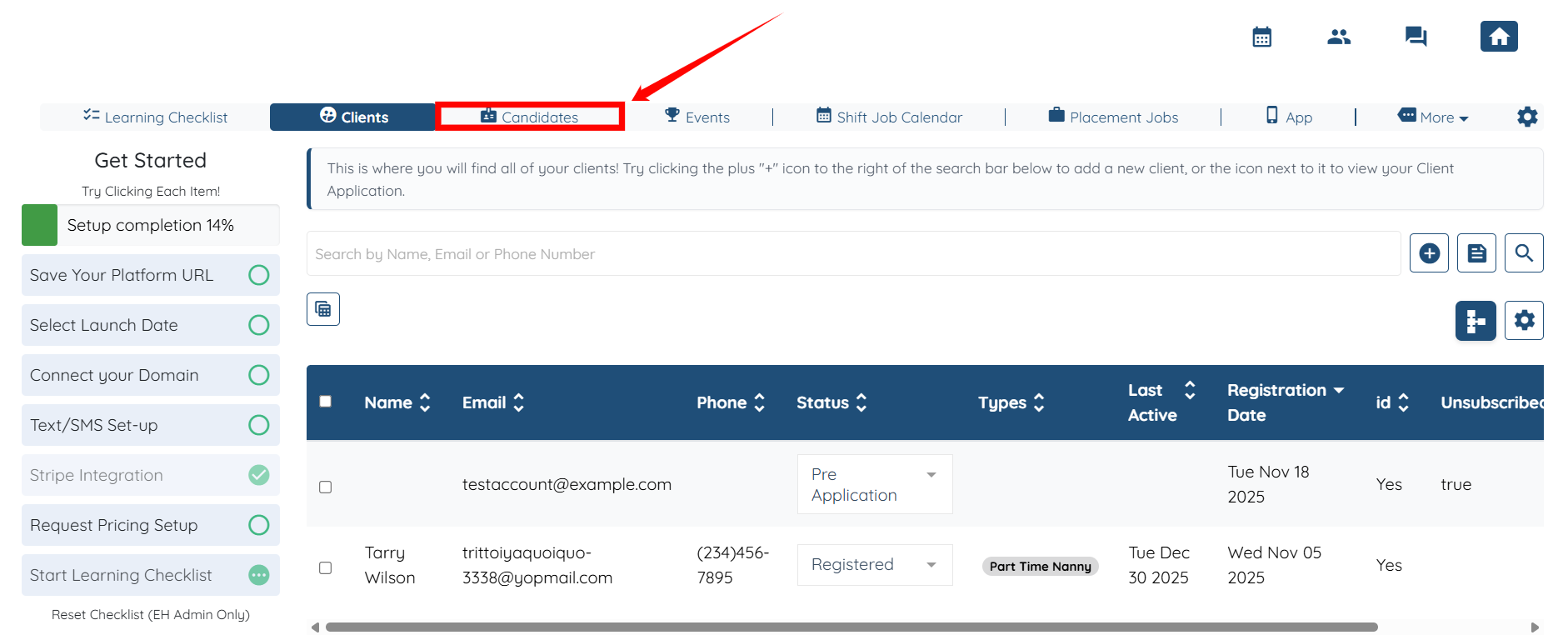
Step 1: Log in to your agent dashboard and click Candidates in the top navigation bar.
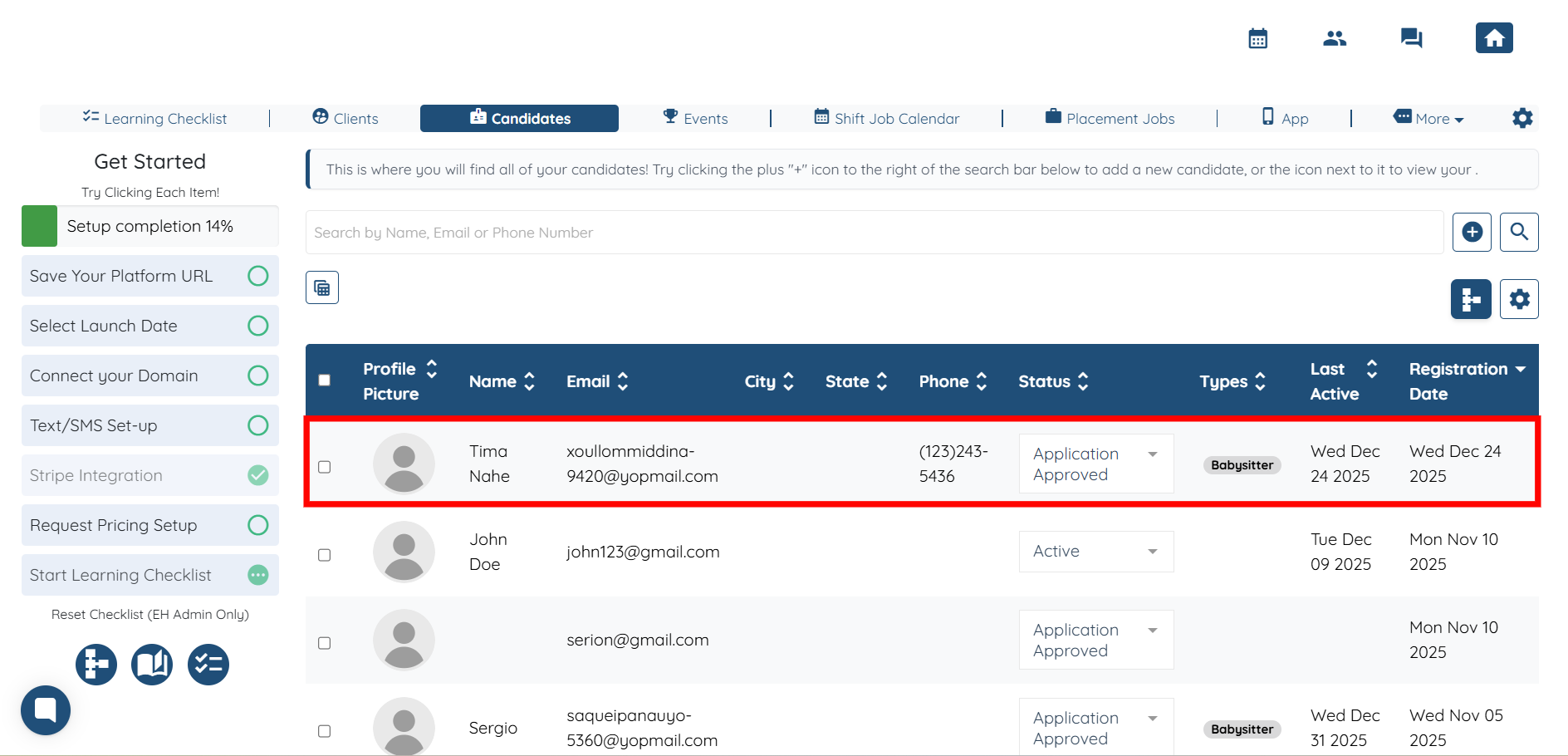
Step 2: Click on any candidate from the list of candidates.
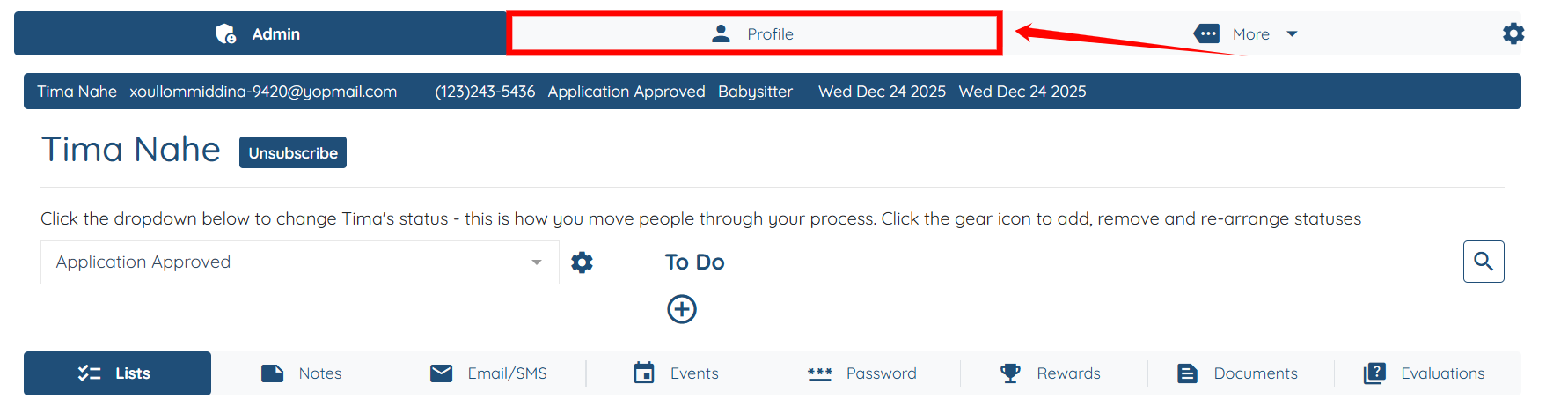
Step 3: Click the Profile tab.
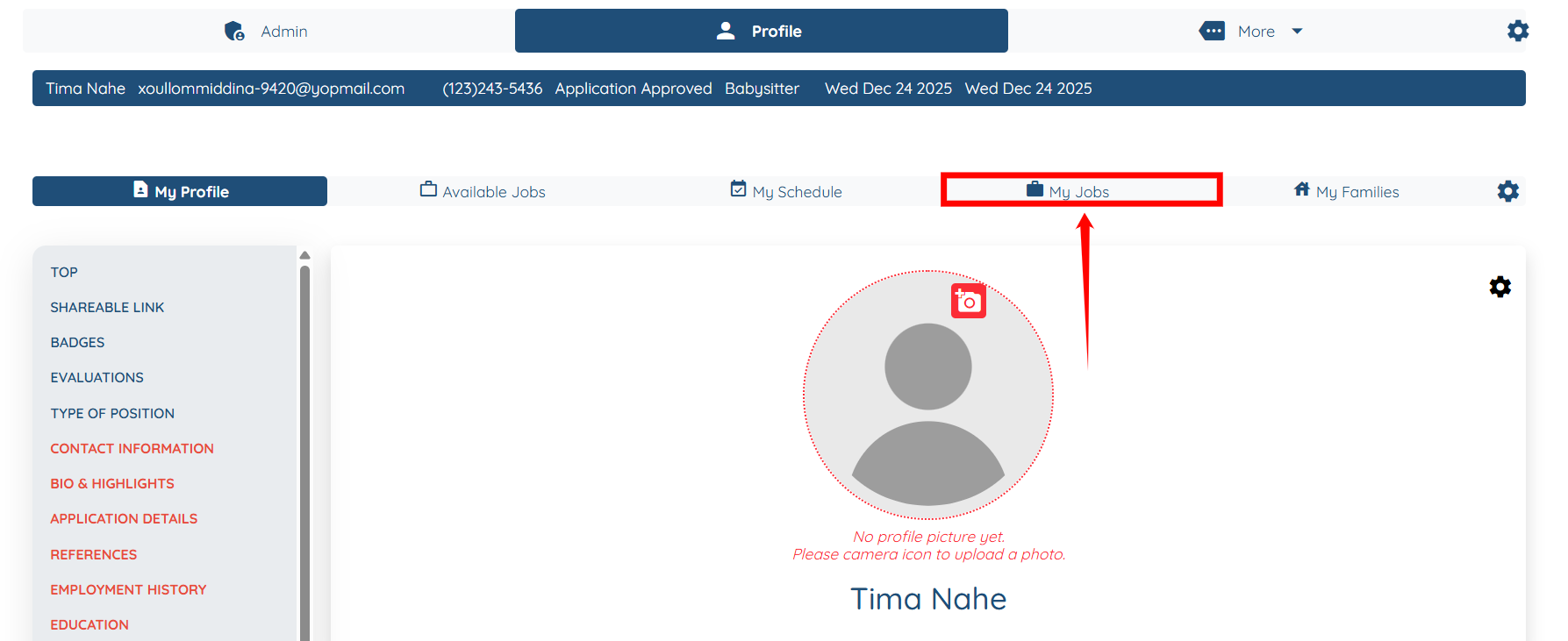
Step 4: Under the Profile tab, click the My Jobs option.
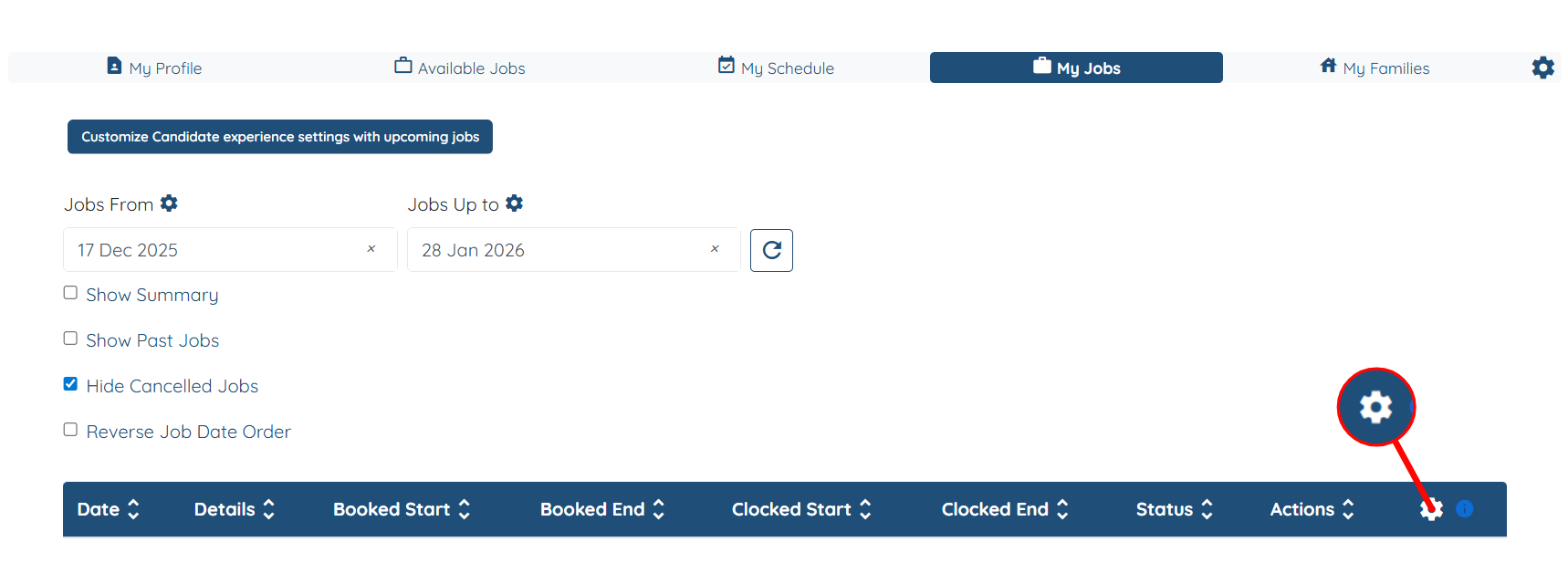
Step 5: Click the Gear icon on the right-hand side of the table, as shown in the screenshot.
Step 6: From the list of available tabs, click the Reporting a Problem tab.

Step 7: Check the Has a button to let candidate report a problem for assigned shift job checkbox.

Step 8: Change the Text of the report problem button and the Label of the upload files field in report problem dialog if you want to.

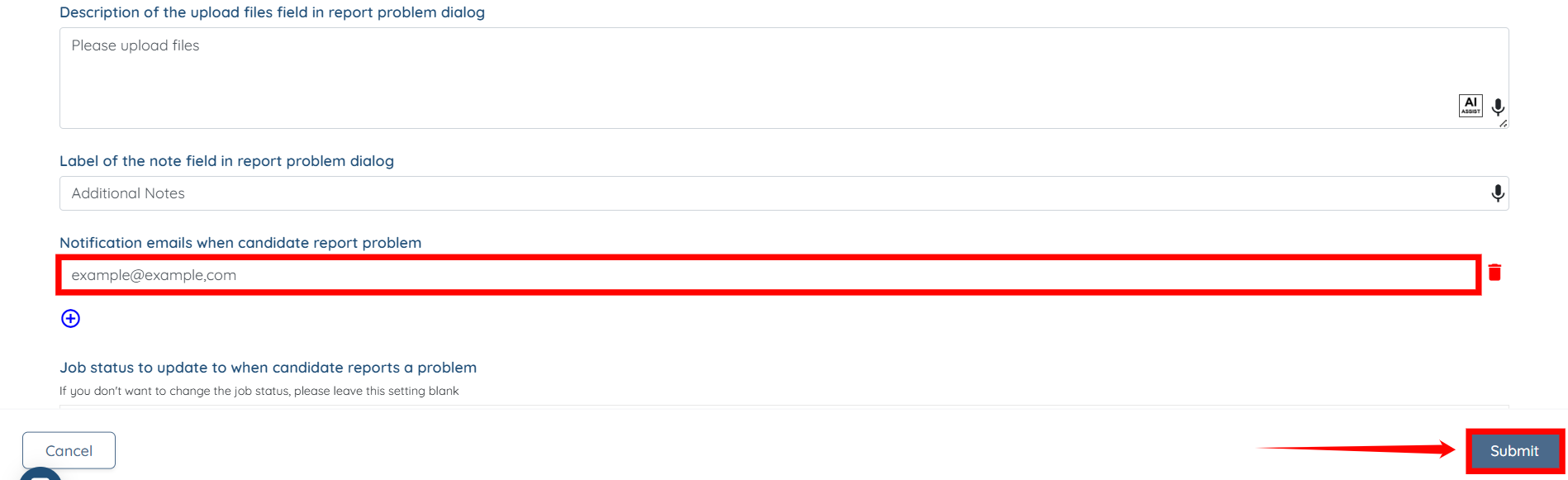
Step 9: Change the Description of the upload files field in report problem dialog if you want to.
You may also make use of the AI ASSIST feature to enhance the quality of the text. To learn how to use it, refer to the Use AI ASSIST Feature document.
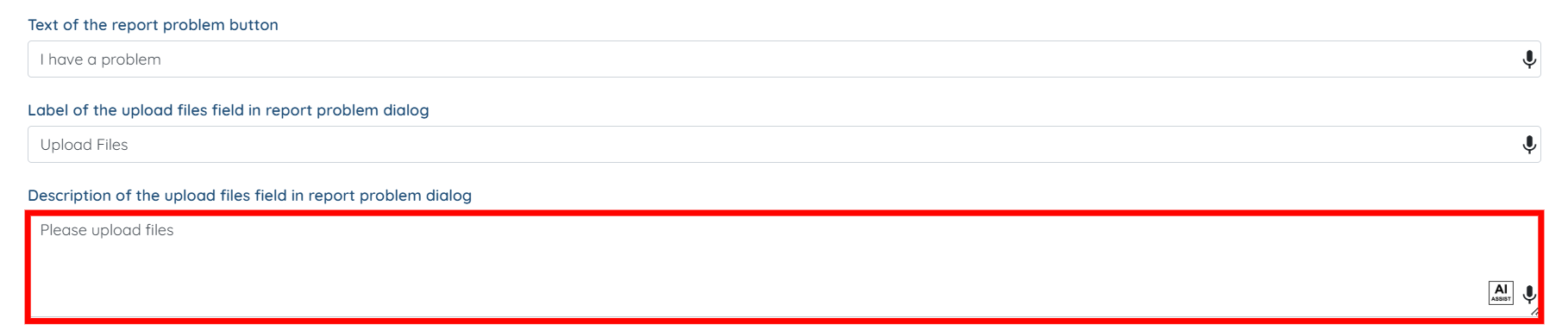
Step 10: Change the text of Label of the note field in report problem dialog if you want to.

Step 11: Click the + icon to start adding the email addresses of the admins you want to notify when a candidate reports a problem.

Step 12: Enter the email address and click the Submit button to confirm your changes.