![enginehire logo thin dark 1.0.png]](https://learn.enginehire.io/hs-fs/hubfs/enginehire%20logo%20thin%20dark%201.0.png?height=40&name=enginehire%20logo%20thin%20dark%201.0.png)
Let’s get started 🚀
How Find Replacement Works
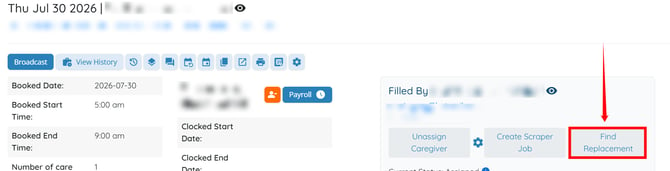
When you click Find Replacement for an assigned shift job, Enginehire sends a replacement notification to other candidates.
The candidate who receives the notification can use the job acceptance link to accept the shift directly without logging in. The currently assigned candidate remains on the shift until another candidate accepts the replacement opportunity.
Once a candidate accepts the shift through the acceptance link, the new candidate replaces the currently assigned candidate.
Configure the Find Shift Job Replacement Email
To send the replacement opportunity to candidates, you need to create an email template using the Find Shift Job Replacement trigger.
Step 1: Log in to your agent dashboard and click More > Email Templates, as shown in the screenshot below. 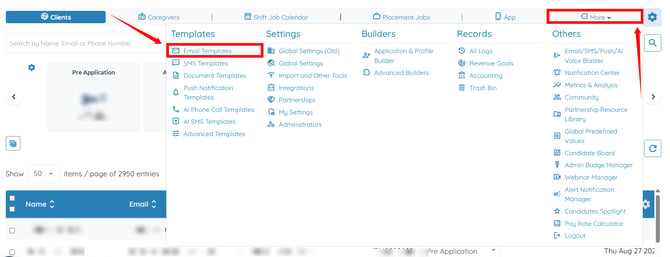
Step 2: Click the Add Template button. 
Step 3: Enter a name for your email template.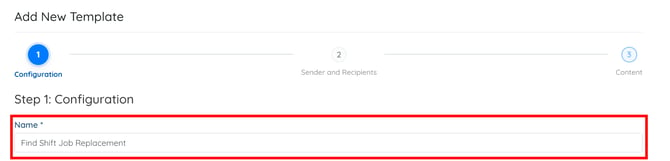
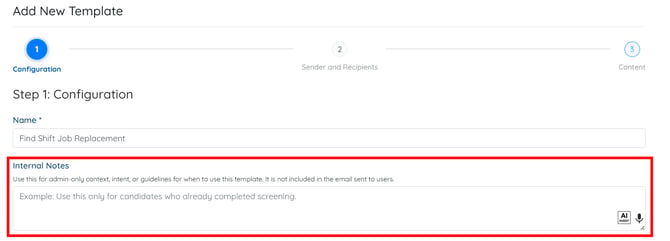
Step 4: Add Internal Notes for your template if you want to.
To learn more about the internal notes in the email template, refer to the Add Internal Notes to Email Templates article.
Step 5: Select the Job option from the dropdown list in the Type field. 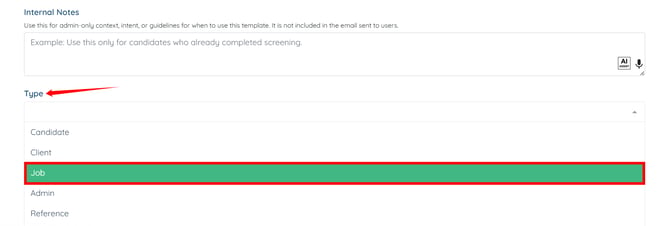
Step 6: Select Find Shift Job Replacement option from the drop down list as the Trigger. 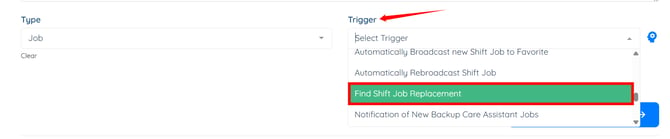
Step 7: Click the Content option to jump to the email template subject and body.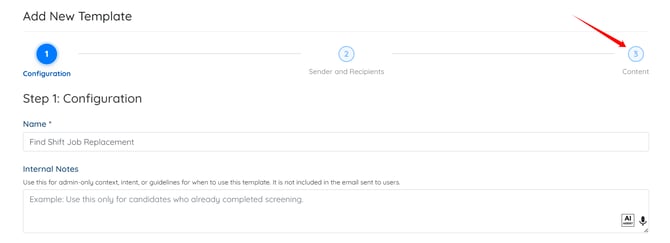
Step 8: Enter the Subject and Body of the email template as required.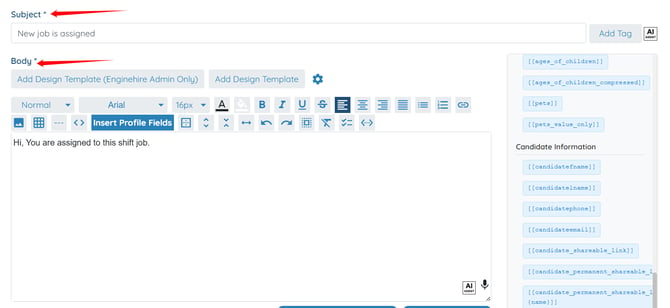
You can also use tags in the email body to dynamically insert information into your email, eliminating the need to type it manually each time. To use a tag, click it to copy it, then paste it into the email body where required. 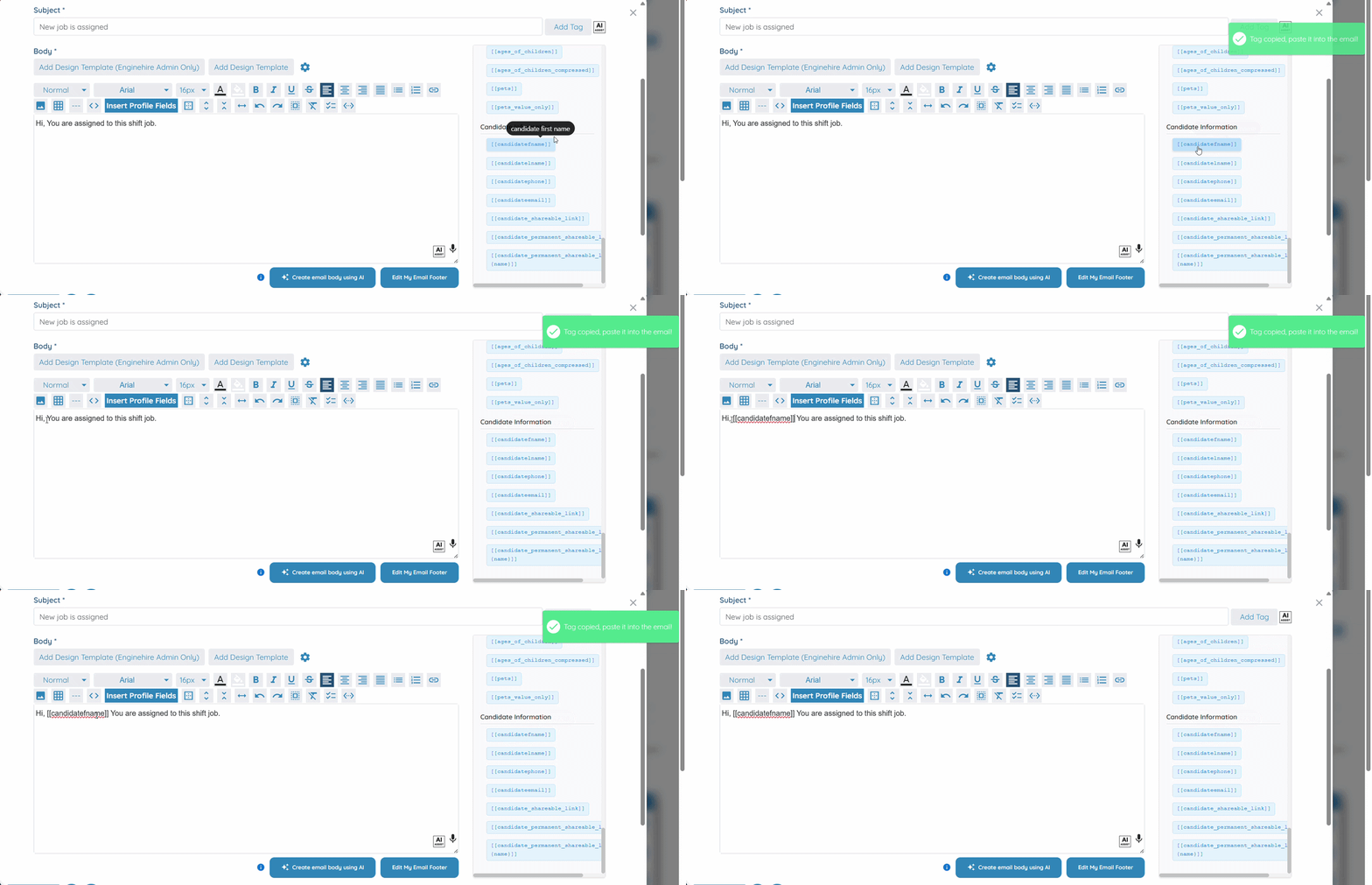
To allow candidates to accept the replacement shift directly from the notification, add the [[job_acceptance_link]] tag to the email body.
For more information, refer to the Give candidates an option to accept shift jobs directly from broadcasts without needing to be logged in article. This provides the candidate with a unique link to accept the shift without logging in.
Step 9: Click the Create button to proceed.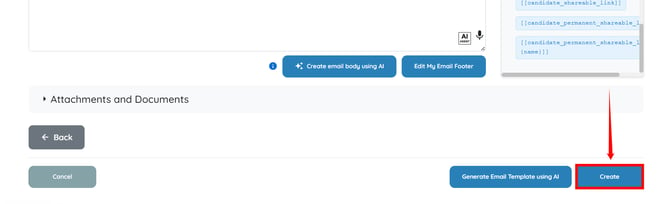
The Find Shift Job Replacement email template will be created successfully. 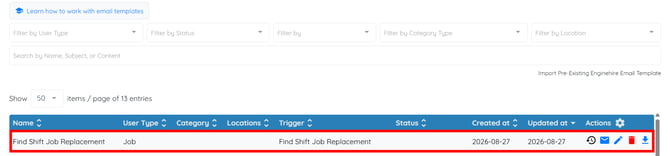
Find a Replacement for a Shift Job
After creating the email template, open a shift job that already has a candidate assigned to it.
Click the Find Replacement button to send the replacement opportunity to other candidates using the configured notification.
The currently assigned candidate will remain assigned while other candidates receive the replacement opportunity. A candidate who receives the notification can click the job acceptance link to accept the shift.
After a candidate accepts the shift, they will replace the currently assigned candidate.