![enginehire logo thin dark 1.0.png]](https://learn.enginehire.io/hs-fs/hubfs/enginehire%20logo%20thin%20dark%201.0.png?height=40&name=enginehire%20logo%20thin%20dark%201.0.png)
Let’s get started 🚀
Step 1: Log in to your agent dashboard and click More > Advanced Builders as shown in the screenshot below.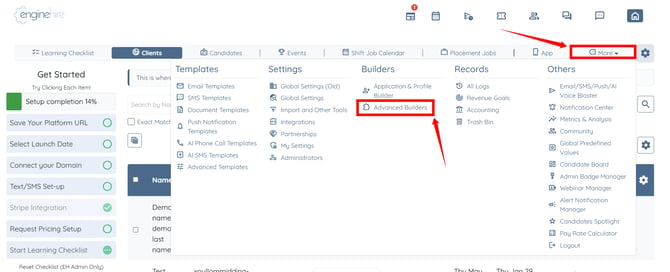
Step 2: Click the Evaluation Builder option.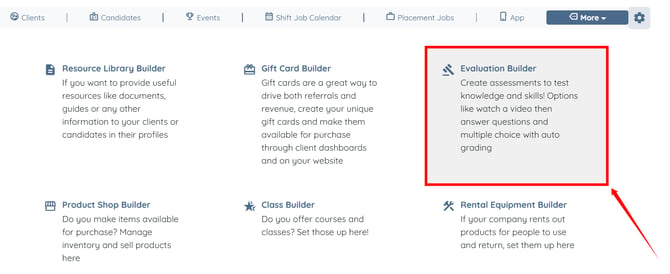
Step 3: Click the Build Evaluation button corresponding to the evaluation in which you want to add the questions.
If you have not created an evaluation yet, refer to the Create An Evaluation article.
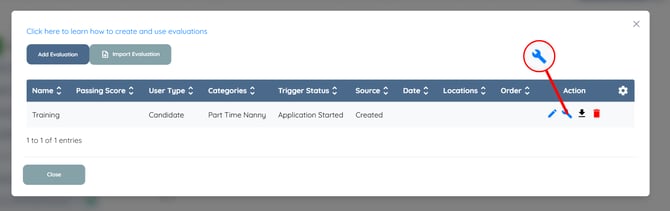
Step 4: Click the Add Question button.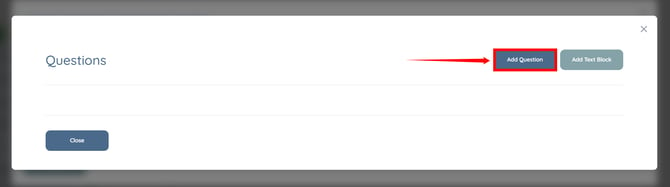
Step 5: Enter the evaluation question as required.
You may also make use of the AI ASSIST feature to enhance the quality of the text. To learn how to use it, refer to the Use AI ASSIST Feature article.
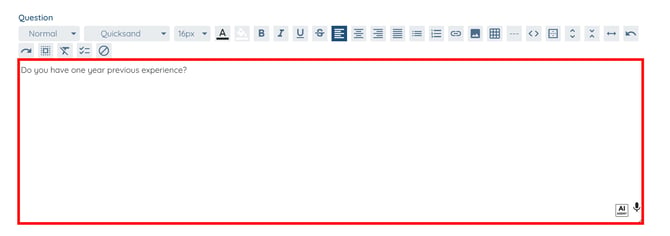
Step 6: Select the Question Type as required.
For demonstration purposes, we are selecting a Single choice question.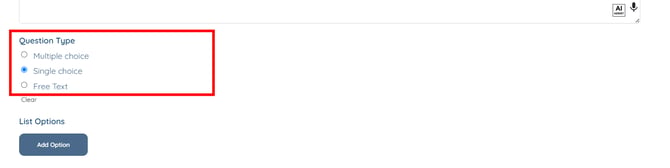
Step 7: Click the Add Option to add options for your question.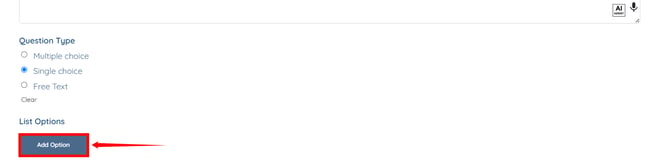
Step 8: Add the answer options as required.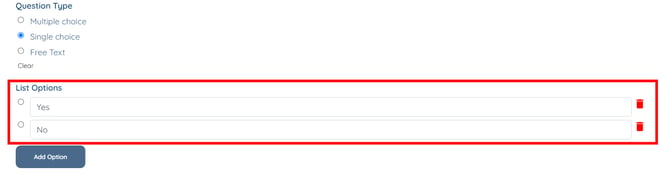
Step 9: Select the answer in the Disqualifying Answer field that will automatically disqualify the candidate if selected. 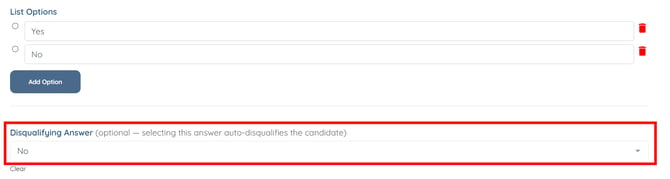
Step 10: Click the Create button to proceed.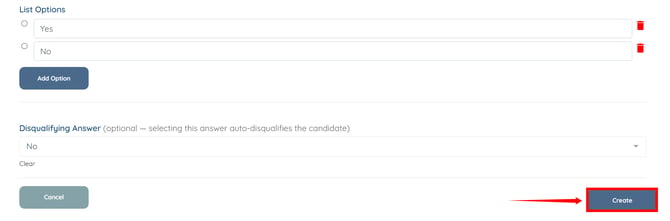
Step 11: Open the evaluation in which you added the disqualifying question(s) by clicking the corresponding pencil icon. 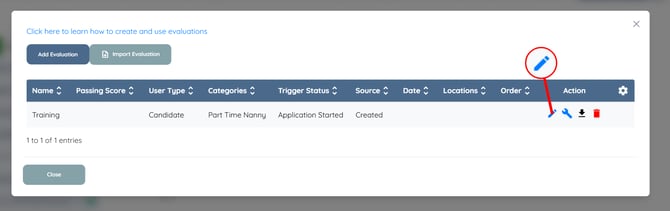
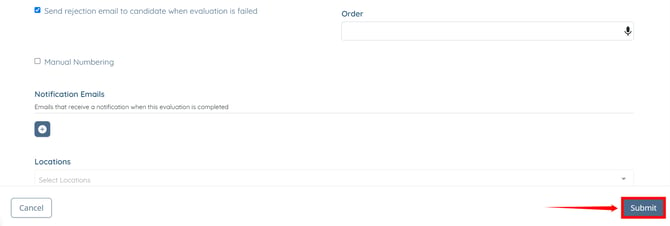
Step 12: Check the Send rejection email to candidate when evaluation is failed checkbox.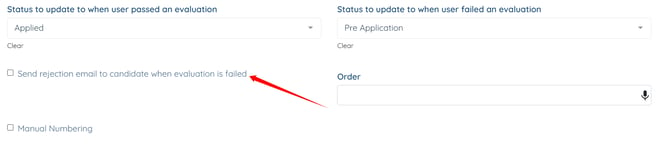
Step 13: Click the Submit button to apply the changes.