![enginehire logo thin dark 1.0.png]](https://learn.enginehire.io/hs-fs/hubfs/enginehire%20logo%20thin%20dark%201.0.png?height=40&name=enginehire%20logo%20thin%20dark%201.0.png)
Let’s get started. 🚀
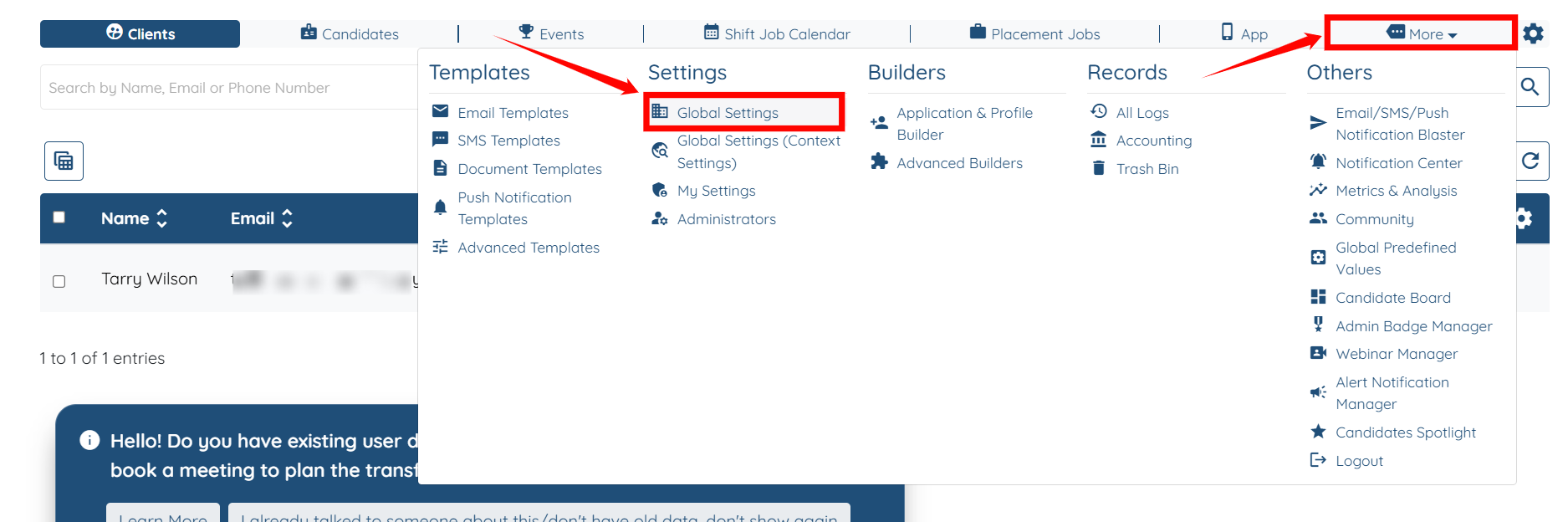
Step 1: Log in to your agent dashboard, then navigate to More > Global Settings, as shown in the screenshot below.
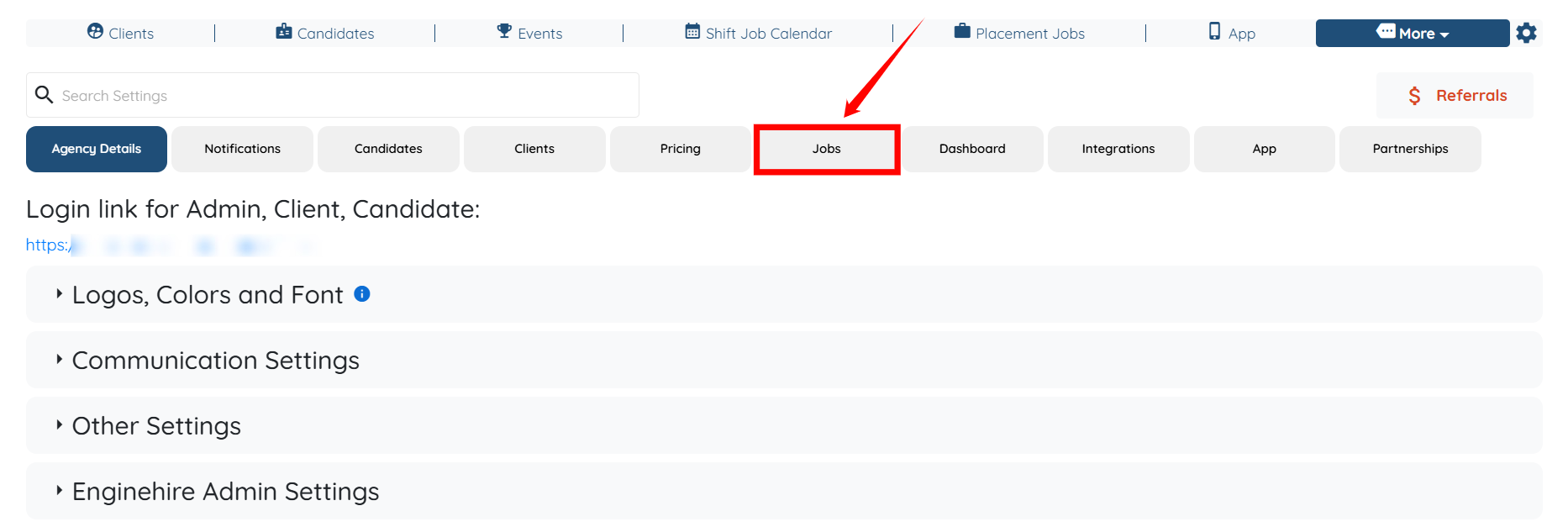
Step 2: Click on the Jobs tab from the list of all available tabs.
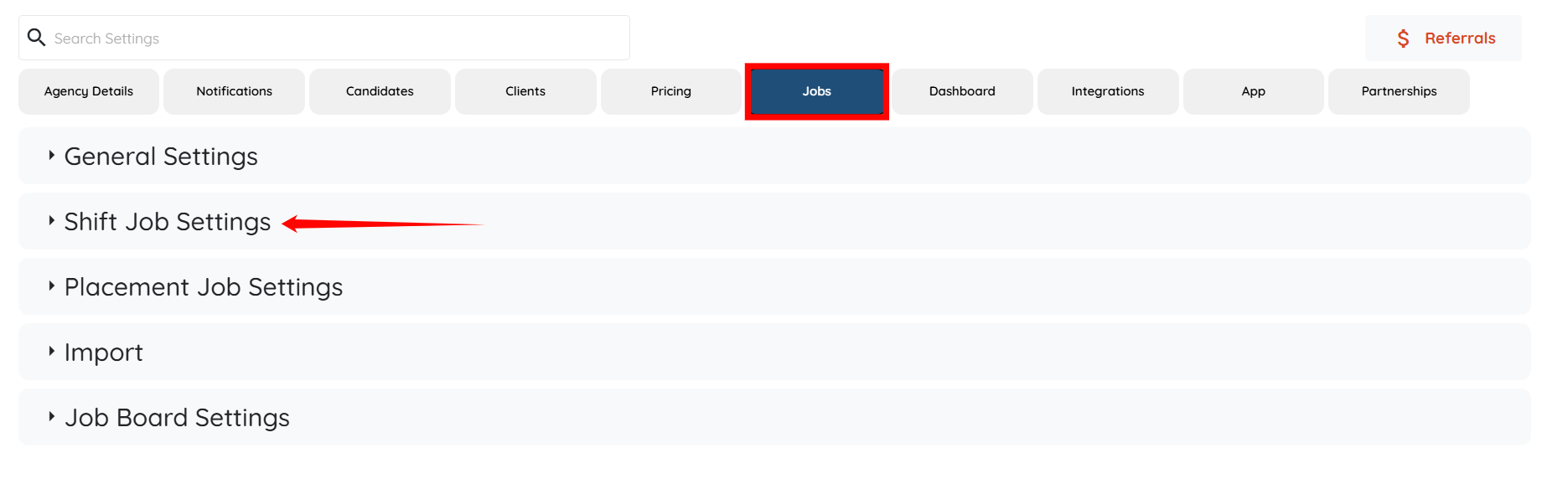
Step 3: Under the Jobs tab, expand the Shift Job Settings option.
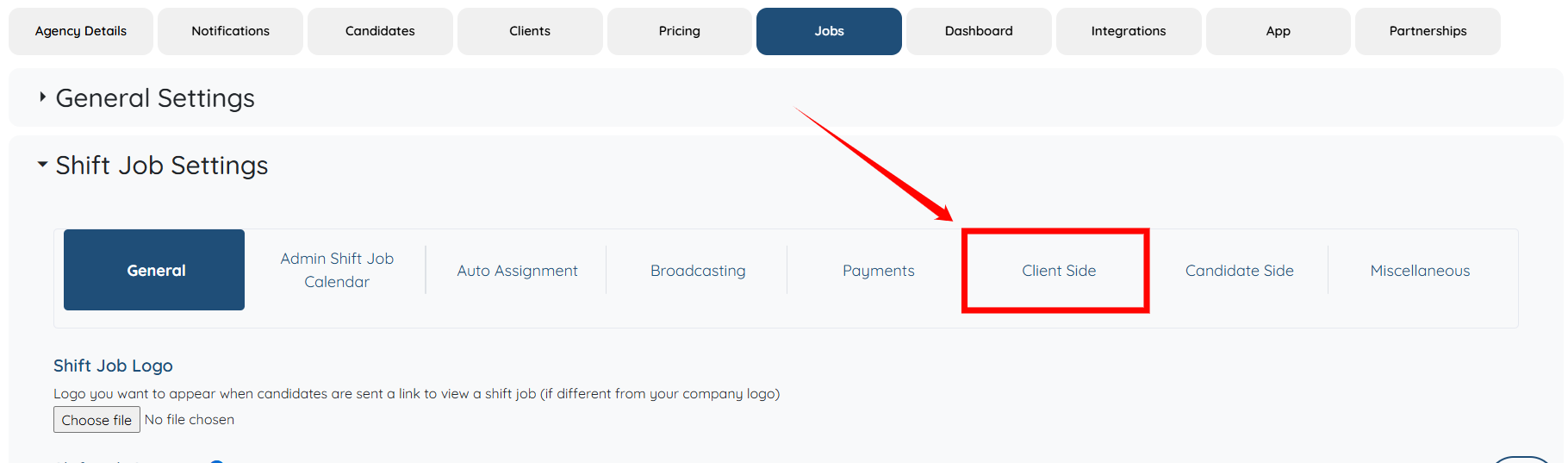
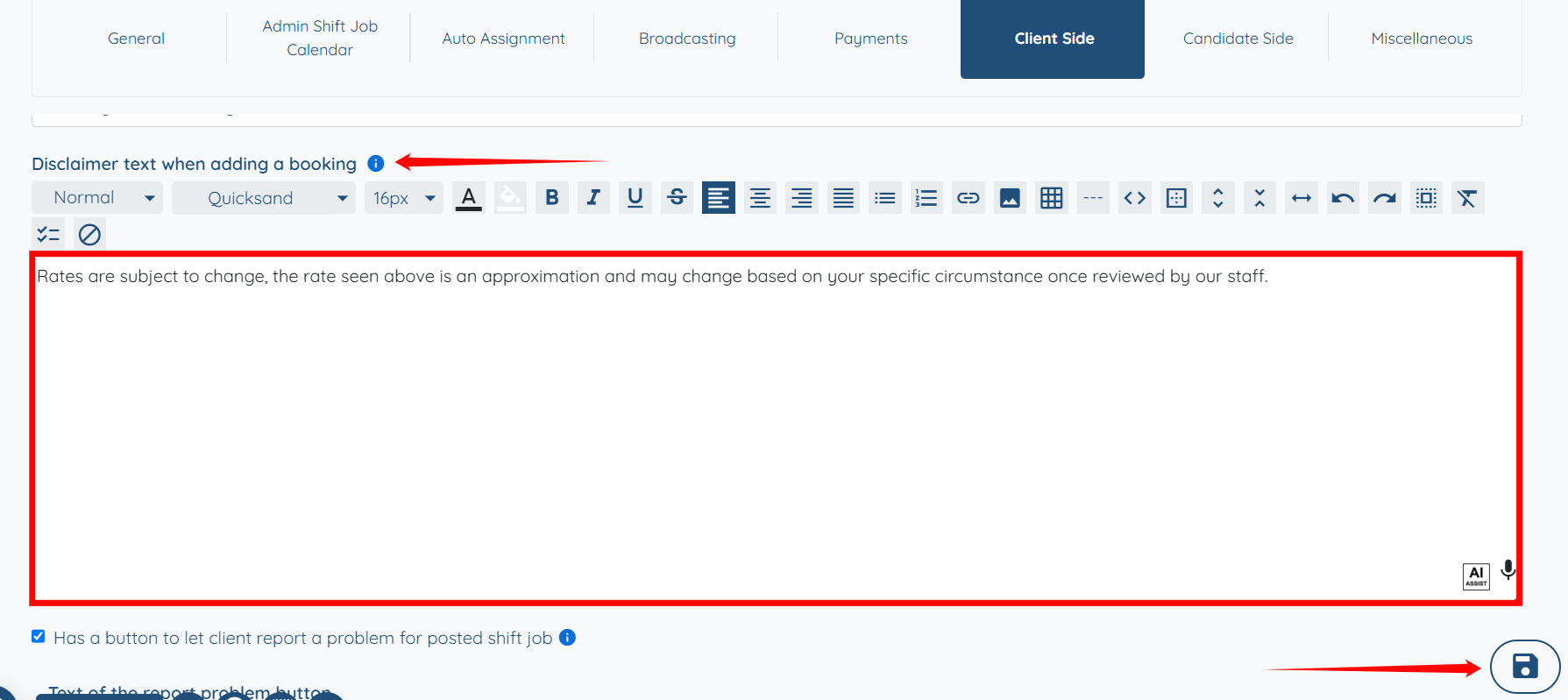
Step 4: Select the Client Side option to proceed.
Step 5: Scroll down to the “Disclaimer text when adding a booking” option, and modify the disclaimer text according to your requirements. Once you have made the necessary changes, click the Save icon to continue.
You may also make use of the AI ASSIST feature to enhance the quality of the text. To learn how to use it, refer to the Use AI ASSIST Feature document.
The custom disclaimer text will be updated successfully.