![enginehire logo thin dark 1.0.png]](https://learn.enginehire.io/hs-fs/hubfs/enginehire%20logo%20thin%20dark%201.0.png?height=40&name=enginehire%20logo%20thin%20dark%201.0.png)
Let’s get started 🚀
Step 1: Log in to your agent dashboard, and click More > Advanced Templates as shown in the screenshot below.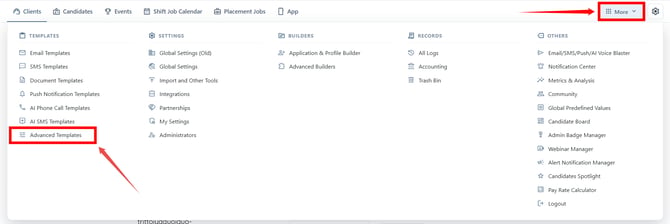
Step 2: Click the Note Templates option.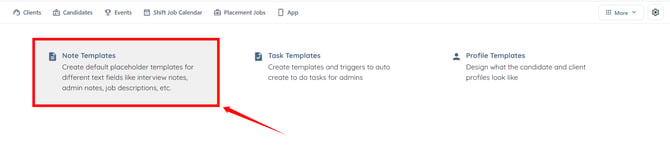
Step 3: Click the Add Template button.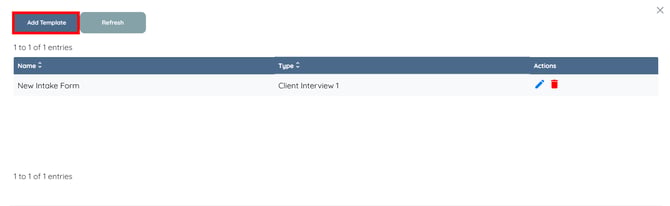
Step 4: Enter a name for your template.
Step 5: Select the Extend Offer option from the dropdown list in the Type field.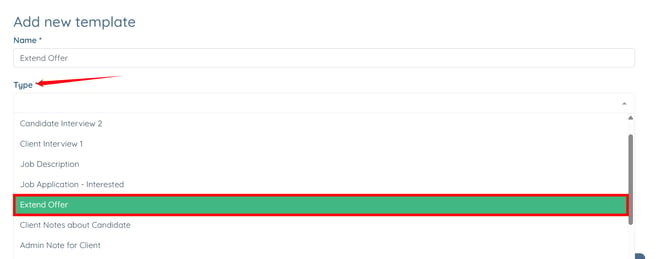
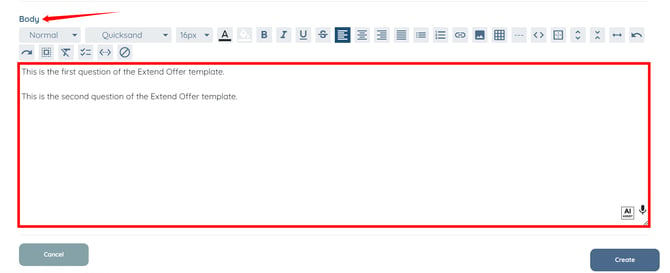
Step 6: Enter or paste the questions you typically ask when extending an offer. These questions will be available in the template each time you use it.
You may also make use of the AI ASSIST feature to enhance the quality of the text. To learn how to use it, refer to the Use AI ASSIST Feature article.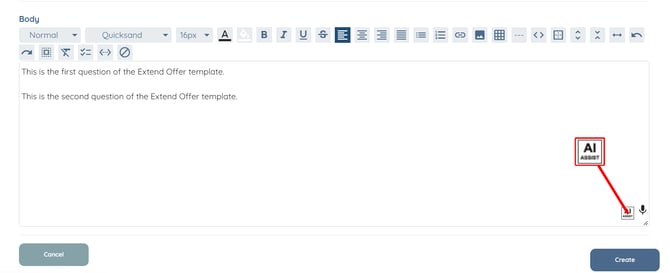
Step 7: Click the Create button to proceed.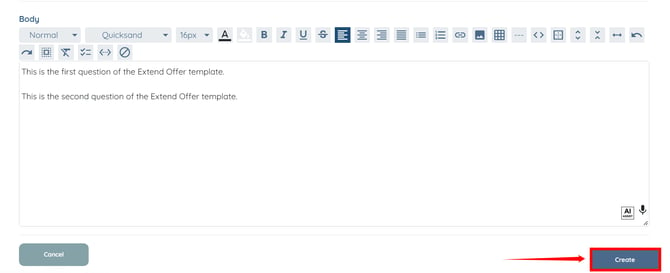
The Extend Offer note template will be created successfully. 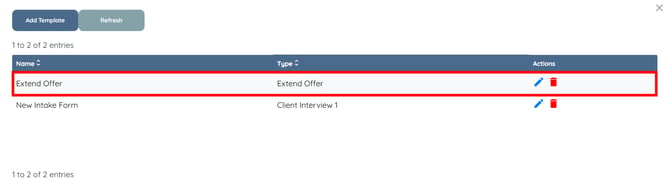
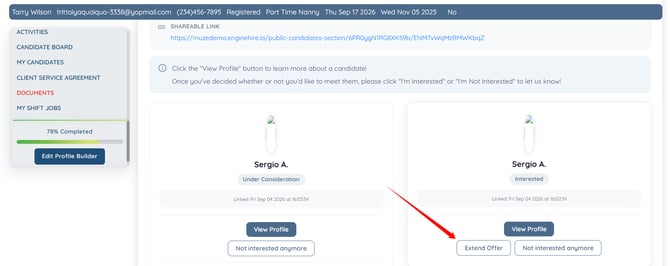
The Extend Offer button will appear for selected candidates in the My Candidates section of the client profile, depending on the statuses selected in the Candidate client relationship statuses where the Extend Offer button appears for the client setting.
To check or edit the statuses for which the Extend Offer button appears, refer to the Candidate Client Relationship Statuses Which Are Not Shown In 'My Candidates' Section article.