![enginehire logo thin dark 1.0.png]](https://learn.enginehire.io/hs-fs/hubfs/enginehire%20logo%20thin%20dark%201.0.png?height=40&name=enginehire%20logo%20thin%20dark%201.0.png)
Let’s get started 🚀
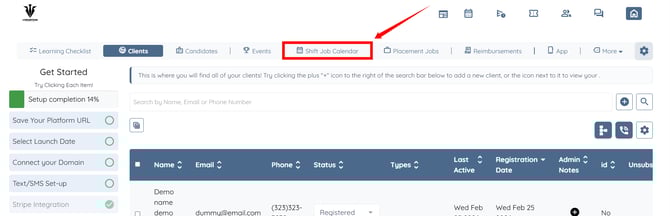
Step 1: Log in to your agent dashboard and click Shift Job Calendar in the navigation bar.
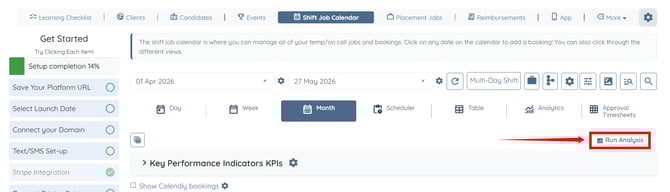
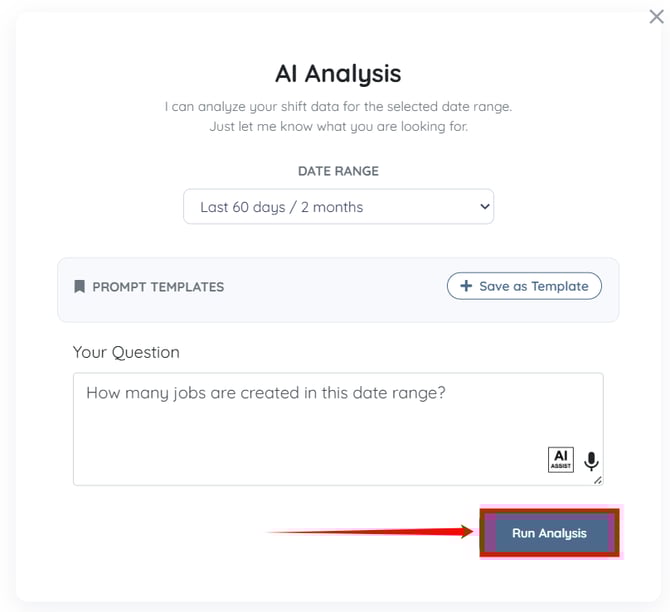
Step 2: Click the Run Analysis button.
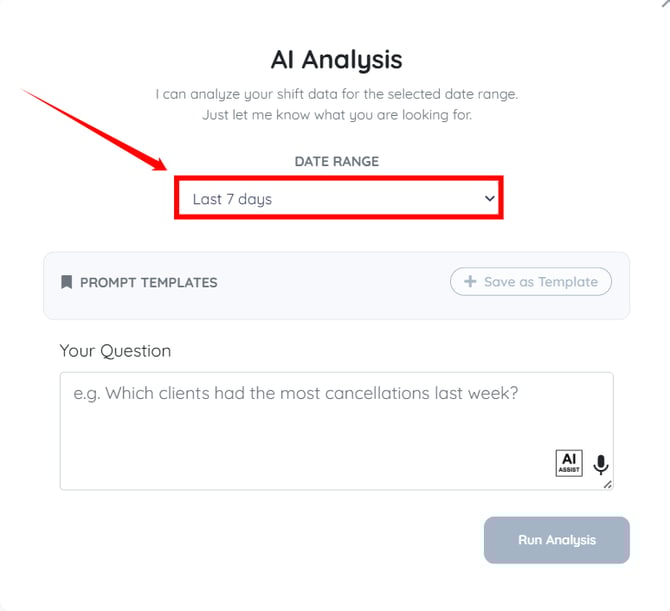
Step 3: Click the box under the DATE RANGE heading to open the dropdown list.
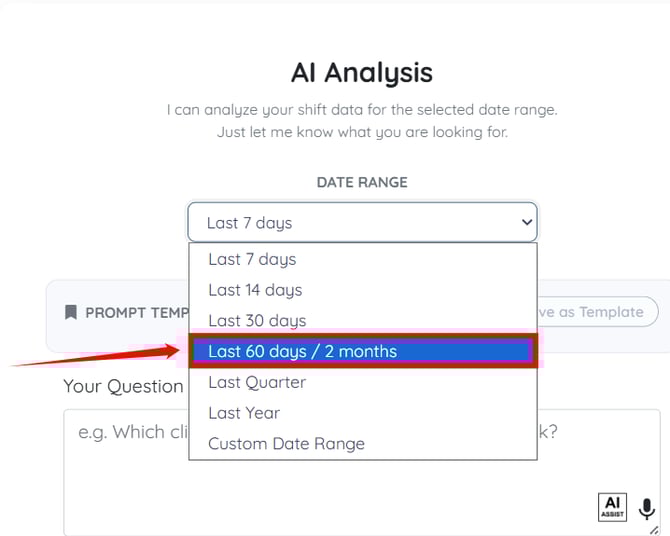
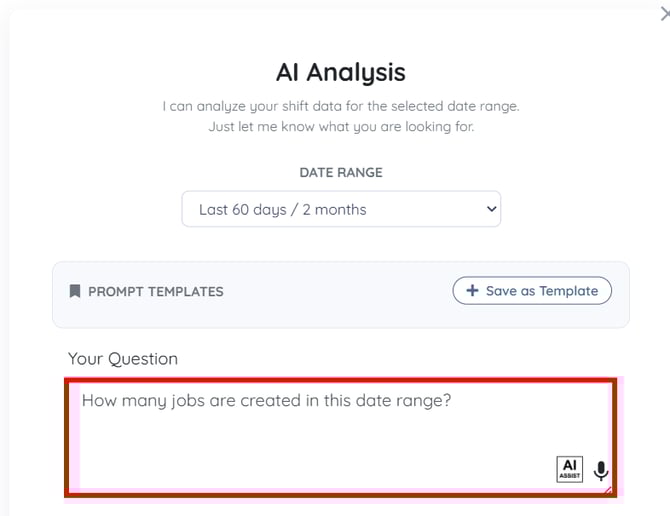
Step 4: Select the date range for which you want to analyze your shift data.
For demonstration purposes, we are selecting the Last 60 days / 2 months option.
Step 5: Enter your question according to what you want to analyze.
You may also make use of the AI ASSIST feature to enhance the quality of the text. To learn how to use it, refer to the Use AI ASSIST Feature document.
Step 6: Click the Run Analysis button.
The AI analyst will begin analyzing data based on your question.
Once the analysis is complete, the results will be displayed accordingly.
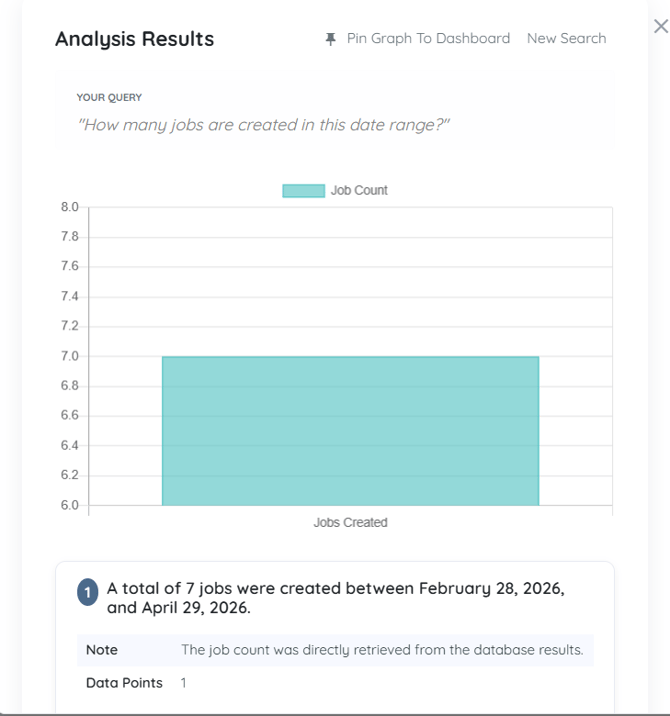
To learn how to save the generated graphs to your dashboard, refer to the Save AI Shift Jobs Analysis Graphs to Dashboard article.