![enginehire logo thin dark 1.0.png]](https://learn.enginehire.io/hs-fs/hubfs/enginehire%20logo%20thin%20dark%201.0.png?height=40&name=enginehire%20logo%20thin%20dark%201.0.png)
Let’s get started 🚀
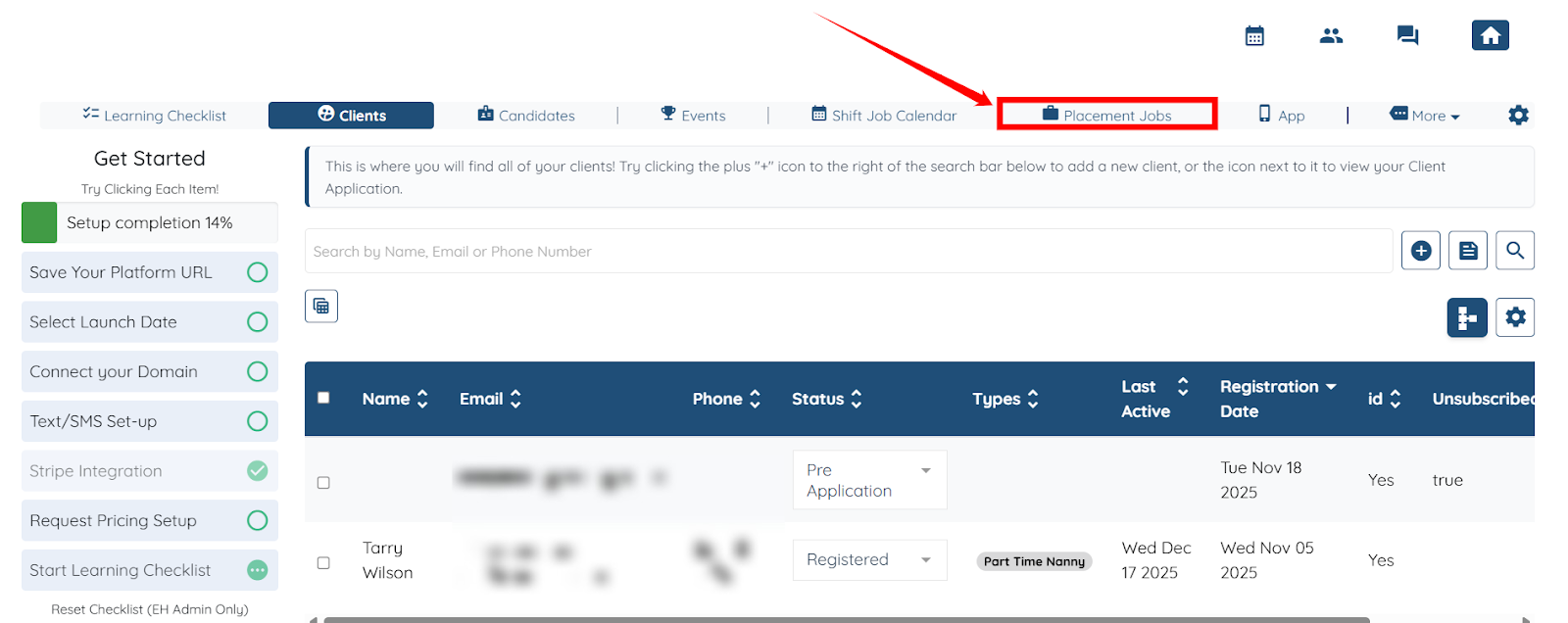
Step 1: Log in to your agent dashboard and click Placement Jobs in the top navigation bar.
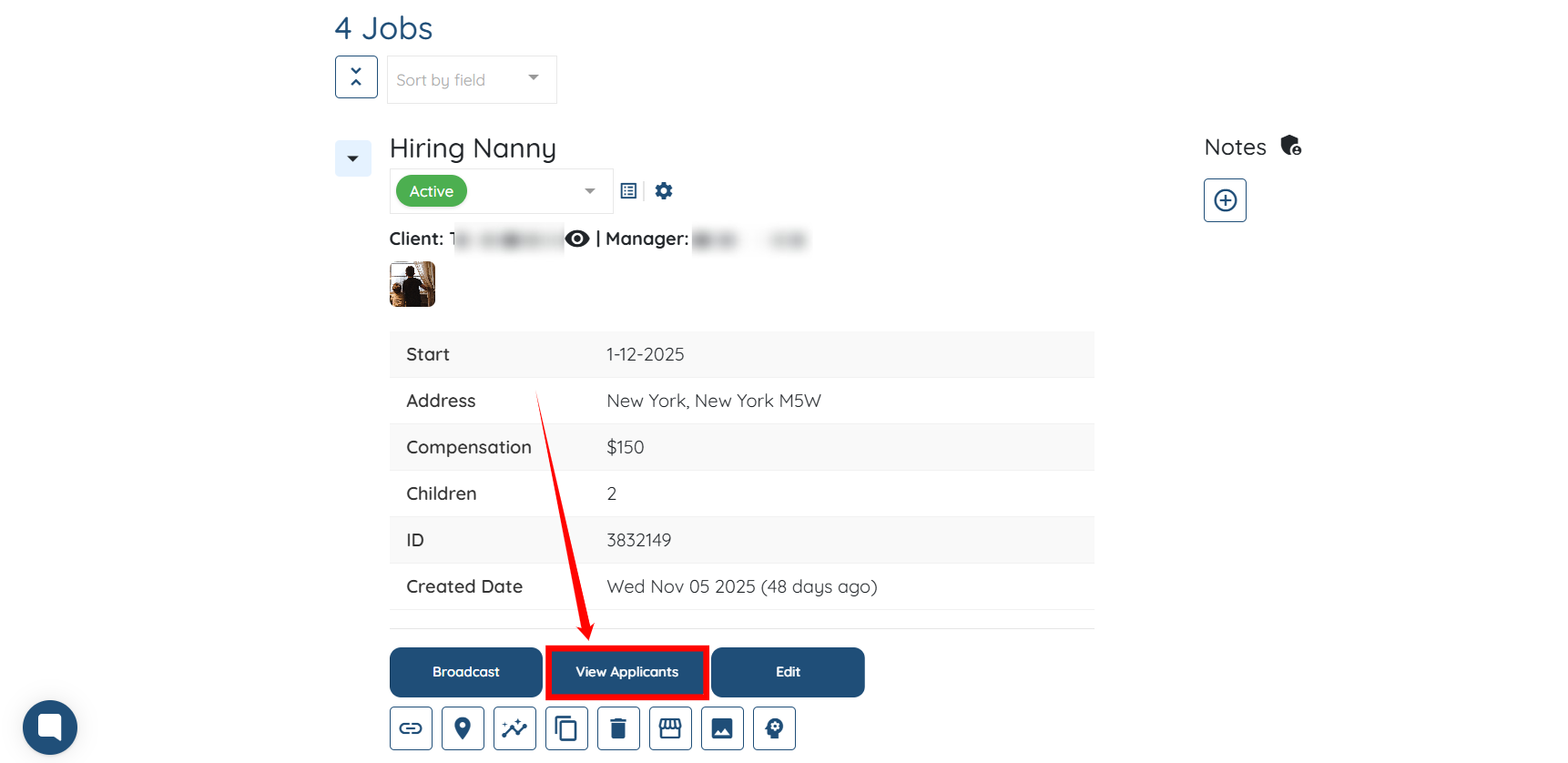
Step 2: Locate the job post where you want to add a note for a specific applicant, then click the View Applicants button.
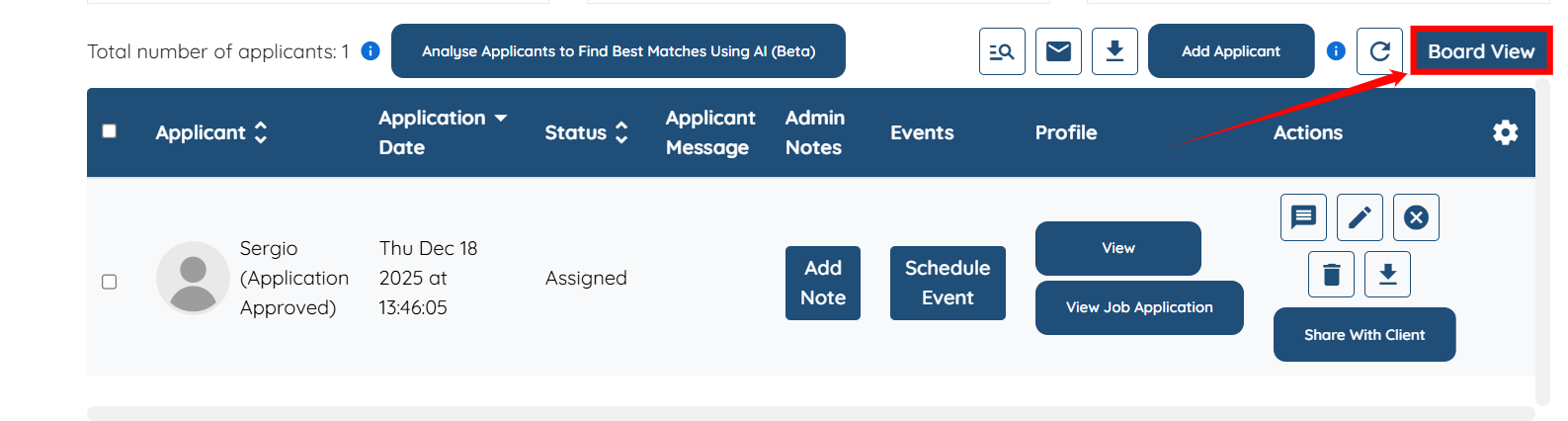
Step 3: Click the Board View button.
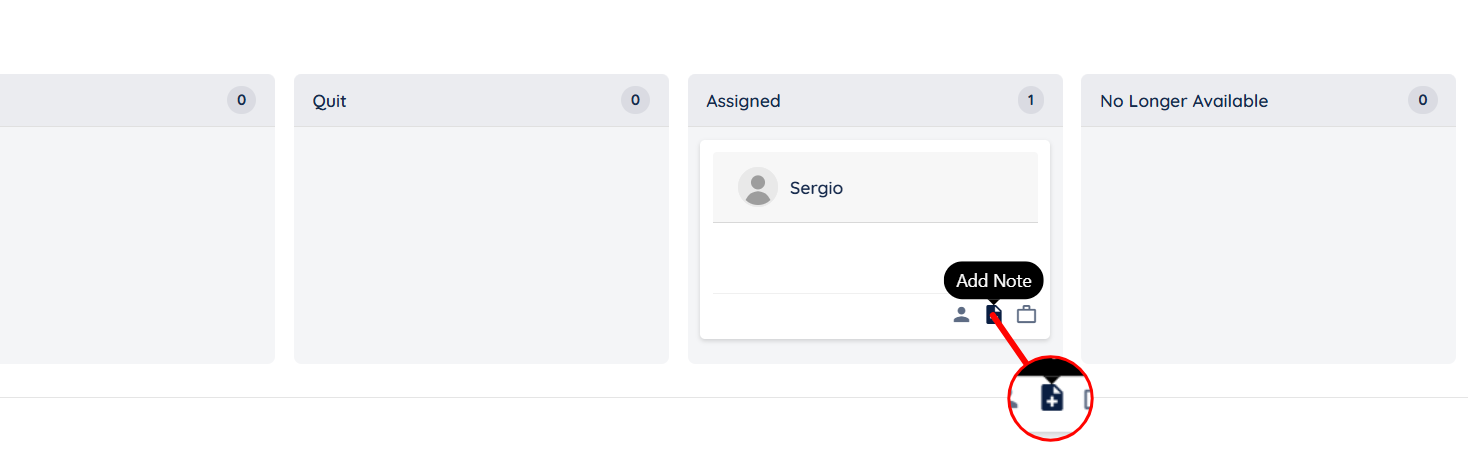
Step 4: Click the Add Note button to start adding a note.
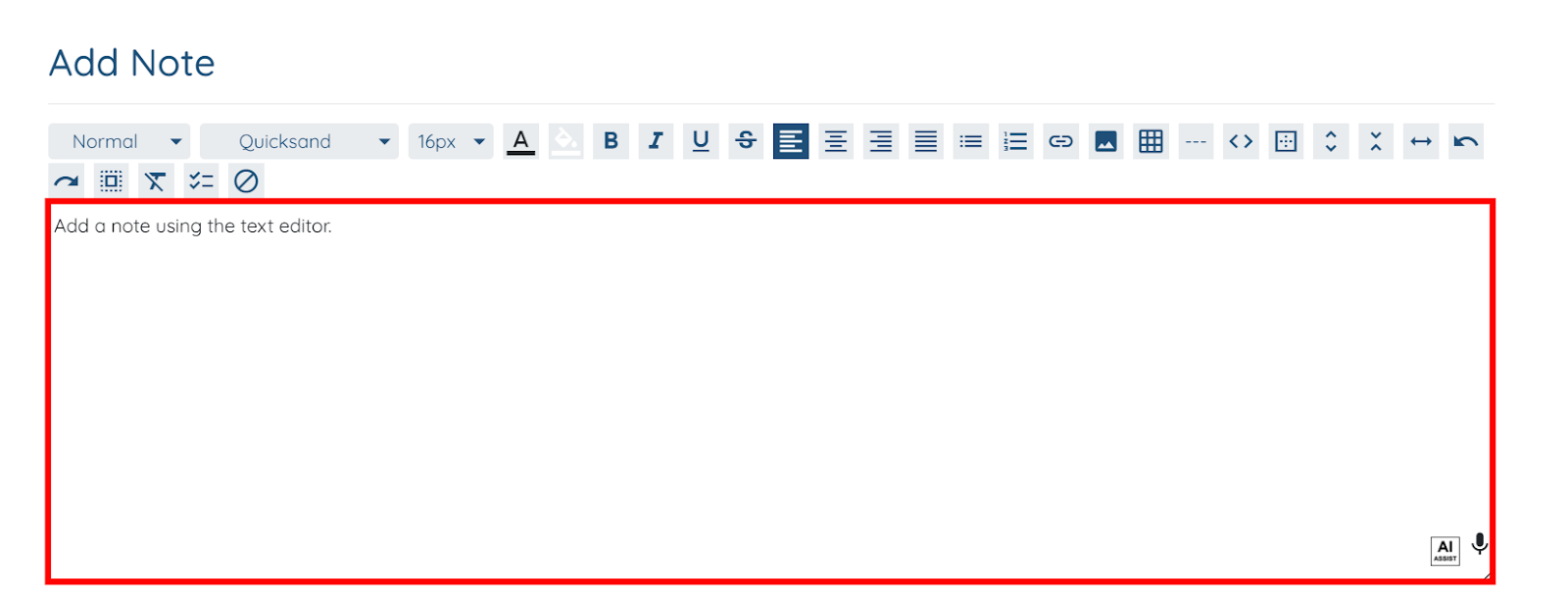
Step 5: Add the required note using the text editor.
You may also make use of the AI ASSIST feature to enhance the quality of the note. To learn how to use it, refer to the Use AI ASSIST Feature document.
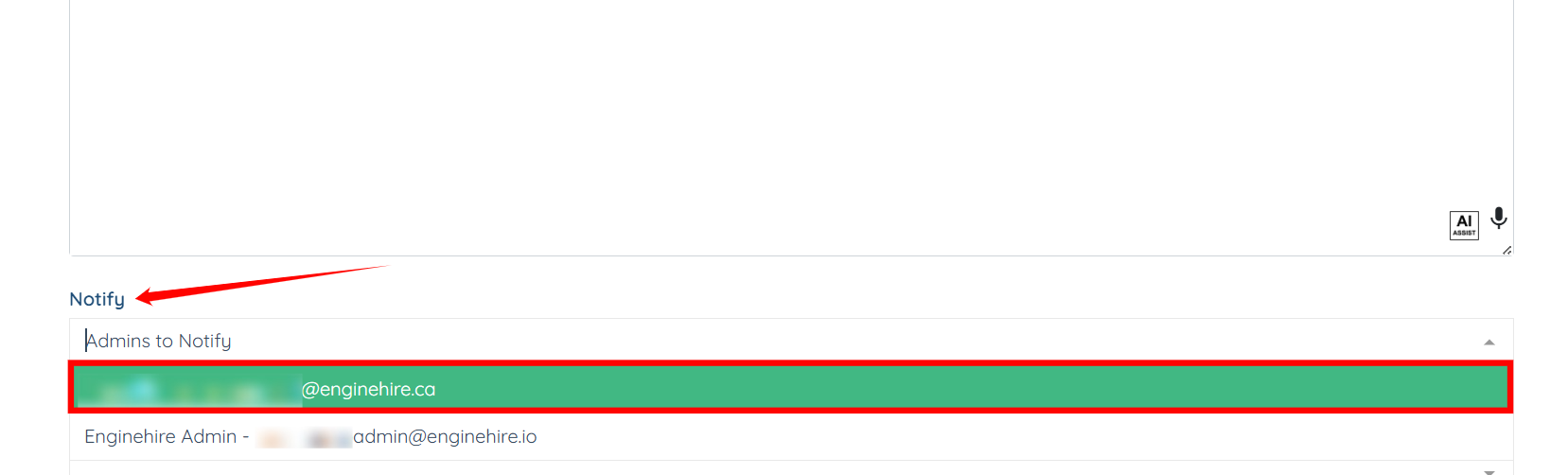
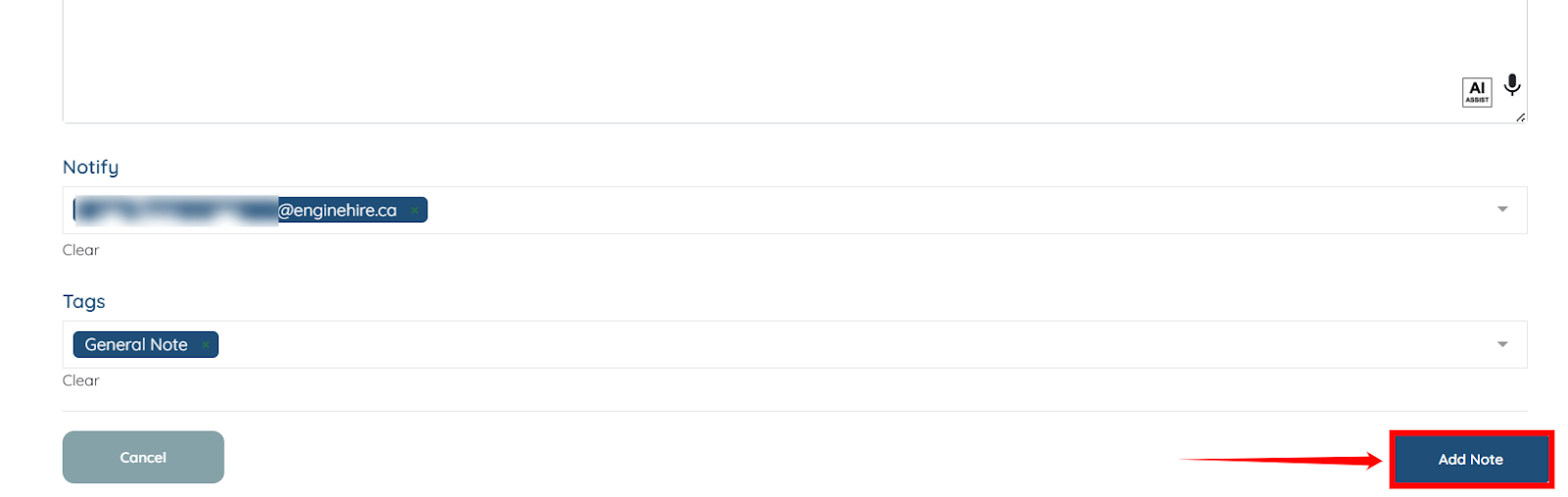
Step 6: Select the Admin you want to notify in the Notify field after you add the note.
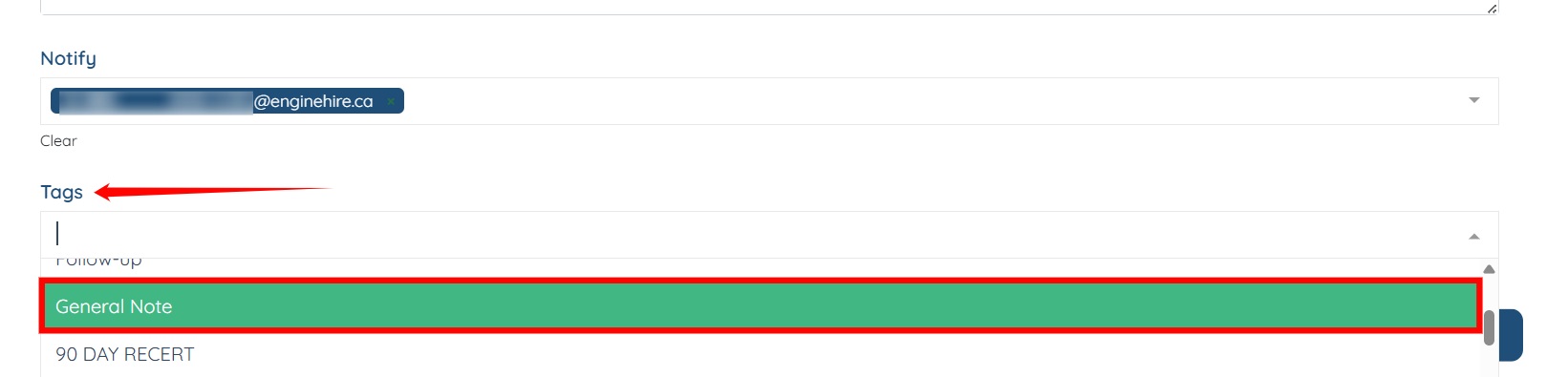
Step 7: Select the tag you want to add to your note to make it easier to search later.
Step 8: Click the Add Note button to finish adding the note.
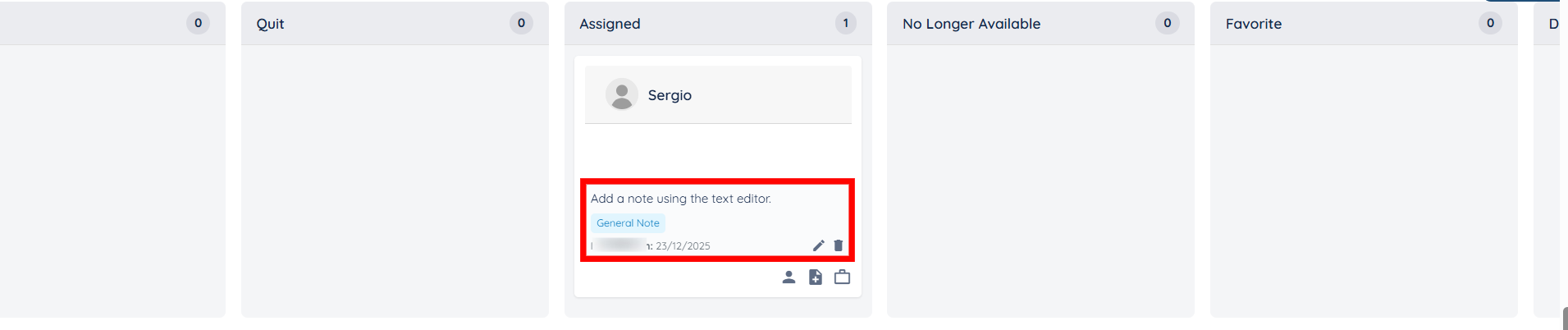
The note will be added successfully for that specific applicant.