![enginehire logo thin dark 1.0.png]](https://learn.enginehire.io/hs-fs/hubfs/enginehire%20logo%20thin%20dark%201.0.png?height=40&name=enginehire%20logo%20thin%20dark%201.0.png)
Let’s get started 🚀
Step 1: Log in to your agent dashboard and click More > Email Templates as shown in the screenshot below.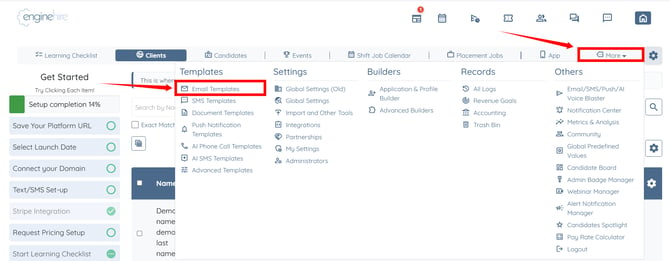
Step 2: Click the Add Template button.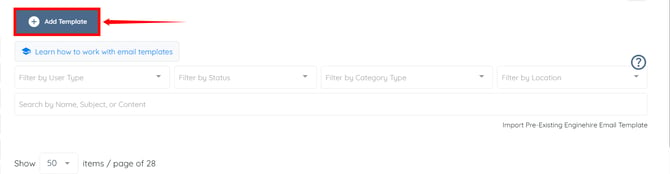
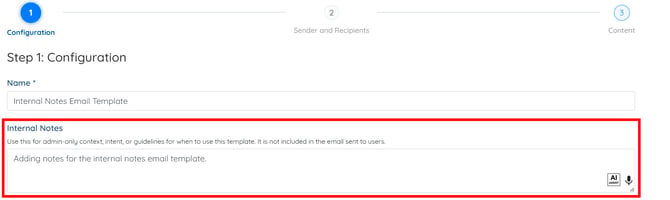
Step 3: Enter a name for your email template.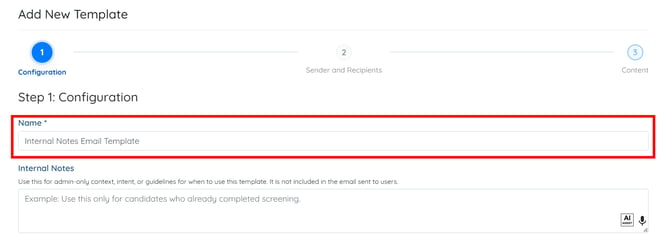
Step 4: Enter internal notes for the email template if required.
Internal notes are not included in outgoing emails. Use them to provide administrative context, instructions, or guidance for when the template should be used.
You may also make use of the AI ASSIST feature to enhance the quality of the text. To learn how to use it, refer to the Use AI ASSIST Feature document.
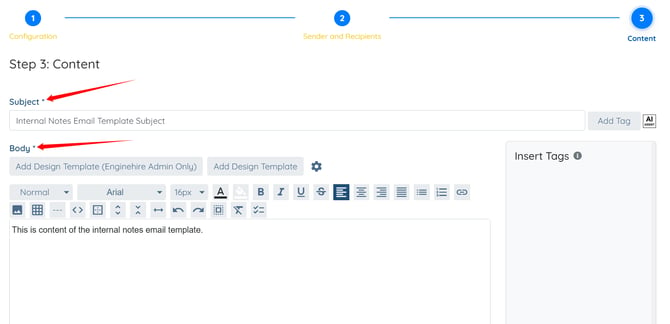
Step 5: Enter the Subject and Body of the email template.
Step 6: Click the Create button. 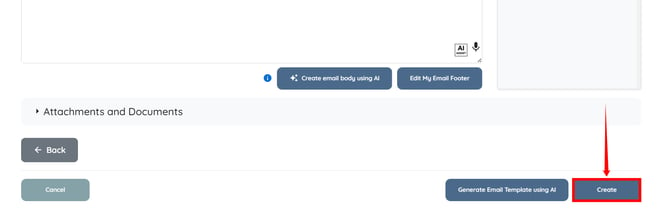
The email template will be created successfully. 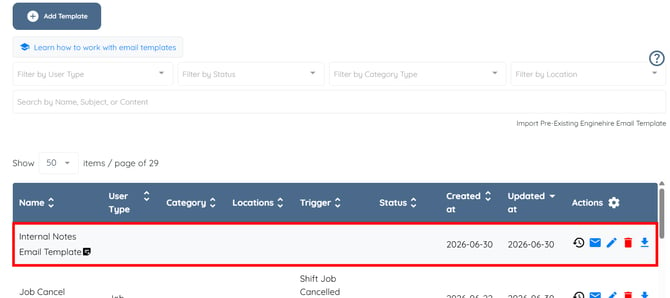
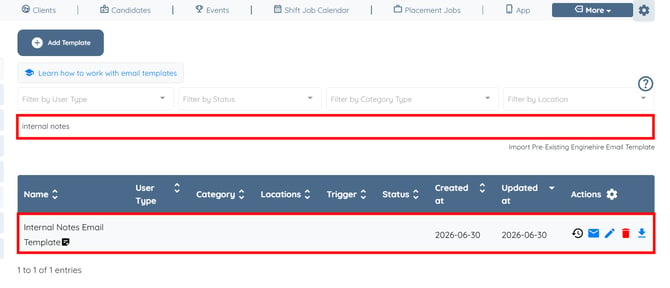
You can search for the email template using keywords from the internal notes to quickly locate and filter matching templates.