![enginehire logo thin dark 1.0.png]](https://learn.enginehire.io/hs-fs/hubfs/enginehire%20logo%20thin%20dark%201.0.png?height=40&name=enginehire%20logo%20thin%20dark%201.0.png)
Enable Booking Credits
Step 1: Log in to your agent dashboard and click More > Global Settings, as shown in the screenshot below. 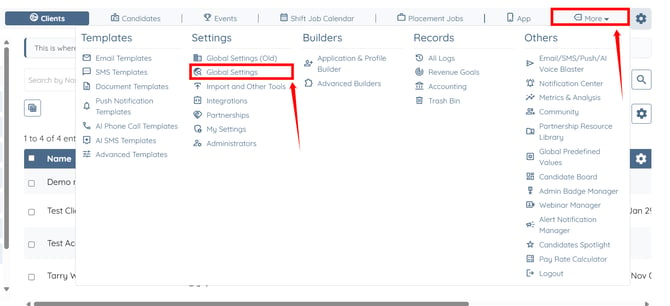
Step 2: Click the Clients tab from the available tabs.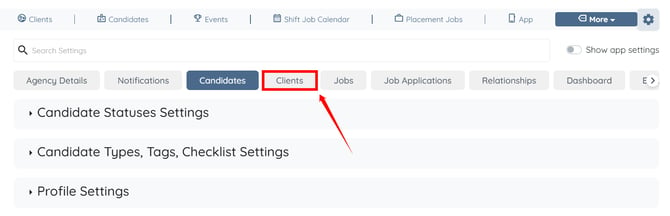
Step 3: Click the Booking Credit Settings option to expand it.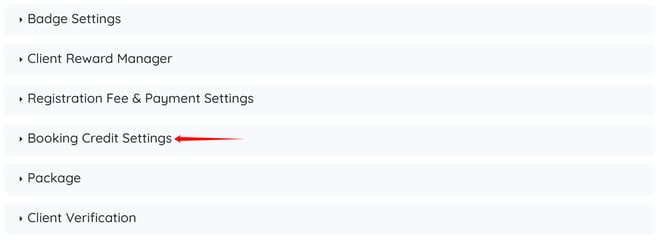
Step 4: Check the Use Booking Credit checkbox.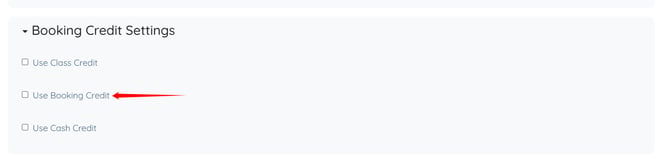
The settings will be saved automatically.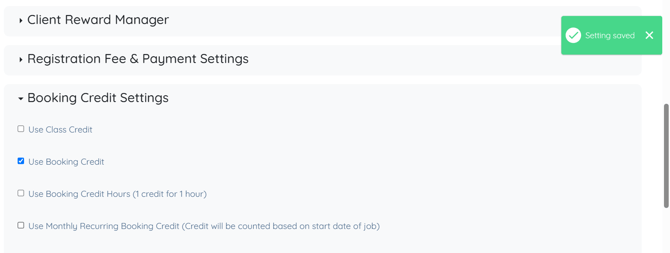
Add Booking Credits to a Client Account
Step 1: On your agent dashboard, click the client account to which you want to add credits. 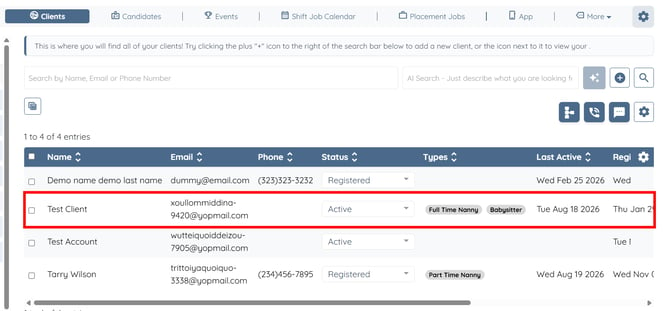
Step 2: Under the Admin tab, click the Payments tab from the available tabs. 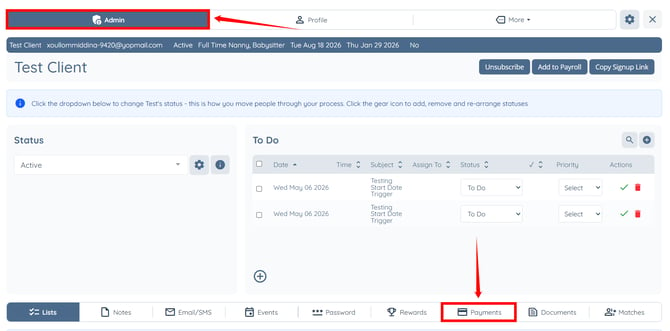
Step 3: Click the Credits button.
Step 4: Click the Add Credit button.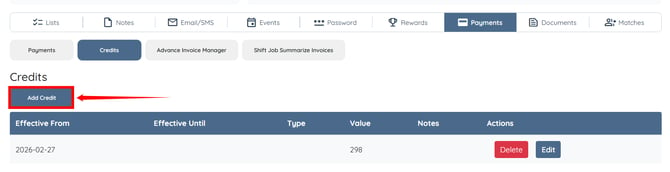
Step 5: Enter the number of credits you want to add in the Value field. 
Step 6: Enable the Is Monthly Credit or Is Yearly Credit checkbox as needed. 
Step 7: (Optional) Enter the Start Date and End Date to define when the credits become effective and when they expire. 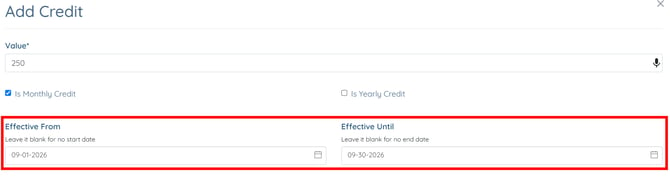
Step 8: Enter Notes if needed, then click the Submit button to add the credits.
You may also make use of the AI ASSIST feature to enhance the quality of the text. To learn how to use it, refer to the Use AI ASSIST Feature document.
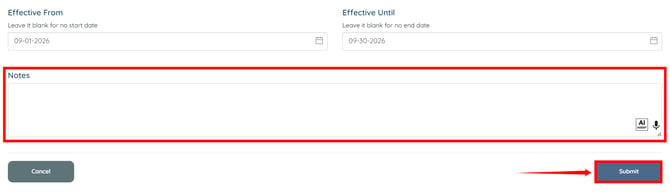
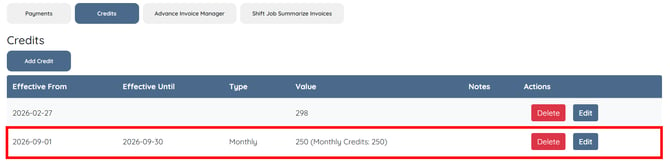
The credits will be added successfully.