![enginehire logo thin dark 1.0.png]](https://learn.enginehire.io/hs-fs/hubfs/enginehire%20logo%20thin%20dark%201.0.png?height=40&name=enginehire%20logo%20thin%20dark%201.0.png)
Let’s get started. 🚀
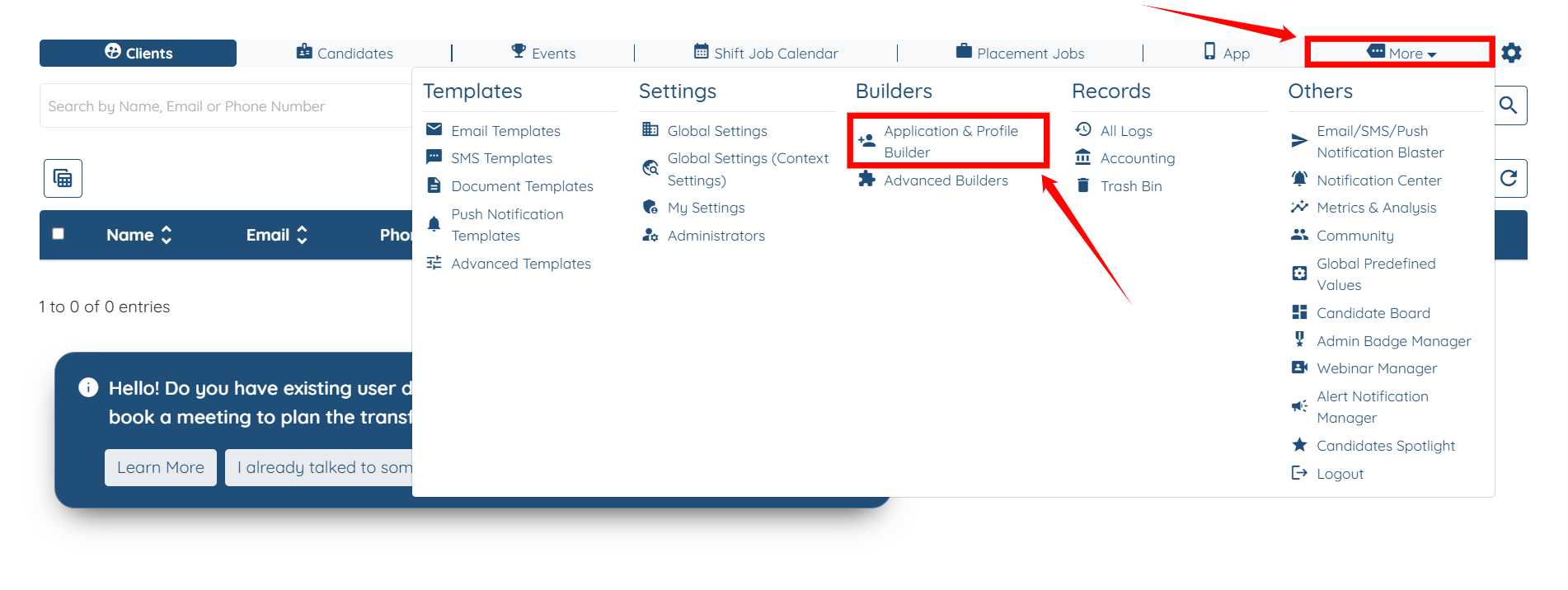
Step 1: Log in to your agent dashboard, then navigate to More > Application & Profile Builder, as shown in the screenshot below.
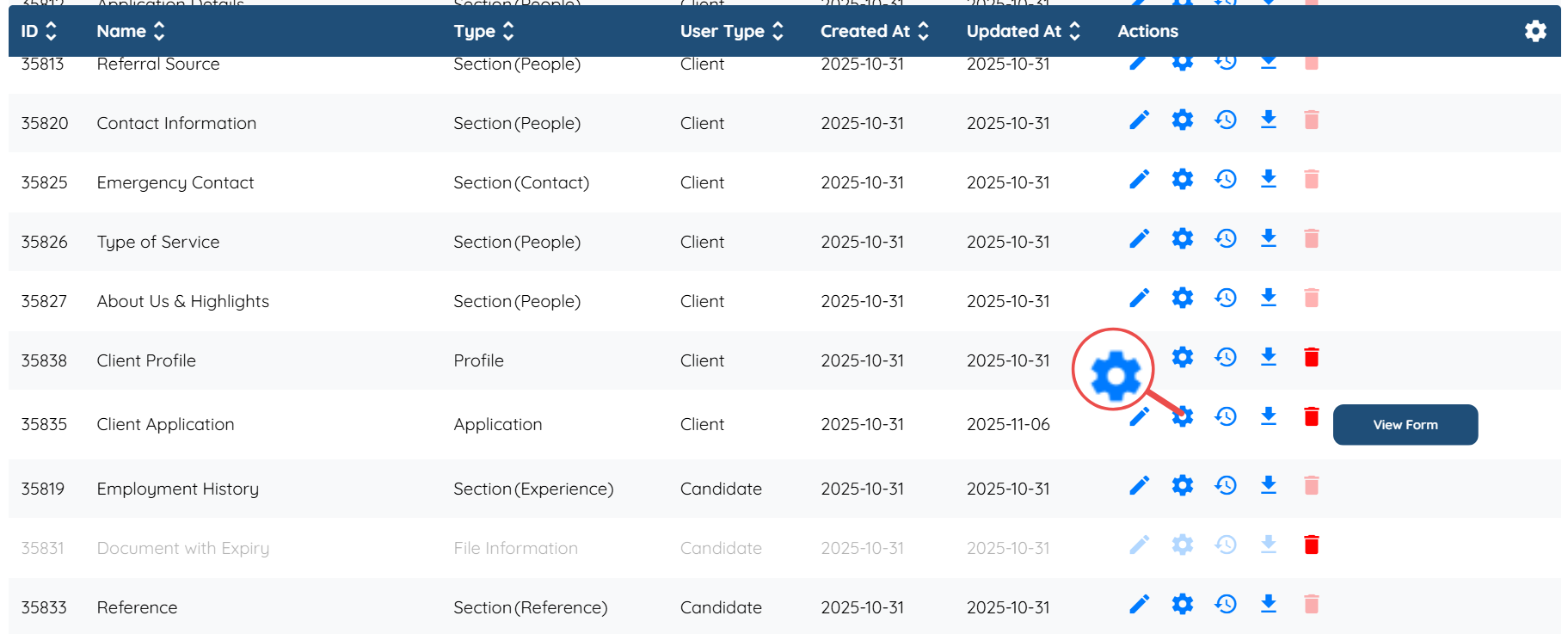
Step 2: Locate the application form where you wish to add the header text, and then click the Gear icon associated with that form in the Actions column.
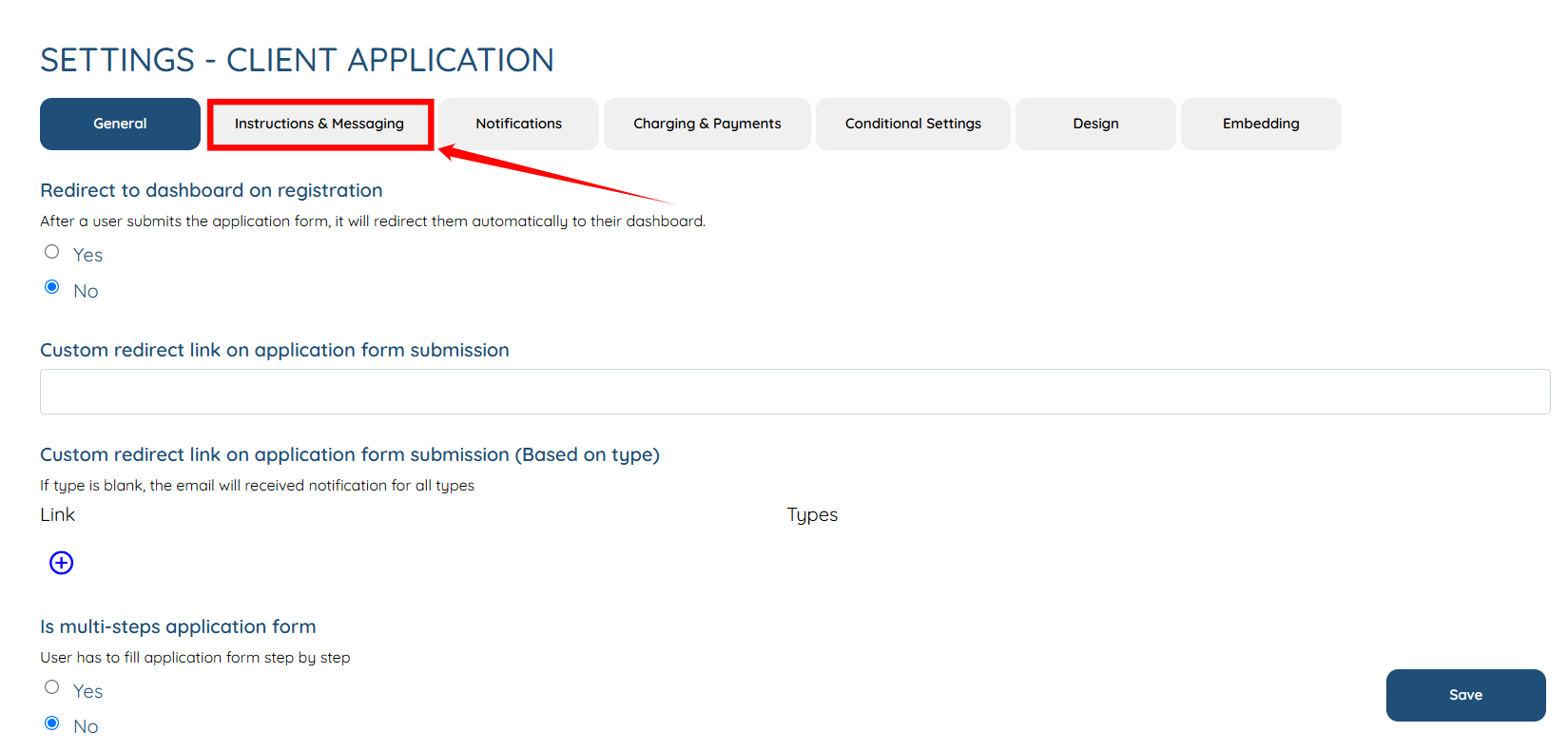
Step 3: Click on the Instructions & Messaging tab from the available list of tabs.
Step 4: Enter the text exactly as you would like it to appear in your application form. Once you have done so, click the Save button to continue.
You may also make use of the AI ASSIST feature to enhance the quality of the text. To learn how to use it, refer to the Use AI ASSIST Feature document.
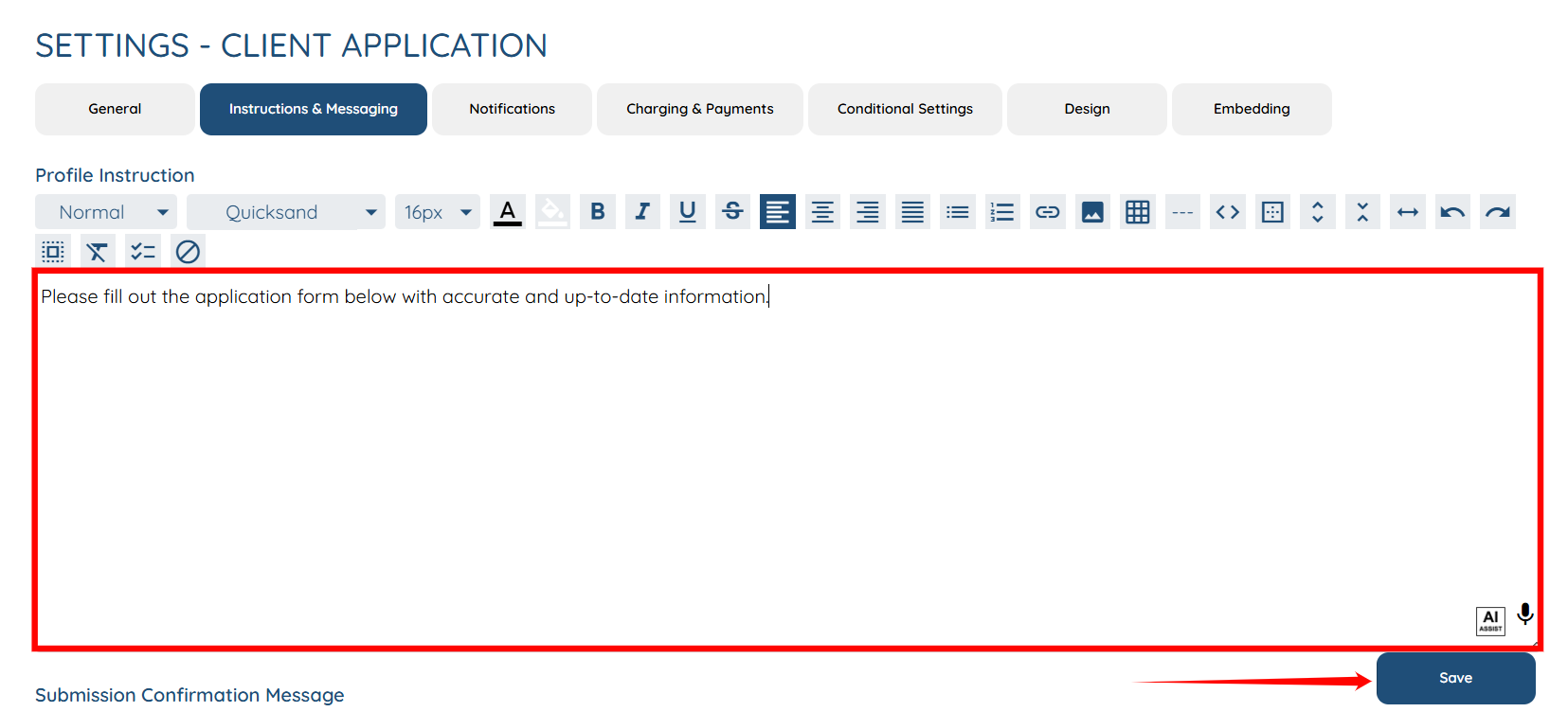
The Application Form header text will be added successfully.