![enginehire logo thin dark 1.0.png]](https://learn.enginehire.io/hs-fs/hubfs/enginehire%20logo%20thin%20dark%201.0.png?height=40&name=enginehire%20logo%20thin%20dark%201.0.png)
Candidates can only provide a decline reason if the required setting is enabled. To learn how to configure this setting, refer to the Require Reasons for Declined Shifts article.
Let’s get started 🚀
On the Candidate Side
The candidate is prompted to provide a reason when declining a shift job. The reason entered, will be included in the notification email sent to the agency. 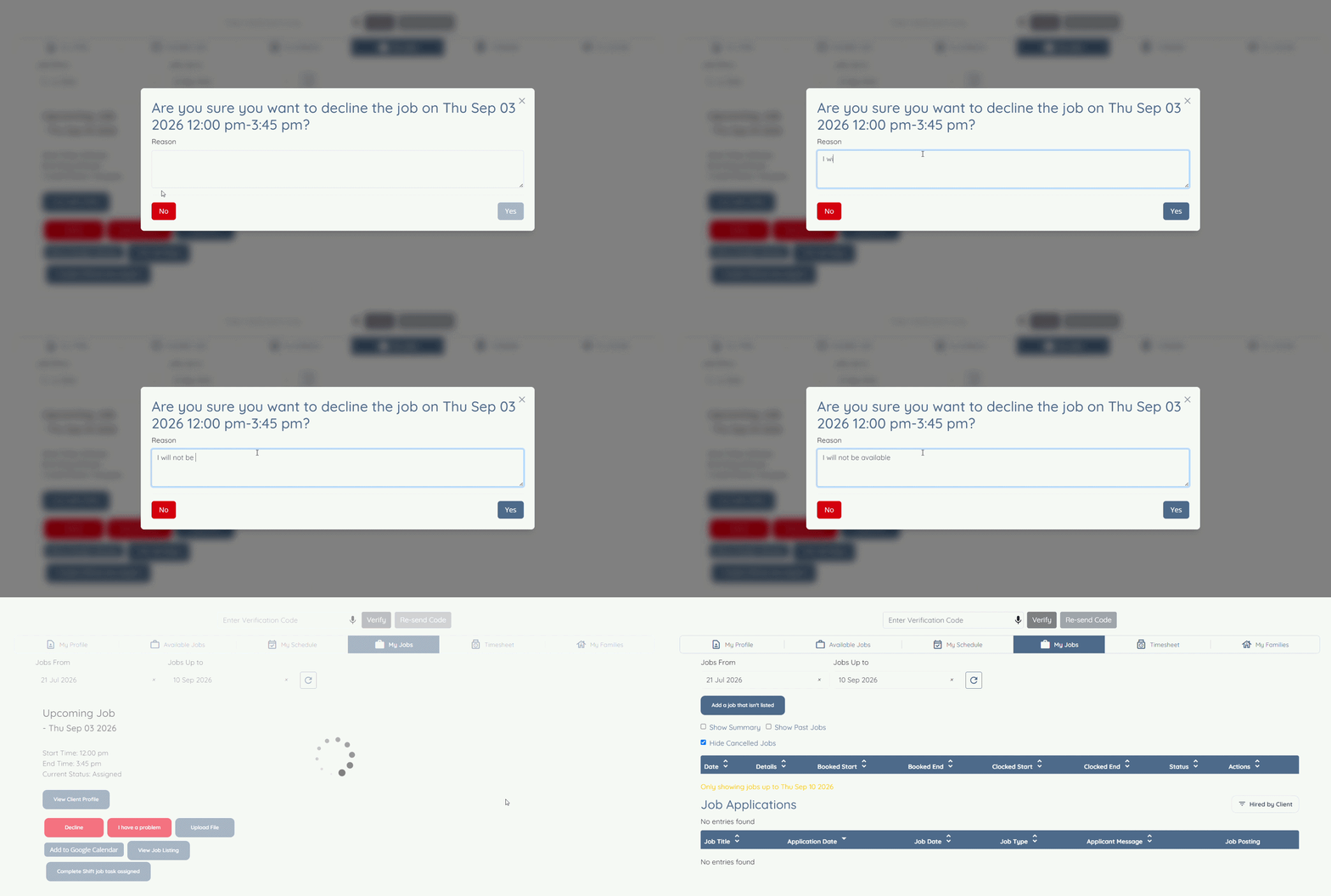
On the Admin Side
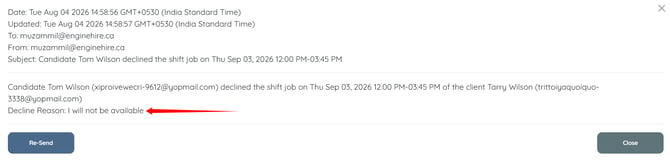
View the decline reason provided by the candidate from the email notification sent to the agency.
Step 1: Log in to your agent dashboard, and click More > All Logs as shown in the screenshot below.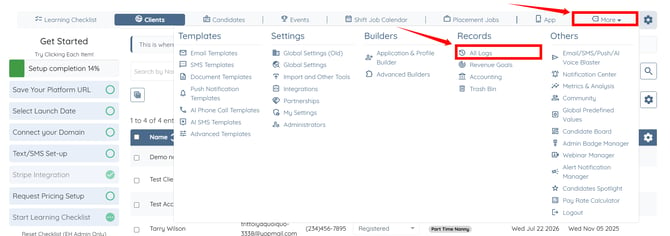
Step 2: Click the Email/SMS/Push/AI Voice Log option.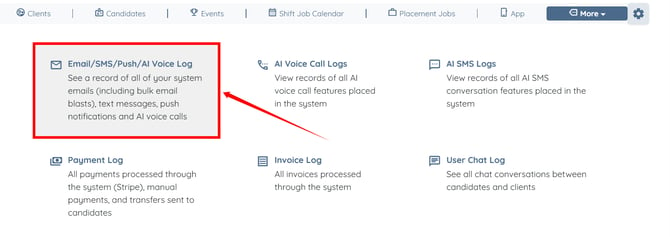
Step 3: Select Email Communication Channel.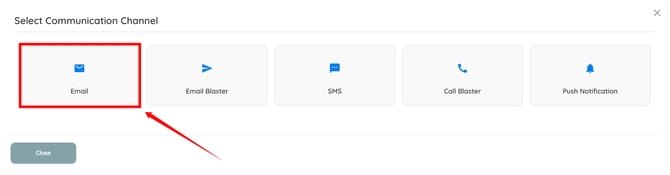
Step 4: Locate and open the notification email for the declined shift job. 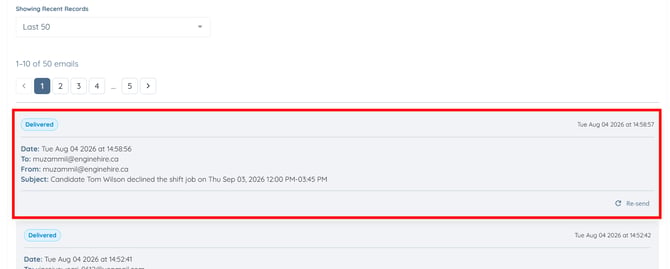
You will be able to view the decline reason provided by the candidate in the notification email.