![enginehire logo thin dark 1.0.png]](https://learn.enginehire.io/hs-fs/hubfs/enginehire%20logo%20thin%20dark%201.0.png?height=40&name=enginehire%20logo%20thin%20dark%201.0.png)
Tag matching compares the tags on a job with the tags on each caregiver's profile. When matching is turned on, a caregiver is only considered for a job if their profile has the tags that job carries.
This means matching works by inclusion. You tag caregivers with the animals they can work with, not the ones they can't. A caregiver with no animal tags won't be matched to jobs that include animals, which is exactly what you want for someone who prefers a pet-free home.
The tag names are up to you. Your agency might use a single Pets tag, separate Cat and Dog tags, or more specific tags like small dog and large dog. What matters is that the same tag name is used on both the job and the caregiver.
How to tag caregivers for the animals they can work with
Open the caregiver's profile and add a tag for each animal they're comfortable working around, using the same tag names your jobs use.
Match Client Tags With Candidate Tags For Broadcast Matching
Avoid tags that describe a restriction, such as "No dogs" or "Allergic to cats." Matching looks for tags a caregiver has, so a restriction tag won't keep that caregiver off a job with a dog. It may even cause problems if it happens to match a job tag.
How to turn on tag matching for auto-assignment
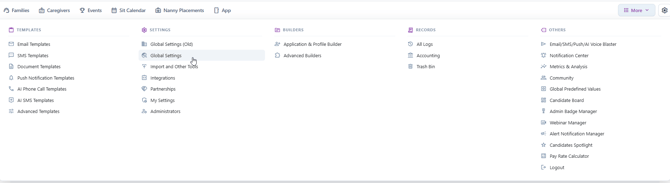
From your dashboard, go to More > Global Settings and open the Jobs tab. Scroll to the bottom and expand Shift Job Auto Assignment. Make sure Matching tags is turned on, then save your changes.

How to turn on tag matching for auto-broadcast
In the same Jobs tab, expand Shift Job Auto Broadcast and turn on Matching tags there as well.
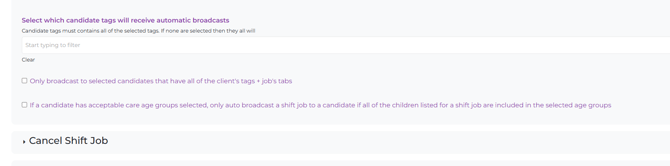
Auto-assignment and auto-broadcast are filtered separately. If you only turn on matching in one of them, a caregiver who was correctly skipped by auto-assignment can still receive the job in a broadcast.
Make sure your jobs carry animal tags
Matching only works when the job itself has the right animal tag. If a job with a dog has no Dog tag, Enginehire has nothing to match against, and the job can go to caregivers who aren't comfortable with dogs.
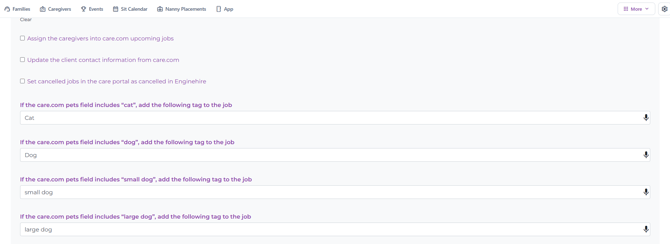
If your agency uses the Backup Care Assistant with Care.com, you can have Enginehire add animal tags to incoming jobs automatically. Go to More > Global Settings, open the Backup Care Assistant tab, and expand Care.com. You'll find a field for each pet value on the Care.com request (cat, dog, small dog, and large dog). Enter the tag you want added to the job for each one, using the exact tag names on your caregiver profiles.