![enginehire logo thin dark 1.0.png]](https://learn.enginehire.io/hs-fs/hubfs/enginehire%20logo%20thin%20dark%201.0.png?height=40&name=enginehire%20logo%20thin%20dark%201.0.png)
Let’s get started 🚀
Step 1: Log in to your agent dashboard and click More > Import and Other Tools as shown in the screenshot below.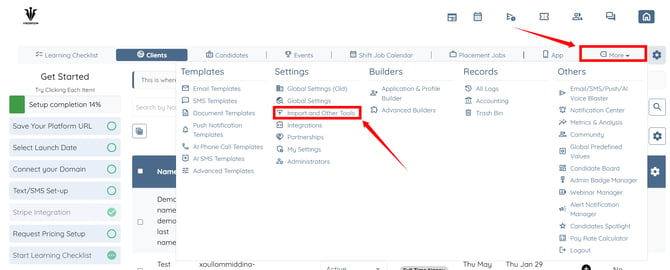
Step 2: Click the Import Clients button, then select the CSV file from which you want to import the data. 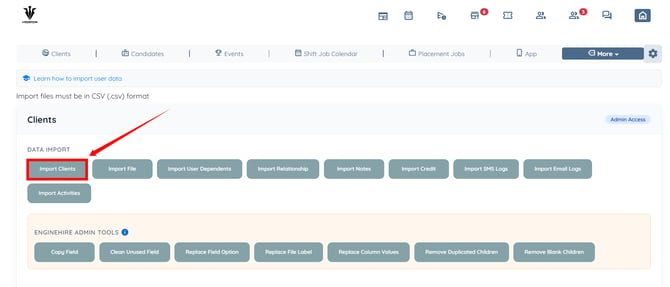
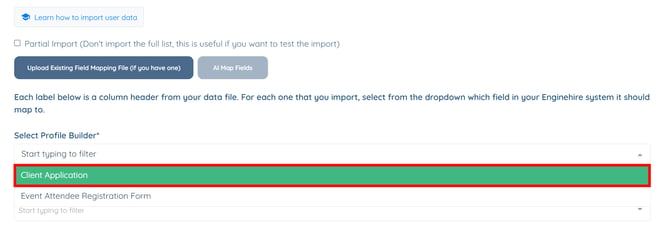
Step 3: Click the box under the Select Profile Builder option to open the dropdown list.
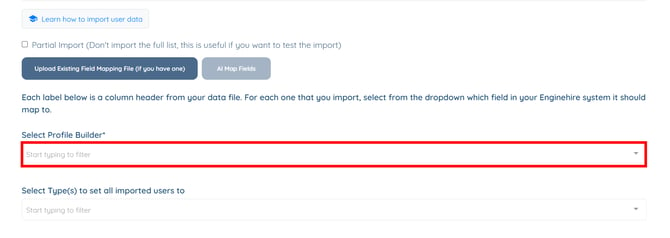
Step 4: Select the profile builder as required.
Step 5: Click the AI Map Fields button to automatically map the CSV columns to the corresponding system fields. 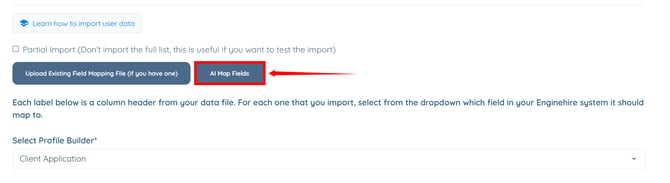
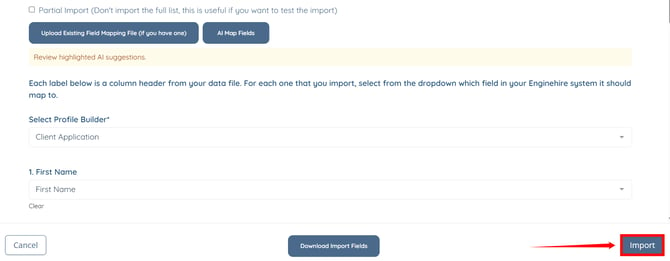
Step 6: Review any highlighted partial matches and confirm the mappings as required, then click the Import button.
The clients in the selected CSV file will be imported successfully into your system. 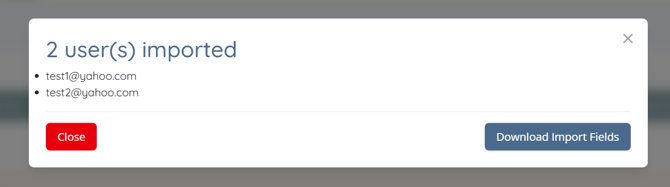
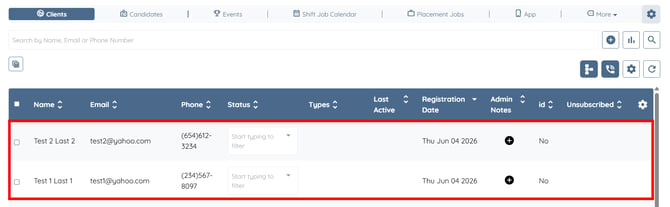
The imported clients will also be displayed in the Clients section of your agent dashboard.