![enginehire logo thin dark 1.0.png]](https://learn.enginehire.io/hs-fs/hubfs/enginehire%20logo%20thin%20dark%201.0.png?height=40&name=enginehire%20logo%20thin%20dark%201.0.png)
For demonstration purposes, this article uses the candidate application as an example; however, the same steps apply to client application as well.
Let’s get started 🚀
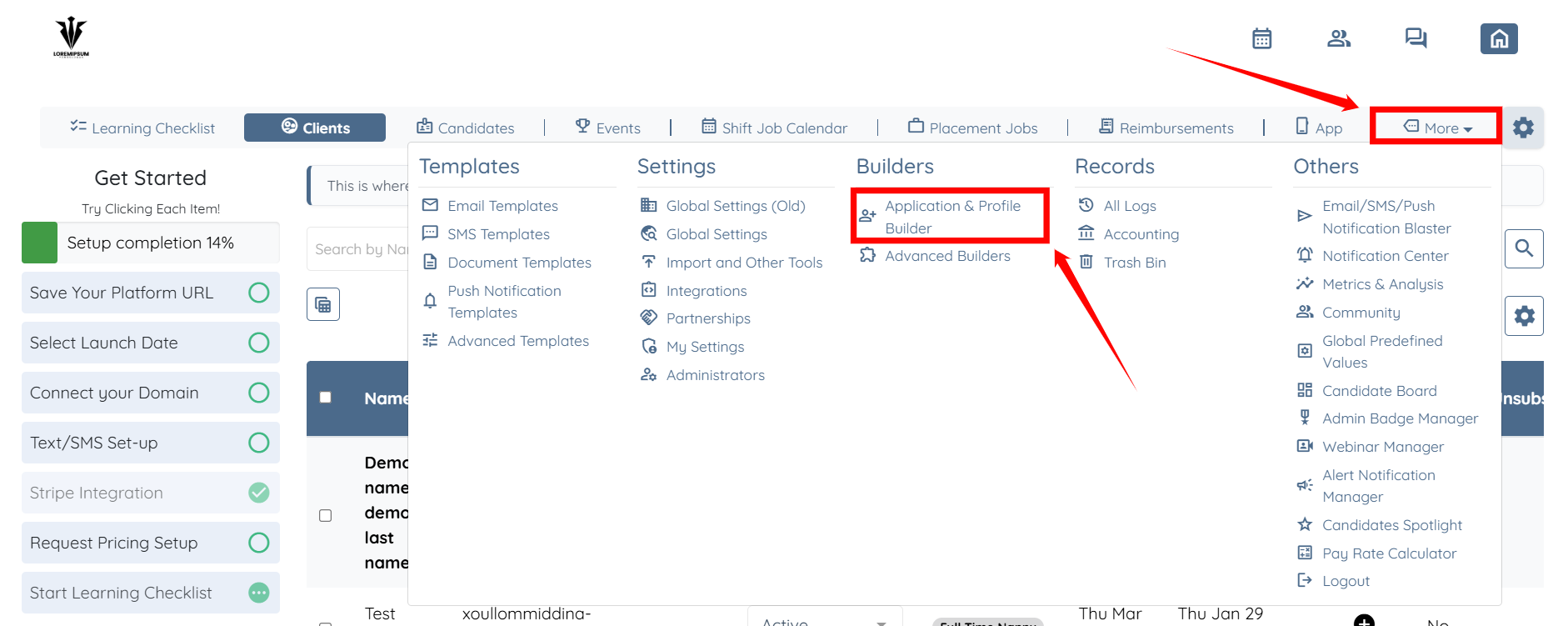
Step 1: Log in to your agent dashboard and click More > Application & Profile Builder as shown in the screenshot below.
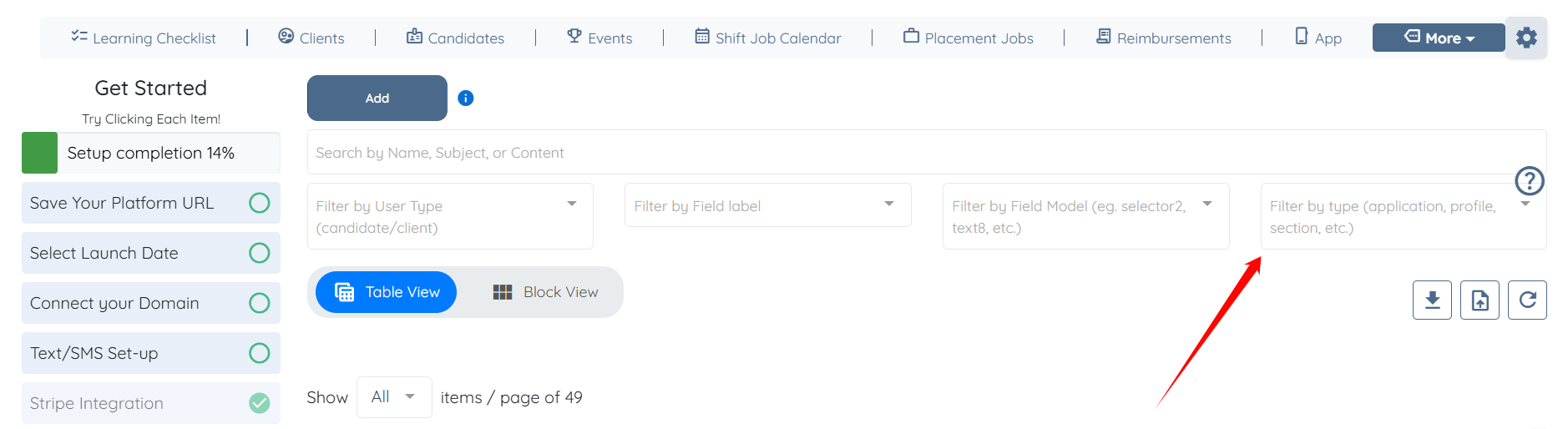
Step 2: Click the Filter by type (application, profile, section, etc.) box on the right-hand side of the screen.
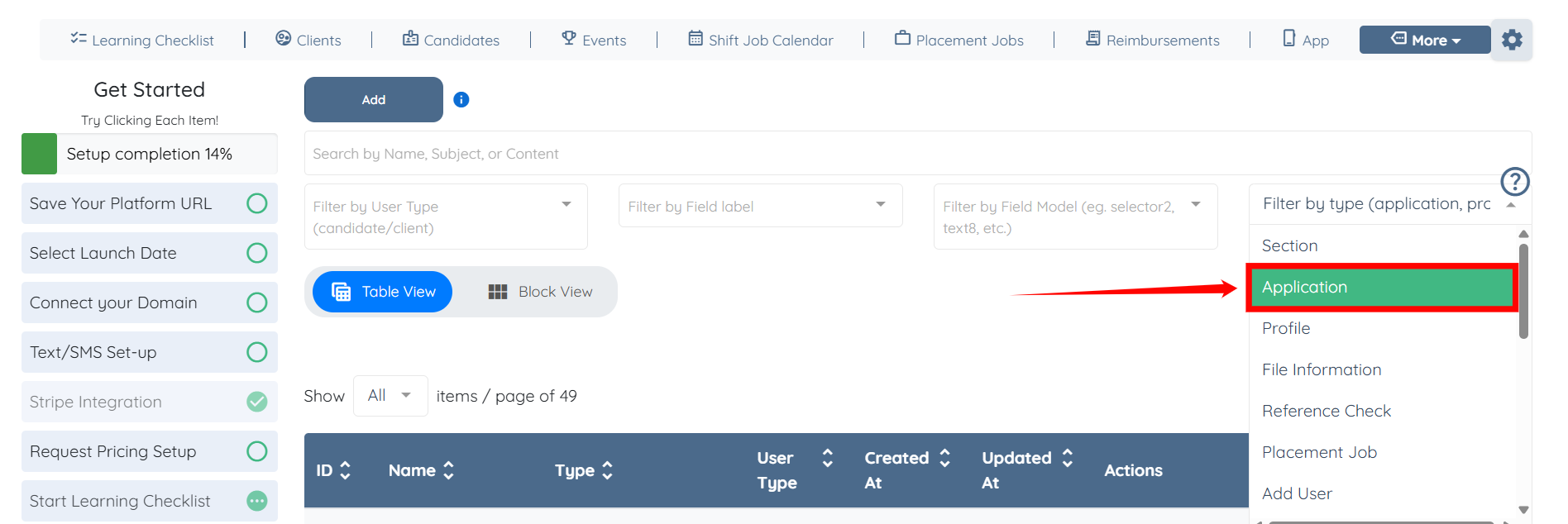
Step 3: Select the Application option from the dropdown list.
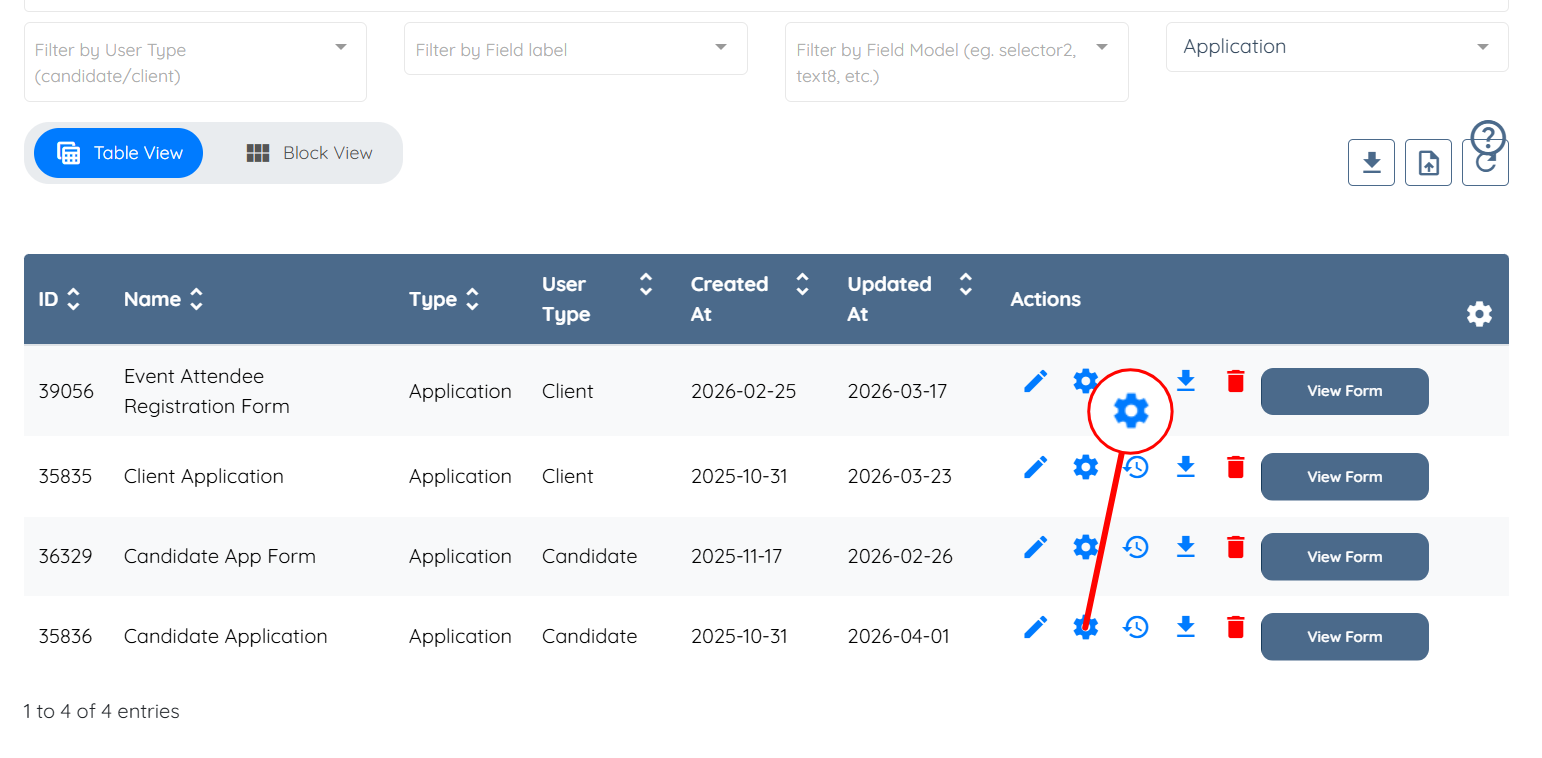
Step 4: Click the corresponding Gear icon of the application where you want to use AI-based translation.
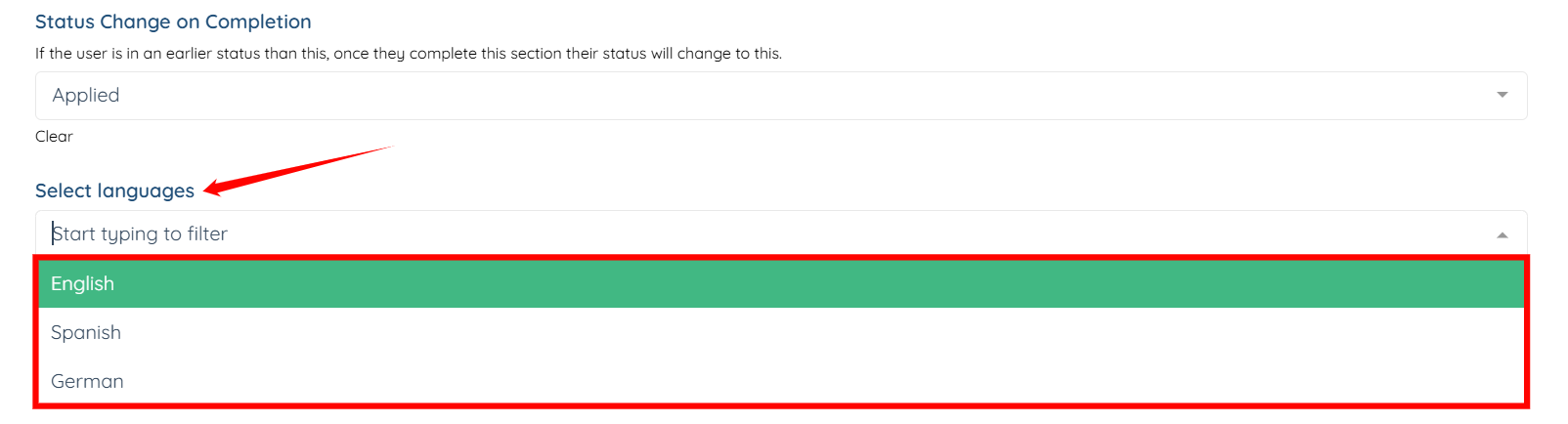
Step 5: Scroll down to the Select languages field and choose the language(s) you want to translate into.
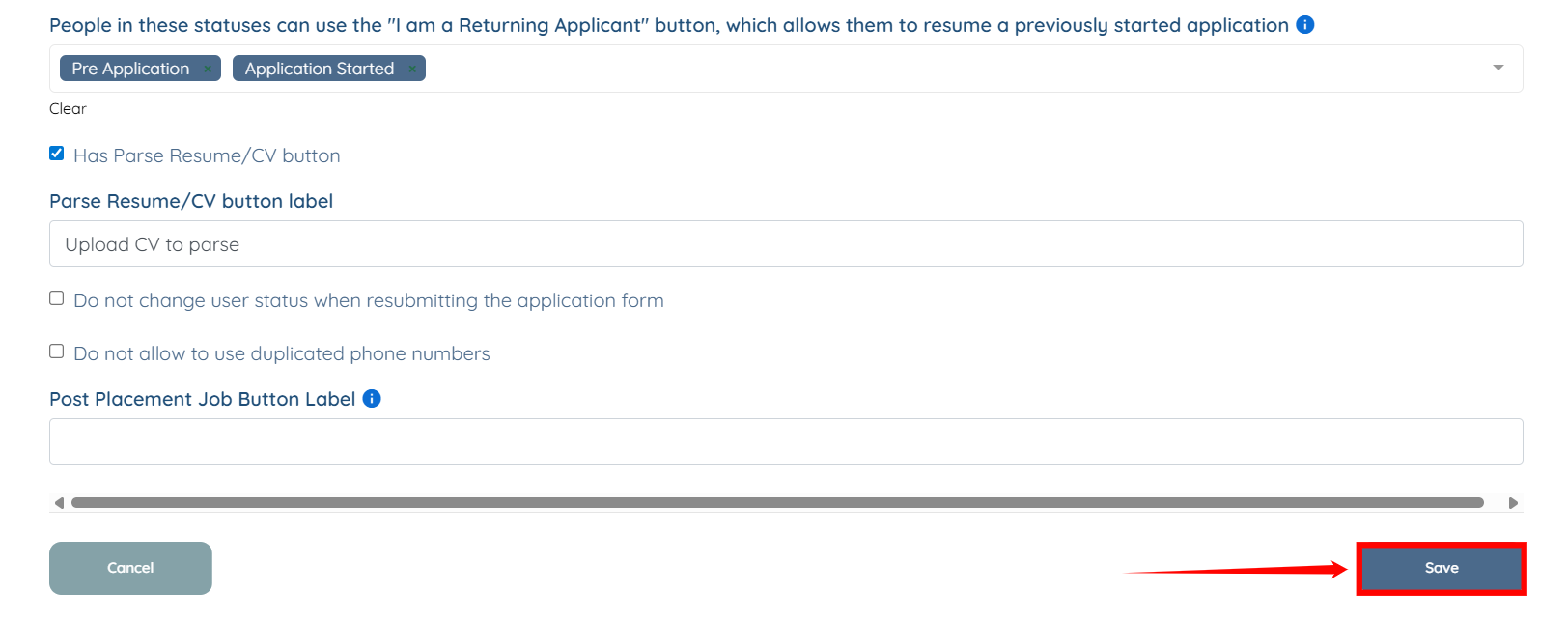
Step 6: Scroll down to the bottom and click the Save button to apply the changes.
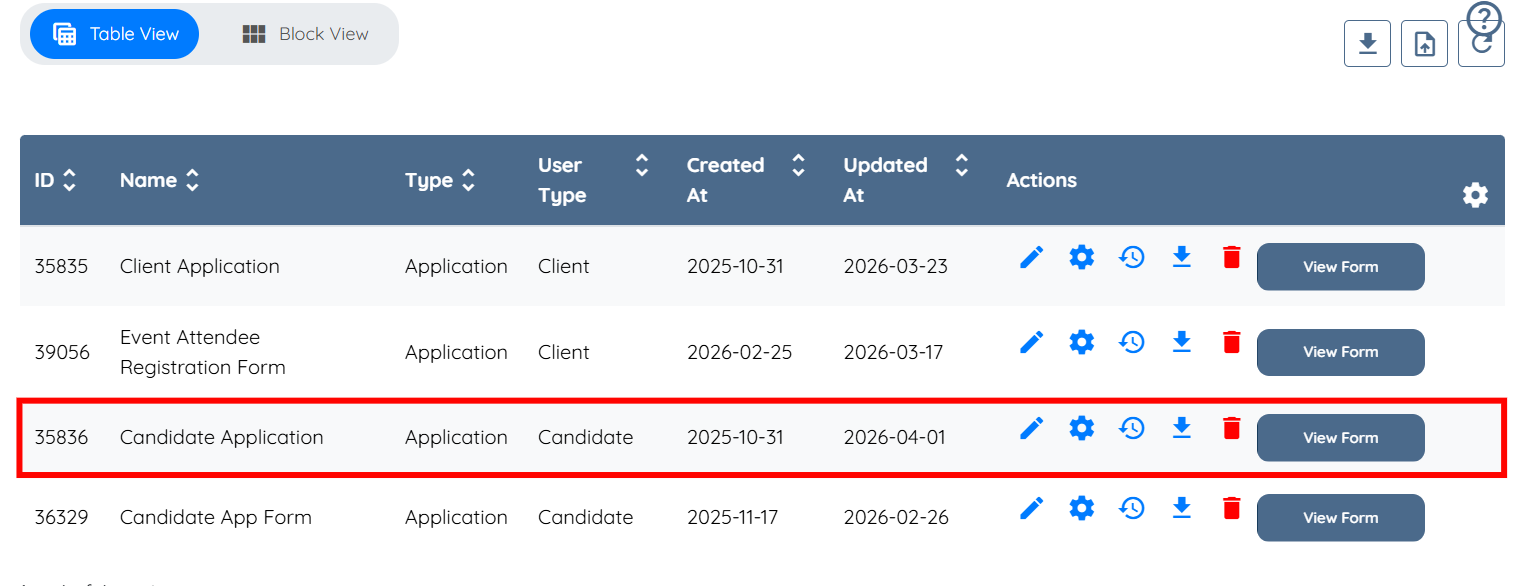
Step 7: Click the Candidate Application again to open it.
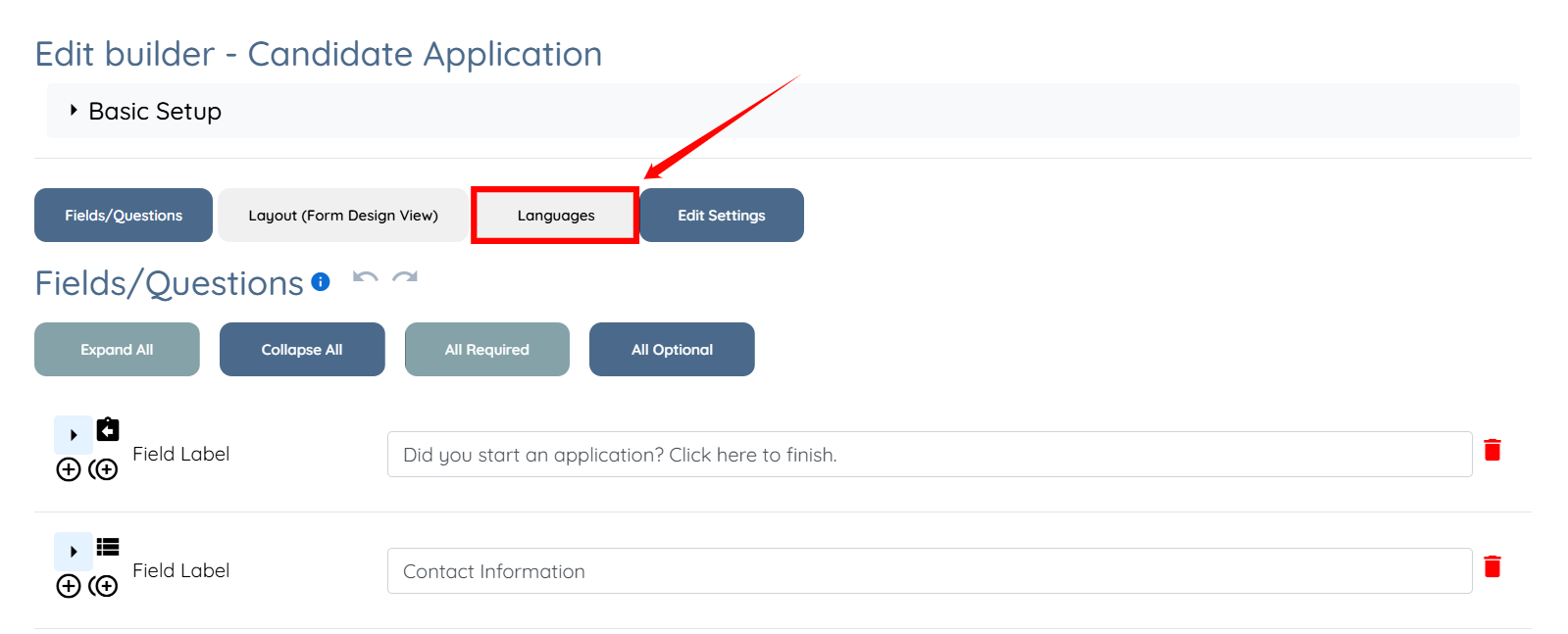
Step 8: Click the Languages tab.
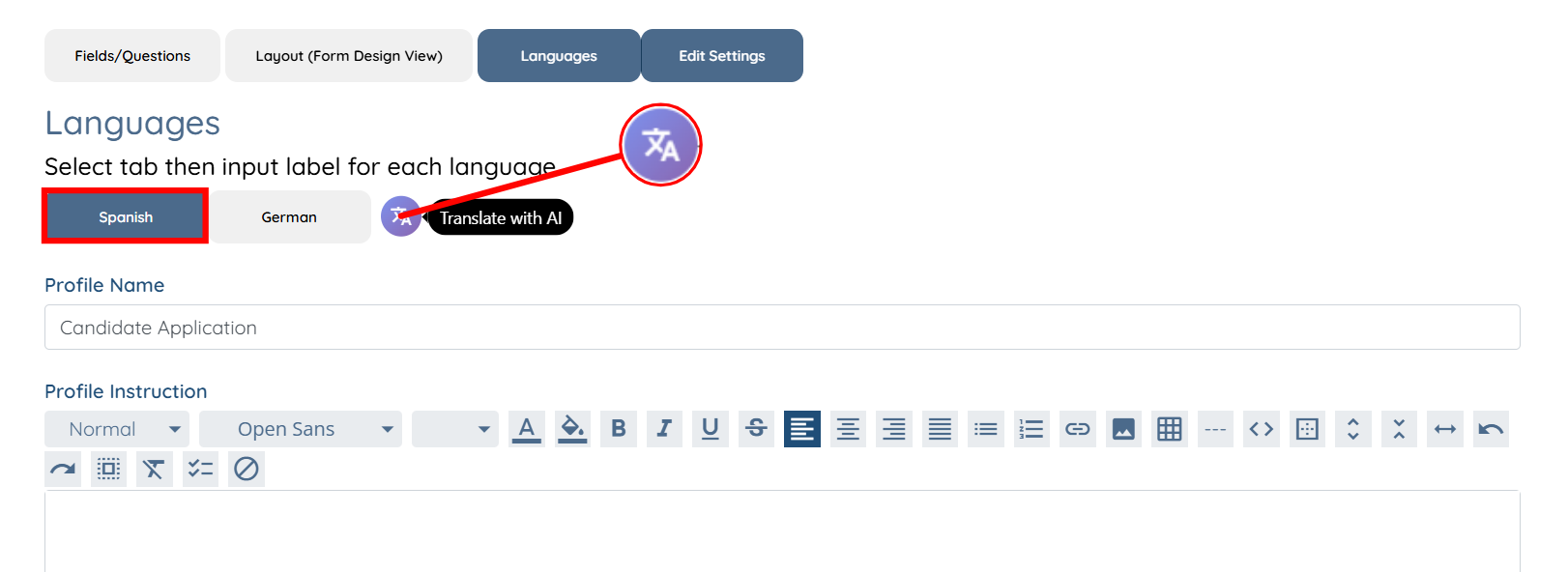
Step 9: Select the language in which you want to translate the fields and sections, and then click the Translate with AI icon to proceed.
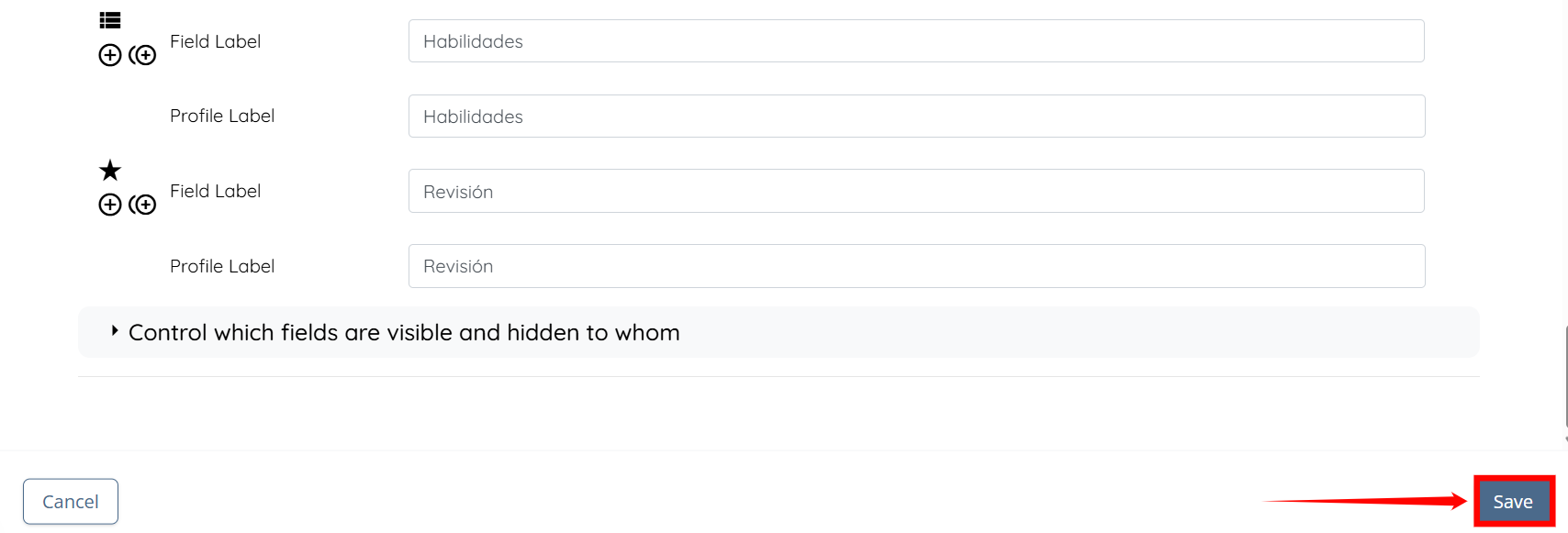
The fields will be successfully translated into the selected language (Spanish in this case).
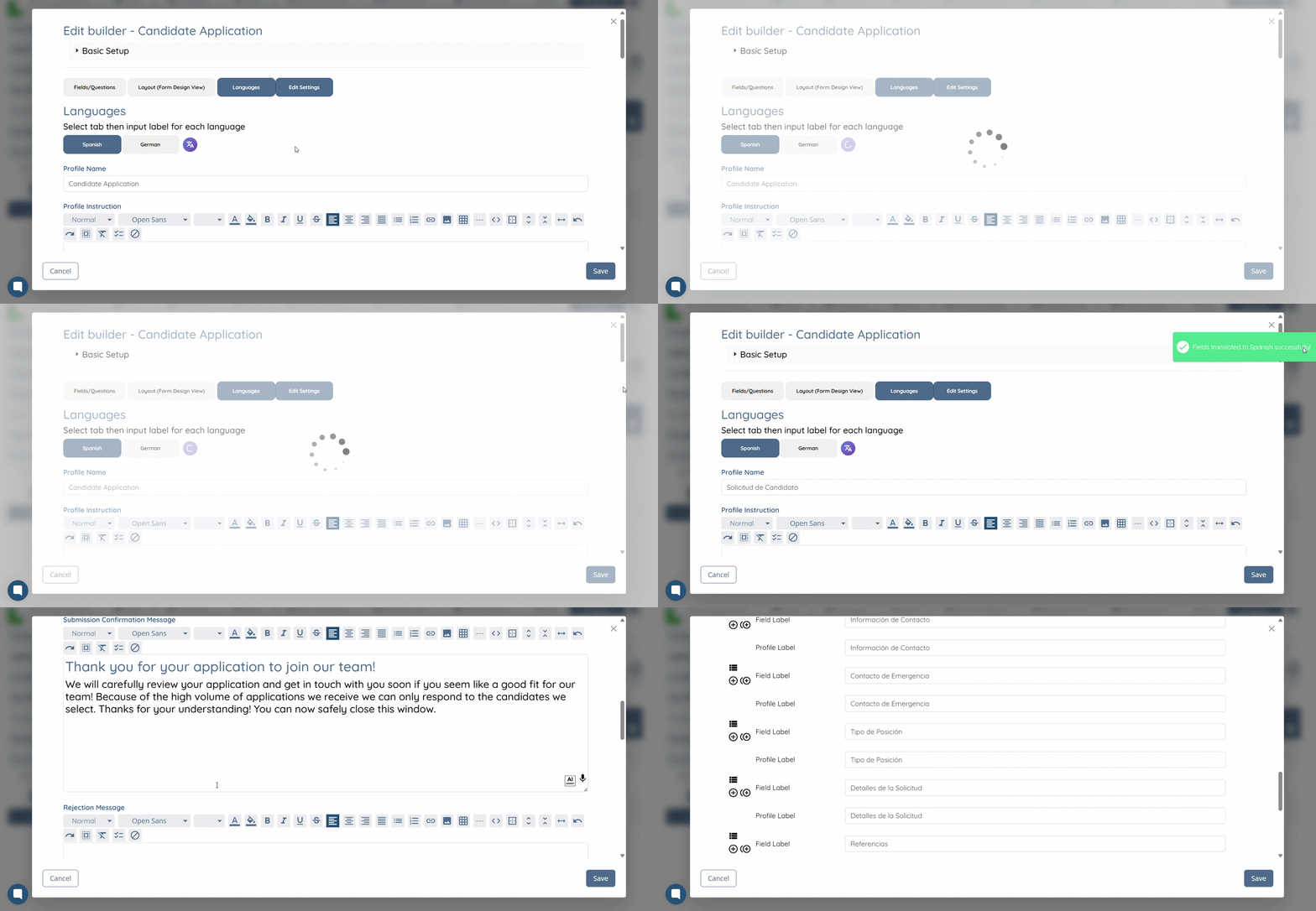
Step 10: Click the Save button to confirm your changes.