---
title: Unable to Access Enginehire, Login Page Not Loading or Showing Errors
description: Learn how to troubleshoot Enginehire login issues, page loading problems, and browser errors using step-by-step solutions.
---
[Skip to content](https://learn.enginehire.io/en/knowledge/unable-to-access-enginehire-login-page-not-loading-or-showing-errors#main-content)
English
Show submenu for translations
[Contact us](https://learn.enginehire.io/en/knowledge/kb-tickets/new?hsLang=en) [Customer portal](https://learn.enginehire.io/tickets-view?hsLang=en)
![enginehire logo thin dark 1.0.png\]](https://learn.enginehire.io/hs-fs/hubfs/enginehire%20logo%20thin%20dark%201.0.png?height=40&name=enginehire%20logo%20thin%20dark%201.0.png)
- Home
- Products
- Pricing
- Blog
- Company
Open main navigation
Close main navigation
- Home
- Products
- Pricing
- Blog
- Company
- English
Show submenu for translations
- [Contact us](https://learn.enginehire.io/en/knowledge/kb-tickets/new)
- [Customer portal](https://learn.enginehire.io/tickets-view)
- Go to main page
Go to main page
Hello! You can find guides on how to do everything in Enginehire here. If you can't find what you are looking for or anything feels out of date, please contact us!
- There are no suggestions because the search field is empty.
1. [Enginehire Help Center](https://learn.enginehire.io/en/knowledge?hsLang=en)
2. [Error](https://learn.enginehire.io/en/knowledge/error?hsLang=en)
3. [Authentication](https://learn.enginehire.io/en/knowledge/error?hsLang=en#authentication)
# Unable to Access Enginehire, Login Page Not Loading or Showing Errors
## If you're unable to access your Enginehire dashboard, your login page isn't loading correctly, or you're seeing unexpected errors, the problem is often caused by outdated browser or network information stored on your computer.
This guide walks you through the most common troubleshooting steps, starting with the quickest fixes first. In many cases, one of these steps will get you back into Enginehire without needing to contact support.
**Let's get started 🚀**
---
### **Refresh the Page**
Sometimes your browser simply needs to request the latest version of the website.
1. Open your Enginehire login page.
2. Refresh the page several times using the appropriate shortcut.**Windows**
- **Ctrl + F5**
- If that doesn't work, try **Ctrl + Shift + R**
**Mac**
- **Command + Shift + R**
**Note:** A hard refresh forces your browser to download the latest version of the page instead of using locally stored files.
If the page still doesn't load correctly, continue to the next step.
---
### **Open the Site in an Incognito or Private Window**
An Incognito or Private window starts a fresh browsing session without using most cached website data or extensions. This helps determine whether the issue is related to your browser.
#### Google Chrome
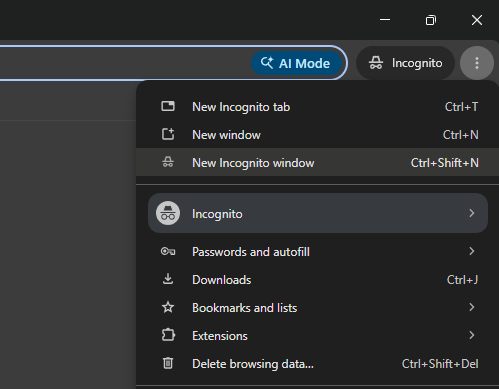
1. Click the **three-dot menu** in the top-right corner.
2. Select **New Incognito Window**.**Shortcut**
- **Windows:** Ctrl + Shift + N
- **Mac:** Command + Shift + N
**
#### Microsoft Edge
1. Open the **three-dot menu**.
2. Select **New InPrivate Window**.
#### Safari
1. Select **File**.
2. Choose **New Private Window**.
**Note:** If Enginehire works in an Incognito or Private window, the issue is usually related to cached browser data or a browser extension.
---
### **Clear Your Browser Cache**
Your browser stores temporary files to help websites load faster. Occasionally, these files become outdated and prevent Enginehire from loading properly.
#### Google Chrome
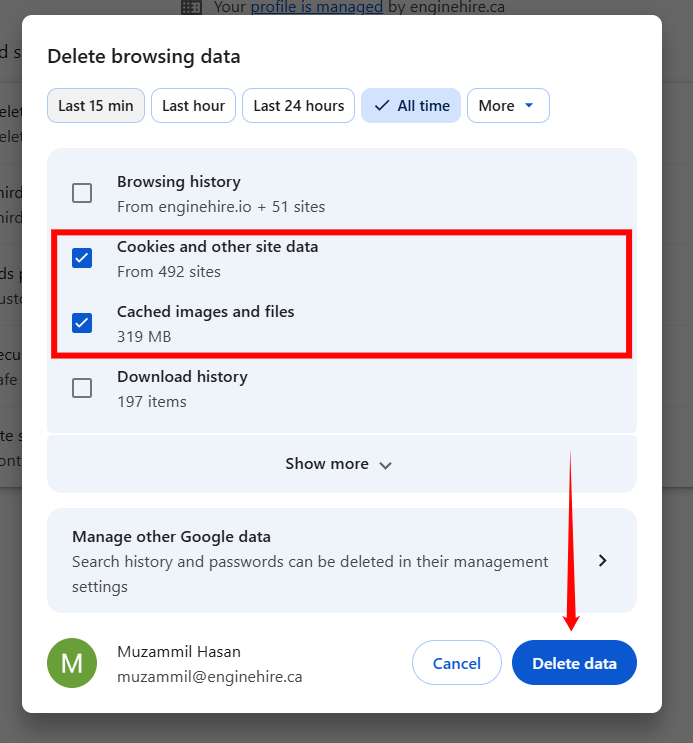
1. Click the **three-dot menu**.
2. Select **Delete browsing data**.
3. Select **Cached images and files**.
4. Click **Delete Data**.
5. Close and reopen your browser.
**
Repeat similar steps if you're using Microsoft Edge or another browser.
**Related Article: [Clear Your Browser Cache](https://learn.enginehire.io/en/knowledge/clear-your-browser-cache?hsLang=en)**
---
### Try a Different Browser
Trying another browser helps determine whether the issue is specific to your current browser.
1. Open your Enginehire login page using another browser.
Examples include:
- Microsoft Edge
- Firefox
- Safari (Mac)
- Brave
---
### **Refresh Your Network Configuration (DNS Cache)**
Sometimes your computer remembers an outdated network address for Enginehire. Refreshing your DNS cache forces your computer to retrieve the latest information.
#### Windows
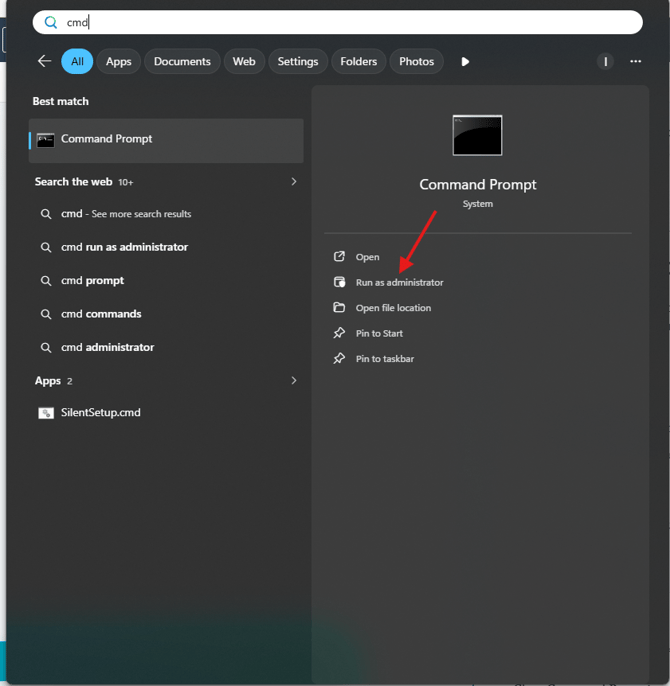
1. Open the **Start Menu**.
2. Search for **Command Prompt**.
3. Select **Run as administrator**.
**
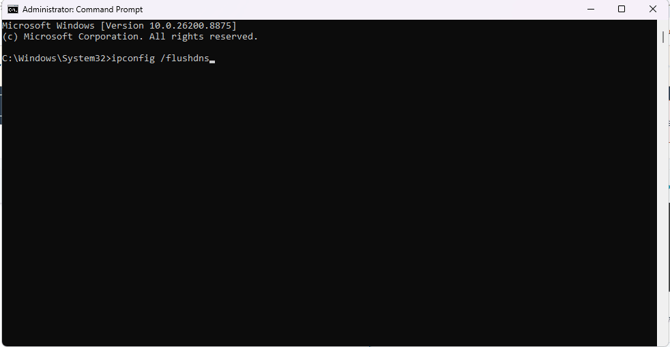
1. Copy and paste the following command exactly as shown.
```
ipconfig /flushdns
```
1. Press **Enter**.
**
1. Close Command Prompt.
2. Close your browser completely.
3. Open your browser again.
4. Try accessing Enginehire.
>
---
#### Mac
1. Open **Terminal**.
2. Copy and paste the following command exactly as shown.
```
sudo dscacheutil -flushcache; sudo killall -HUP mDNSResponder
```
1. Press **Enter**.
2. Enter your Mac password if prompted.
3. Close Terminal.
4. Close your browser.
5. Open your browser again.
6. Try accessing Enginehire.
>
**Warning:** Copy and paste the command exactly as shown. Even a small typing mistake can prevent it from running correctly.
---
### **Restart Your Computer**
Restarting your computer reloads your networking services and ensures any recent DNS changes are fully applied.
1. Restart your computer.
2. Open your browser.
3. Visit your Enginehire login page again.
---
### **Try a Different Internet Connection**
Testing another network helps determine whether the issue is related to your current internet connection or your Internet Service Provider.
Connect to another internet connection.
Examples include:
- Mobile hotspot
- Home Wi-Fi
- Office Wi-Fi
- Cellular connection
Try accessing Enginehire again.
---
### **Disable VPNs or Proxy Services**
Some VPNs or proxy services can interfere with website connections.
1. Disconnect your VPN or proxy service.
2. Refresh the page.
3. Try logging in again.
---
### **Restart Your Router**
If multiple people using the same internet connection are experiencing the issue, restarting your router may refresh any cached network information.
1. Turn off your router.
2. Wait approximately **30 seconds**.
3. Turn the router back on.
4. Wait until your internet connection has been restored.
5. Try accessing Enginehire again.
---
### Still Need Help?
If you've completed every troubleshooting step and you're still unable to access Enginehire, [please **click here** to contact the Enginehire Support team](https://learn.enginehire.io/en/knowledge/kb-tickets/new?hsLang=en) and include the following information.
1. The exact error message you're seeing.
2. A screenshot of the issue.
3. Your operating system, such as **Windows** or **Mac**.
4. Your browser, such as **Chrome**, **Edge**, **Safari**, or **Firefox**.
5. Whether you completed every troubleshooting step in this guide.
6. Whether the issue also occurs in an Incognito or Private window.
7. Whether you tested another browser.
8. Whether you tested another internet connection.
**Note:** Providing this information upfront helps the support team investigate the issue much more quickly.
- [Onboarding](https://learn.enginehire.io/en/knowledge/onboarding?hsLang=en)
- [Application Forms & Profiles](https://learn.enginehire.io/en/knowledge/application-forms-profiles?hsLang=en)
- [Templates & Communication](https://learn.enginehire.io/en/knowledge/templates-communication?hsLang=en#main-content)
- [Documents](https://learn.enginehire.io/en/knowledge/templates-communication?hsLang=en#documents)
- [Jobs](https://learn.enginehire.io/en/knowledge/jobs?hsLang=en)
- [Payments](https://learn.enginehire.io/en/knowledge/payments?hsLang=en)
- [Integrations](https://learn.enginehire.io/en/knowledge/integrations?hsLang=en)
- [App](https://learn.enginehire.io/en/knowledge/app?hsLang=en)
- [For Candidates & Clients](https://learn.enginehire.io/en/knowledge/for-candidates-clients?hsLang=en)
- [Backup Care](https://learn.enginehire.io/en/knowledge/backup-care?hsLang=en#main-content)
- [Instant Book](https://learn.enginehire.io/en/knowledge/backup-care?hsLang=en#instant-book)
- [Data Import & Export](https://learn.enginehire.io/en/knowledge/data-import-export?hsLang=en)
- [Reporting & Logs](https://learn.enginehire.io/en/knowledge/reporting-logs?hsLang=en)
- [Error](https://learn.enginehire.io/en/knowledge/error?hsLang=en#main-content)
- [Authentication](https://learn.enginehire.io/en/knowledge/error?hsLang=en#authentication)
- [Settings](https://learn.enginehire.io/en/knowledge/settings?hsLang=en)
- [Domain](https://learn.enginehire.io/en/knowledge/domain?hsLang=en)
- [Webinars and Training](https://learn.enginehire.io/en/knowledge/webinars-and-training?hsLang=en)
- [Ways to Grow and Make More Money](https://learn.enginehire.io/en/knowledge/ways-to-grow-and-make-more-money?hsLang=en)
- [Placements](https://learn.enginehire.io/en/knowledge/placements?hsLang=en#main-content)
- [Job Board](https://learn.enginehire.io/en/knowledge/placements?hsLang=en#job-board)
- [Enginehire Team Internal Videos](https://learn.enginehire.io/en/knowledge/enginehire-team-internal-videos?hsLang=en#main-content)
- [Settings](https://learn.enginehire.io/en/knowledge/enginehire-team-internal-videos?hsLang=en#settings)
- [AI](https://learn.enginehire.io/en/knowledge/ai?hsLang=en)
- Home
- Products
- Pricing
- Blog
- Company
[](https://enginehire.io)
Enginehire Help Center
Copyright © 2026, Enginehire Inc.