![enginehire logo thin dark 1.0.png]](https://learn.enginehire.io/hs-fs/hubfs/enginehire%20logo%20thin%20dark%201.0.png?height=40&name=enginehire%20logo%20thin%20dark%201.0.png)
Let’s get started 🚀
Step 1. Verify TruDiligence Integration
Before ordering a background check, make sure the agency is connected to TruDiligence.
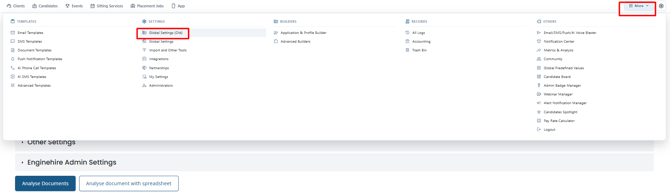
1. Open More from the top navigation. Select Global Settings Old.
2. Navigate to Integrations.
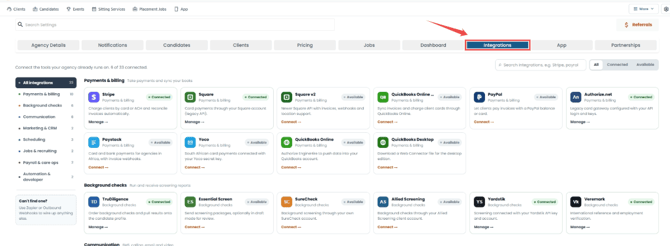
3. Locate TruDiligence under the Background Checks integrations.Check the integration status.
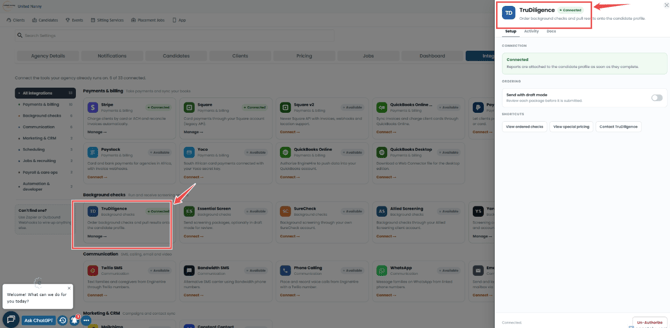
If the integration is active, the status will be displayed as Connected.
Note: The TruDiligence integration must be connected before the agency can order background checks through the candidate profile.
Step 2. Open the Candidate's Background Check Section
After confirming that TruDiligence is connected:
1. Open the profile of the candidate for whom you want to order a background check.Locate the Background Check section within the candidate profile.
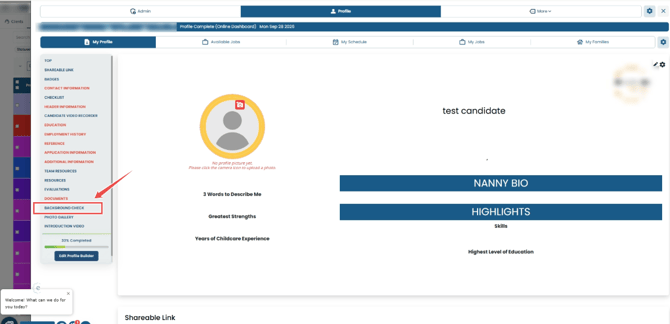
2. Find the TruDiligence section.
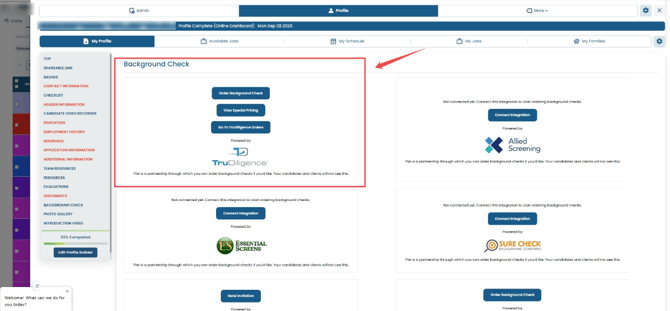
The TruDiligence section provides options to order a background check, view special pricing, and access TruDiligence orders.
Step 3. Order a Background Check
To order a background check:
1. In the TruDiligence section, click Order Background Check.
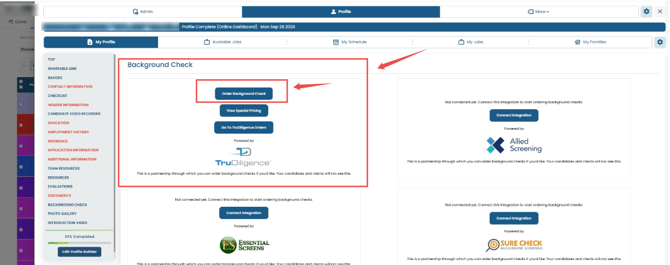
2. The Order Background Check dialog will open.

3. Select the required TruDiligence background-check package.

For example, select National Advance.
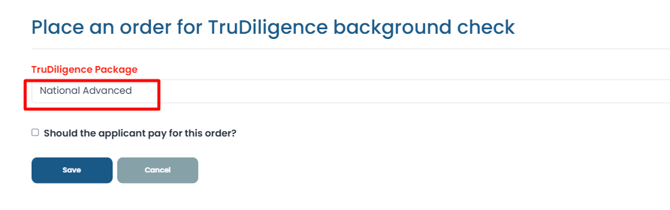
5. Review the selected package and order details. Click Save to place the order.
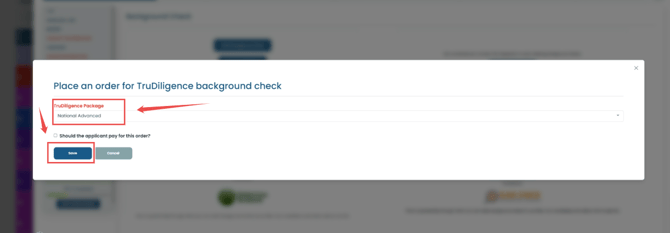
Once the order is saved, the TruDiligence background check email is triggered to the candidate's email address so the candidate can complete the required steps for the background check.
Applicant Payment Option
The Order Check dialog also includes the option:
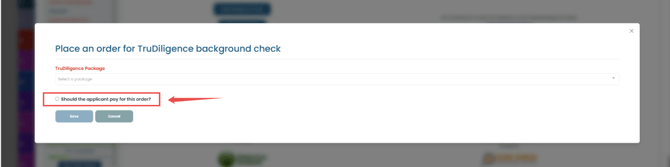
Should the applicant pay for this order?
* If the checkbox is not selected, the background-check order can proceed according to the agency's configured payment arrangement.
* If the checkbox is selected, the applicant is required to make the payment before the background check proceeds.
View Special Pricing
The TruDiligence section includes a View Special Pricing option.
To view the available pricing:
1. Click View Special Pricing.
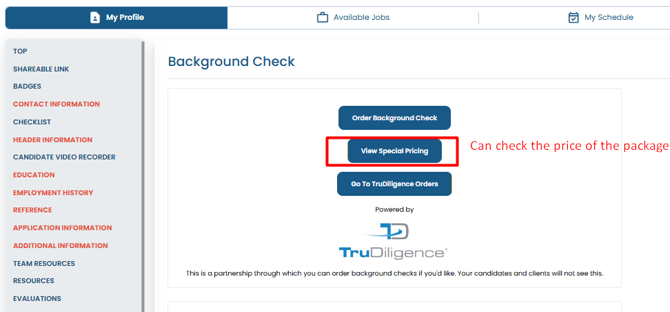
2. The system navigates to the background-check pricing list.Review the ava ilable packages and their corresponding pricing.
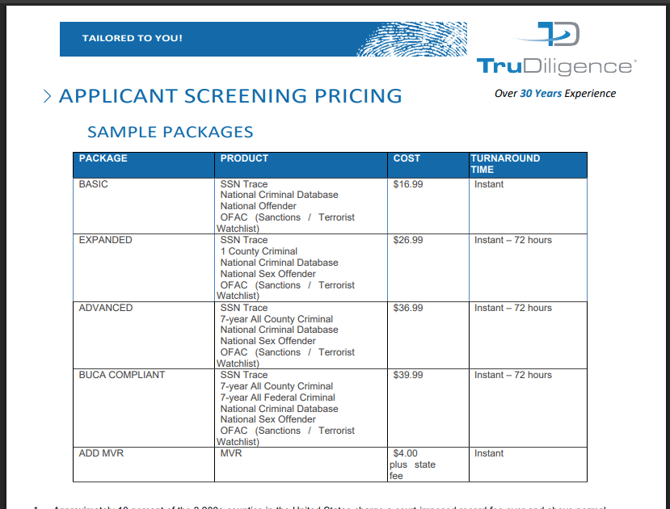
This allows the agency to review the applicable pricing before placing an order.
View TruDiligence Orders and Results
After placing a background-check order, the agency can review the order and its status through Go To TruDiligence Orders.
1. From the TruDiligence section, click Go To TruDiligence Orders.
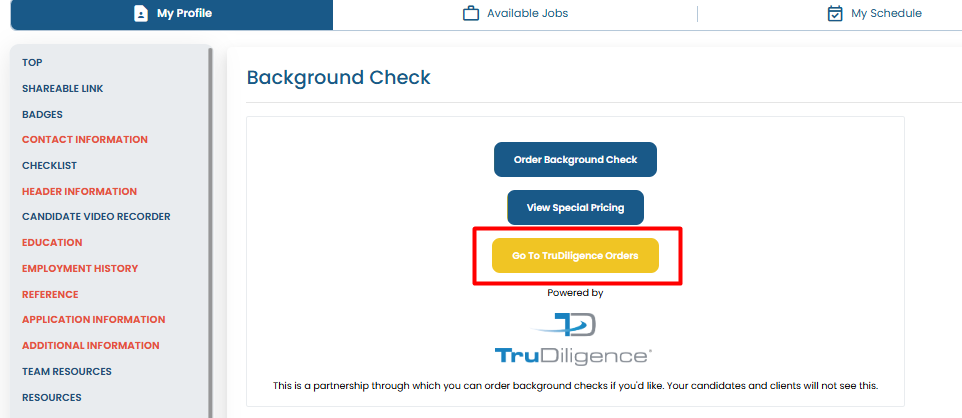
2. The system opens the TruDiligence orders page.
3. Review the background-check orders submitted for candidates.
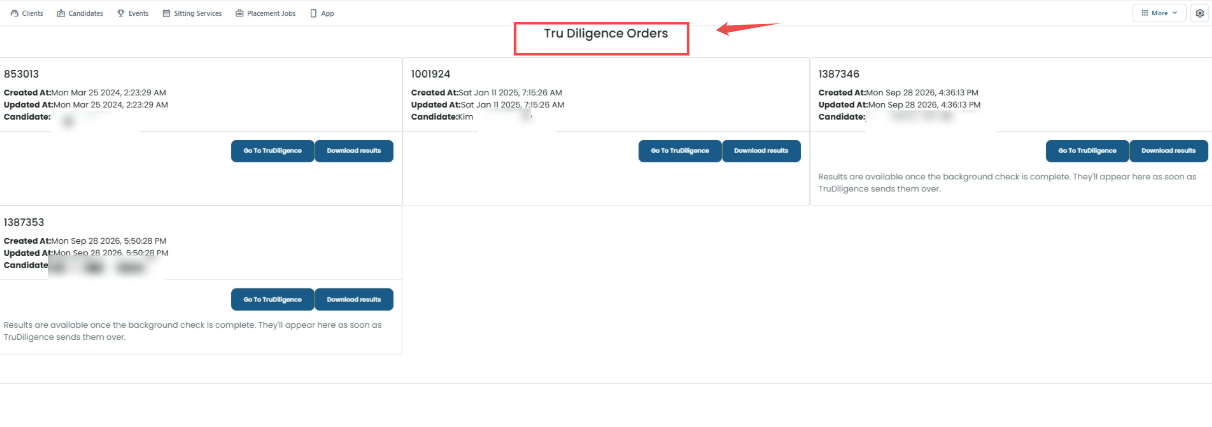
4. Check the available order/status information and review the results once the background check has been completed.
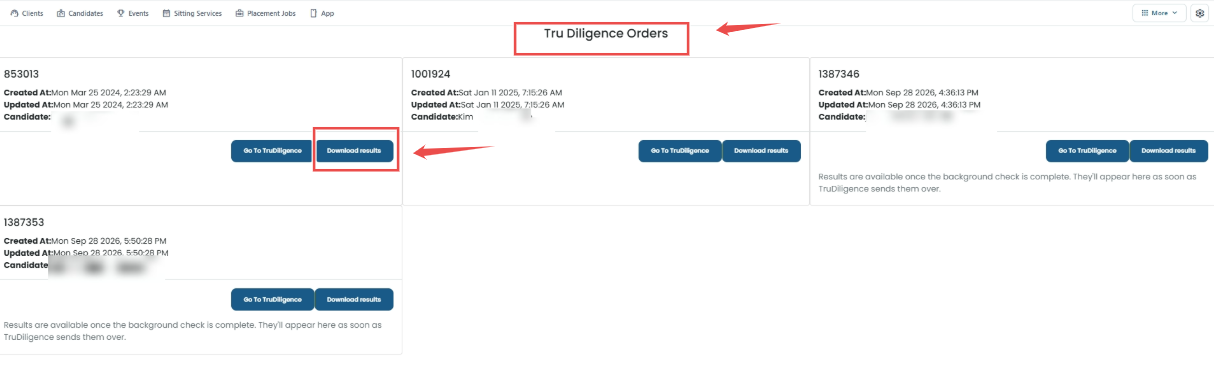
This provides a centralized way to track previously submitted TruDiligence background-check orders and their results.
Step 1. Verify TruDiligence Integration
Before ordering a background check, make sure the agency is connected to TruDiligence.
1. Open More from the top navigation. Select Global Settings Old.
2. Navigate to Integrations.
3. Locate TruDiligence under the Background Checks integrations.Check the integration status.
If the integration is active, the status will be displayed as Connected.
Note: The TruDiligence integration must be connected before the agency can order background checks through the candidate profile.
Step 2. Open the Candidate's Background Check Section
After confirming that TruDiligence is connected:
1. Open the profile of the candidate for whom you want to order a background check.Locate the Background Check section within the candidate profile.
2. Find the TruDiligence section.
The TruDiligence section provides options to order a background check, view special pricing, and access TruDiligence orders.
Step 3. Order a Background Check
To order a background check:
1. In the TruDiligence section, click Order Background Check.
2. The Order Background Check dialog will open.
3. Select the required TruDiligence background-check package.
For example, select National Advance.
5. Review the selected package and order details. Click Save to place the order.
Once the order is saved, the TruDiligence background check email is triggered to the candidate's email address so the candidate can complete the required steps for the background check.
Applicant Payment Option
The Order Check dialog also includes the option:
Should the applicant pay for this order?
* If the checkbox is not selected, the background-check order can proceed according to the agency's configured payment arrangement.
* If the checkbox is selected, the applicant is required to make the payment before the background check proceeds.
View Special Pricing
The TruDiligence section includes a View Special Pricing option.
To view the available pricing:
1. Click View Special Pricing.
2. The system navigates to the background-check pricing list.Review the ava ilable packages and their corresponding pricing.
This allows the agency to review the applicable pricing before placing an order.
View TruDiligence Orders and Results
After placing a background-check order, the agency can review the order and its status through Go To TruDiligence Orders.
1. From the TruDiligence section, click Go To TruDiligence Orders.
2. The system opens the TruDiligence orders page.
3. Review the background-check orders submitted for candidates.
4. Check the available order/status information and review the results once the background check has been completed.
This provides a centralized way to track previously submitted TruDiligence background-check orders and their results.