![enginehire logo thin dark 1.0.png]](https://learn.enginehire.io/hs-fs/hubfs/enginehire%20logo%20thin%20dark%201.0.png?height=40&name=enginehire%20logo%20thin%20dark%201.0.png)
Let’s get started 🚀
Step 1: Log in to your agent dashboard, then navigate to More > Global Settings, as shown in the screenshot below.
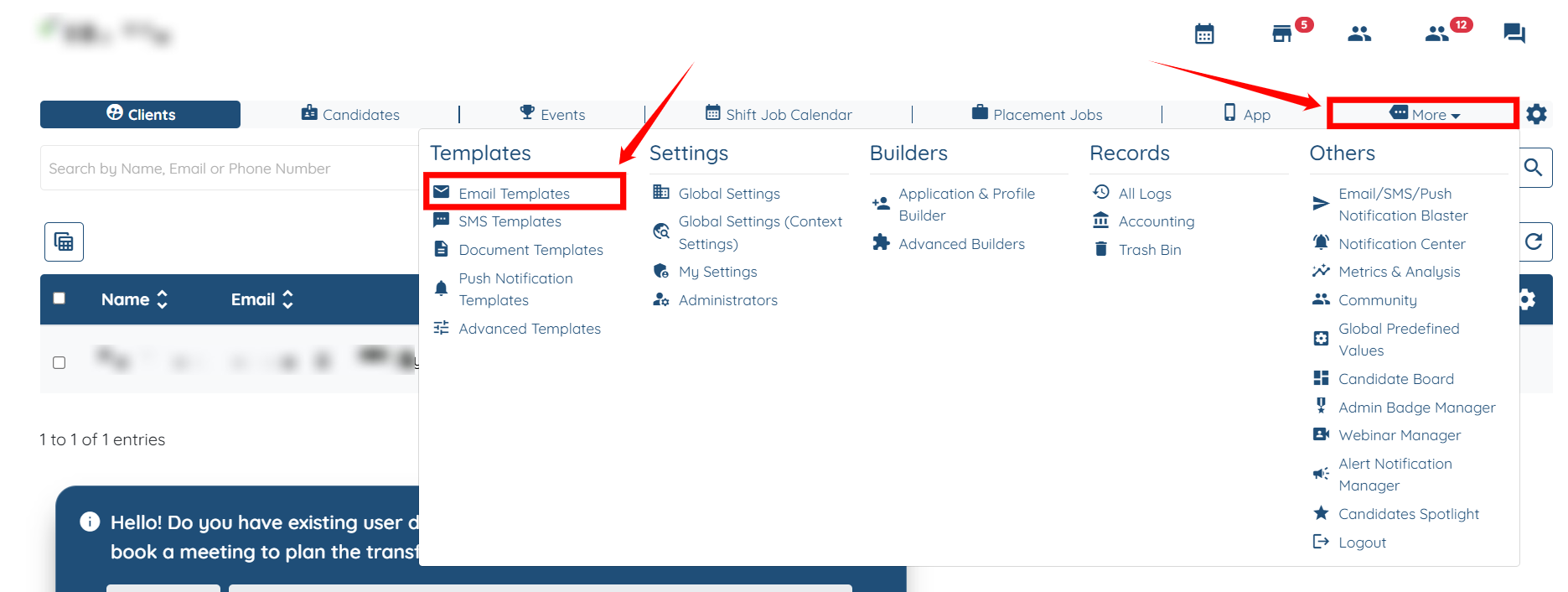
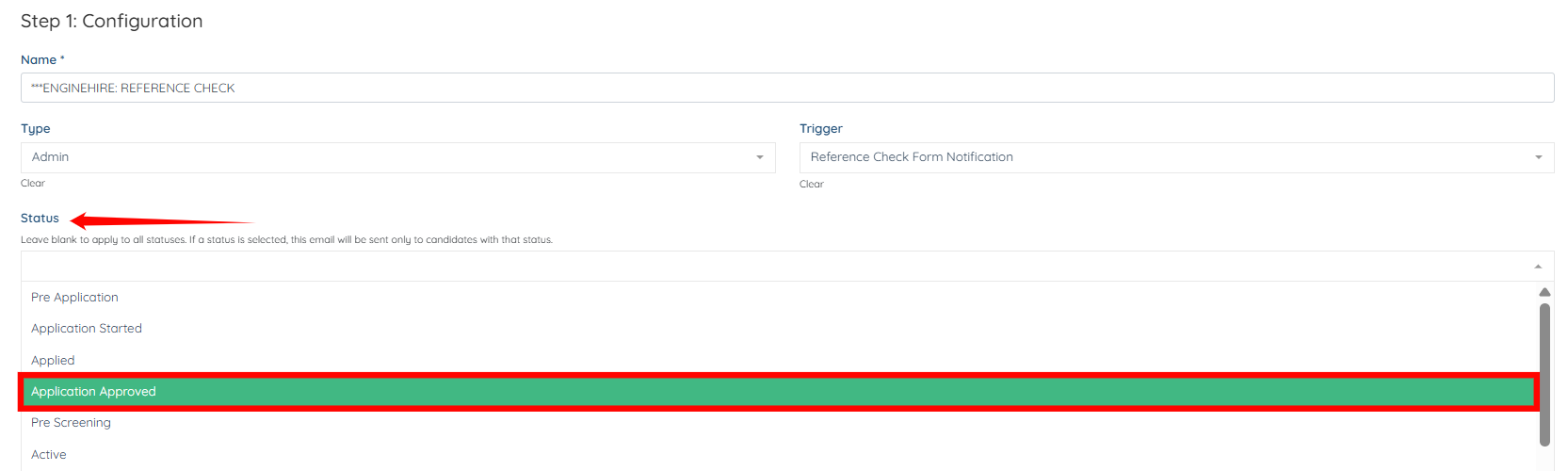
Step 2: Select the email template in which you want to trigger the notification as per the selected candidate status in the workflow.

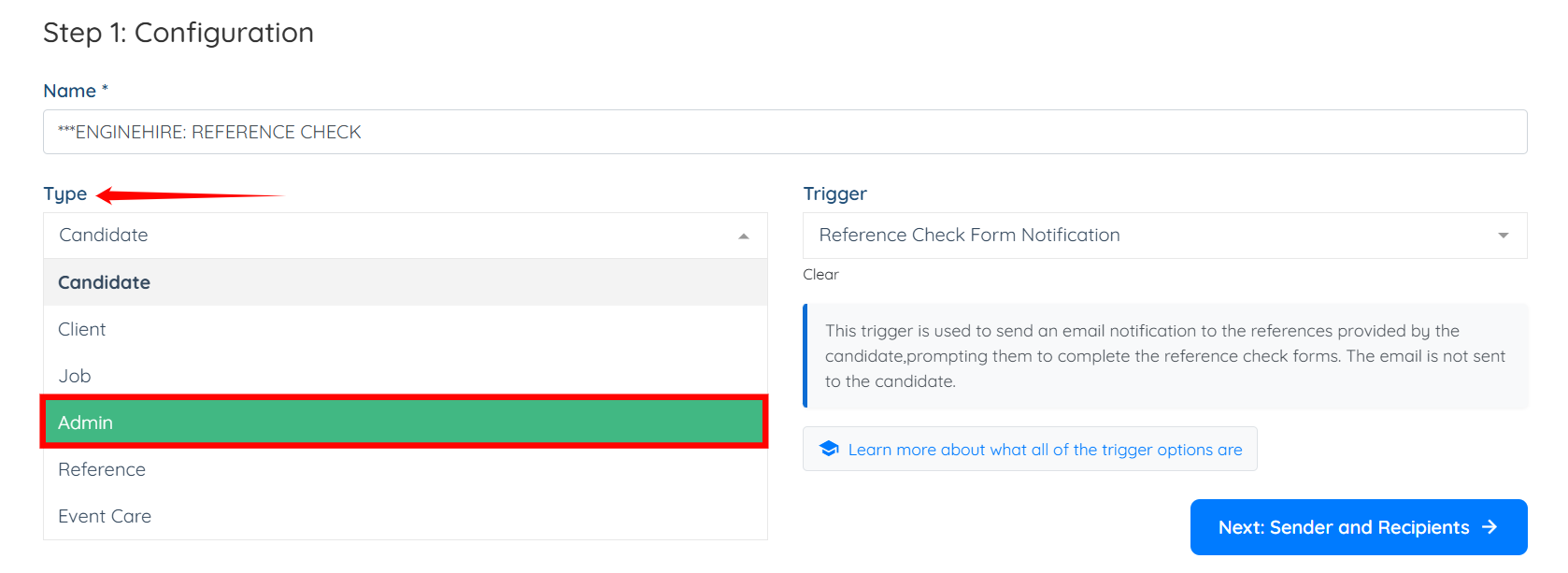
Step 3: Click and select Admin as the Type, as shown in the screenshot below.
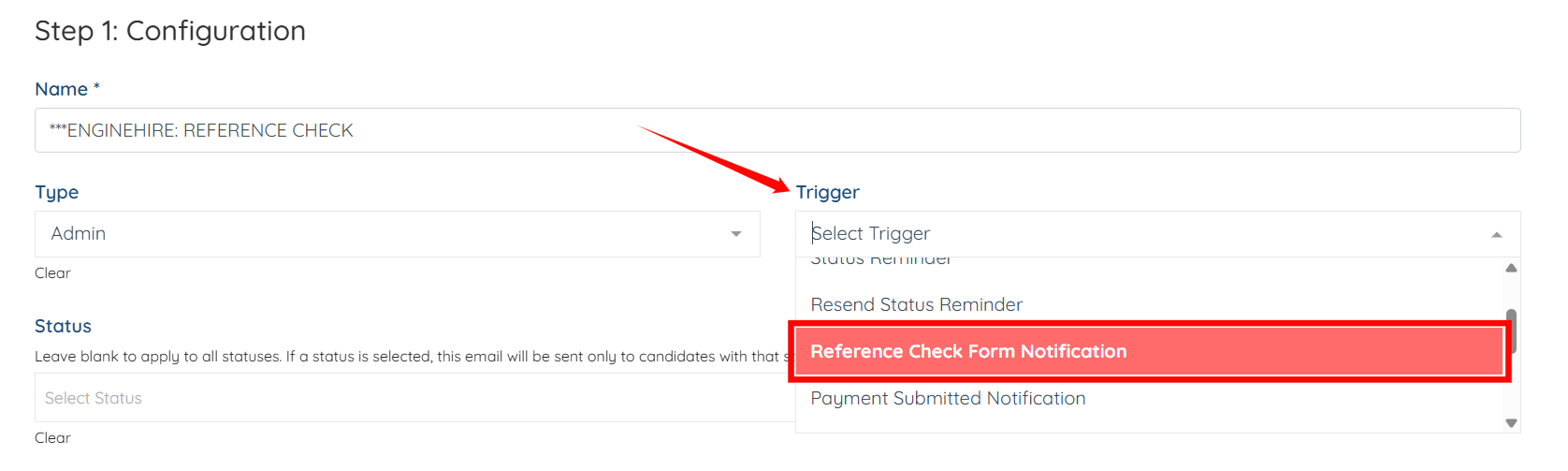
Step 4: Select the notification category for which you want to receive notifications from the Trigger dropdown menu. For demonstration purposes, we are using “Reference Check Form Notification.”
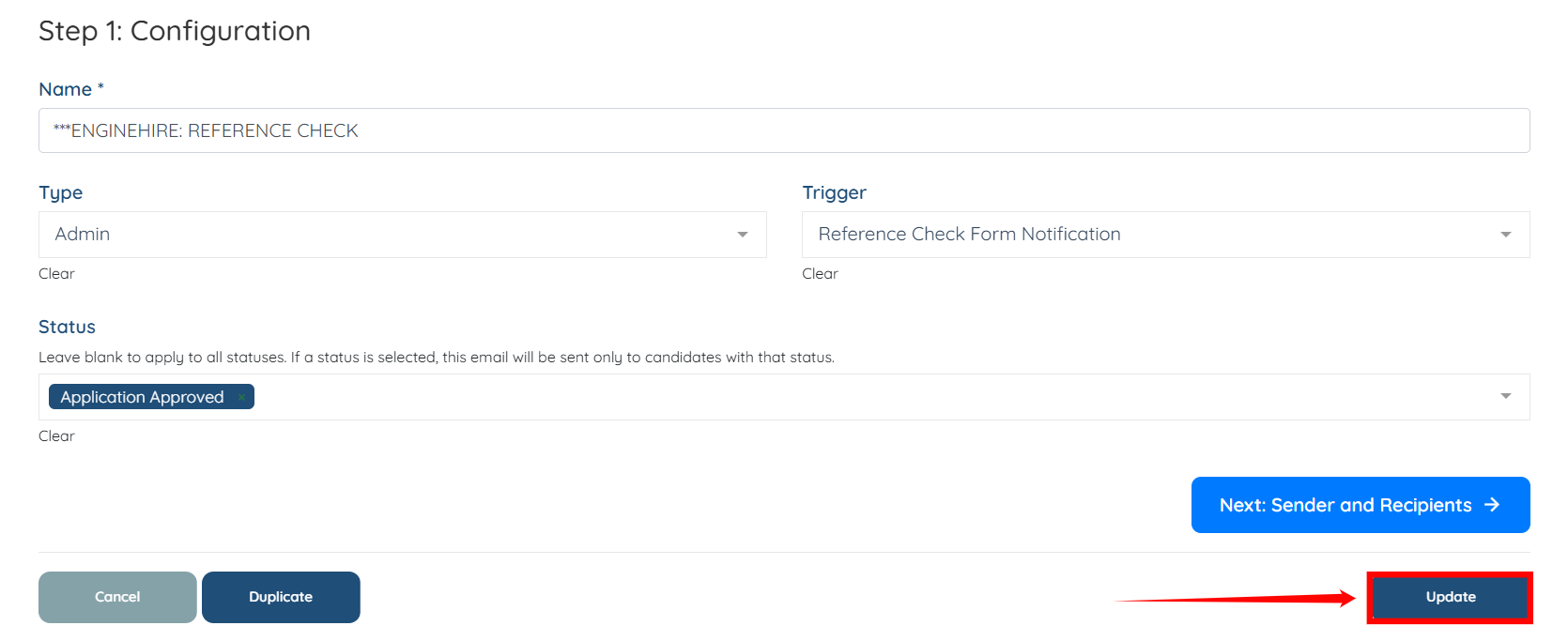
Step 5: Select the workflow status for which you want the email notification (chosen in the previous step) to be triggered.
Step 6: Click the Update button to confirm the changes.