![enginehire logo thin dark 1.0.png]](https://learn.enginehire.io/hs-fs/hubfs/enginehire%20logo%20thin%20dark%201.0.png?height=40&name=enginehire%20logo%20thin%20dark%201.0.png)
Let’s get started 🚀
Enforce Limit
Set a limit on the number of operations a partial admin can perform.
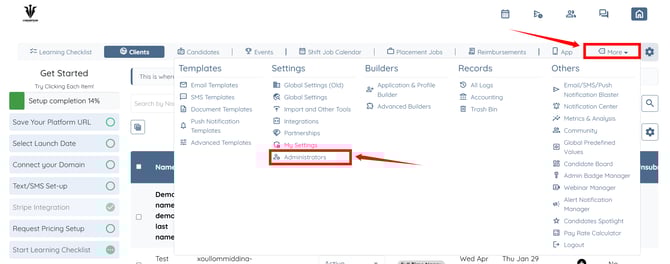
Step 1: Log in to your agent dashboard and click More > Administrators as shown in the screenshot below.
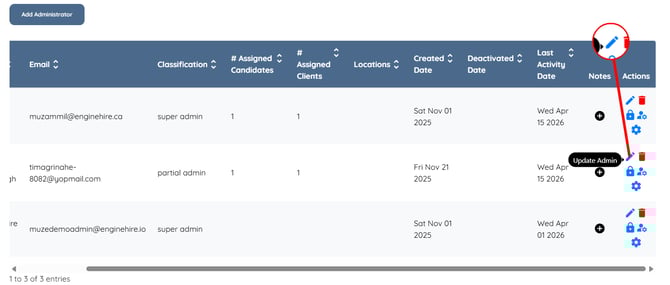
Step 2: Locate the admin with partial access and click the corresponding pencil icon to edit their settings.
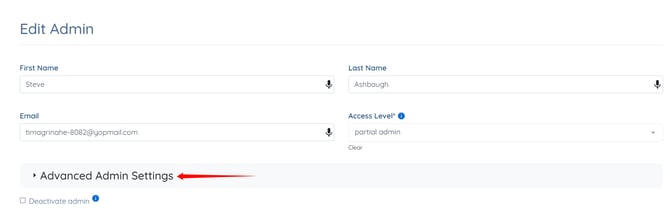
Step 3: Click the Advanced Admin Settings option to expand its details.
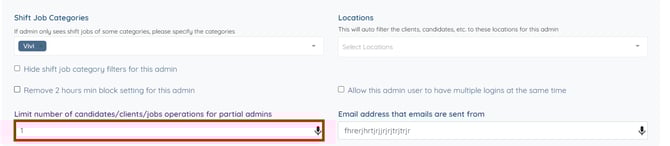
Step 4: Scroll down to the Limit number of candidates/clients/jobs operations for partial admins option and enter the number as the limit for the number of operations for the partial admin.
For demonstration purposes, we are entering 1 number in this setting.
NOTE: 10 is the default capping of the partial admin to perform operations.
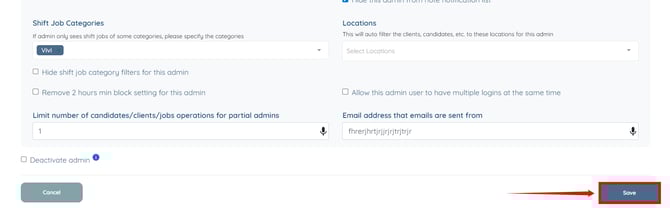
Step 5: Click the Save button to apply the changes.
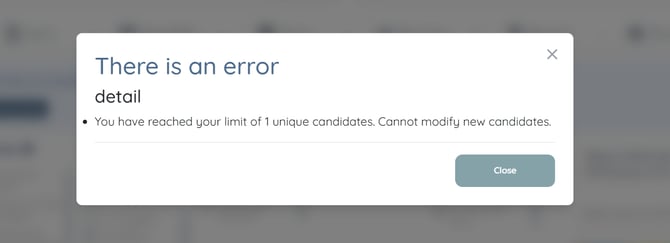
The partial admin will be restricted to the configured number of operations. Once the limit is reached, a notification will appear indicating that no further actions can be performed.
Track Activities By Partial Admin
Filter and track the activities performed by partial admins.
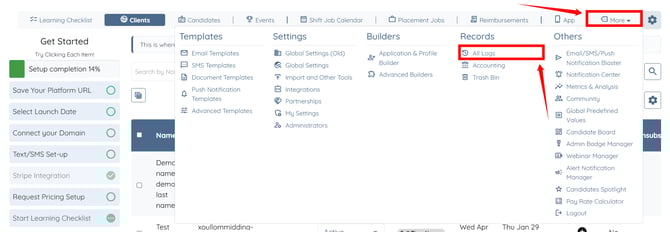
Step 1: On your agent dashboard, click More > All Logs as shown in the screenshot below.
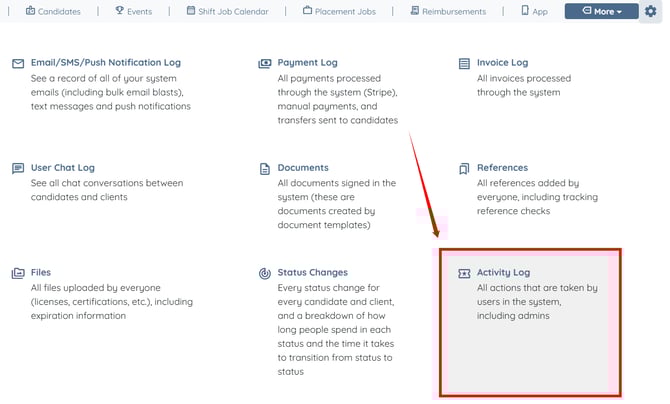
Step 2: Click the Activity Log option.
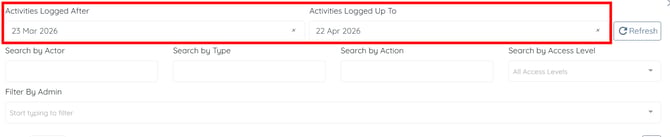
Step 3: Adjust the date range to filter the logs as needed.
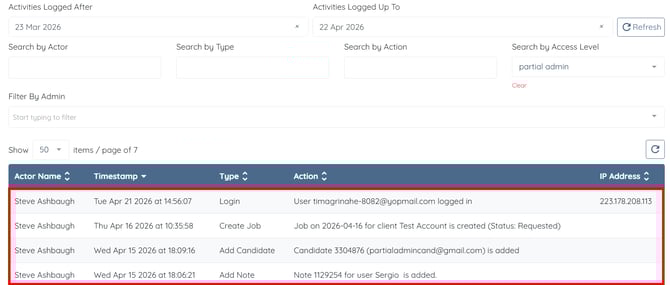
Step 4: Select the partial admin option in the Search by Access Level field.
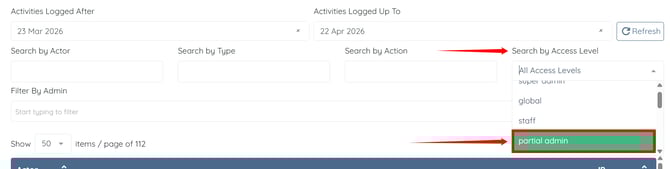
The activity logs will be filtered to display actions performed by partial admins.