![enginehire logo thin dark 1.0.png]](https://learn.enginehire.io/hs-fs/hubfs/enginehire%20logo%20thin%20dark%201.0.png?height=40&name=enginehire%20logo%20thin%20dark%201.0.png)
When a client confirms a candidate's clock in and clock out times on the candidate's phone, Enginehire can show the candidate's submitted shift job report right on the Confirmation screen. Clients review the report and approve or disapprove the hours in one place, instead of opening the report from a separate button first. You can also rename the View Submitted Report button so it matches what your agency calls its reports.
Before you start: Candidates need to be able to submit shift job reports (Candidate can submit shift job report). The report display applies to the Confirmation screen clients use when they confirm hours on the candidate's phone (Client can confirm clock in/out on the candidate's phone). See Job Reports and Client Confirmation for those settings.
Where to find the shift job report settings
Both settings are in Global Settings. Go to More > Global Settings and open the Candidates tab.

Expand Candidate - My Jobs.

Scroll down to the shift job report settings. You'll find Customize "View Submitted Report" button label and Display submitted shift job report details on client confirmation screen right below Customize "Submit Report" button label. You can also type submitted report in Search Settings to find them. Your changes save automatically, and a Setting saved message appears.

How to show the shift job report on the client confirmation screen
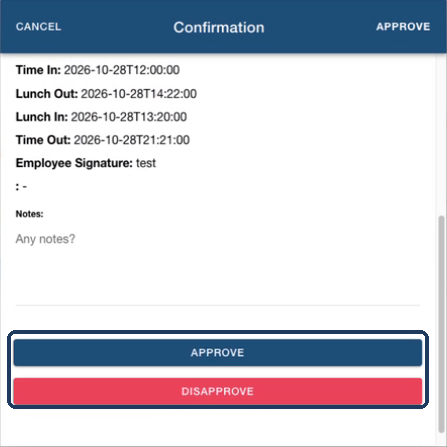
Check Display submitted shift job report details on client confirmation screen. From then on, when a client taps Client Confirm on a job with a submitted shift job report, the report details appear on the Confirmation screen, above the Approve and Disapprove buttons.
How to customize the View Submitted Report button label
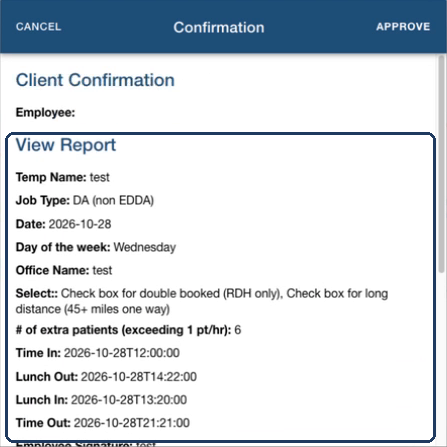
Type the text you want in Customize "View Submitted Report" button label, for example View Checklist. This changes the label of the button on the job's details screen in the app that opens the submitted report. The same text is used as the heading of the report section on the Confirmation screen.
What clients see in the app
After the candidate submits the shift job report, the job's details screen in the app shows the report button and the Client Confirm button. In this example, the report button was renamed View Report.

When the client taps Client Confirm, the Confirmation screen shows the candidate's name, followed by the submitted report with the candidate's answers to each report question.
Below the report, the client can add notes, then tap Approve or Disapprove.