![enginehire logo thin dark 1.0.png]](https://learn.enginehire.io/hs-fs/hubfs/enginehire%20logo%20thin%20dark%201.0.png?height=40&name=enginehire%20logo%20thin%20dark%201.0.png)
For demonstration purposes, this article uses candidates as an example, but you can also configure this in the builder of user type client as well.
Let’s get started 🚀
Step 1: Log in to your agent dashboard and click More > Application & Profile Builder as shown in the screenshot below.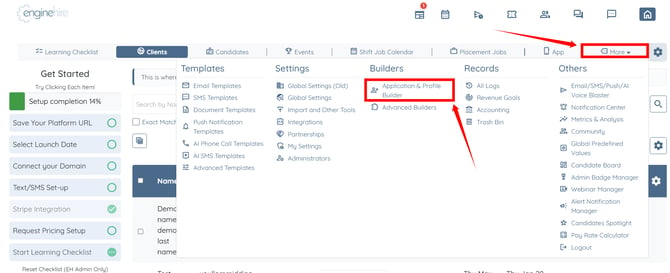
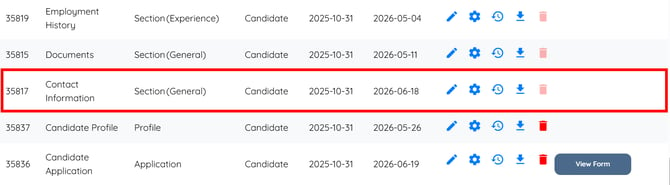
Step 2: Click on the Contact Information builder to open it.
Step 3: Scroll to the bottom and click the Add Field button.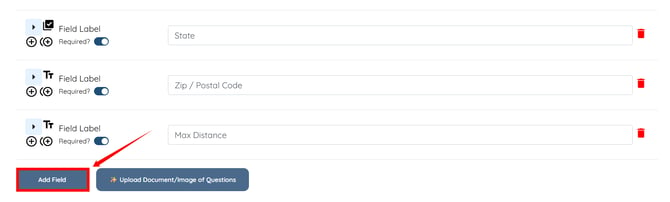
Step 4: Enter the Field Label, Profile Label and then select Textbox as the Field Type.
Step 5: Select the Show Condition option in the Additional Properties field.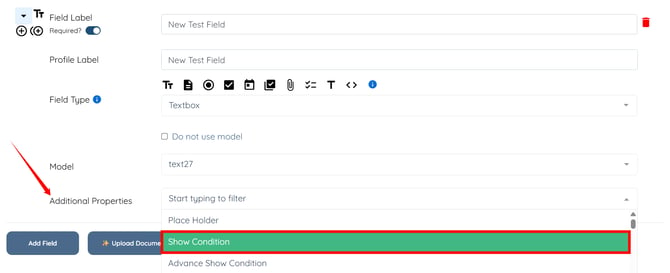
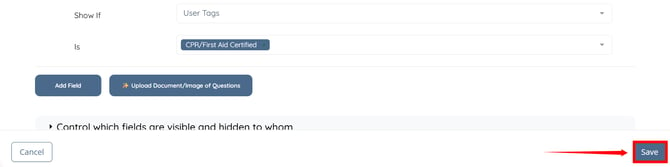
Step 6: Select the User Tags option in the Show If field.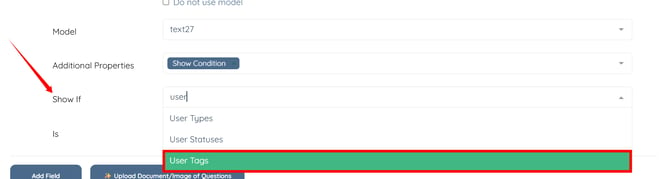
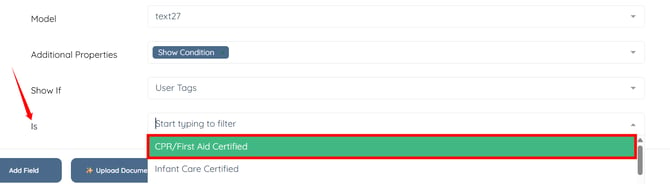
Step 7: Select the user tag that should control when the field is displayed.
The field will only be displayed when the user has the selected tag assigned to their profile. 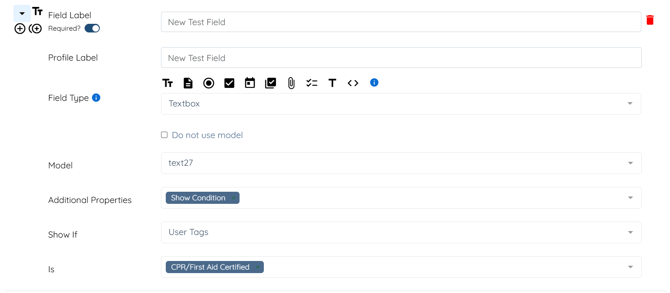
Step 8: Click the Save button to apply the changes.