![enginehire logo thin dark 1.0.png]](https://learn.enginehire.io/hs-fs/hubfs/enginehire%20logo%20thin%20dark%201.0.png?height=40&name=enginehire%20logo%20thin%20dark%201.0.png)
Let’s get started 🚀
Step 1: Log in to your agent dashboard and click More > Application & Profile Builder as shown in the screenshot below. 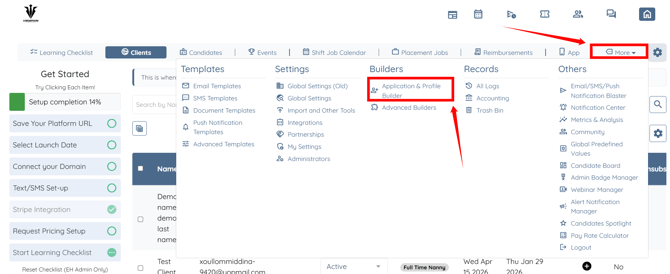
Step 2: Click the Filter by type box to open the dropdown list.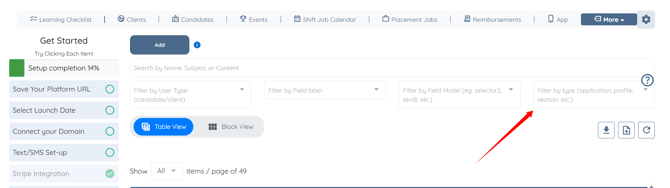
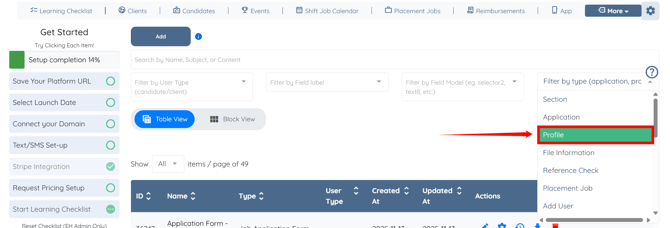
Step 3: Select the Profile option from the dropdown list.
Step 4: Click the Candidate Profile builder to open it. 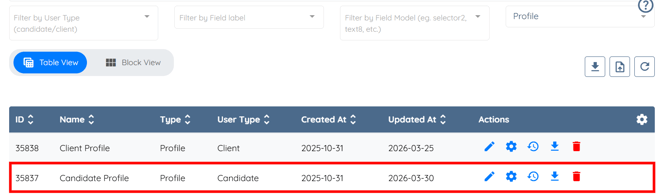
Configure the Document Section
Update the document fields in the candidate profile to enable expiry tracking by linking them to a file information builder configured with an expiry model.
Step 1: Locate the Documents section and click the arrow button before it to expand its details.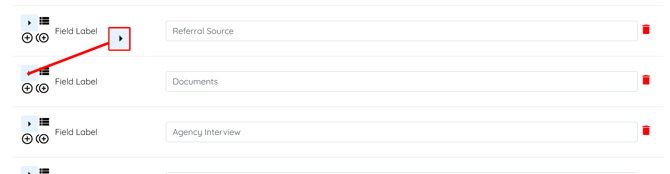
Step 2: Click the Edit Section Builder button.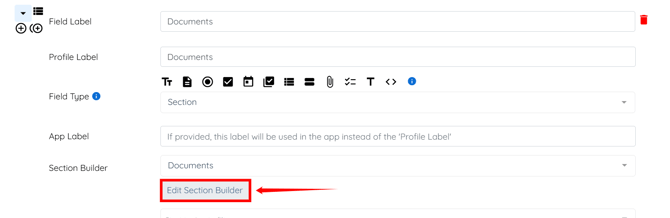
Step 3: Locate the field(s) for which you want to show an expiration alert in the candidate profile.
Then, select the File With Additional Information option in the Field Type field, and choose the File Information Builder that you have set up with the expiry model in the fields.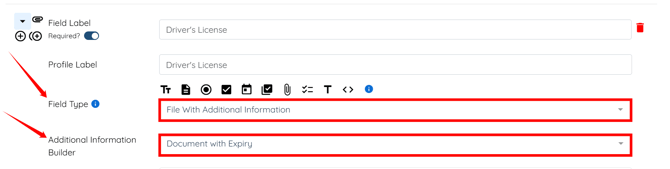
Step 4: Repeat the previous step for the other fields, then click Save to confirm the changes.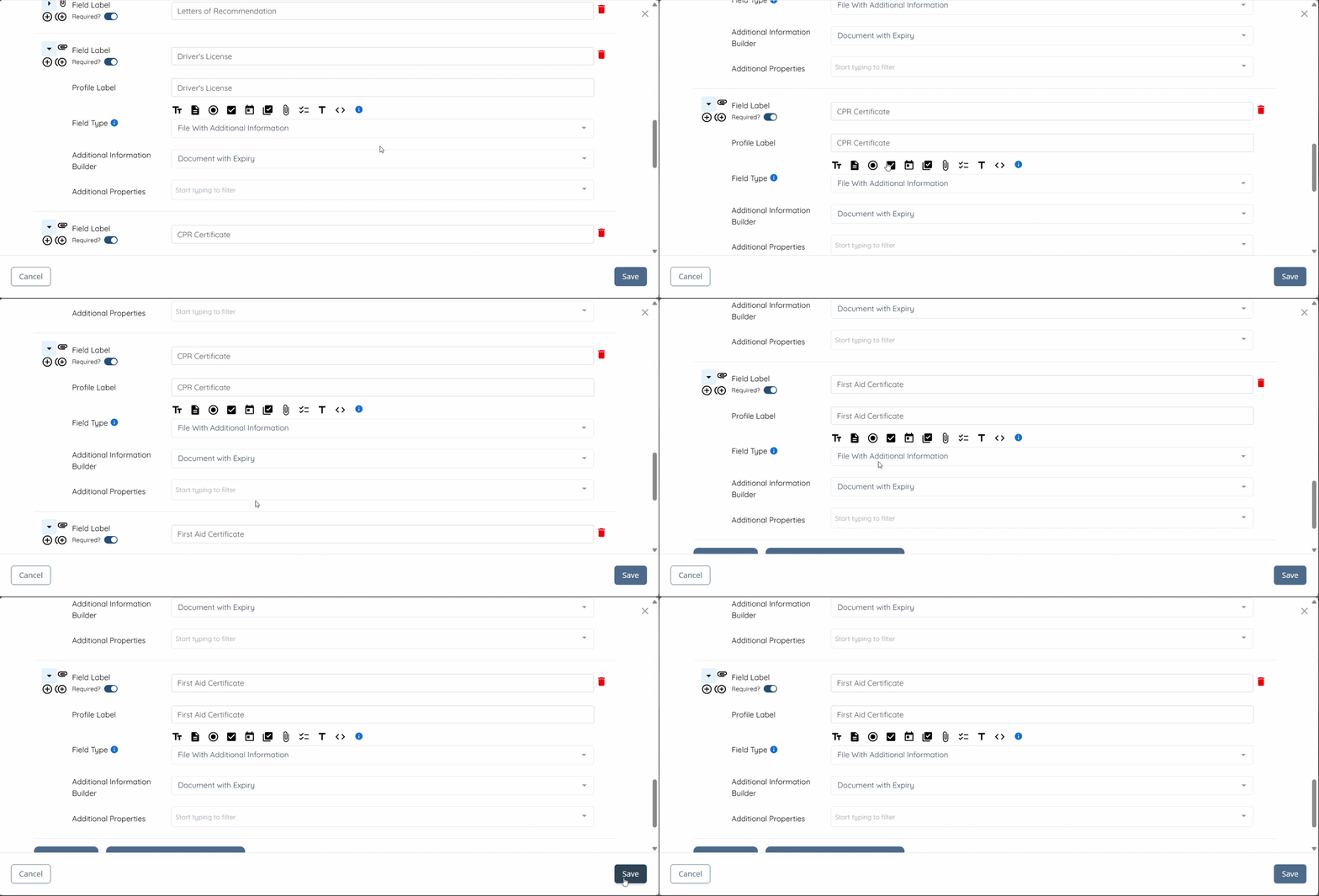
Configure Document With Expiry Section
Configure the file information builder to display the document expiry date and control how it appears alongside uploaded documents.
Step 1: In the Application & Profile Builder, search for the File Information Builder that you selected with the expiry model in the fields, as described in step 3 of the above section. Then, click it to open it.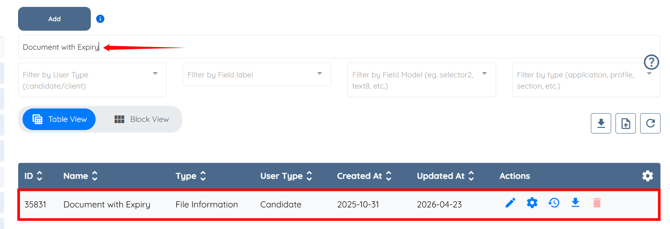
Ensure its Builder Type is set to File Information.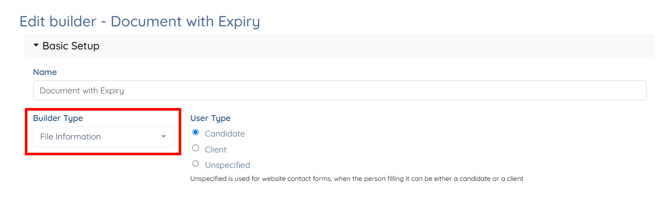
Step 2: Check the Show on Document checkbox, then enter the label you want to display along with the expiration date on the document.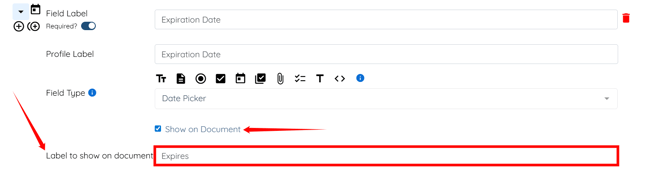
Step 3: Ensure you select the expiry option in the Model field.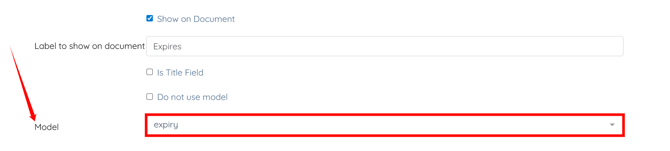
Step 4: Select the Initial View option from the dropdown list in the Additional Properties field.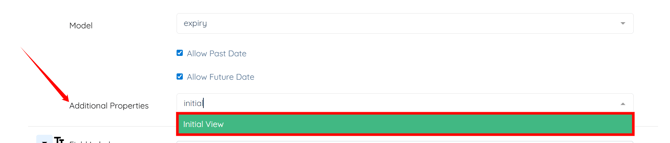
Step 5: Select the day option from the dropdown list in the Initial View field.
Step 6: Scroll down and click the Save button to apply the changes.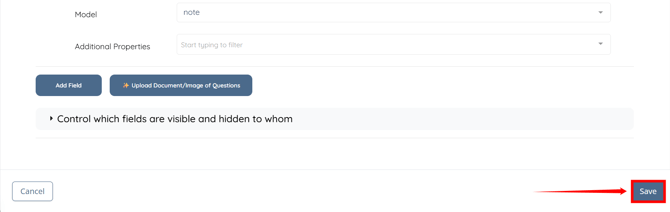
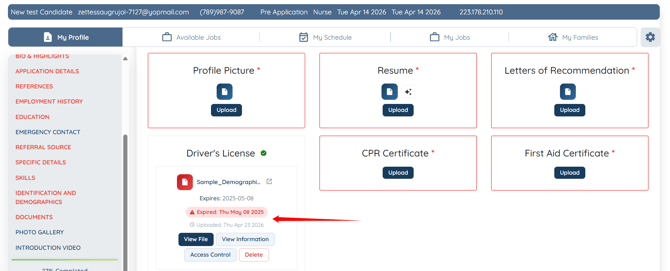
The document expiry date now appears just below the document title if it was initially added during the document upload.