![enginehire logo thin dark 1.0.png]](https://learn.enginehire.io/hs-fs/hubfs/enginehire%20logo%20thin%20dark%201.0.png?height=40&name=enginehire%20logo%20thin%20dark%201.0.png)
When a client updates one of their shift jobs, for example by changing the start time, Enginehire sends your agency admins a standard email about it. To send your own version instead, create an email template with the Shift Job Updated Admin Notification trigger. You choose the subject and wording, and you can include exactly what the client changed.
Create the Shift Job Updated Admin Notification email template
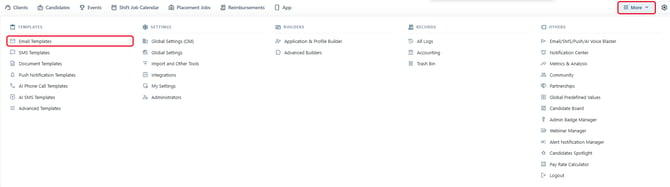
From your dashboard, click More, then Email Templates under Templates.
Click Add Template.

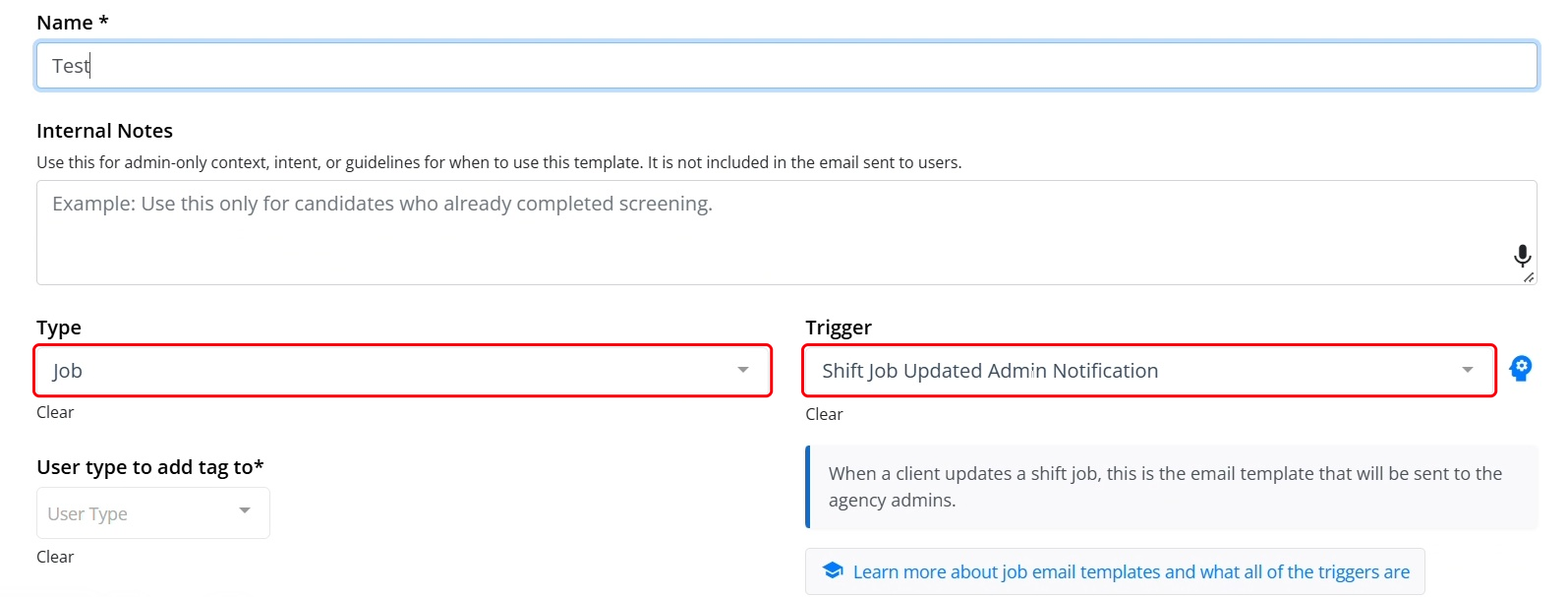
In Step 1: Configuration, select Standard Email and enter a Name you'll recognize later, such as "Client shift job update". Internal Notes are optional and aren't included in the email.
Set Type to Job, then select Shift Job Updated Admin Notification in Trigger. The description under the trigger reads: "When a client updates a shift job, this is the email template that will be sent to the agency admins." Click Next: Sender and Recipients.
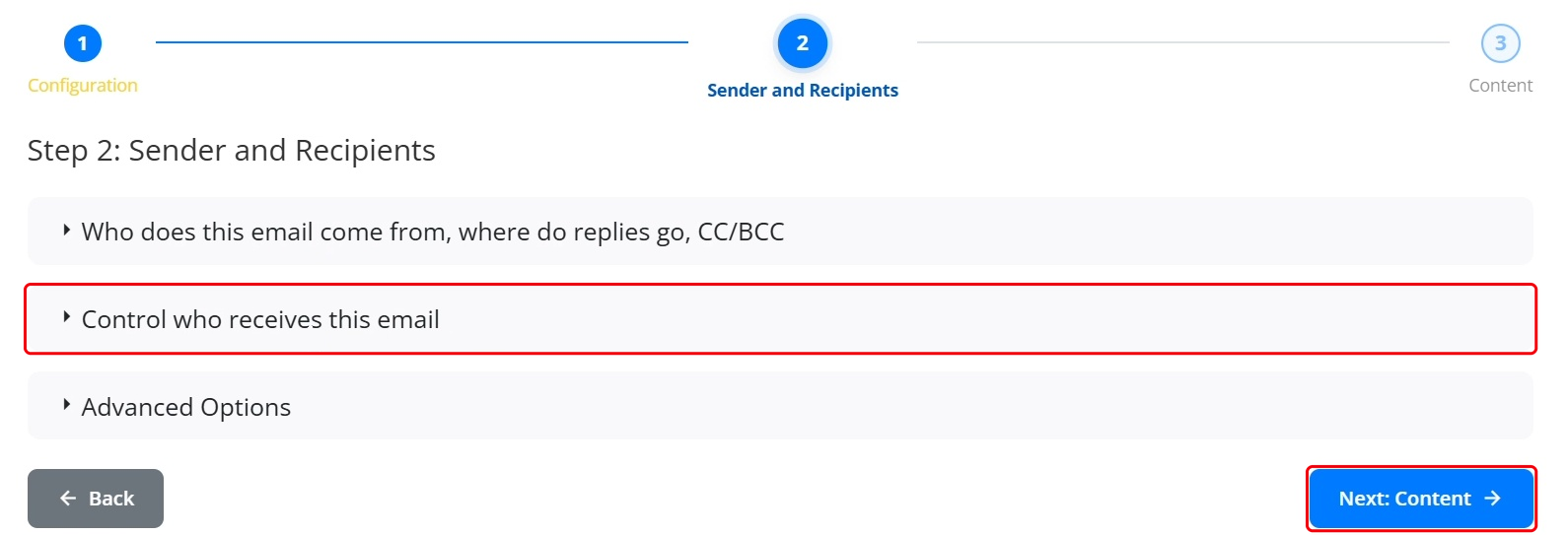
In Step 2: Sender and Recipients, you can expand Who does this email come from, where do replies go, CC/BCC to adjust those details. If only particular admins should use this template, expand Control who receives this email and select them under Select Admin that can send this email. Click Next: Content.
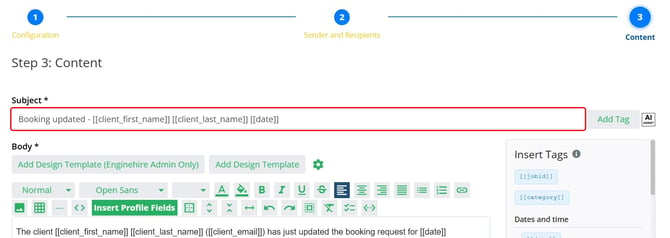
In Step 3: Content, enter the Subject and Body. To add shift details, click a tag in the Insert Tags panel. The [[modified_data]] tag lists what the client changed, with the old value and the new value, for example Start Time: 12:15 PM => 12:30 PM.
Example template
Subject: Booking updated - [[client_first_name]] [[client_last_name]] [[date]]
Body:
The client [[client_first_name]] [[client_last_name]] ([[client_email]]) has just updated the booking request for [[date]] [[starttime]] - [[endtime]].
Detail update:
[[modified_data]]
Please go to the shift job calendar to view all of the details.
Click Create to save the template.
What admins receive when a client updates a shift job
Once the template is saved, it replaces the standard email for this event. The next time a client updates a shift job, admins get your version, filled in with that shift's details. Using the example template above, a start time change looks like this:
Subject: Booking updated - Jordan Smith Thu Oct 08, 2026
The client Jordan Smith (jordan.smith@example.com) has just updated the booking request for Thu Oct 08, 2026 12:30 PM - 06:00 PM.
Detail update:
Start Time: 12:15 PM => 12:30 PM
Please go to the shift job calendar to view all of the details.
To go back to the standard email, deactivate or delete your template. For more on how custom templates replace default emails, see Replace a default email with a customized email template.
Related articles
How to set up admin email notifications when a client cancels or changes a shift job
Email for Shift Job update Candidate Notification
Reviewing Job Email Templates
Replace a default email with a customized email template