![enginehire logo thin dark 1.0.png]](https://learn.enginehire.io/hs-fs/hubfs/enginehire%20logo%20thin%20dark%201.0.png?height=40&name=enginehire%20logo%20thin%20dark%201.0.png)
Let’s get started 🚀
Step 1: Log in to your agent dashboard and open the client profile containing the document that you want to share. 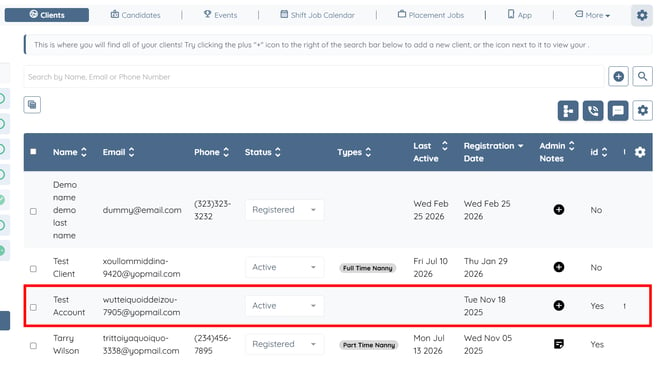
Step 2: Click the Documents tab from the available tabs.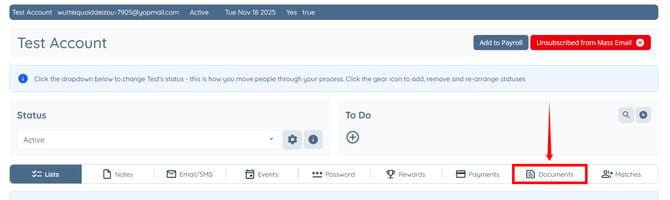
Step 3: Click the Copy Shareable Link as shown in the screenshot below.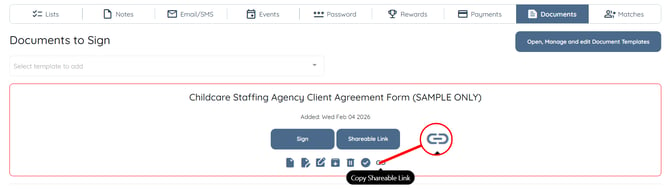
The shareable link will be copied to the clipboard successfully. 
Step 4: Click the Email/SMS tab from the available tabs. 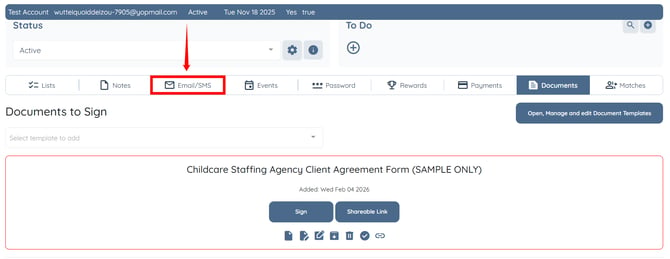
Step 5: Click the Select Template box to open the list of templates.
If you do not want to use an email template, you can skip to Step 7.

Step 6: Select the email template that you want to use.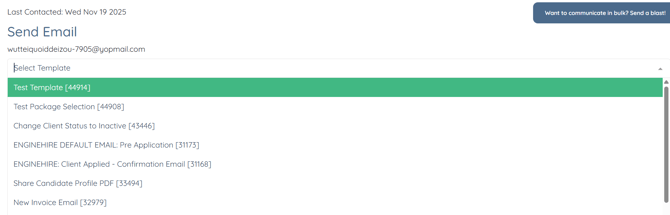
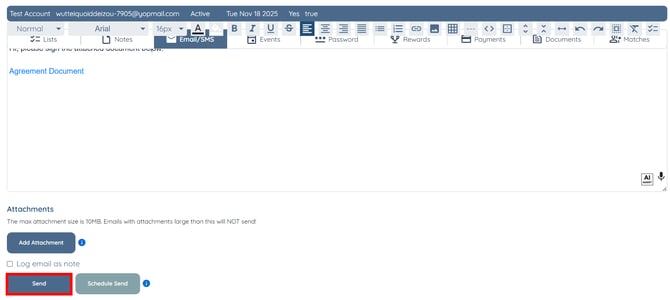
Step 7: Prepare the email body as required. Select the text that you want to turn into a hyperlink, then click the Insert Link button on the toolbar. 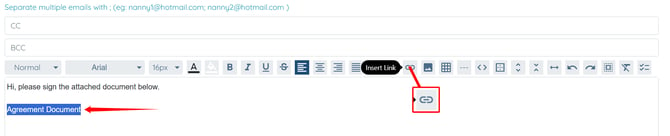
Step 8: Paste the copied shareable link into the Link URL field. 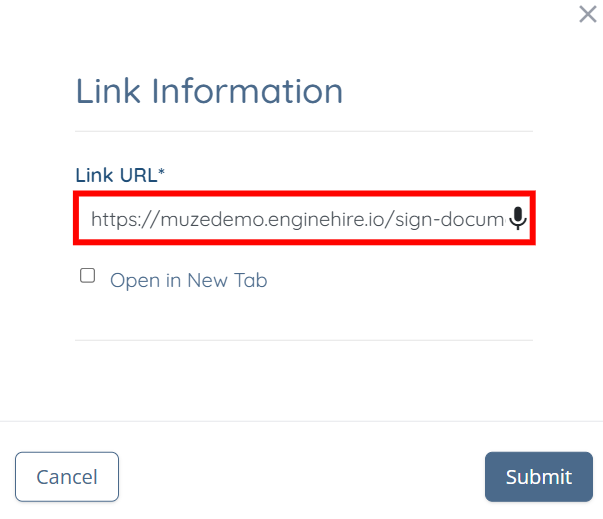
Step 9: Check the Open in New Tab checkbox and click the Submit button.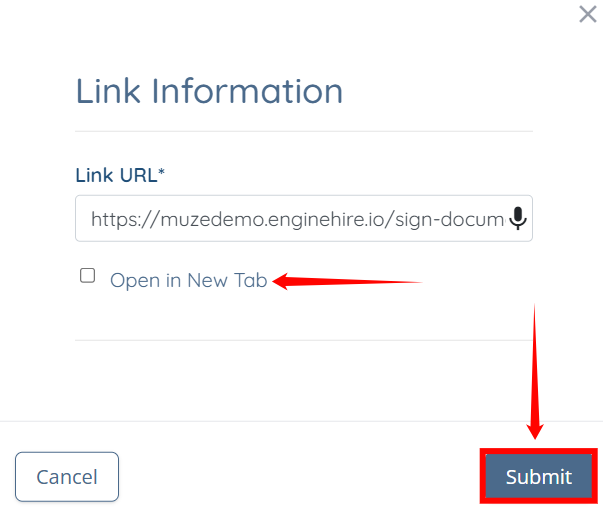
Step 10: Click the Send button to send the email.