![enginehire logo thin dark 1.0.png]](https://learn.enginehire.io/hs-fs/hubfs/enginehire%20logo%20thin%20dark%201.0.png?height=40&name=enginehire%20logo%20thin%20dark%201.0.png)
Once AI matching has scored your candidates for a placement job, you can add the best matches to the job's client right from the results. Select as many candidates as you need and share them in one step, instead of opening the client's profile and adding each candidate one at a time.
Before you start
This works from the AI match analysis of your candidate database on a placement job. If you haven't used AI matching yet, see AI Matching for how the analysis works and how to read the match scores.
Share AI-matched candidates with a client
Let’s get started 🚀
Step 1: Click Placement Jobs, find the job, and select Analyze Candidate Data to Find Best Matches below the job details.
Step 2: Use the filters to bring the list down to 100 candidates or fewer, or select up to 100 candidates yourself. Then click Analyze Best Matches.

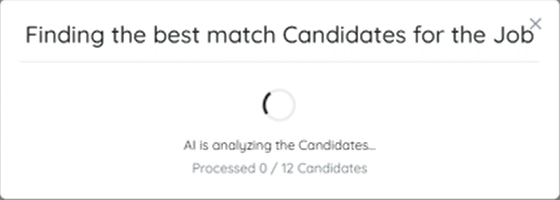
A progress window shows how many candidates the AI has processed.
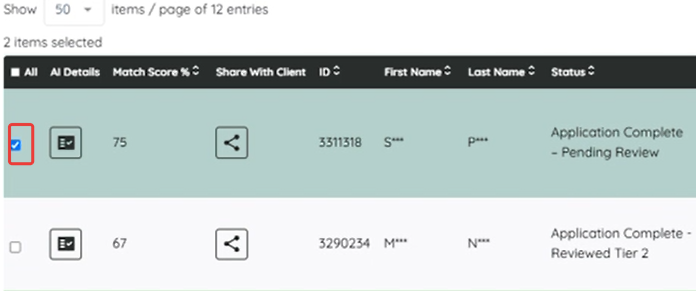
Step 3: Review the results using Match Score % and AI Details, then check the box next to each candidate you want to share with the client. To select everyone in the list, check All. The number of selected candidates shows above the list and at the bottom of the window.
Step 4: Click Share Candidates to Client. The button becomes available once at least one candidate is selected.

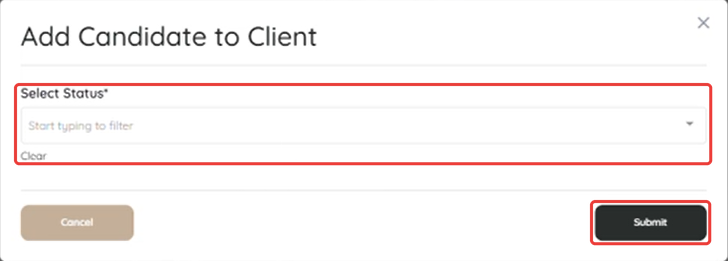
Step 5: In the Add Candidate to Client window, choose a status in Select Status, then click Submit.
A Candidates to Client links created! message confirms the candidates were added to the client.