![enginehire logo thin dark 1.0.png]](https://learn.enginehire.io/hs-fs/hubfs/enginehire%20logo%20thin%20dark%201.0.png?height=40&name=enginehire%20logo%20thin%20dark%201.0.png)
Let’s get started 🚀
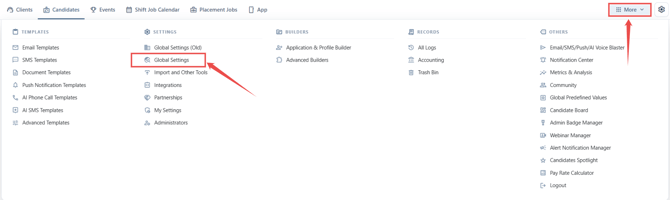
Step 1: Log in to the agent dashboard and click More > Global Settings as shown in the screenshot below.
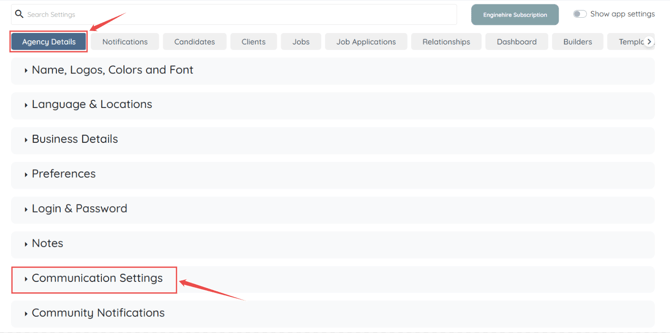
Step 2: Head over to the Agency Details section and find Communication Settings.
Step 3: As illustrated below, navigate through the Communication Settings to find the setting labeled “Add unsubscribe link to the end of all individual emails(it is added by default and required for bulk emails)”.
To activate this feature, check the corresponding box.
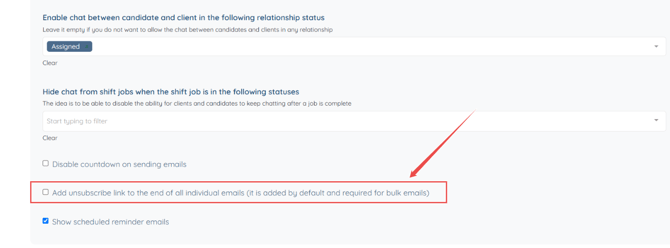
Step 4: Once enabled, your changes will save automatically.
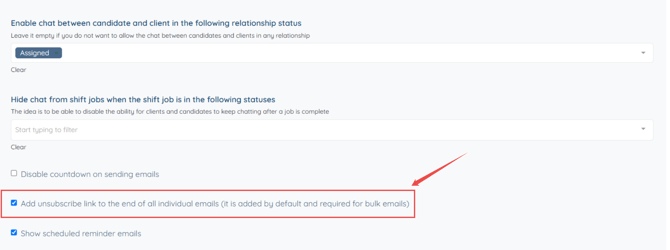
Note: The unsubscribe link is included automatically by default, so no additional setup is needed.
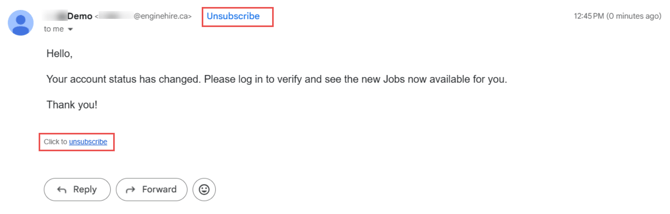
You are all set! An unsubscribe link button will now be included in every individual email sent to clients or candidates.