![enginehire logo thin dark 1.0.png]](https://learn.enginehire.io/hs-fs/hubfs/enginehire%20logo%20thin%20dark%201.0.png?height=40&name=enginehire%20logo%20thin%20dark%201.0.png)
To make sure clients are not updated or emailed about shift job reports:
Go to a candidates profile and click on My Jobs. 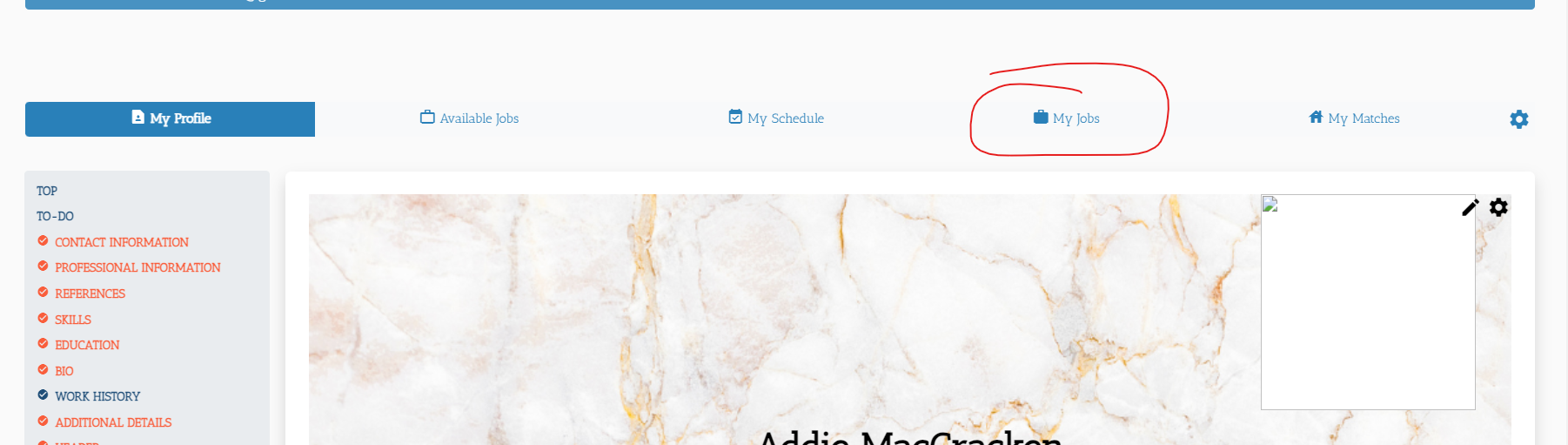
Then click on the gear icon on the table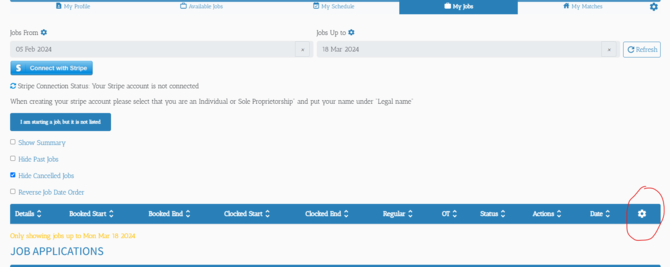
Then scroll down and mark shift jobs admin only and click submit to save
Create Shift Job Reports by Job Category
Create a Shift Job Report builder to collect the required information from candidates for a specific job category. You can add the questions you need and assign the completed report builder to the appropriate booking category.
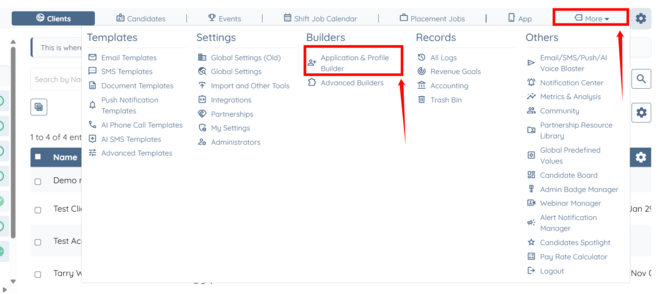
Step 1: Log in to your agent dashboard and click More > Application & Profile Builder, as shown in the screenshot below.
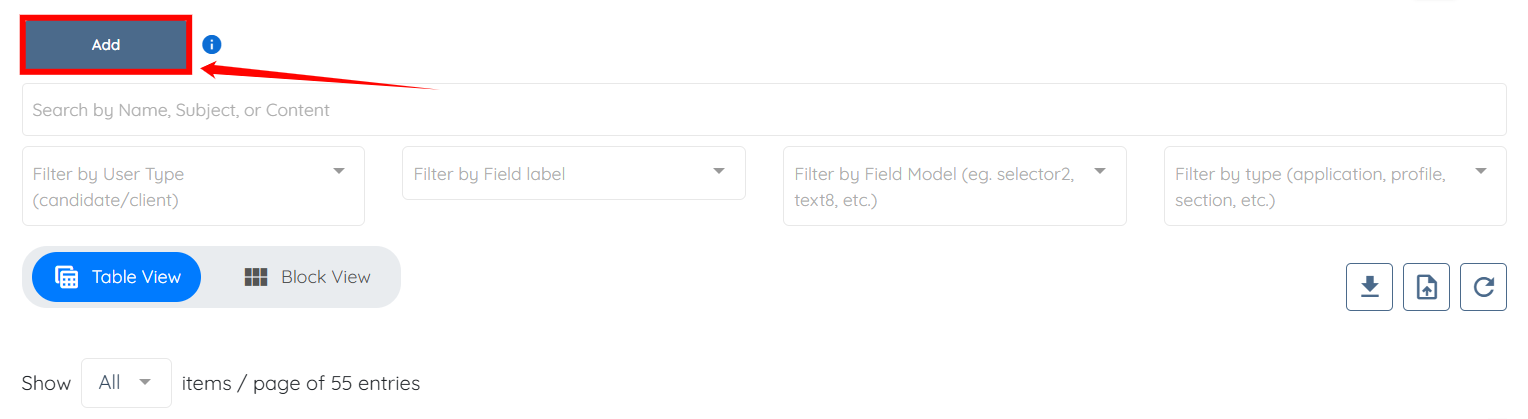
Step 2: Click the Add button.
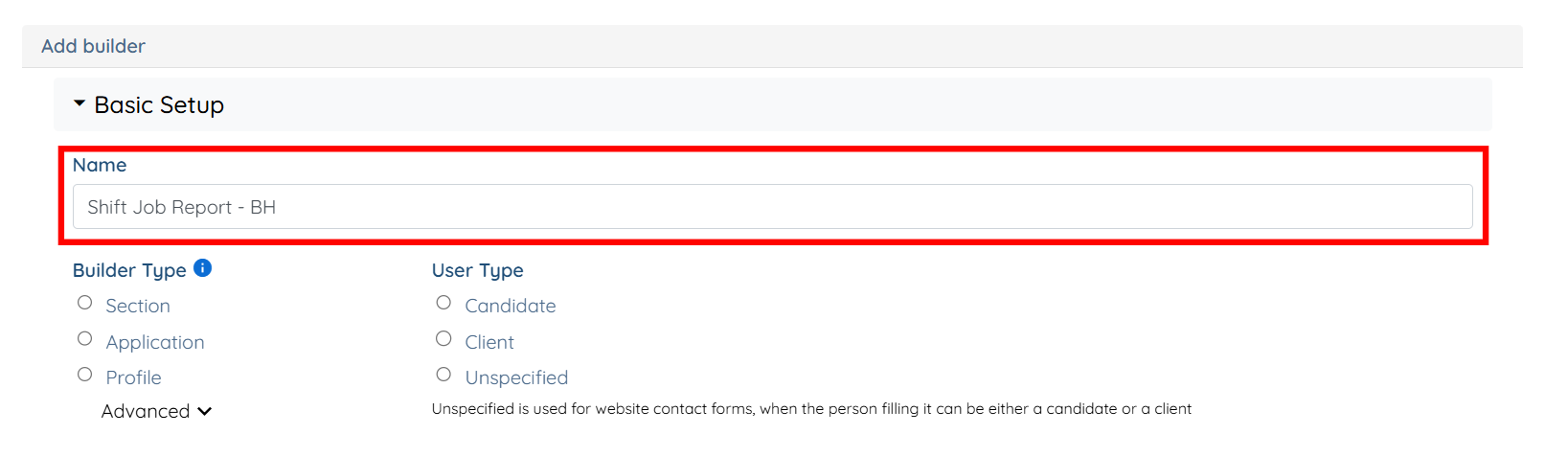
Step 3: Enter a name for your shift job report builder.
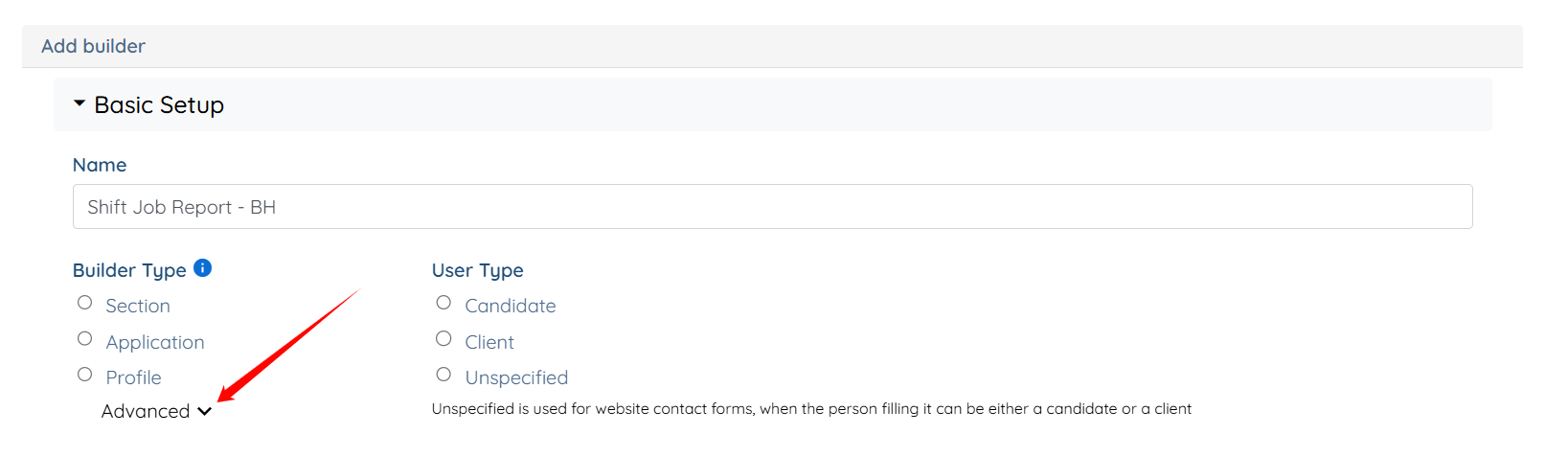
Step 4: Click the arrow icon next to the Advanced option to open the remaining list of builder types.
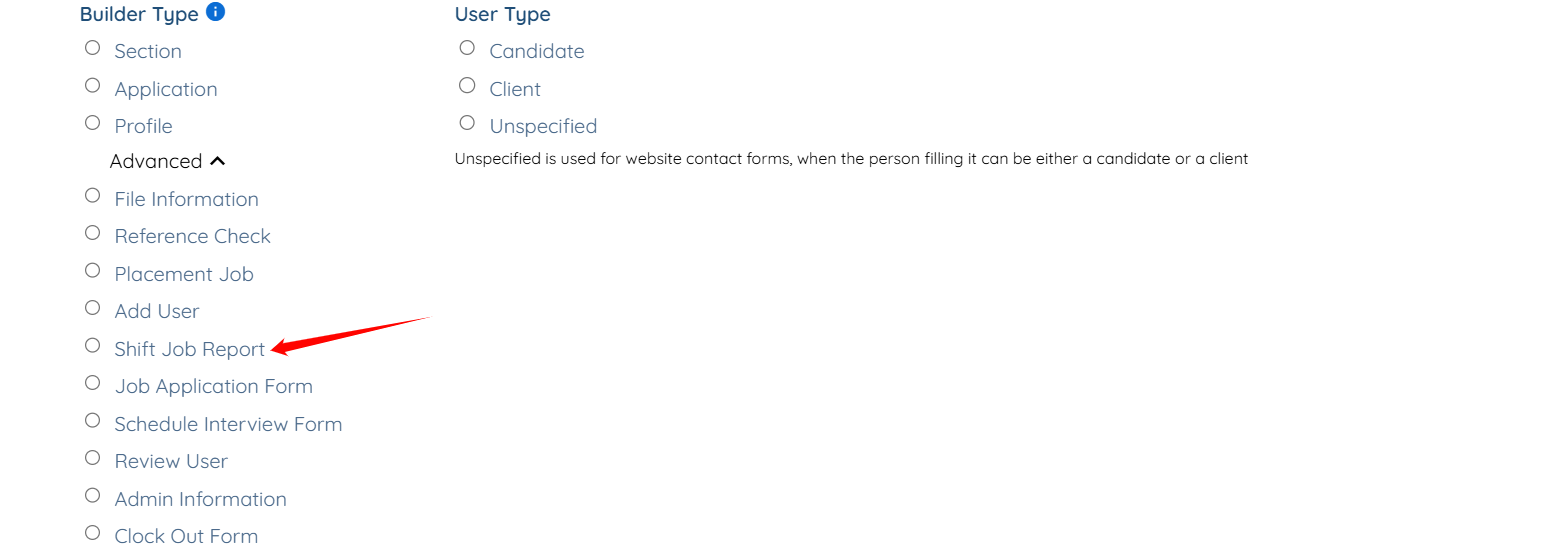
Step 5: Select the Shift Job Report option.
Step 6: Click the Add Field button to add question(s) for the candidates in the shift job report builder you are creating.
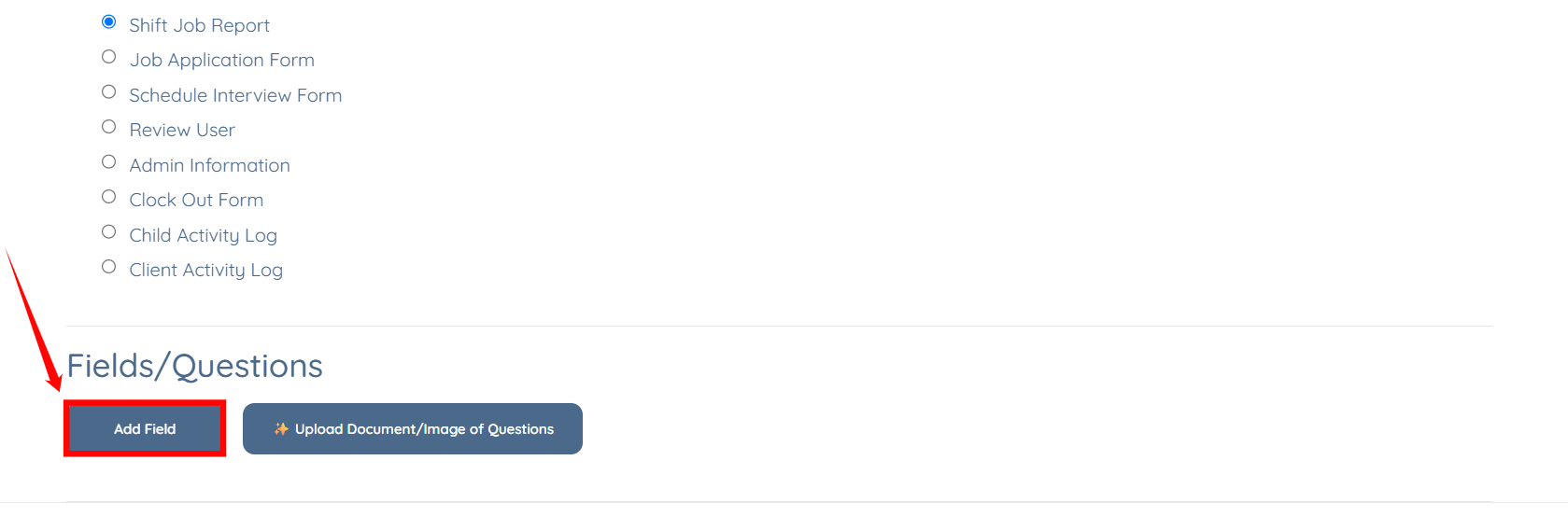
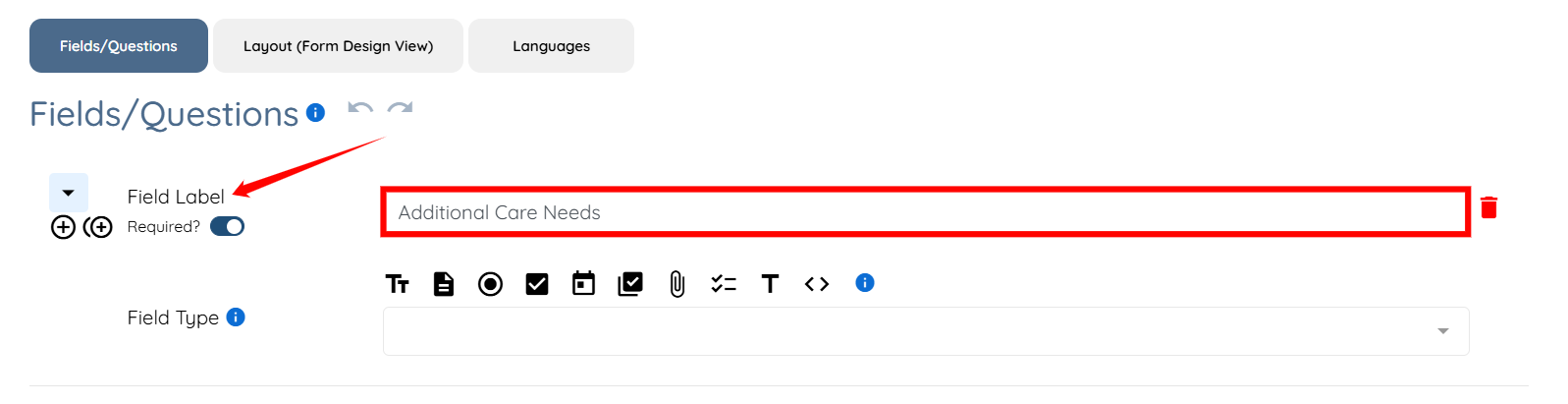
Step 7: Enter the Field Label.
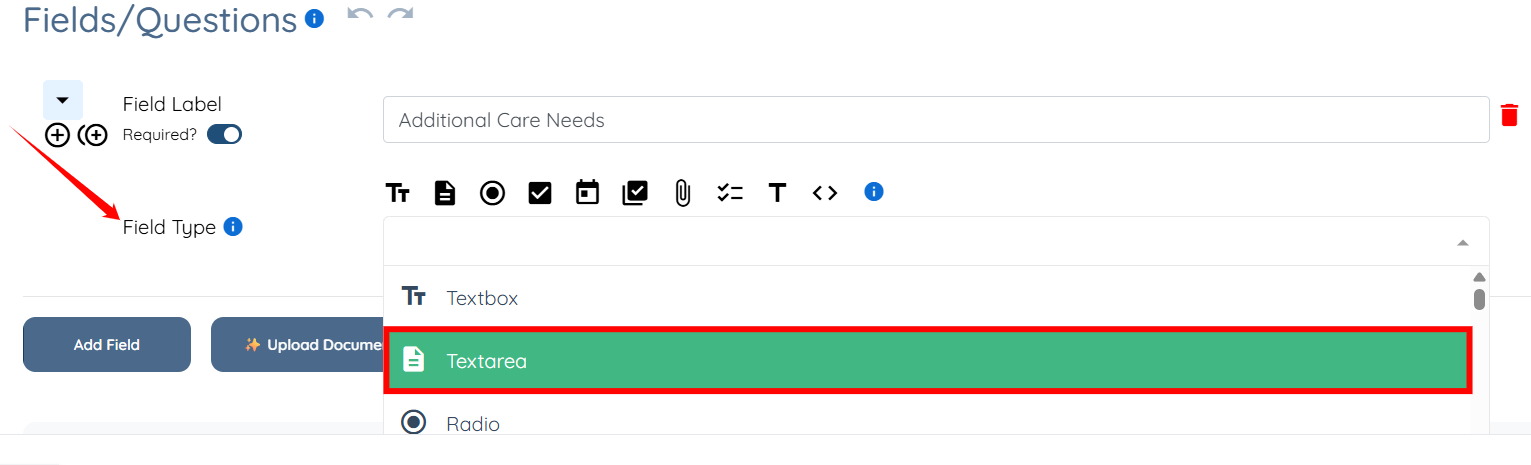
Step 8: Select the Field Type for your question.
Step 9: Click the Save button.
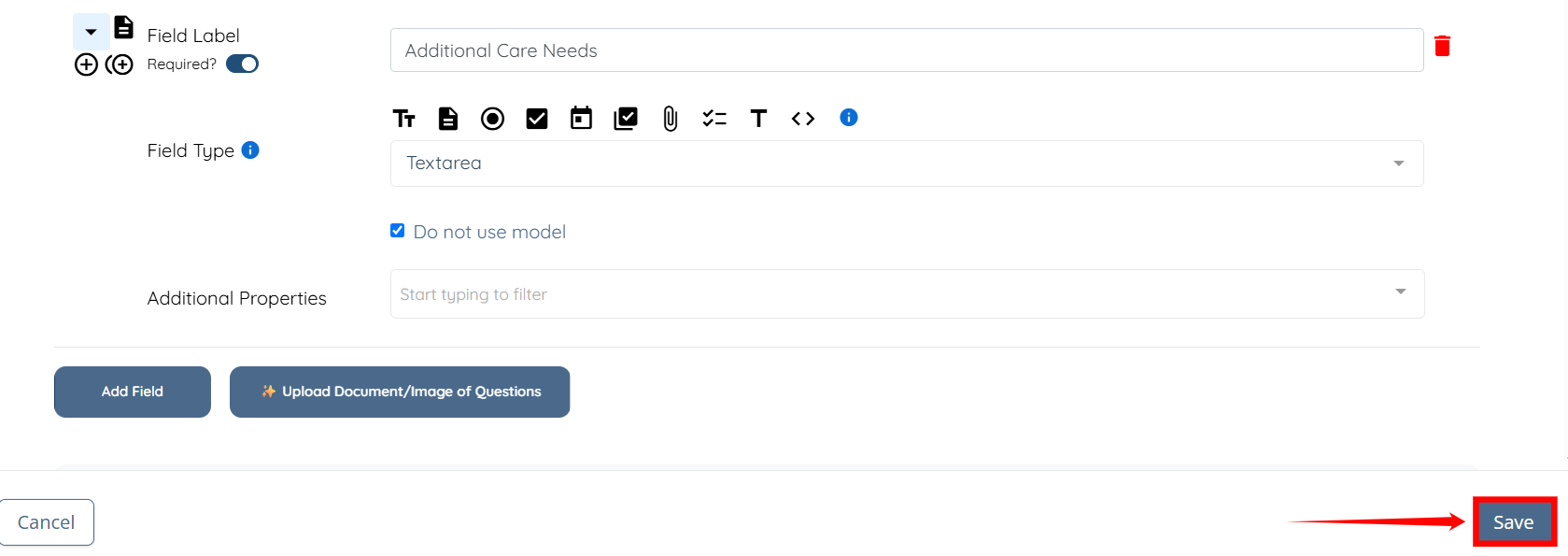
The Shift Job Report builder will be created successfully.
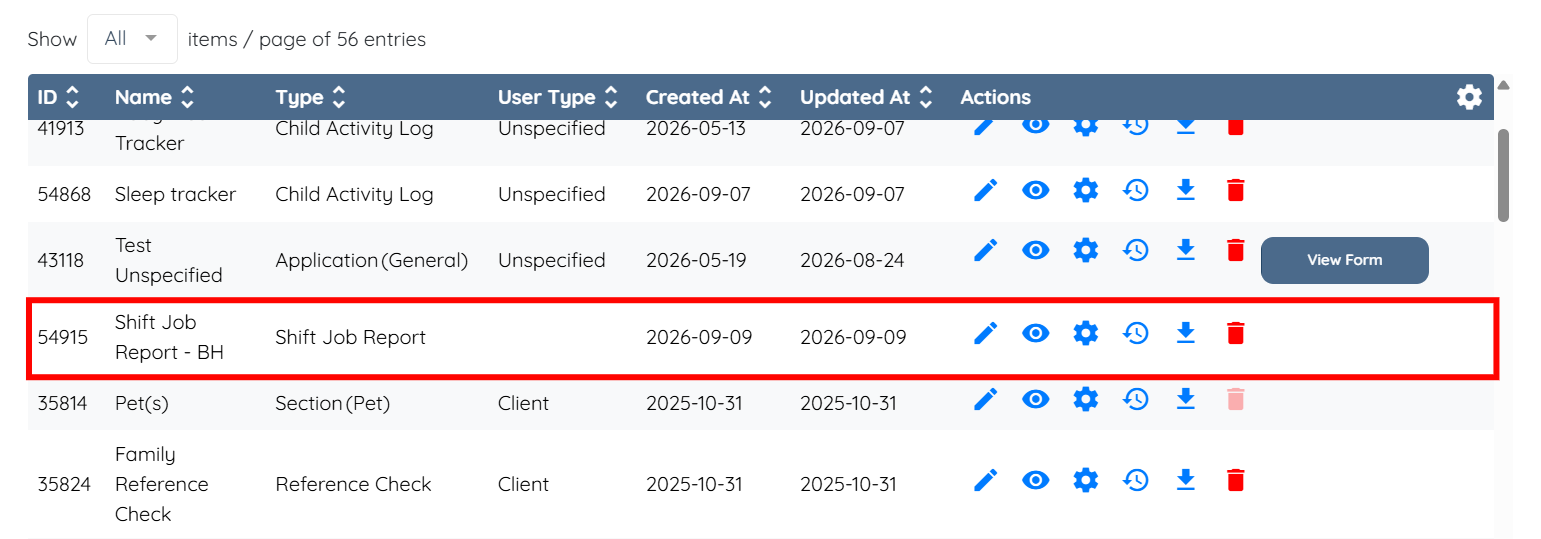
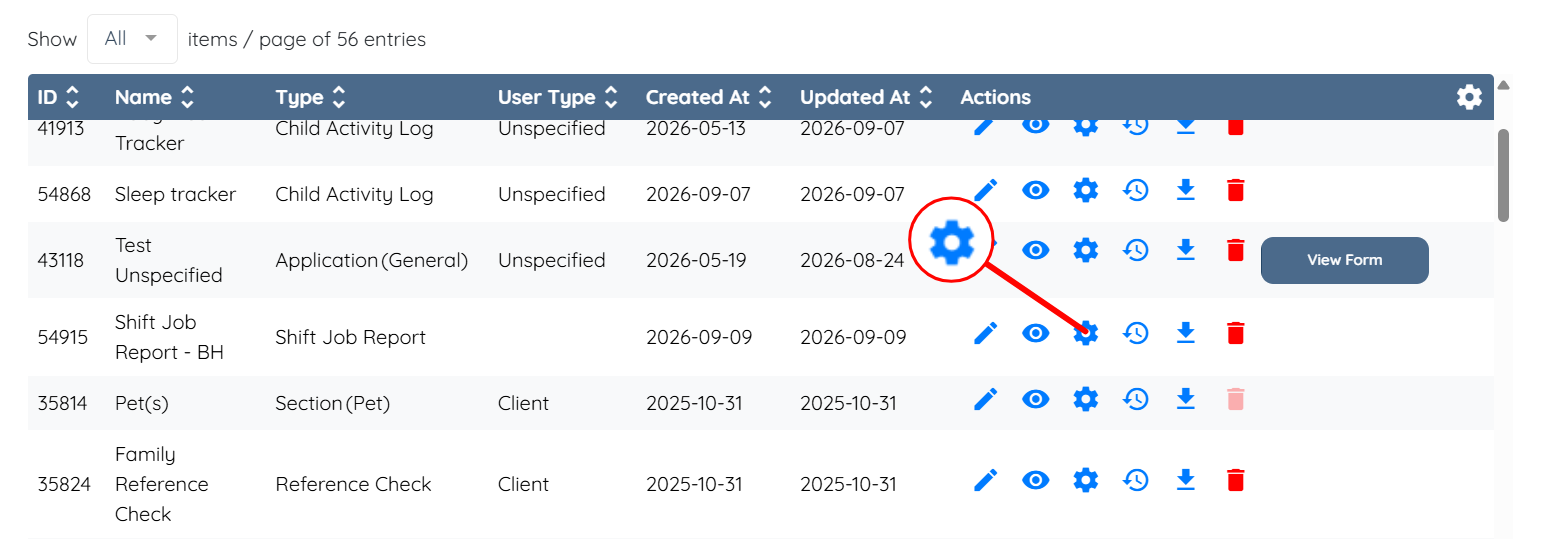
Step 10: Click the gear icon under the Actions column next to the shift job report builder to open the settings.
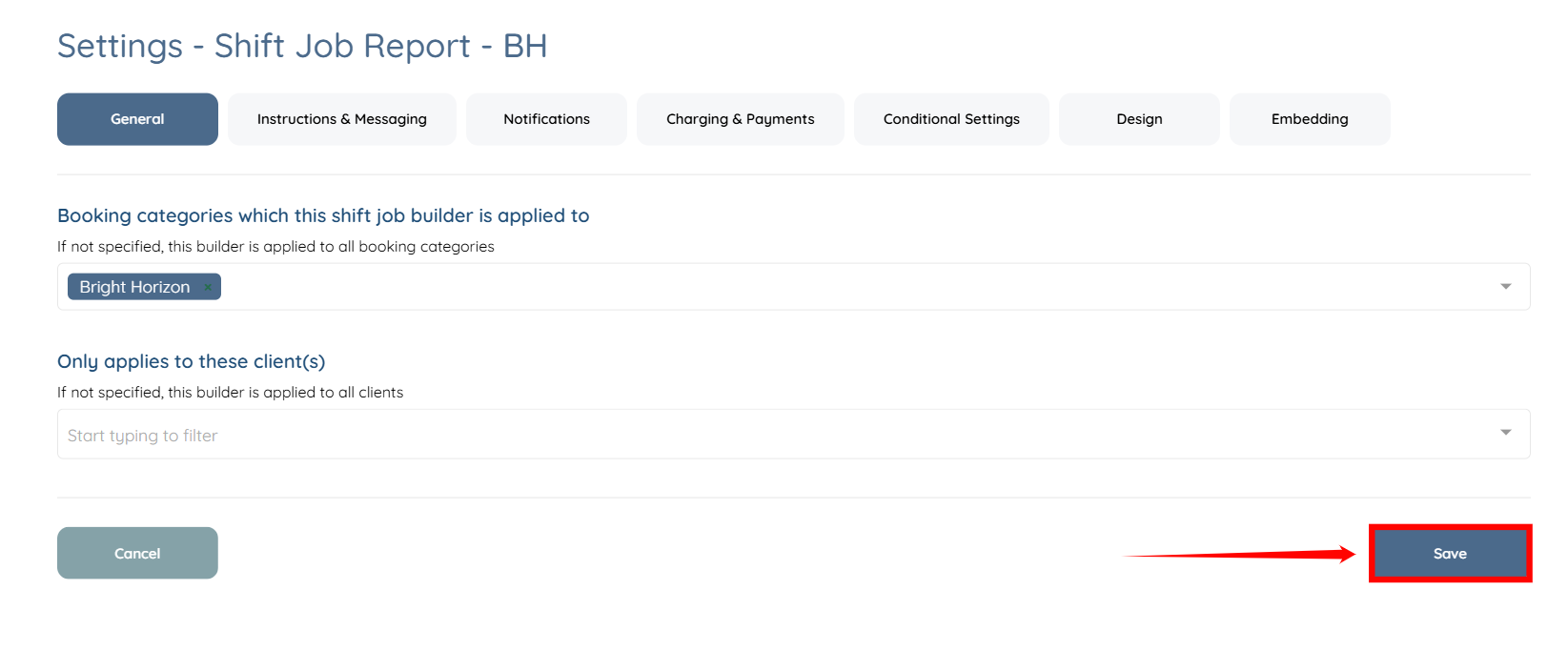
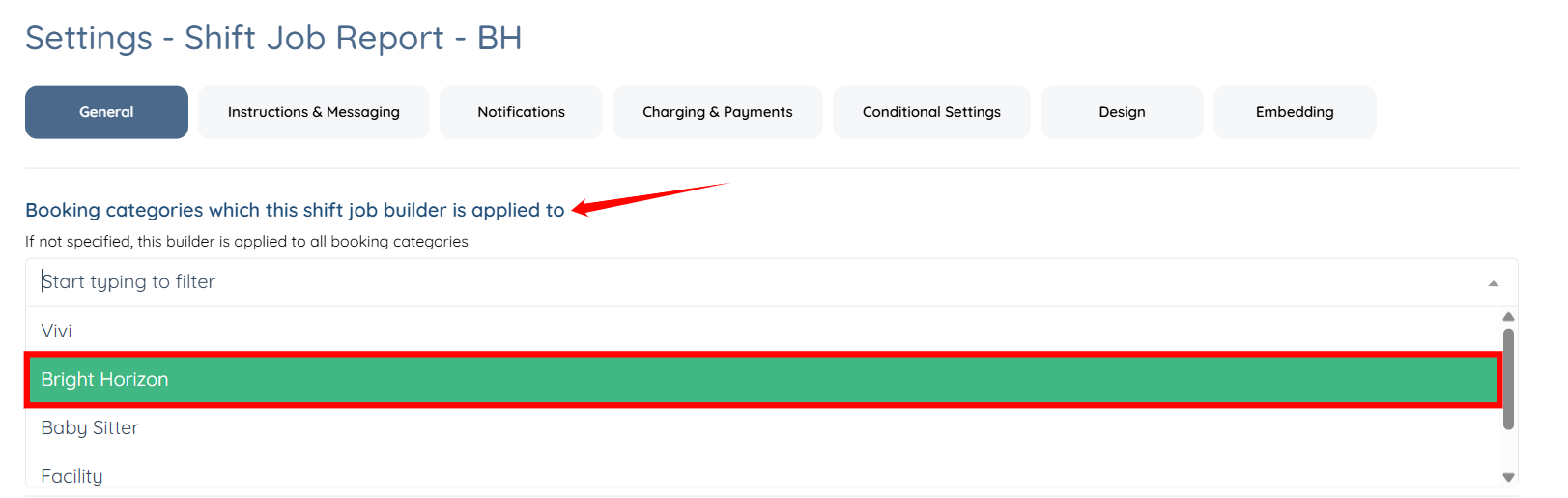
Step 11: Select the booking category to which you want to apply this shift job report builder to.
Step 12: Click the Save button to proceed.