![enginehire logo thin dark 1.0.png]](https://learn.enginehire.io/hs-fs/hubfs/enginehire%20logo%20thin%20dark%201.0.png?height=40&name=enginehire%20logo%20thin%20dark%201.0.png)
Document group settings are applied globally. Any groups you create will appear in the Documents section for all candidate profiles.
Let’s get started 🚀
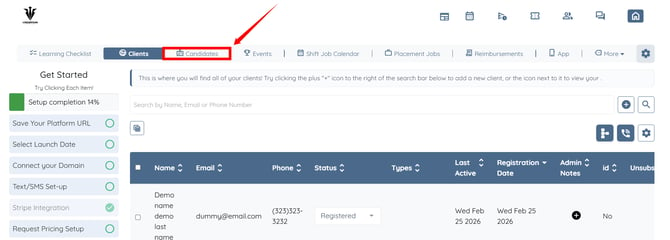
Step 1: Log in to your agent dashboard, then click Candidates from the navigation bar.
Step 2: Click on any candidate from the list of candidates. 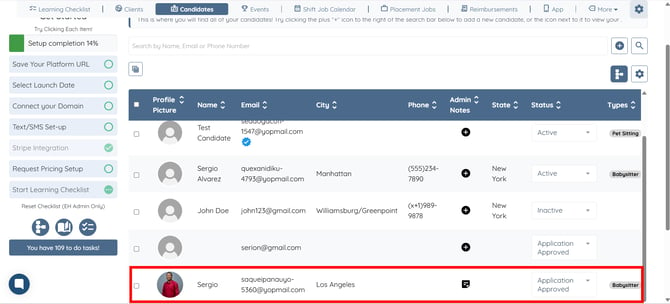
Step 3: Click the Profile tab to navigate to the candidate profile. 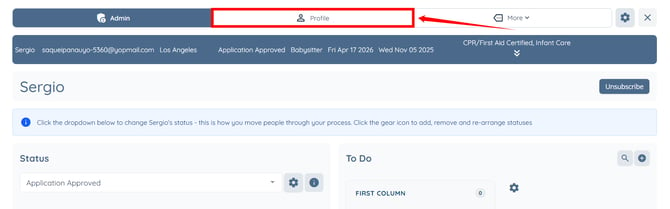
Step 4: Click the DOCUMENTS option from the left-hand navigation bar. 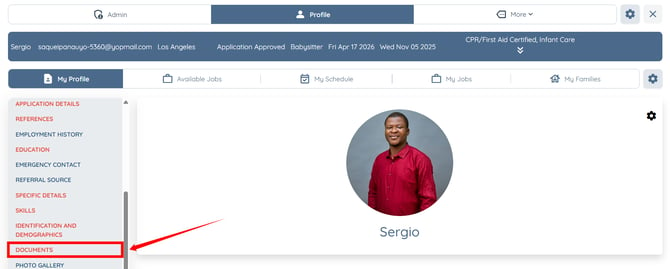
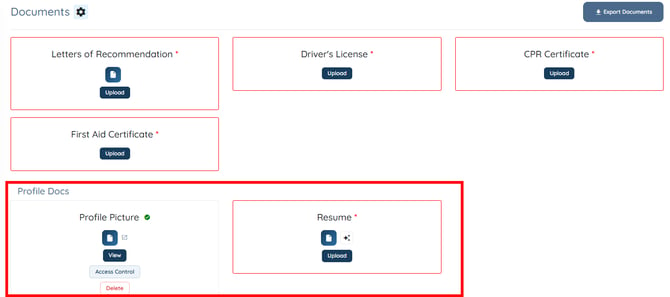
Step 5: Click the Gear icon beside the Documents heading, as shown in the screenshot below. 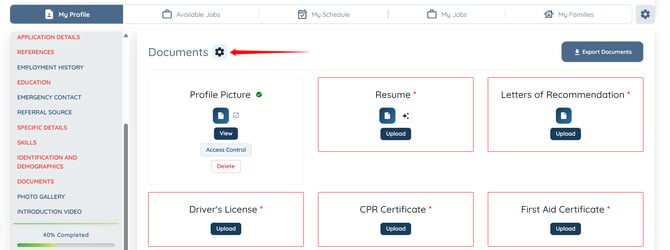
Step 6: Scroll to the bottom and click the “+” button located below the Candidate Document Groups option. 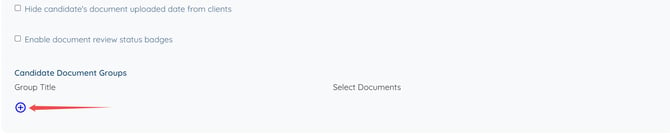
Step 7: Enter a name for the document group. 
Step 8: Select the documents you want to include in the document group from the dropdown list. The settings will be saved automatically.
You can add multiple documents under one document group.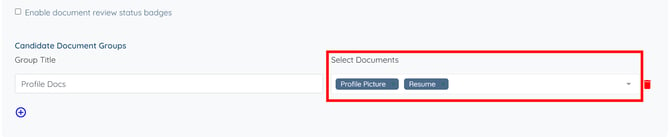
Step 9: Click the cross icon at the top-right corner.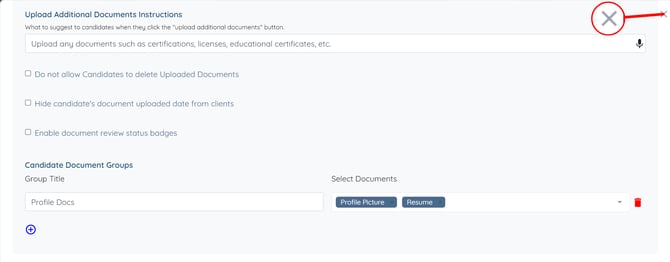
The selected documents will now appear under the created document group.