![enginehire logo thin dark 1.0.png]](https://learn.enginehire.io/hs-fs/hubfs/enginehire%20logo%20thin%20dark%201.0.png?height=40&name=enginehire%20logo%20thin%20dark%201.0.png)
Let's get started 🚀
Add Hierarchy and Network Fields
Add the Hierarchy field to define Parent and Child client levels, and add the Network field to enable synchronization of information to child clients.
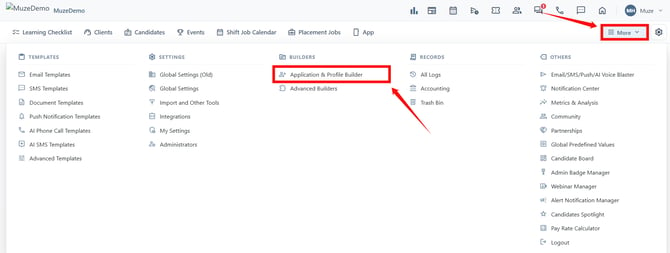
Step 1: Log in to your agent dashboard and go to More > Application & Profile Builder as shown in the screenshot below.
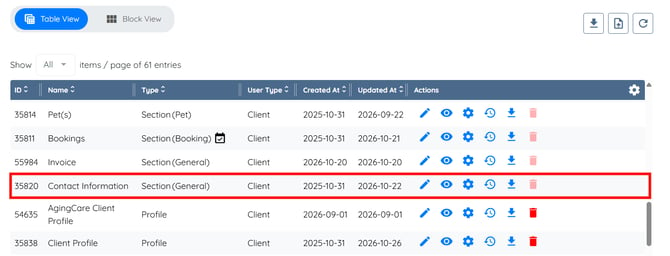
Step 2: Open the Contact Information section builder for Clients.
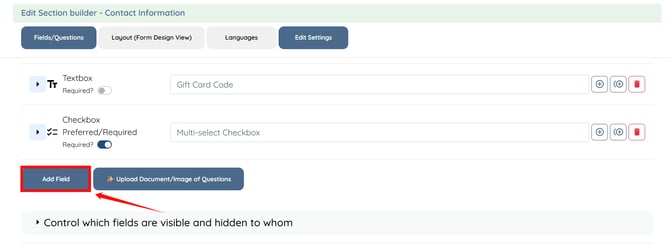
Step 3: Scroll to the bottom and click Add Field.
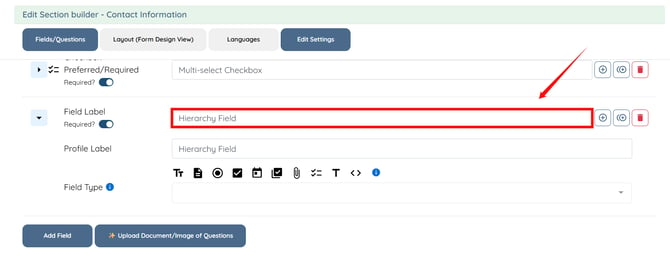
Step 4: Enter Hierarchy Field as the Field Label.
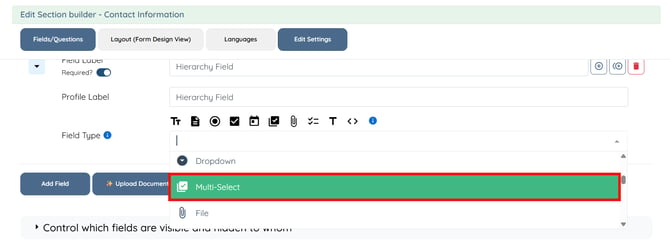
Step 5: Select Multi Select from the Field Type dropdown.
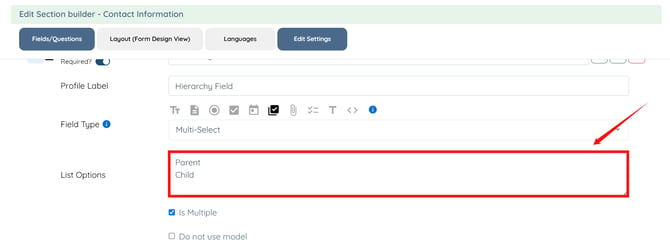
Step 6: Add Parent and Child as the list options.
Step 7: Click Add Field to create the Network field.
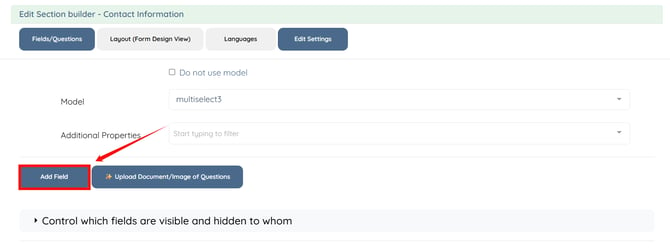
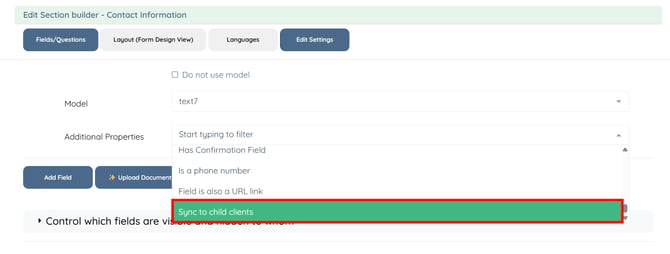
Step 8: Enter the required field information and select Sync to Child Clients as the Additional Property.
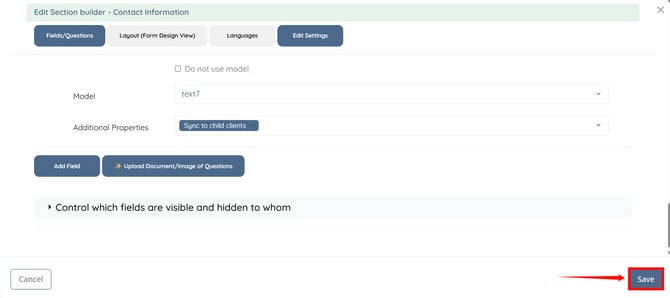
Step 9: Click Save.
Group Clients by Hierarchy
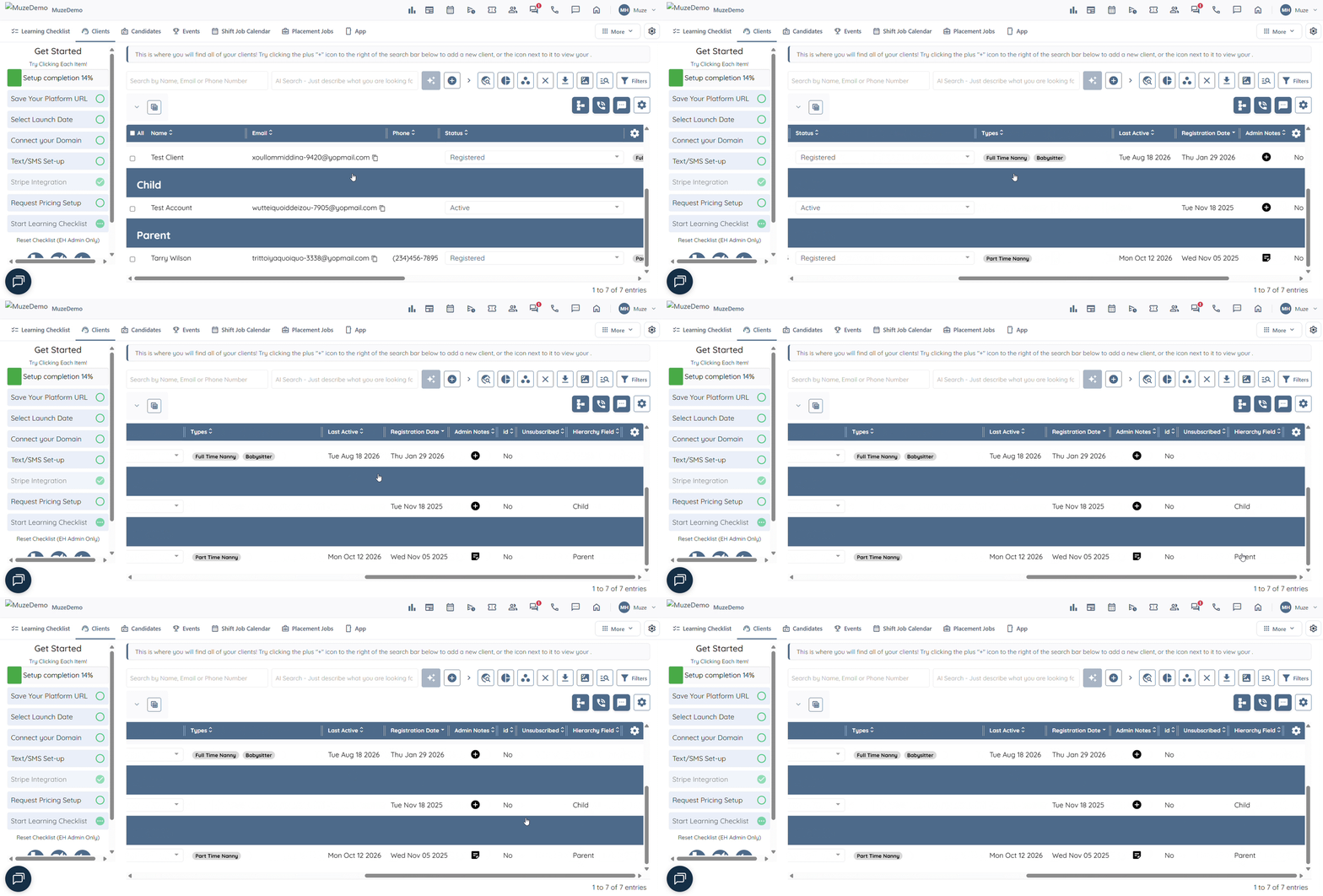
You can group clients using the Hierarchy Field to organize them according to their Parent and Child levels.
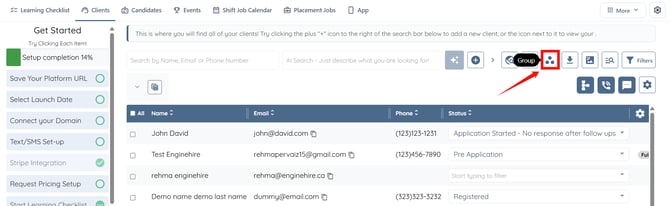
Step 1: Navigate to the Clients page and click the Group icon.
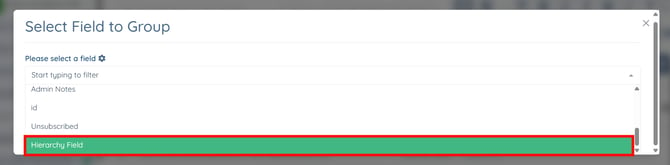
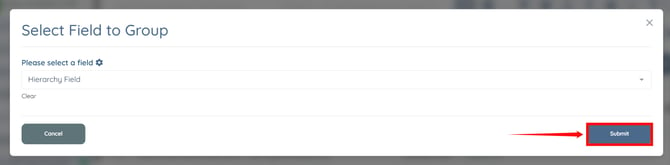
Step 2: Select Hierarchy Field from the dropdown menu.
Step 3: Click Submit.
The clients will be grouped according to their Parent and Child hierarchy values.
Configure Client Hierarchy
Configure the Client Hierarchy settings to define the field and values used for the Parent and Child levels.
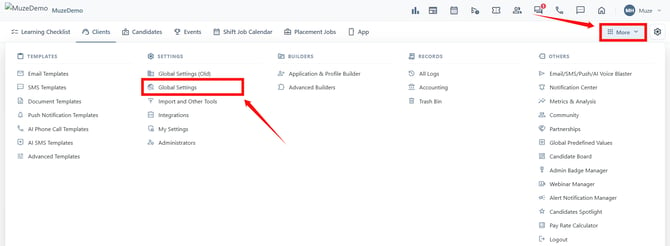
Step 1: On your agent dashboard, click More > Global Settings, as shown in the screenshot below.
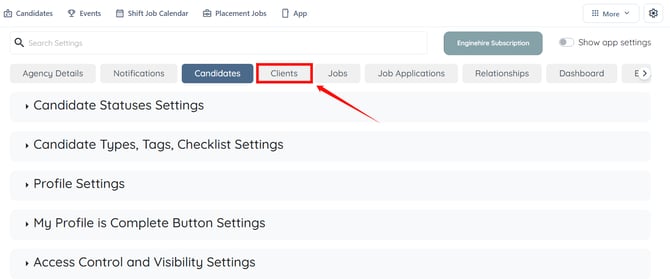
Step 2: Click the Clients tab from the available tabs.
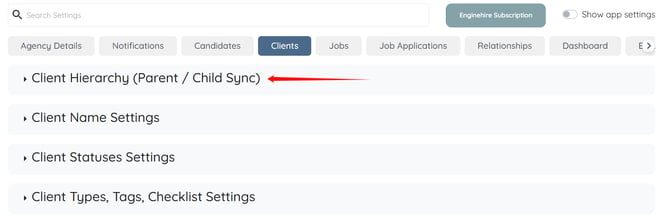
Step 3: Click the Client Hierarchy (Parent / Child Sync) option to expand and view its details.
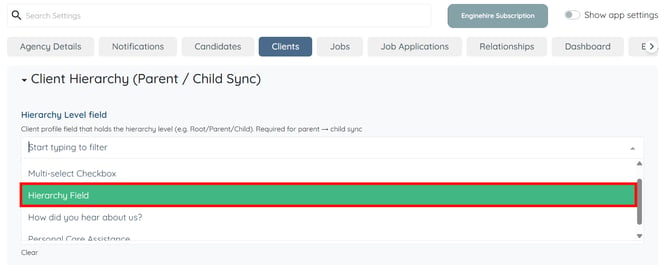
Step 4: Select Hierarchy Field in the Hierarchy Level Field dropdown.
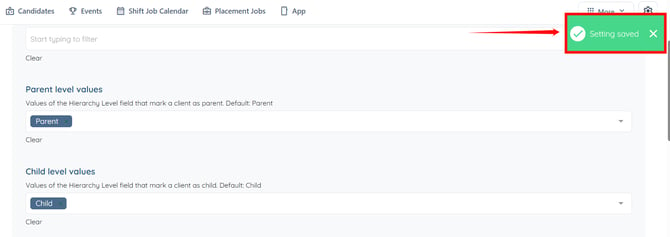
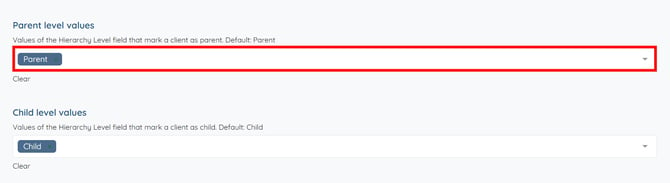
Step 5: Select Parent in the Parent level values field.
By default, Parent is selected as the value of the Hierarchy Level field that mark a client as parent.
Step 6: Select Child in the Child level values field.
By default, Child is selected as the value of the Hierarchy Level field that mark a client as child.
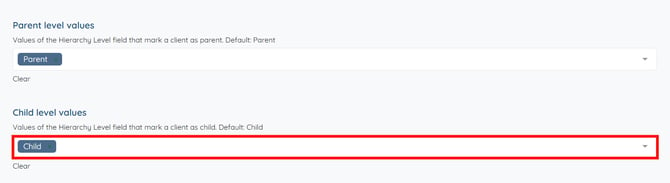
The settings will be saved automatically.