![enginehire logo thin dark 1.0.png]](https://learn.enginehire.io/hs-fs/hubfs/enginehire%20logo%20thin%20dark%201.0.png?height=40&name=enginehire%20logo%20thin%20dark%201.0.png)
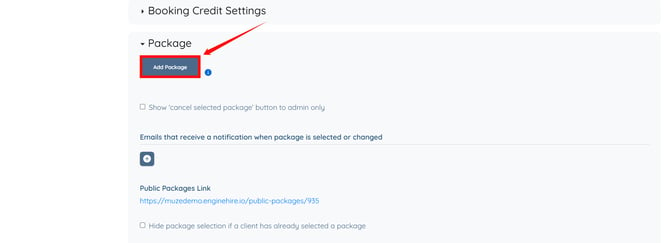
| S. No. | Field | Description |
| 1 | Name | Enter a name for the package. |
| 2 | Price | Enter the package price using numbers only (do not include the $ symbol). Leave this field blank if you are using a Stripe subscription or do not want to charge the client when they select the package. This amount is charged to the client when they select the package. |
| 3 | Charge client this amount when they select the package | Check this option to charge the client the amount entered in the Price field when they select the package. |
| 4 | Description | Enter a description of the package. |
|
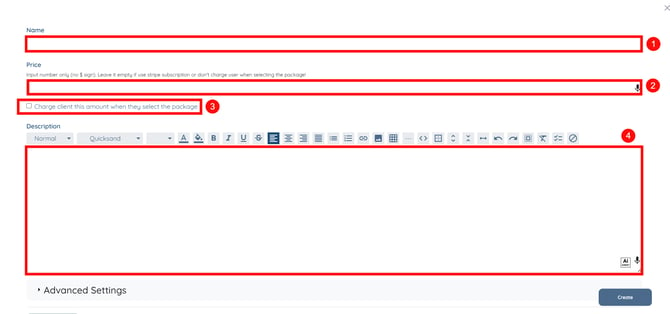
S. No. |
Field |
Description |
|
1 |
Number of Credits |
Specify the number of booking credits the client receives when they select the package. |
|
2 |
Monthly Renewal |
Enable this to configure monthly renewal for the package, if required. |
|
3 |
Yearly Renewal |
Enable this to configure yearly renewal for the package, if required. |
|
4 |
Maximum number of booking for each category |
Specify the maximum number of bookings allowed for each category. Leave this field blank if no category-specific limit is required. |
|
5 |
Order |
Specify the display order of the package. Lower numbers appear first. |
|
6 |
User Status |
Select the client status for which this package should be available. Leave this field blank to make the package available to all client statuses. |
|
7 |
User Types |
Select the client types for which this package should be available. Leave this field blank to make the package available to all client types. |
|
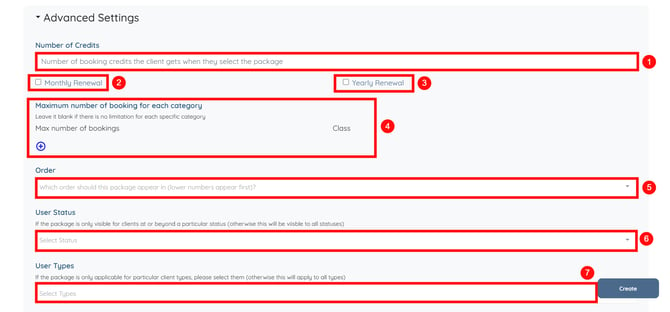
S. No. |
Field |
Description |
|
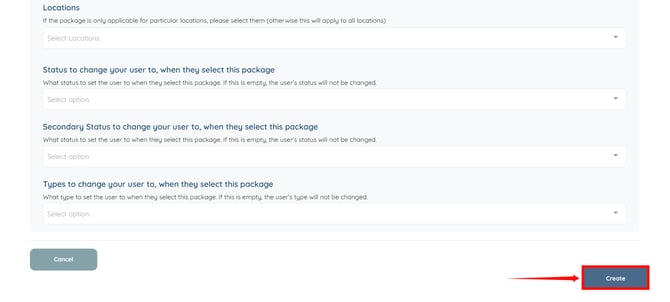
8 |
Locations |
Select the locations where this package should be available. Leave this field blank to make the package available to all locations. |
|
9 |
Status to change your user to, when they select this package |
Select the status that should be assigned to the client after they select the package. Leave this field blank if the client's status should remain unchanged. |
|
10 |
Secondary Status to change your user to, when they select this package |
Select the secondary status that should be assigned to the client after they select the package. Leave this field blank if no secondary status change is required. |
|
11 |
Types to change your user to, when they select this package |
Select the client type that should be assigned after the package is selected. Leave this field blank if the client's type should remain unchanged. |
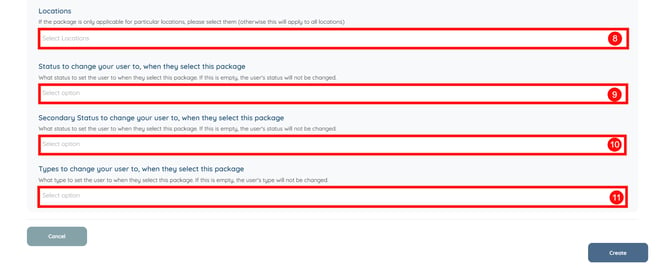
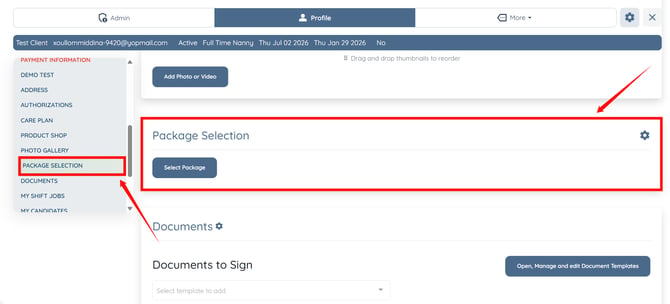
Configure Additional Package Settings
|
S. No. |
Field |
Description |
|
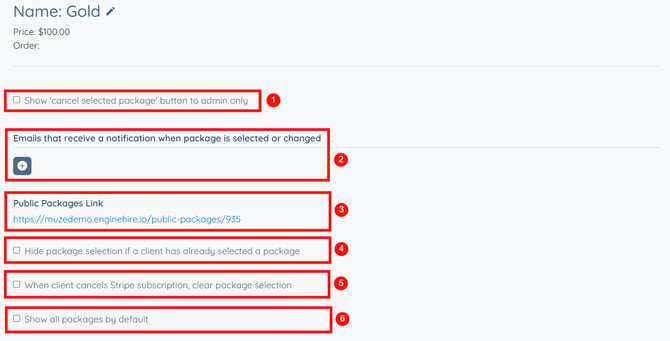
1 |
Show 'cancel selected package' button to admin only |
Enable this option to make the Cancel Selected Package button visible only to administrators. |
|
2 |
Emails that receive a notification when package is selected or changed |
Add one or more email addresses to receive notifications whenever a client selects or changes a package. |
|
3 |
Public Packages Link |
Displays the public link that clients can use to view the available packages. |
|
4 |
Hide package selection if a client has already selected a package |
Enable this option to hide the package selection section after a client has selected a package. |
|
5 |
When client cancels Stripe subscription, clear package selection |
Enable this option to automatically clear the client's selected package when their Stripe subscription is cancelled. |
|
6 |
Show all packages by default |
Enable this option to display all available packages by default, regardless of package visibility conditions. |