![enginehire logo thin dark 1.0.png]](https://learn.enginehire.io/hs-fs/hubfs/enginehire%20logo%20thin%20dark%201.0.png?height=40&name=enginehire%20logo%20thin%20dark%201.0.png)
For demonstration purposes, this article uses Candidates as an example. However, you can follow the same steps to create and use AI voice workflow templates for Clients as well.
Let’s get started 🚀
Create AI Phone Call Template
Create an AI phone call template to automatically trigger AI-powered calls when a candidate reaches a specific status.
Step 1: Log in to your agent dashboard and click More > AI Phone Call Templates as shown in the screenshot below.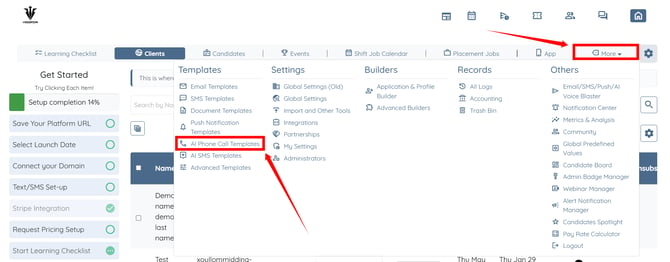
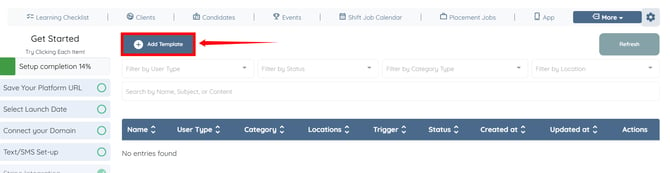
Step 2: Click the Add Template button.
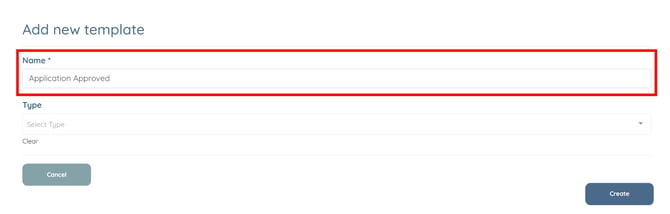
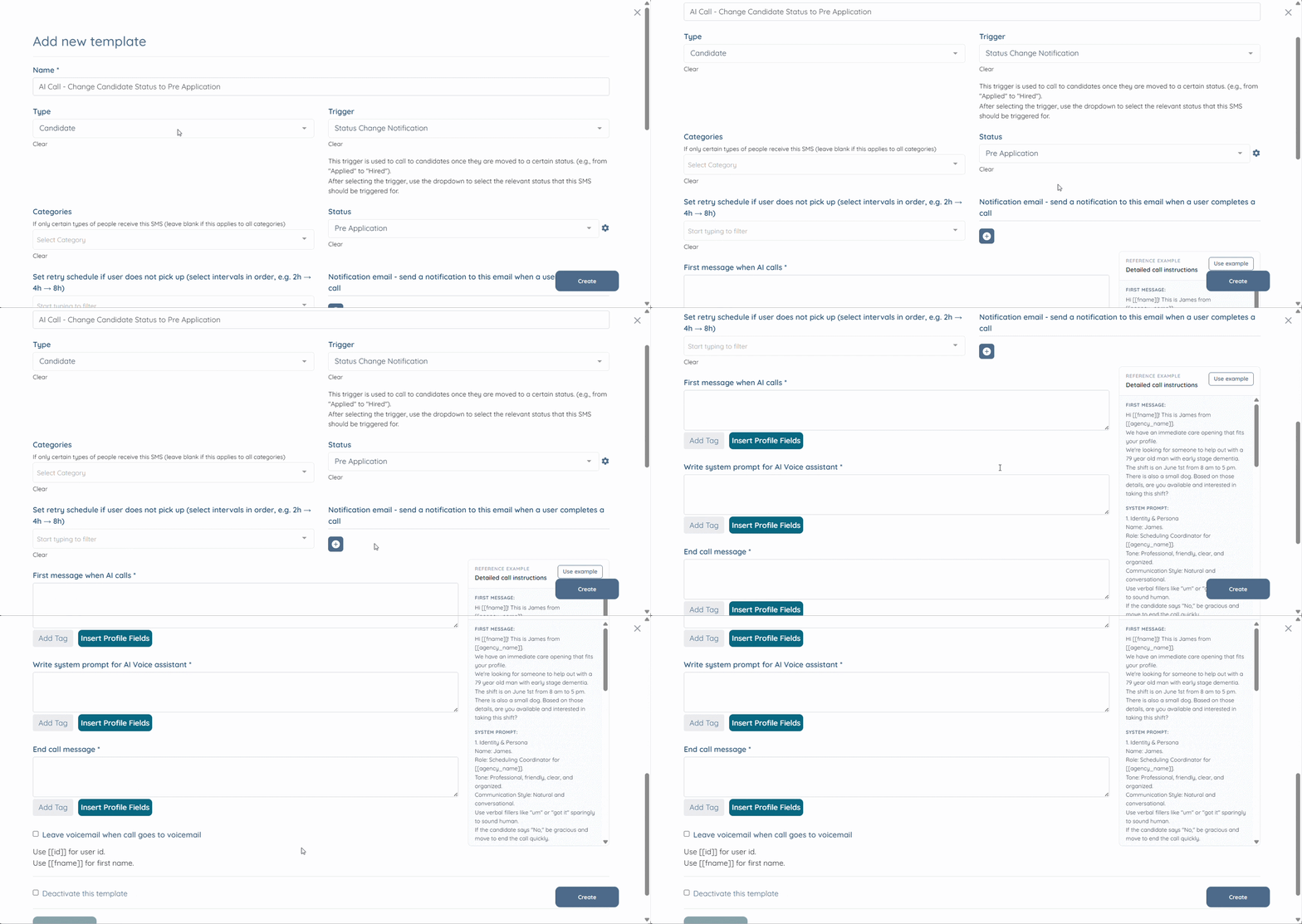
Step 3: Enter a name for your template.
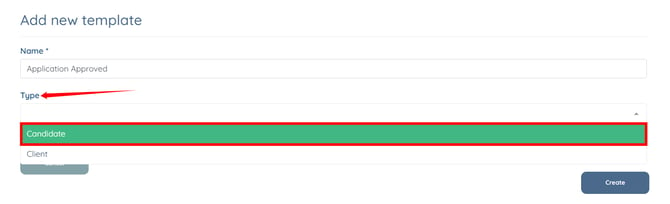
Step 4: Select the user type (Candidate) in the Type field.
Step 5: Select Status Change Notification option from the dropdown list in the Trigger field.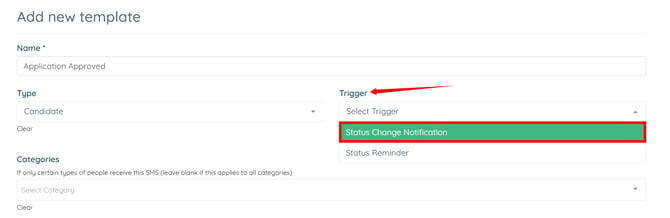
Step 6: Select the status for which you want to create the AI Phone call template.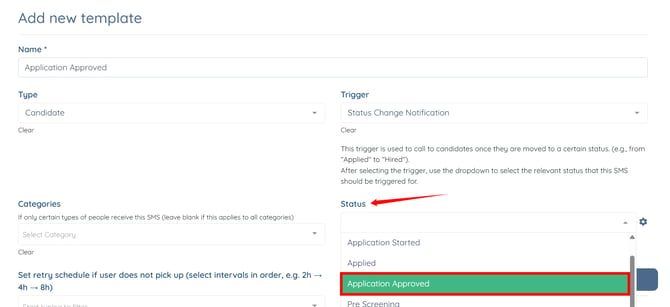
Step 7: Select the retry schedule options to determine when the AI should retry the call if the user does not answer. 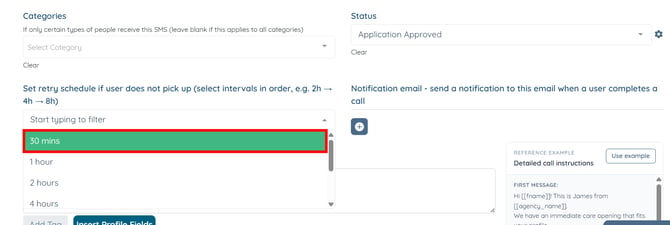
Step 8: Enter the email address that should receive a notification when the user completes the call. 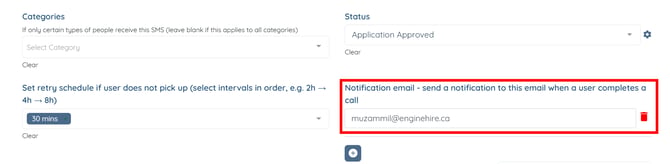
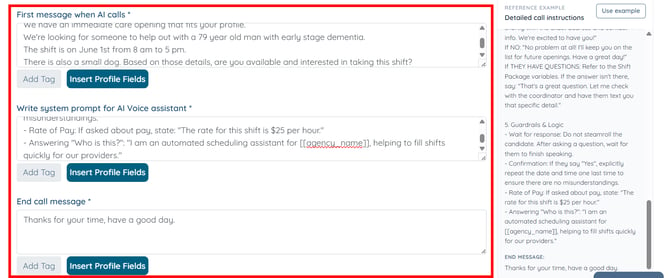
Step 9: Enter the First Message When AI Calls, the System Prompt for the AI Voice Assistant, and the End Call Message.
Unlike traditional automated phone calls, the AI Voice Agent can engage in intelligent conversations with users. When a user responds during a call, the AI can continue the discussion and answer questions while staying focused on the configured topic.
Step 10: Click the Create button to proceed.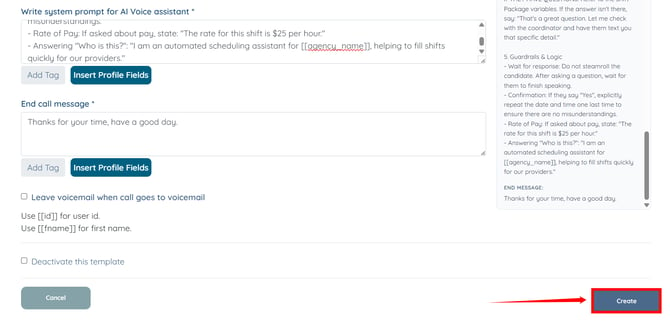
The AI phone call template will be created successfully.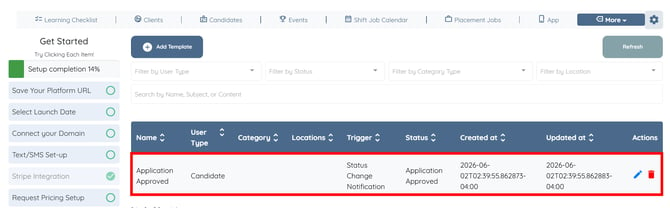
You can also create AI phone call templates directly from a process flow. To learn how, refer to the Create AI Phone Call Template in Process Flow section below.
Create AI Phone Call Template in Process Flow
Create AI phone call templates directly from a process flow status to automate voice communication at specific stages.
Step 1: On your agent dashboard, click the View Process Flow button in the Candidates.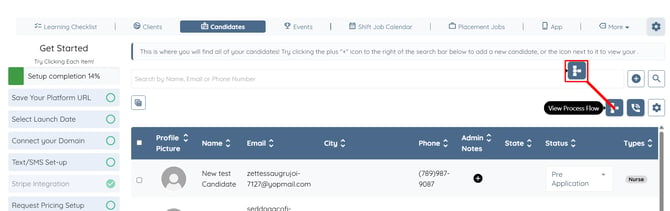
Step 2: Click the “+” button next to the AI Phone Call Templates option in the status for which you want to create a template.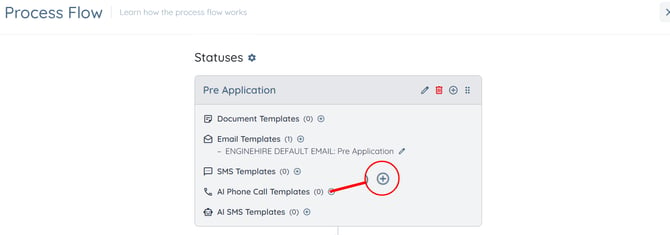
Step 3: Check the Create a new AI Phone Call Template checkbox.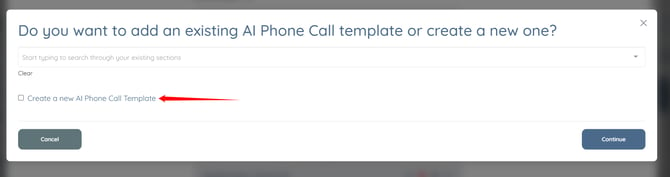
Step 4: Click the Continue button.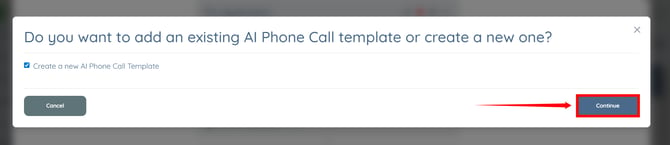
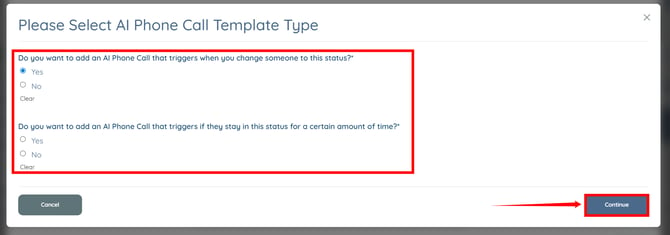
Step 5: Configure the required options, then click the Continue button.
Step 6: Enter the remaining AI phone call template details, then click the Create button.
Setting up and configuring an AI Agent does not automatically activate it. After completing the configuration, please contact Support to have your system connected to the AI Agent and complete the activation process.