![enginehire logo thin dark 1.0.png]](https://learn.enginehire.io/hs-fs/hubfs/enginehire%20logo%20thin%20dark%201.0.png?height=40&name=enginehire%20logo%20thin%20dark%201.0.png)
Let’s get started 🚀
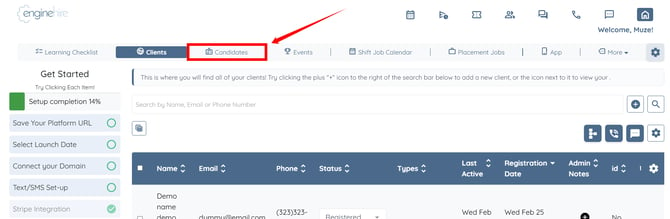
Step 1: Log in to your agent dashboard and click Candidates in the navigation bar.
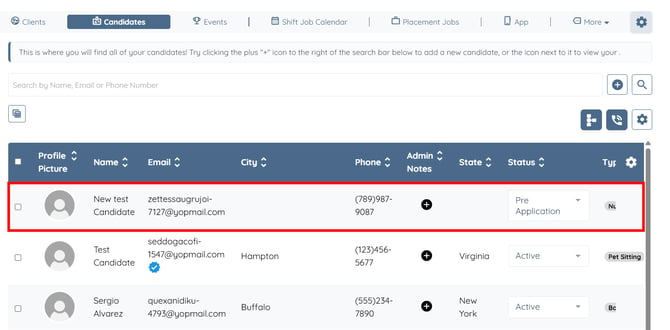
Step 2: Click any candidate in the list.
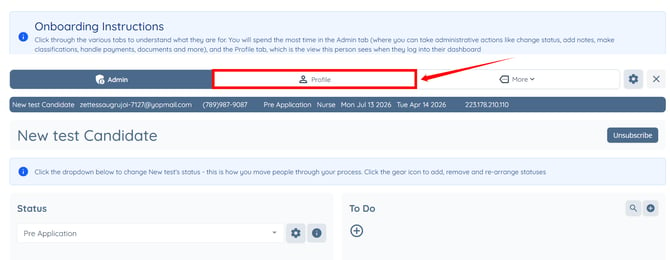
Step 3: Click the Profile tab to navigate to the candidate profile.
Step 4: Click the Contact Information option in the left-hand side navigation menu.
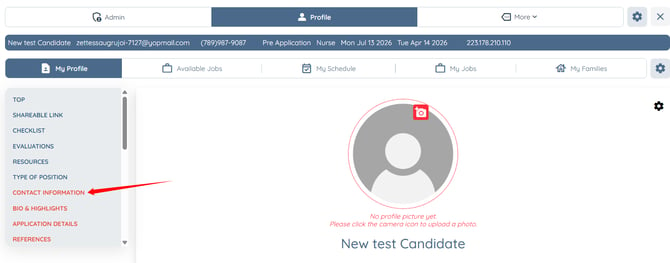
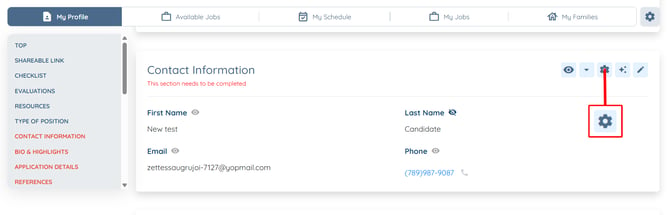
Step 5: Click the gear icon as shown in the screenshot below to open the section builder.
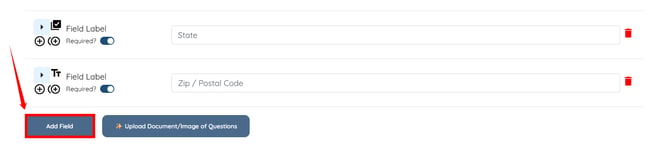
Step 6: Scroll to the bottom and click the Add Field button.
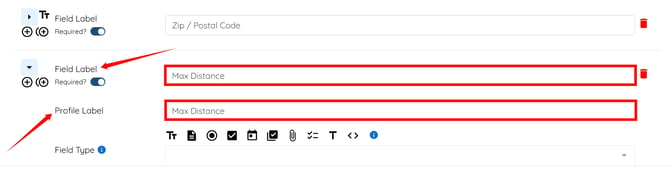
Step 7: Enter the Field Label and the Profile Label.
Step 1: Log in to your agent dashboard and click Candidates in the navigation bar.
Step 2: Click any candidate in the list.
Step 3: Click the Profile tab to navigate to the candidate profile.
Step 4: Click the Contact Information option in the left-hand side navigation menu.
Step 5: Click the gear icon as shown in the screenshot below to open the section builder.
Step 6: Scroll to the bottom and click the Add Field button.
Step 7: Enter the Field Label and the Profile Label.
Ensure the Required? toggle is turned On if you want to make this field mandatory. Otherwise, leave it Off to make the field optional.
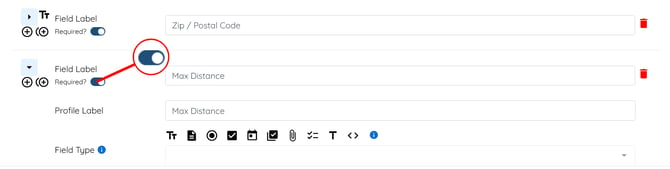
Step 8: Select Textbox as the Field Type.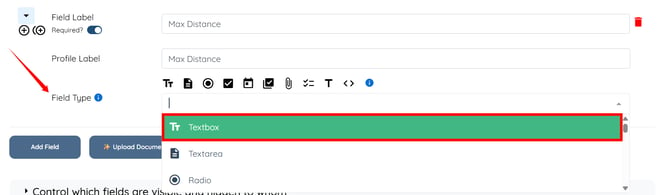
Step 9: Select work_distance as the Model.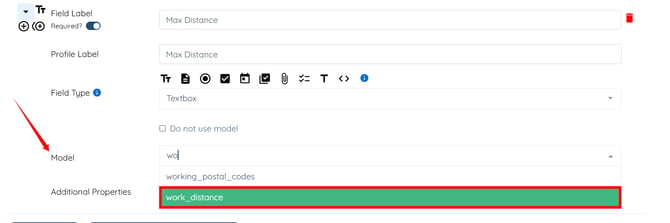
Step 10: Click the Save button to proceed.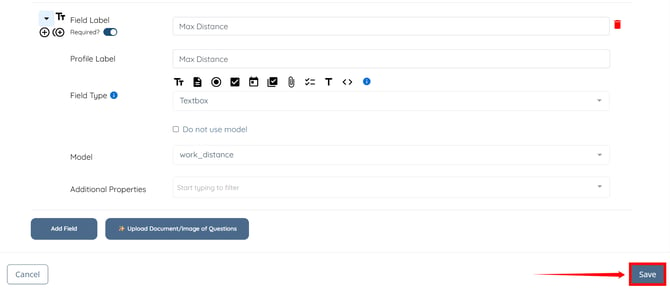
On the Candidate Side
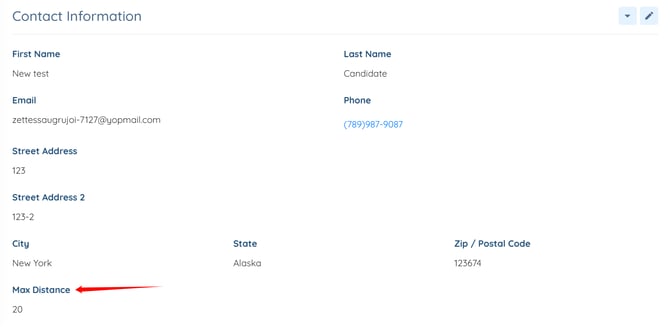
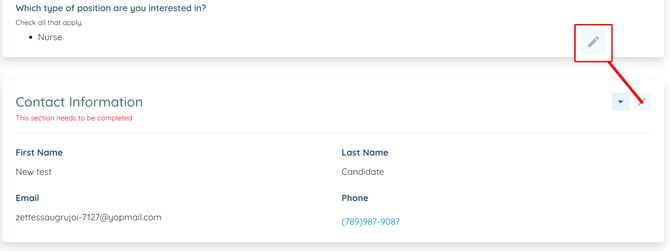
Candidates can click the pencil icon next to the Contact Information section to open it.
Enter the maximum work distance, update any other information if required, then click the Save button. 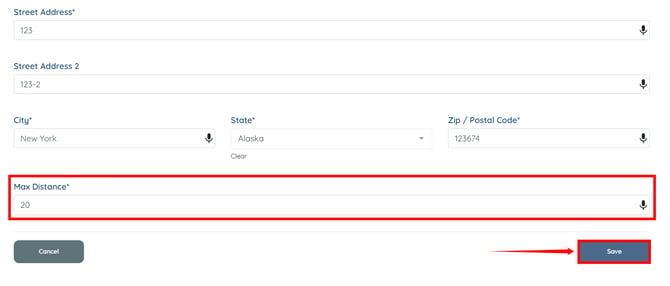
The maximum work distance will be saved successfully.