![enginehire logo thin dark 1.0.png]](https://learn.enginehire.io/hs-fs/hubfs/enginehire%20logo%20thin%20dark%201.0.png?height=40&name=enginehire%20logo%20thin%20dark%201.0.png)
Let’s get started 🚀
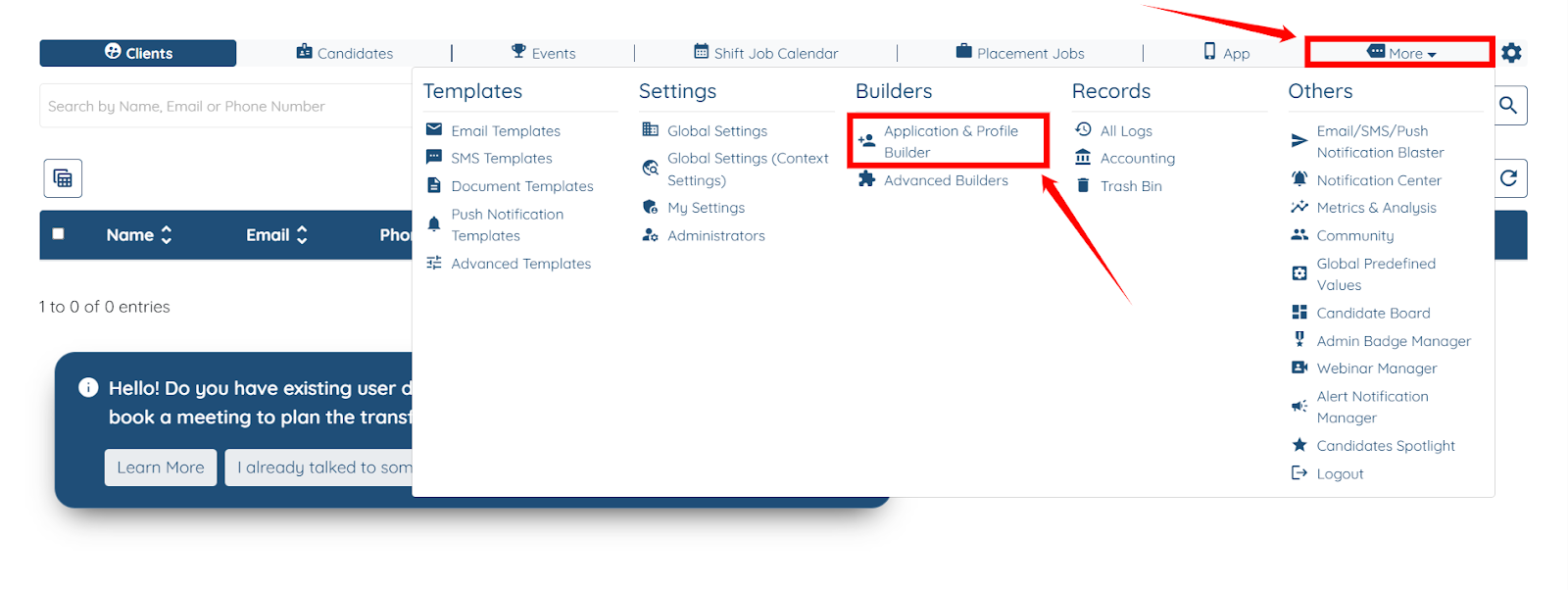
Step 1: Log in to your agent dashboard, then navigate to More > Application & Profile Builder, as shown in the screenshot below.
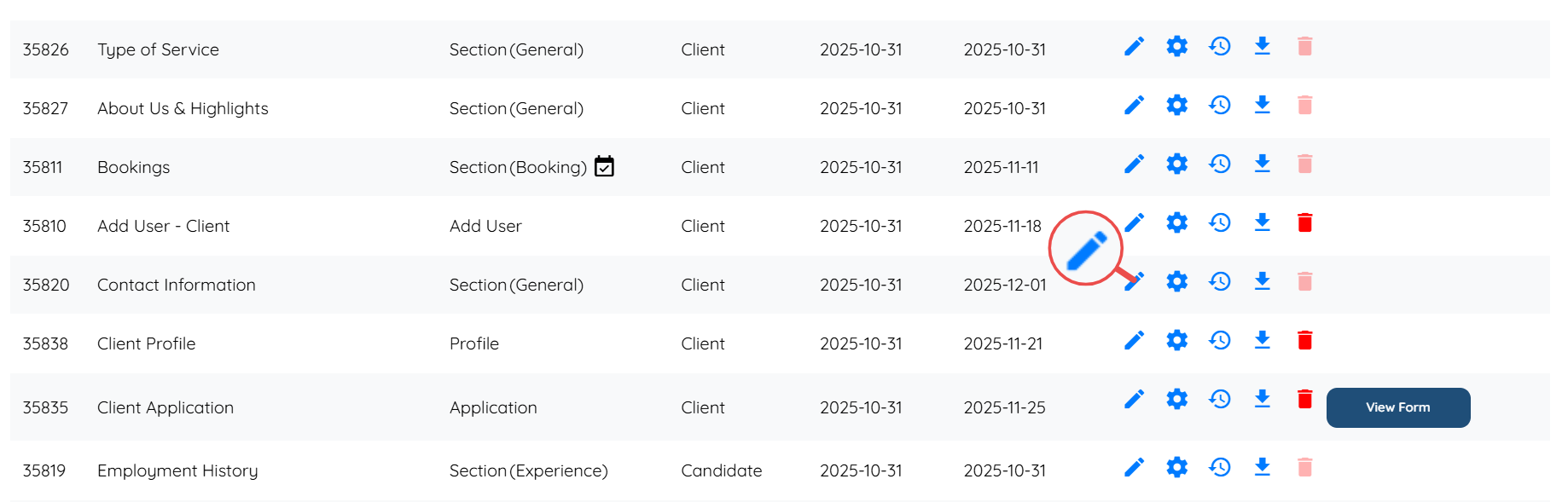
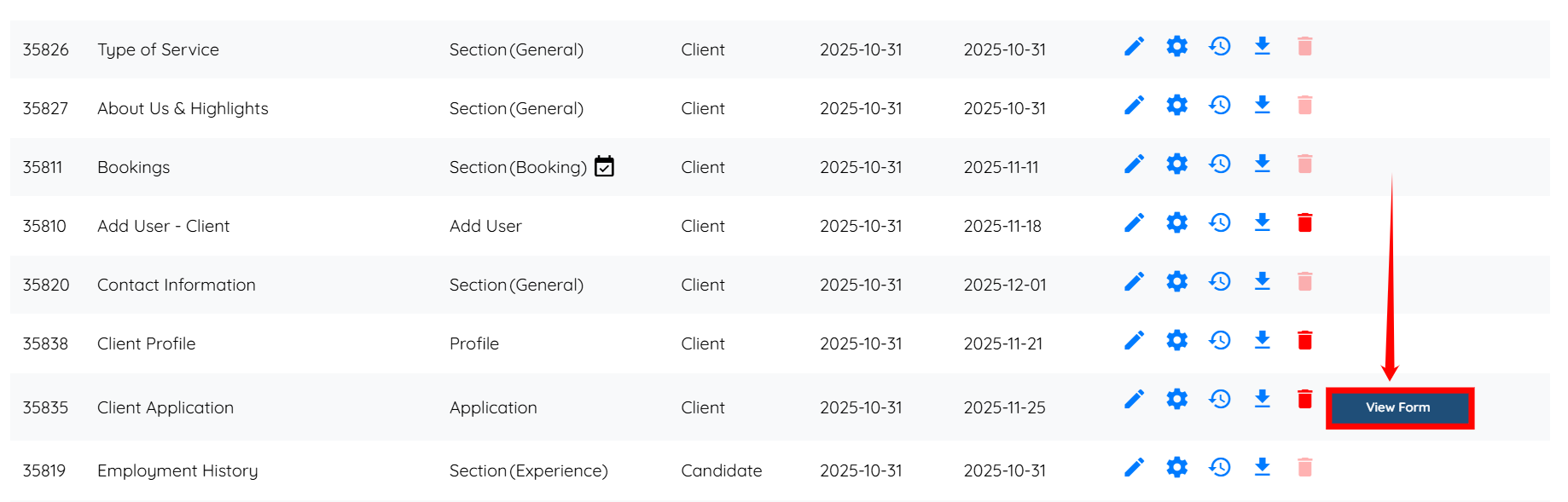
Step 2: Locate the section where you wish to add the Gift Card Code field, and then click the pencil icon associated with that section in the Actions column.
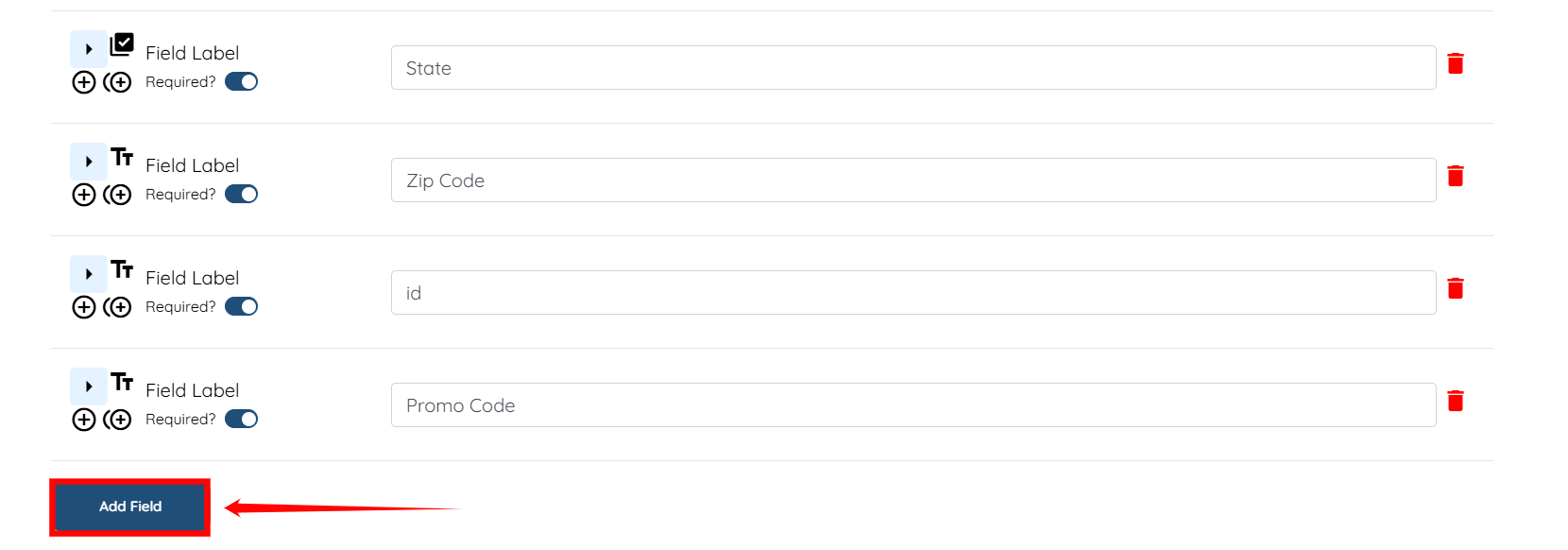
Step 3: Scroll down and click the Add Field button to add a new field.
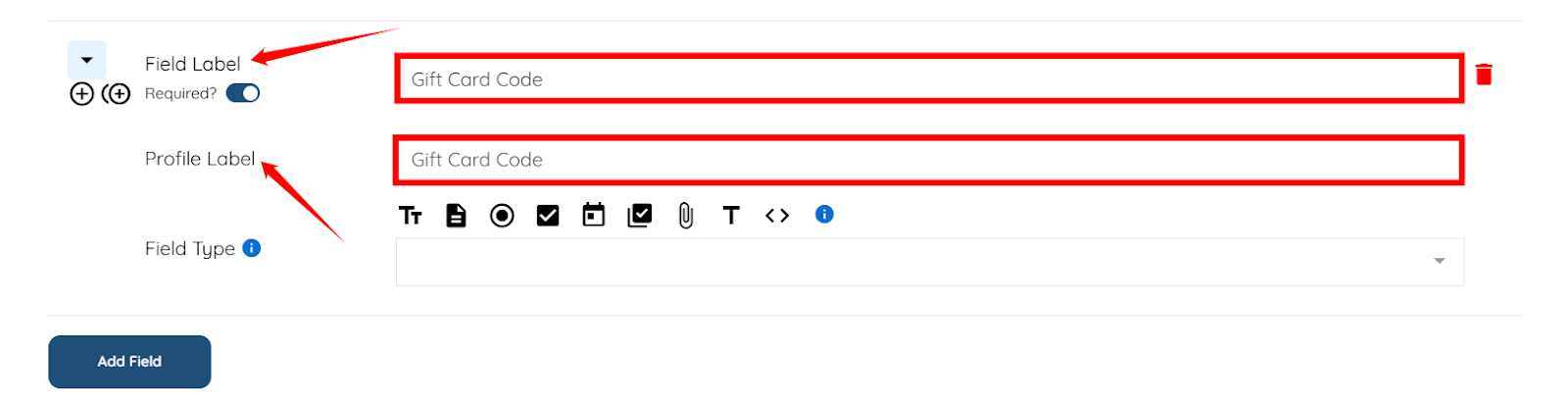
Step 4: Enter the Field Label and Profile Label as “Gift Card Code”.
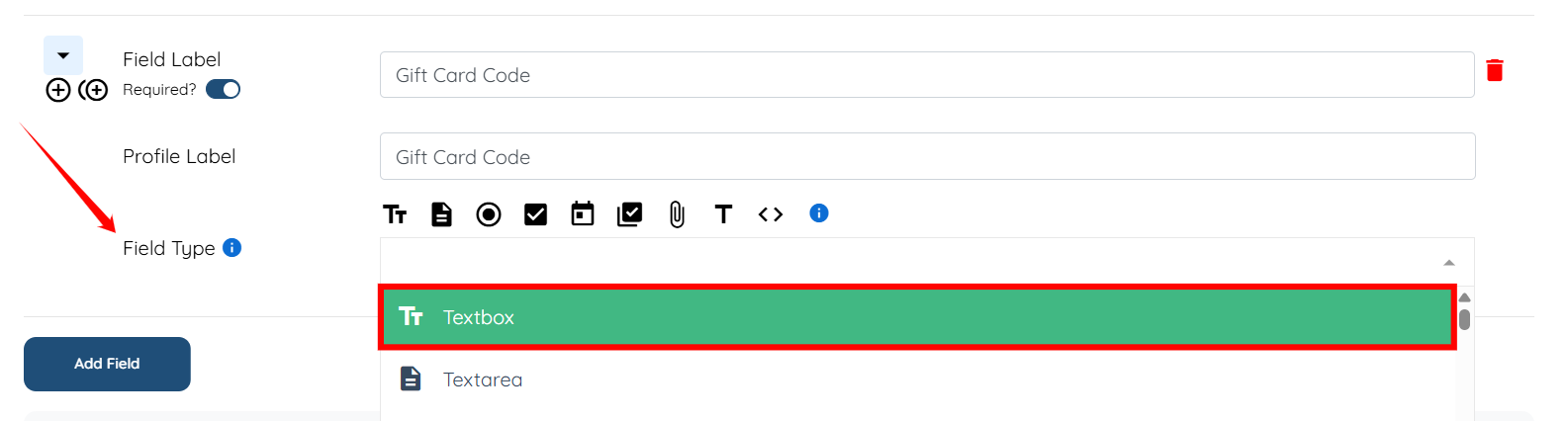
Step 5: Select Textbox as the Field Type.
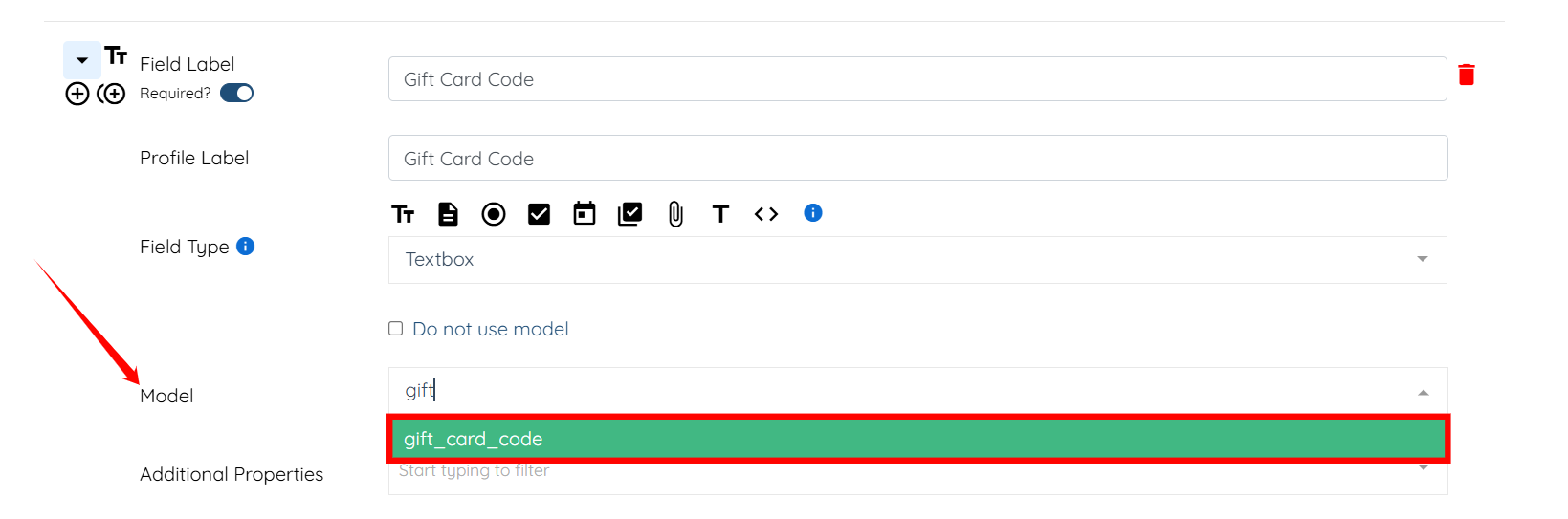
Step 6: Select gift_card_code from the dropdown in the Model field.
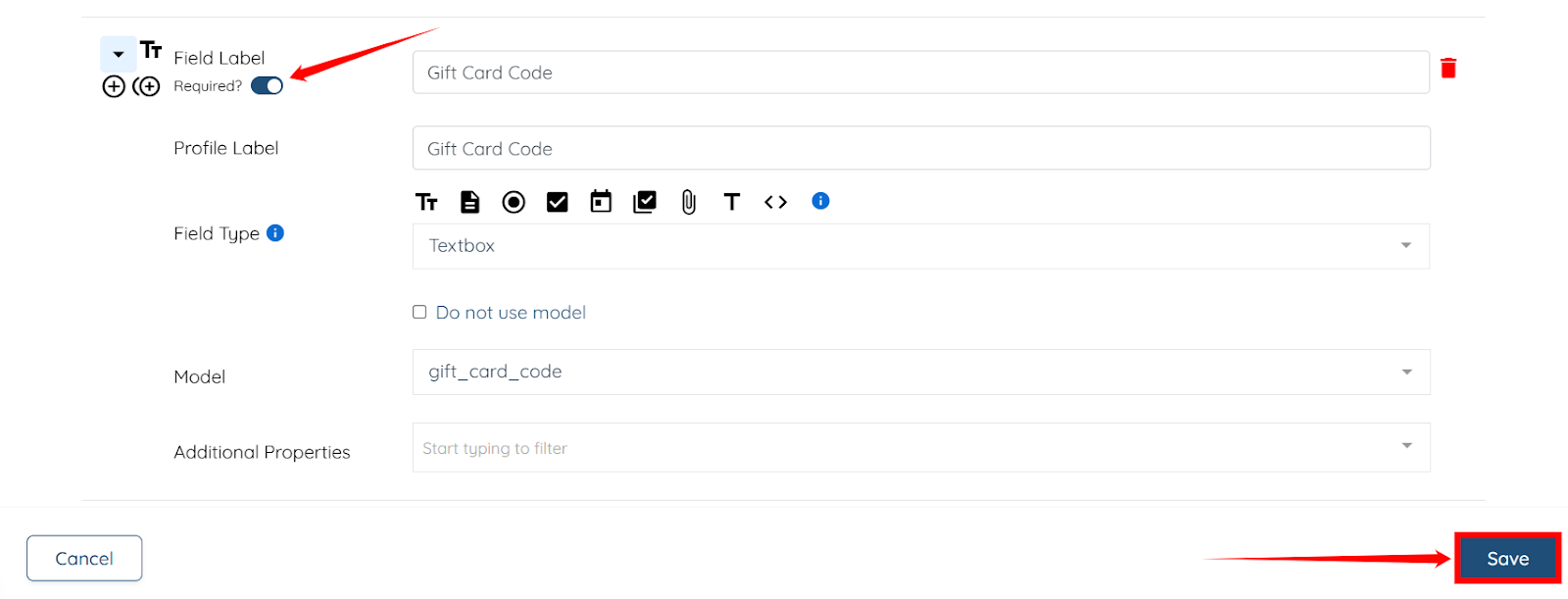
Step 7: Turn off the Required option, and click the Save button to proceed.
Step 8: Click the View Form button to open the form where you configured the section and added the gift card code field.
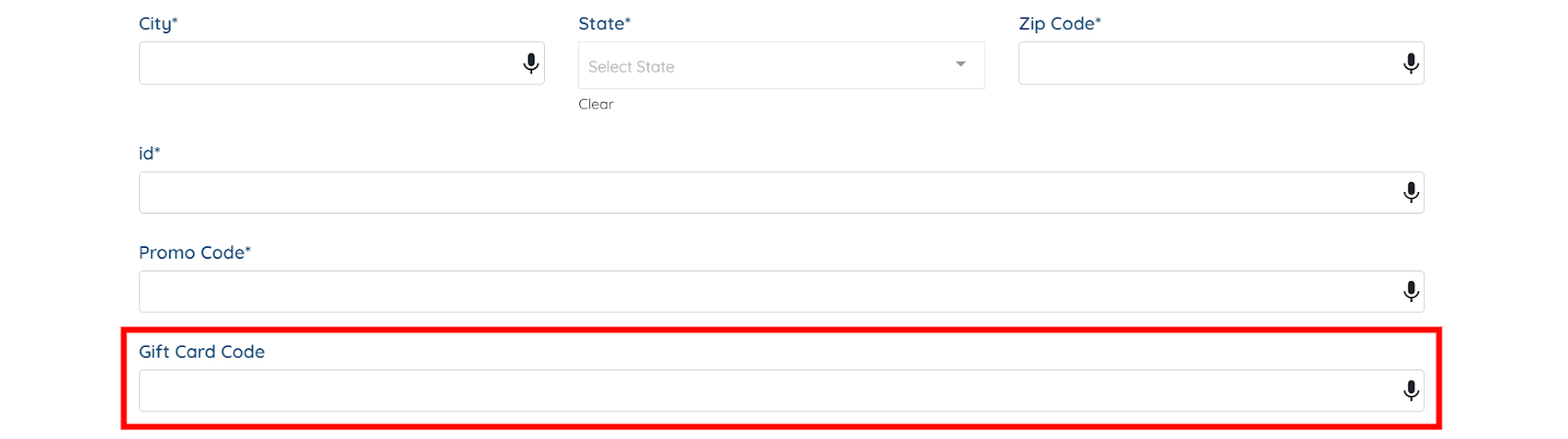
The Gift Card Code field will be added successfully.