![enginehire logo thin dark 1.0.png]](https://learn.enginehire.io/hs-fs/hubfs/enginehire%20logo%20thin%20dark%201.0.png?height=40&name=enginehire%20logo%20thin%20dark%201.0.png)
Let’s get started 🚀
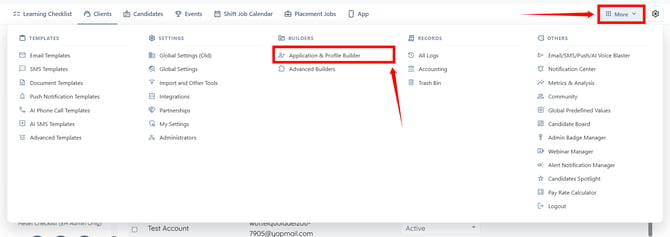
Step 1: Log in to your agent dashboard, and click More > Application & Profile Builder as shown in the screenshot below.
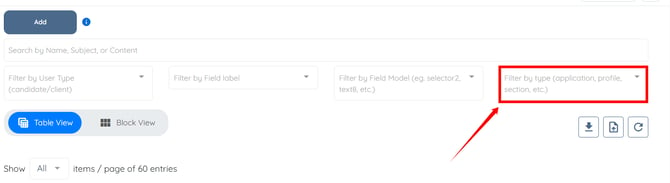
Step 2: Click the Filter by type box to open the dropdown list.
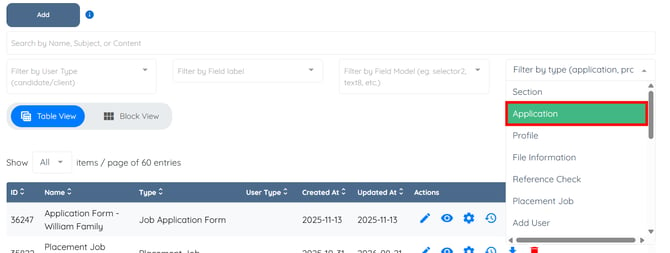
Step 3: Select Application to filter the builder list and display the application builders.
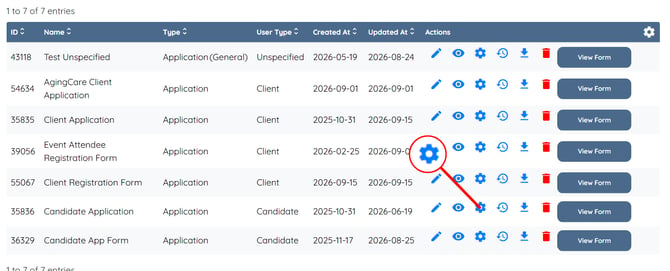
Step 4: Click the gear icon under the Actions column for the application builder for which you want to add or edit the submission notification email address.
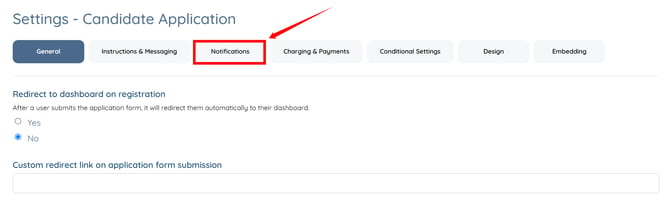
Step 5: Click the Notifications tab from the available tabs.
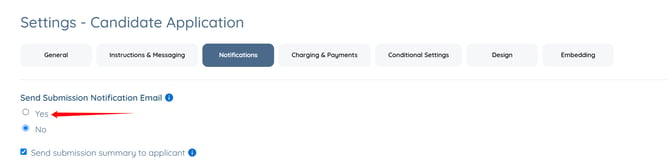
Step 6: Select Yes for the Send Submission Notification Email option.
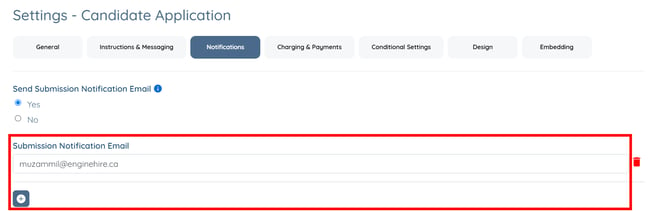
Step 7: Add or edit the email address that should receive notifications when an application is submitted.
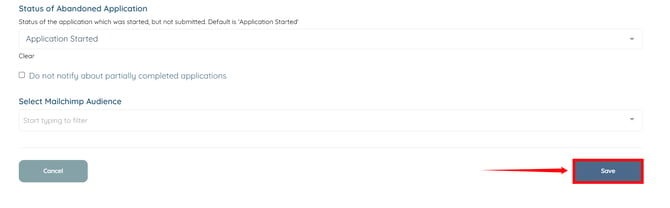
Step 8: Scroll down and click the Save button to confirm your changes.
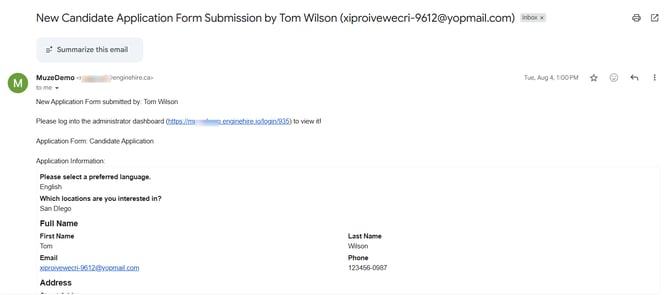
You will receive a notification at the configured email address when a candidate or client submits the application, as shown in the screenshot below.
Step 1: Log in to your agent dashboard, and click More > Application & Profile Builder as shown in the screenshot below.
Step 2: Click the Filter by type box to open the dropdown list.
Step 3: Select Application to filter the builder list and display the application builders.
Step 4: Click the gear icon under the Actions column for the application builder for which you want to add or edit the submission notification email address.
Step 5: Click the Notifications tab from the available tabs.
Step 6: Select Yes for the Send Submission Notification Email option.
Step 7: Add or edit the email address that should receive notifications when an application is submitted.
Step 8: Scroll down and click the Save button to confirm your changes.
You will receive a notification at the configured email address when a candidate or client submits the application, as shown in the screenshot below.