![enginehire logo thin dark 1.0.png]](https://learn.enginehire.io/hs-fs/hubfs/enginehire%20logo%20thin%20dark%201.0.png?height=40&name=enginehire%20logo%20thin%20dark%201.0.png)
Let’s get started 🚀
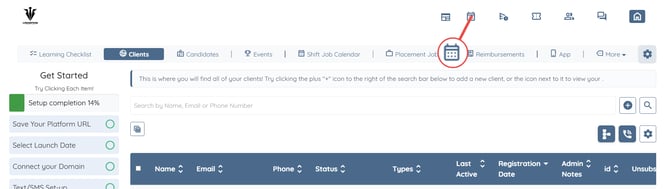
Step 1: Log in to your agent dashboard and click the icon shown at the top right corner of the screen to open the To-Do section.
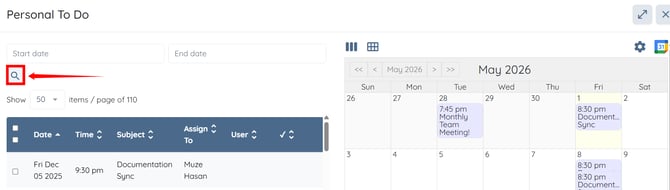
Step 2: Click the search icon as shown in the screenshot below.
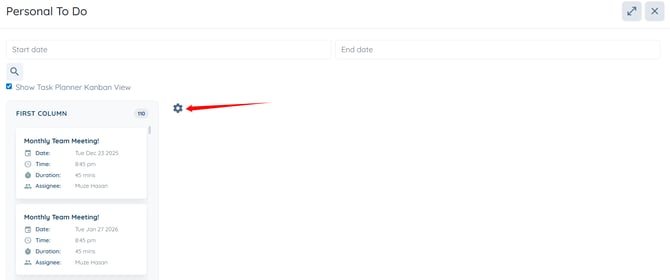
Step 3: Check the Show Task Planner Kanbar View checkbox.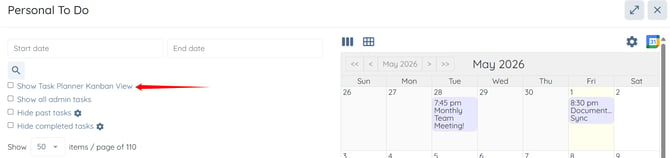
Step 4: Click the Gear icon.
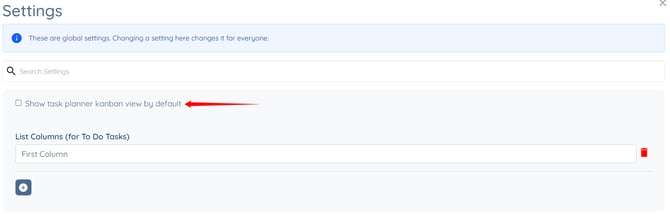
Step 5: Check the Show task planner kanban view by default checkbox.
The settings will be saved successfully.
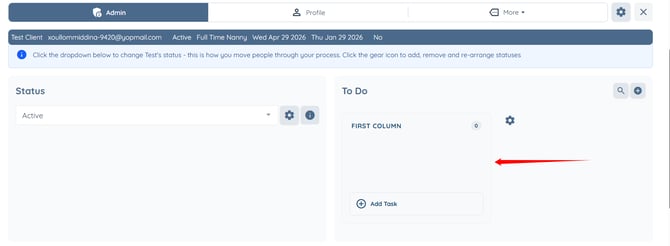
Step 6: Click any client from the list of clients.
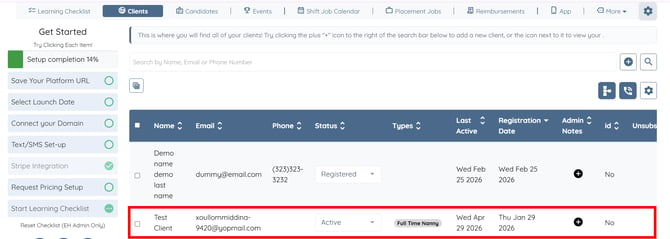
The Task Planner Kanban View will also be set as default in the client and candidate profiles.