![enginehire logo thin dark 1.0.png]](https://learn.enginehire.io/hs-fs/hubfs/enginehire%20logo%20thin%20dark%201.0.png?height=40&name=enginehire%20logo%20thin%20dark%201.0.png)
Let’s get started 🚀
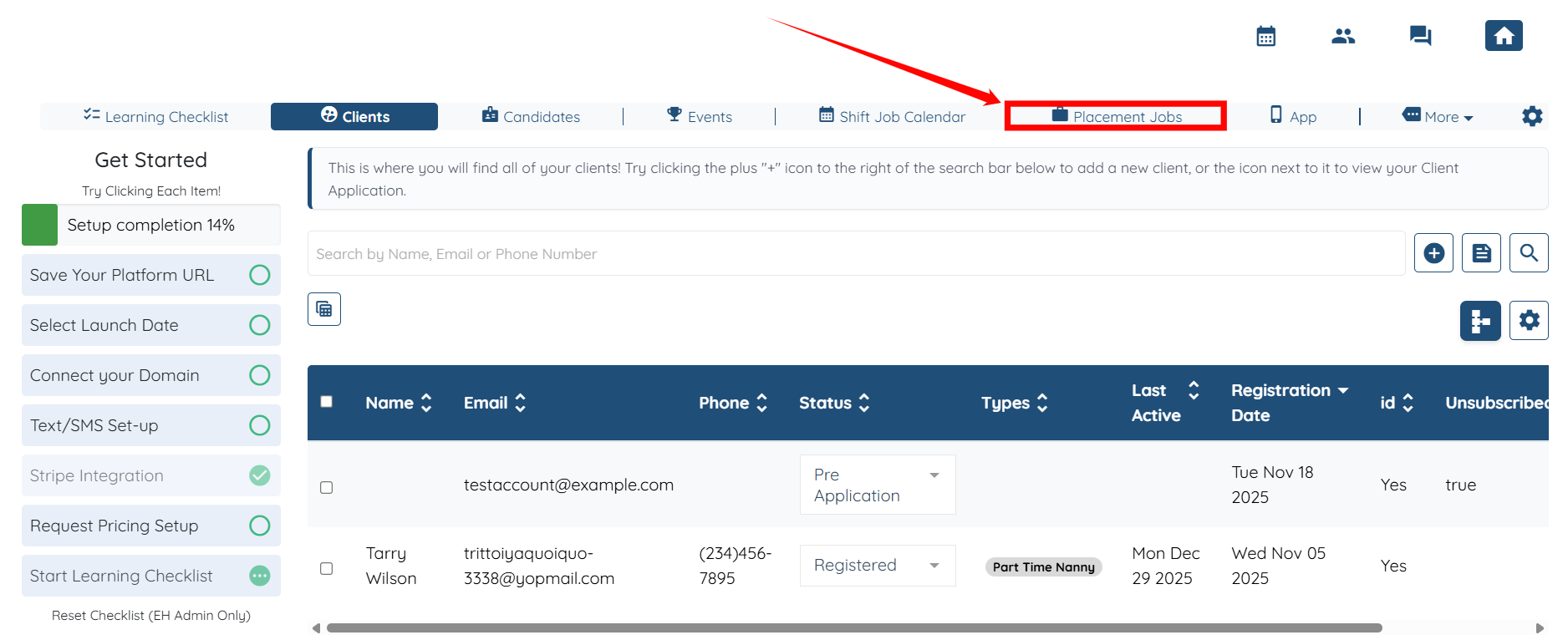
Step 1: Log in to your agent dashboard and click Placement Jobs in the top navigation bar.
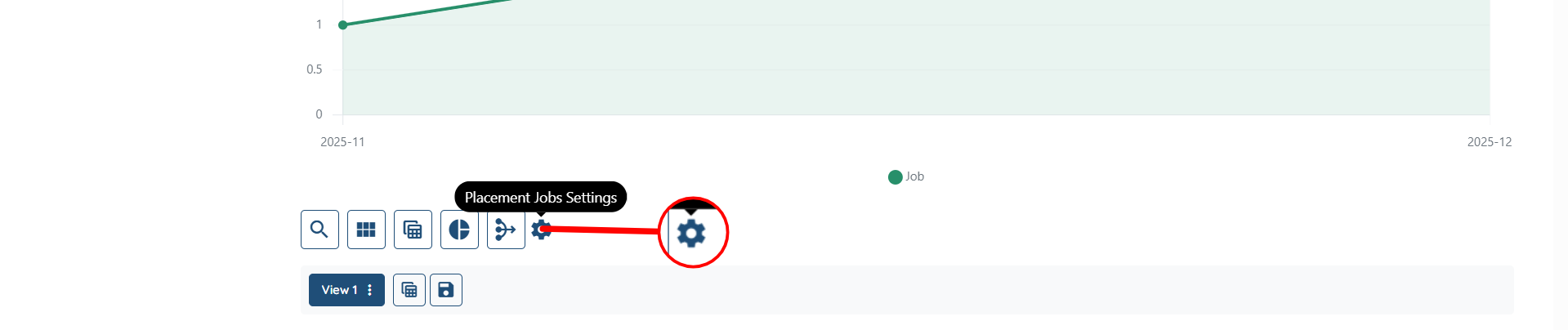
Step 2: Click the Placement Jobs Settings gear icon, as shown in the screenshot.
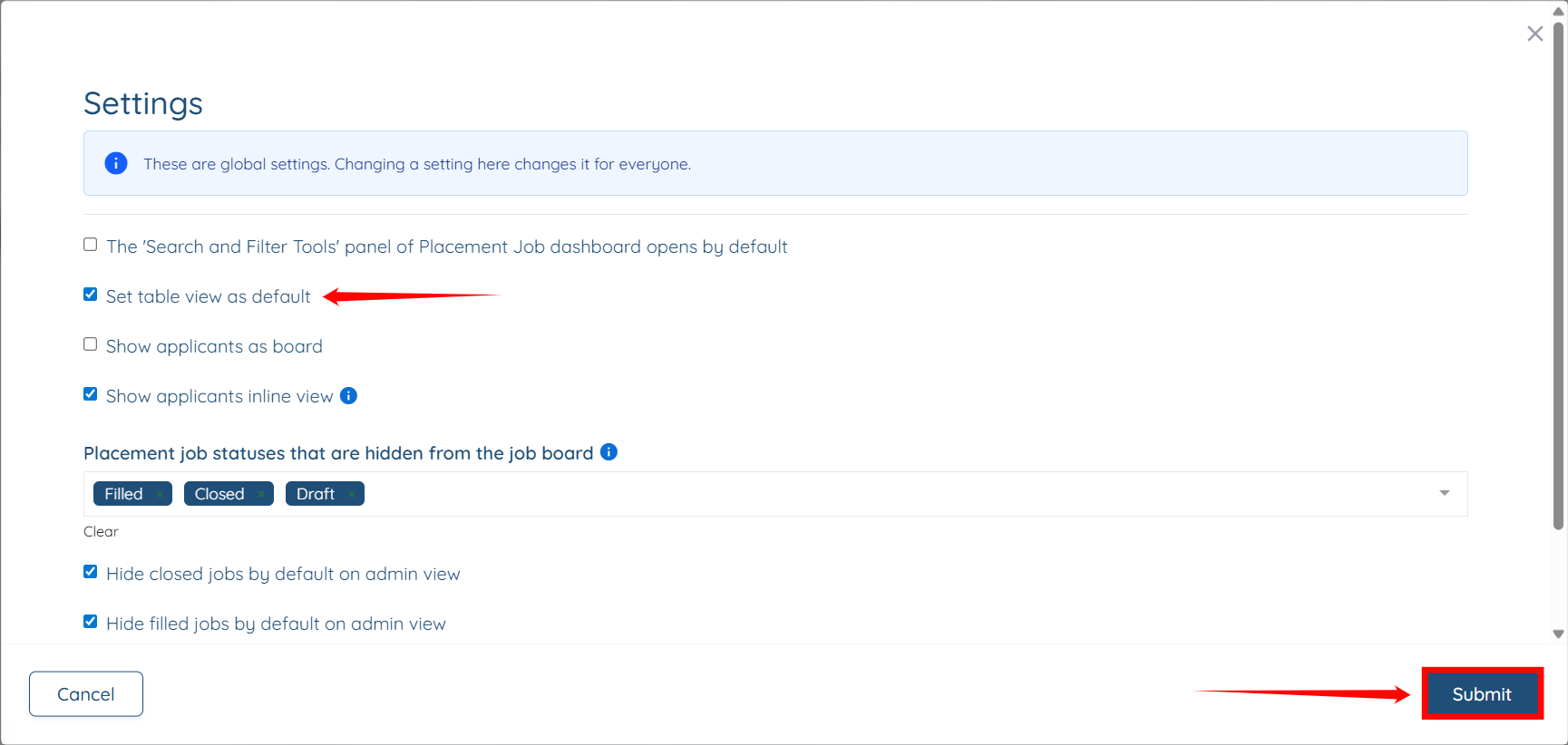
Step 3: Check the Set table view as default checkbox, then click the Submit button to proceed.
The table view for the placement jobs will be successfully set as the default.
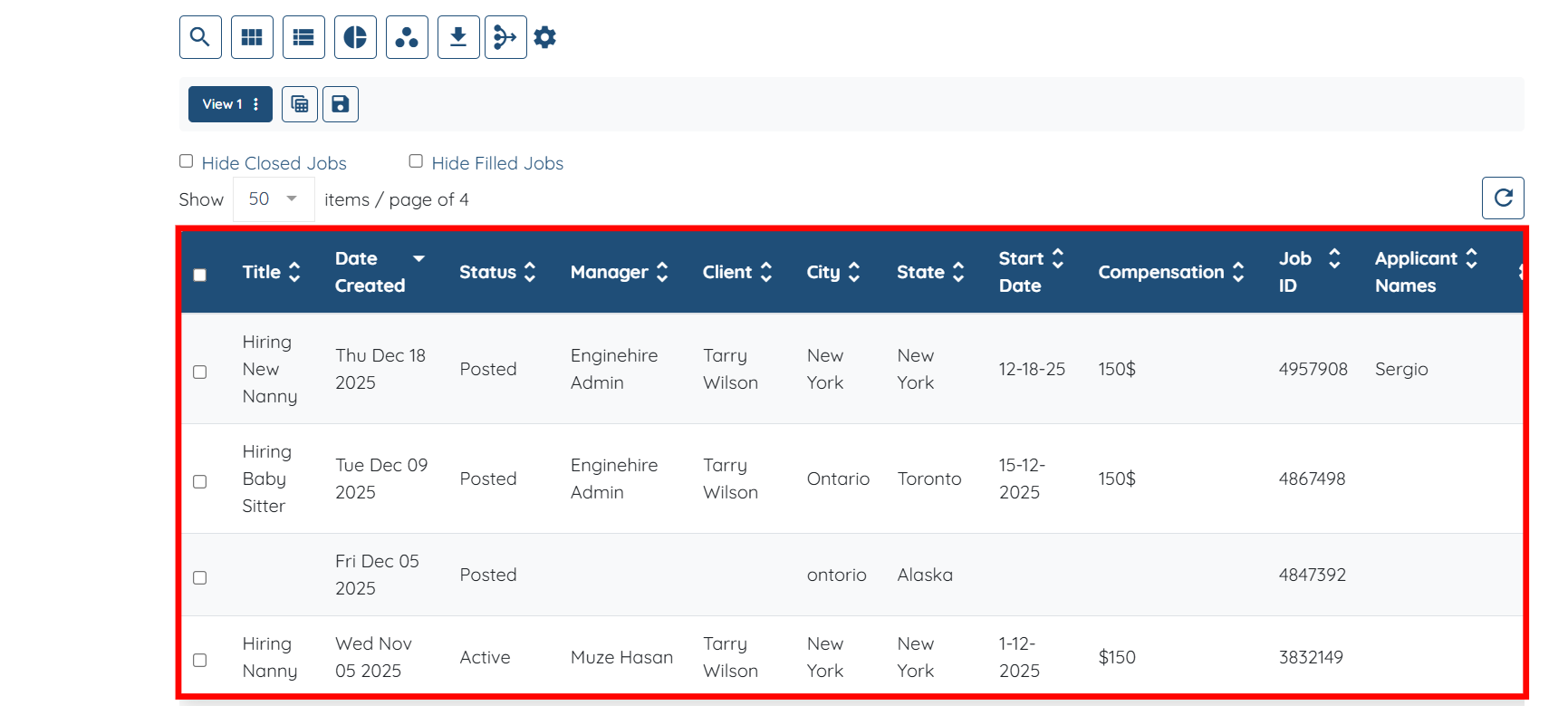
You can create and save views in the placement jobs table as needed. For details, refer to the Create and Save Views in the Placement Jobs Table document.