![enginehire logo thin dark 1.0.png]](https://learn.enginehire.io/hs-fs/hubfs/enginehire%20logo%20thin%20dark%201.0.png?height=40&name=enginehire%20logo%20thin%20dark%201.0.png)
Let's get started 🚀
Create a Price Condition
Create a price and enable price conditions to define when different rates should apply based on specific questions or criteria.
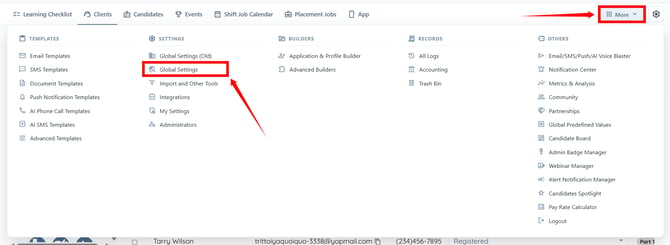
Step 1: Log in to your agent dashboard, and click More > Global Settings as shown in the screenshot below.
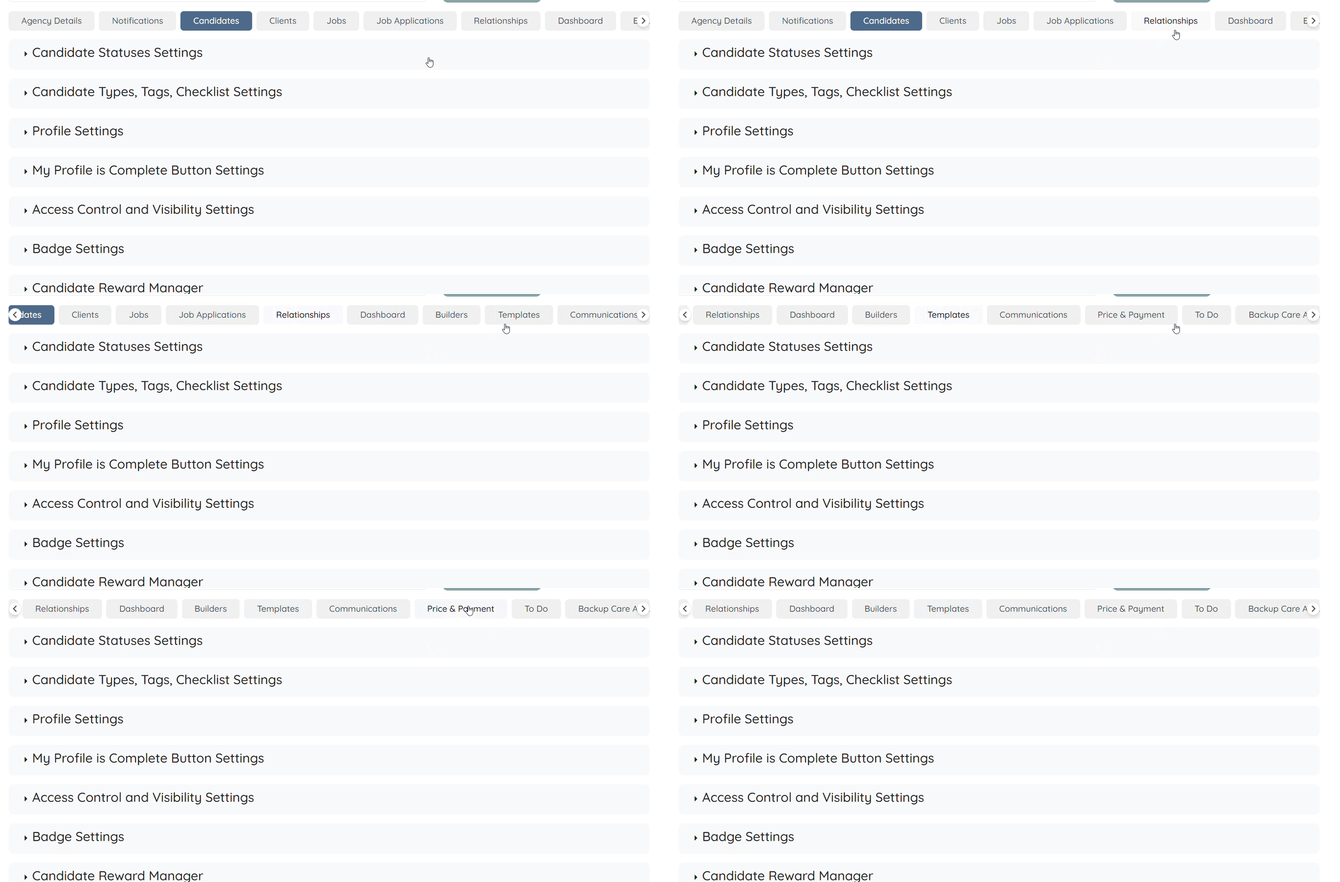
Step 2: Scroll tabs to the left and click the Price & Payment tab.
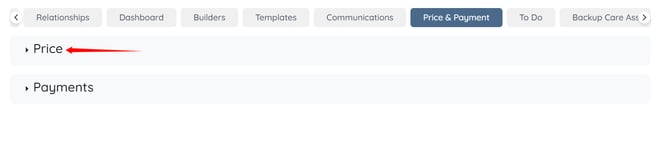
Step 3: Click the Price option to expand and view its details.
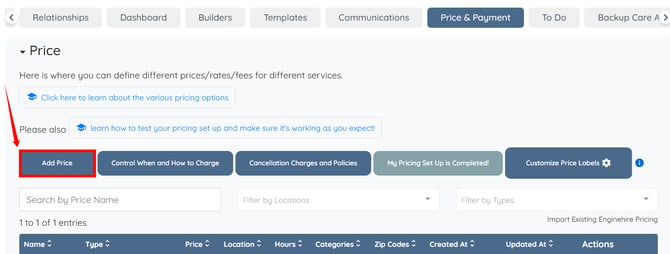
Step 4: Click the Add Price button.
Step 5: Enter a name for price.
Enter a name that is appropriate for your business. Names are only visible to you and help you easily manage your pricing options. Clients will not see this name.

Step 6: Select the required Price Type.
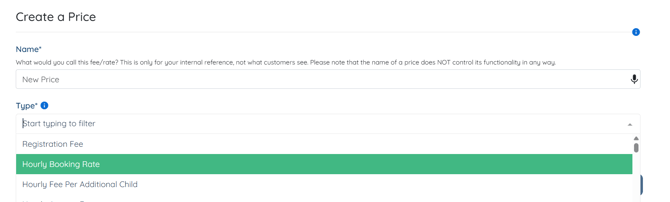
For information about the available price types, refer to the Explore Shift Job Pricing Options article.
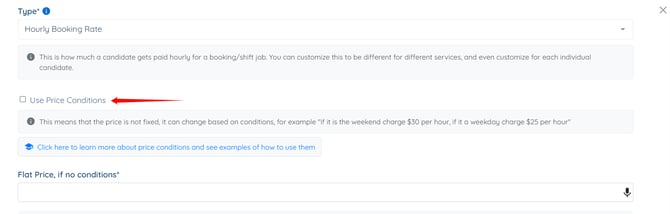
Step 7: Select the Use Price Condition checkbox to make the price conditional rather than fixed.
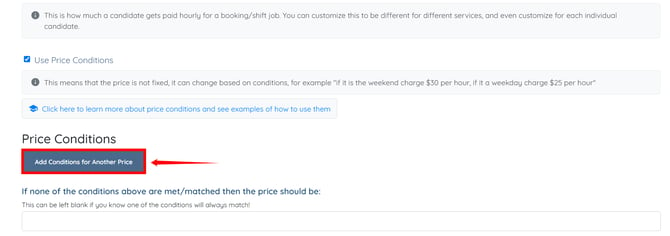
Step 8: Click Add Conditions for Another Price to add individual price conditions.
Set Pricing Based on a Single Condition
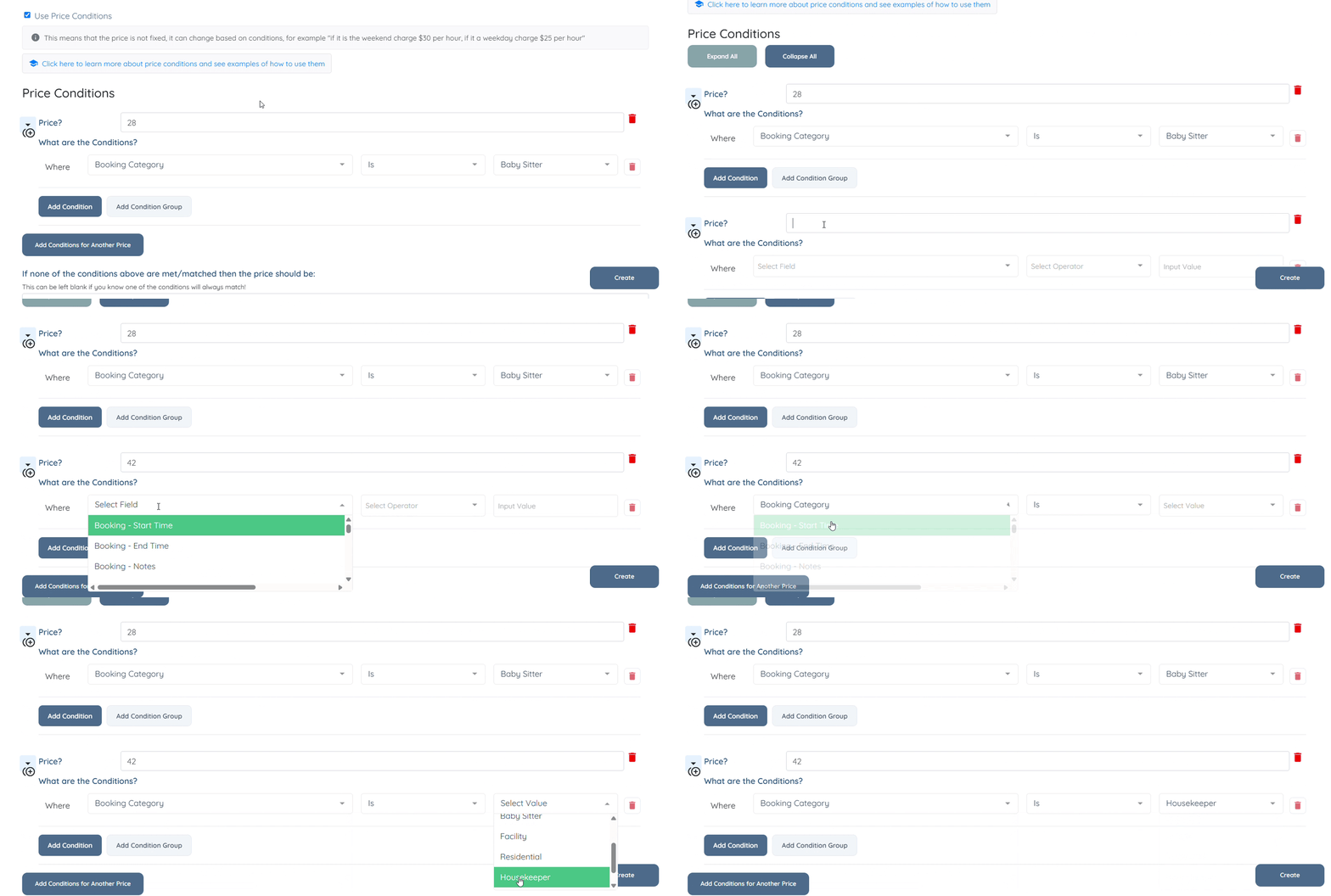
You can set the pricing based on a single condition. For example, you can set different hourly candidate rates based on the shift job category:
- Babysitter: $28 per hour
- Housekeeper: $ 42 per hour
To set this pricing condition:
Step 1: Enter 28 in the Input Price field.
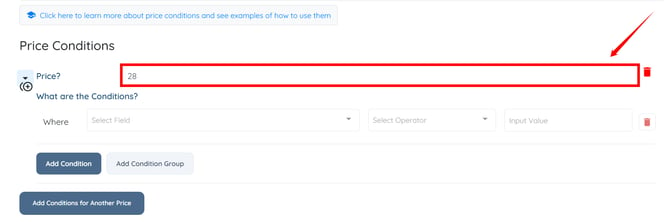
Step 2: Under Where, select Booking Category as the question.
You can select any required question to adjust the pricing.
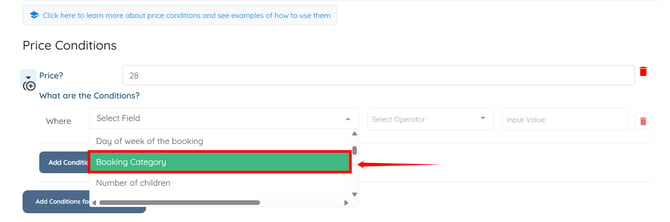
Step 3: Select Is as the matching operator.
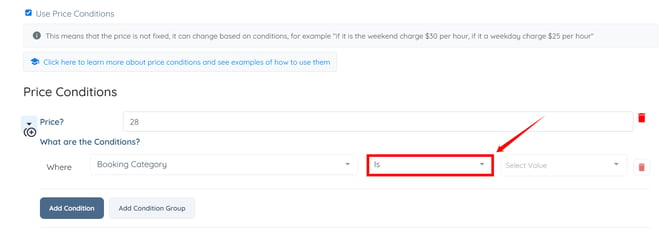
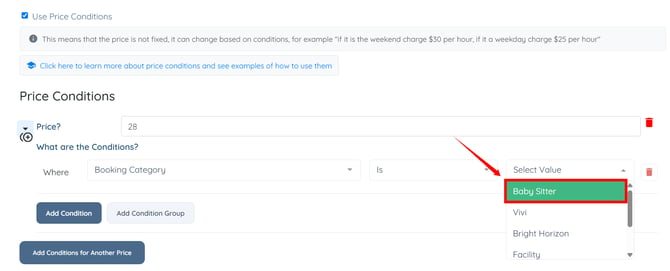
Step 4: Select Babysitter as the answer.
Step 5: Click Add Conditions for Another Price to create another price condition using the same process to set the hourly candidate rate to 42 when the Booking Category is Housekeeper.
Set Pricing Based on Multiple Conditions
You can combine multiple conditions to set pricing based on more than one criterion. For example, you can set the pricing for the Babysitter booking category based on the number of children requiring care:
- 1 or 2 children: $28
- 3 children: $32
To set the $28 price condition:
Step 1: Enter 28 in the Input Price field.
Step 2: Under Where, select Booking Category as the question and select Is as the matching operator.
Step 3: Select Babysitter as the value.
Step 4: Click Add Condition to add another condition.
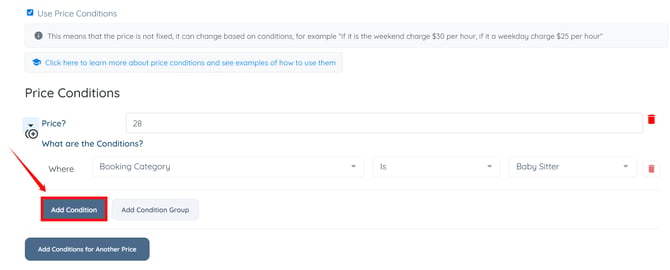
Step 5: Select AND as the operator to require both conditions to match.
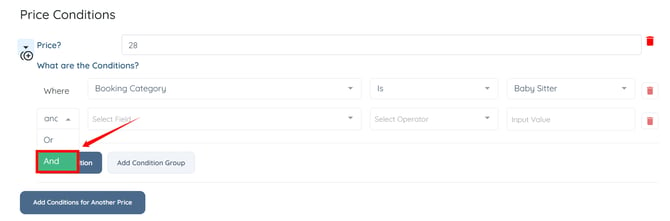
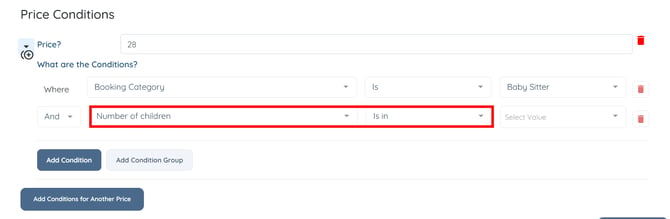
Step 6: Select Number of Children as the question and Is In as the matching operator.
Step 7: Select 1 and 2 as the number of children.
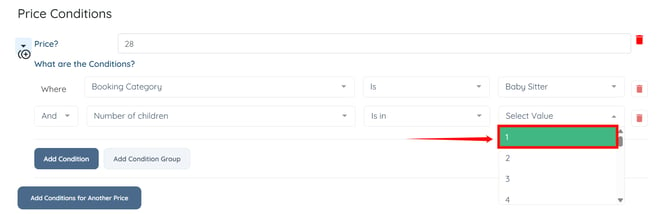
Create another price condition using the same process to set the pricing to $32 when the Booking Category is Babysitter and the Number of Children is 3.
Set Pricing Based on the Day of the Week
You can also set different pricing based on the day of the week. For example:
- Monday to Friday: $34
- Saturday and Sunday: $42
To set the weekday price condition:
Step 1: Enter 34 in the Input Price field.
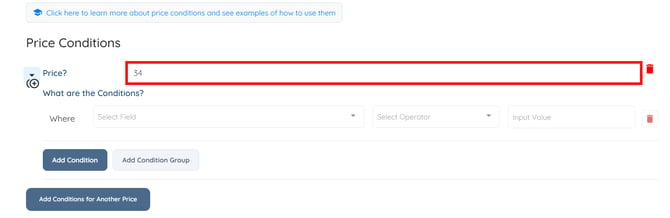
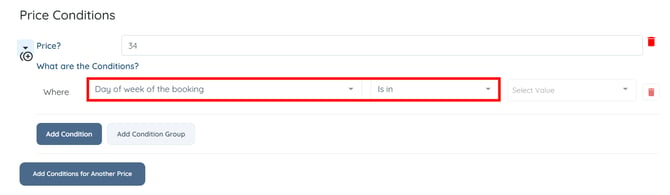
Step 2: Under Where, select Day of the week of the booking as the question and select Is In as the matching operator.
Step 3: Select Monday, Tuesday, Wednesday, Thursday, and Friday as the values.
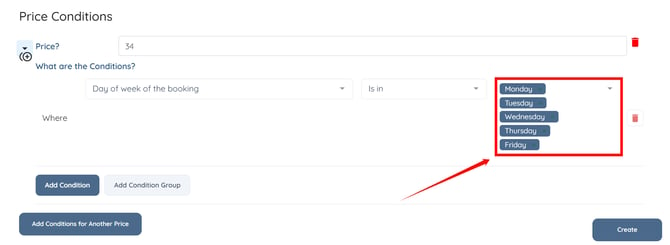
Create another price condition using the same process for Saturday and Sunday, and enter 42 as the input price.