![enginehire logo thin dark 1.0.png]](https://learn.enginehire.io/hs-fs/hubfs/enginehire%20logo%20thin%20dark%201.0.png?height=40&name=enginehire%20logo%20thin%20dark%201.0.png)
Let’s get started 🚀
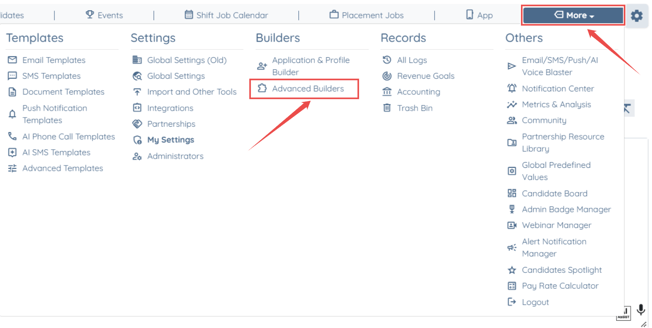
Step 1: Log in to your agent dashboard and click More > Advanced Builders as shown in the screenshot below.
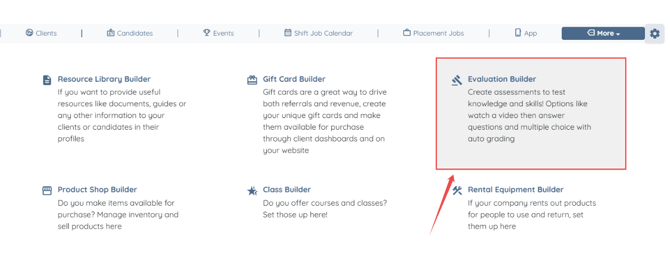
Step 2: Click the Evaluation Builder option to continue.
Note: This guide focuses on working with existing Evaluation forms.
For detailed instructions on building new Evaluation Forms, refer to our article here:
https://learn.enginehire.io/en/knowledge/how-to-create-an-evaluation-builder
To learn how to configure additional languages across your profiles, applications, and sections, visit:
https://learn.enginehire.io/en/knowledge/how-to-add-multiple-languages-in-your-applications-profiles-and-each-section
Prerequisite: Ensure your agency has enabled all required languages within Global Settings before proceeding.
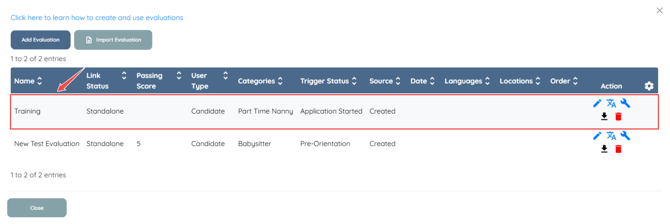
Step 3: From your list of evaluation forms, locate and choose the form you wish to translate into multiple languages.
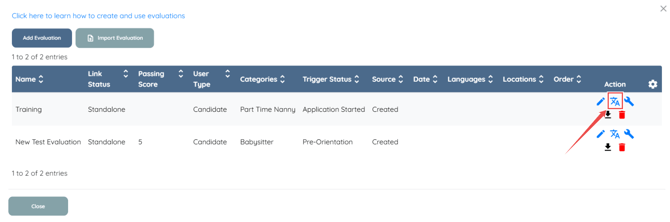
Step 4: Select the Manage Translations action button as illustrated in the image below.
Step 5: A pop-up window will appear, displaying all languages enabled for your agency.
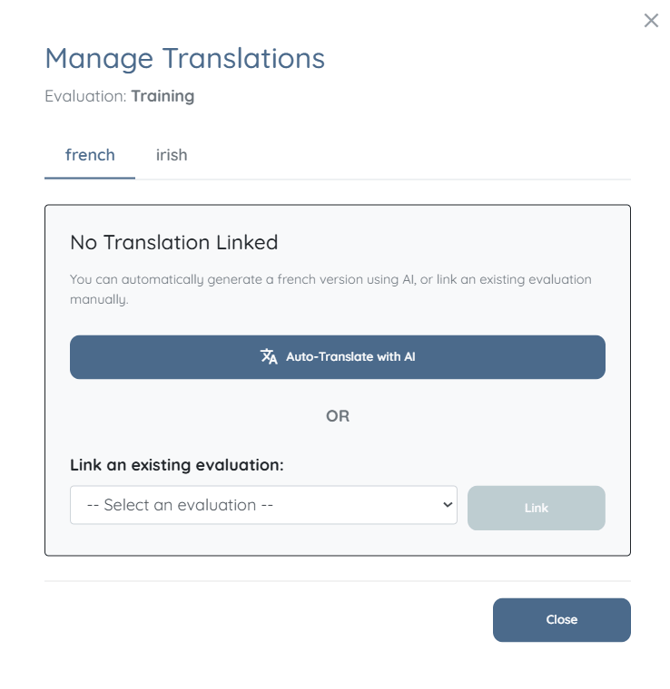
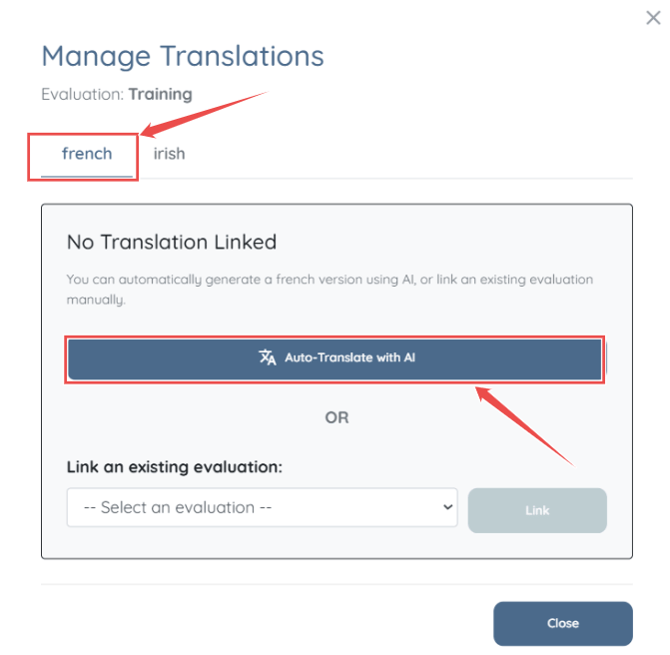
Step 6: Choose your target language from the tabs above, then select the Auto-Translate with AI button to automatically create an AI-generated translation for this evaluation builder.
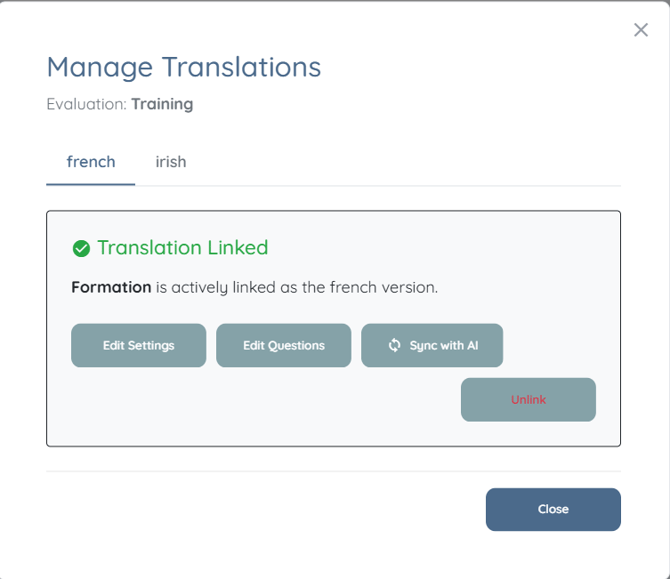
Step 7: Once you click the button, a confirmation pop-up will display indicating that the Translation Linked process was successful.
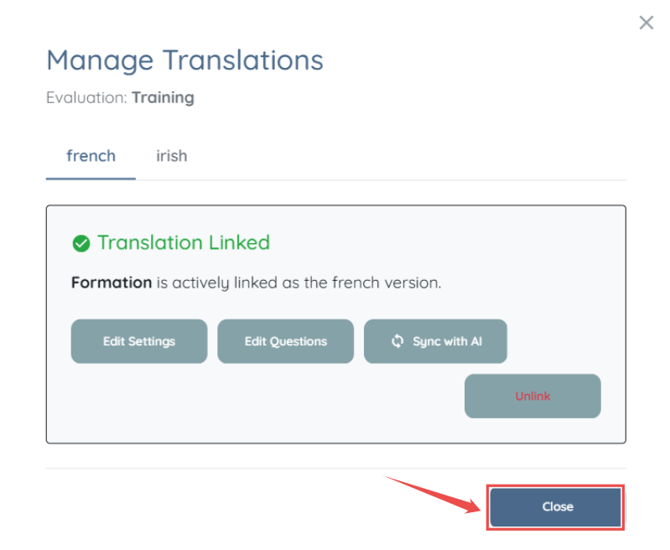
Step 8: Select the Close option to proceed.
Step 9: After you close the pop-up window, the updated entry will appear in the list, confirming the evaluation is available in the selected language.
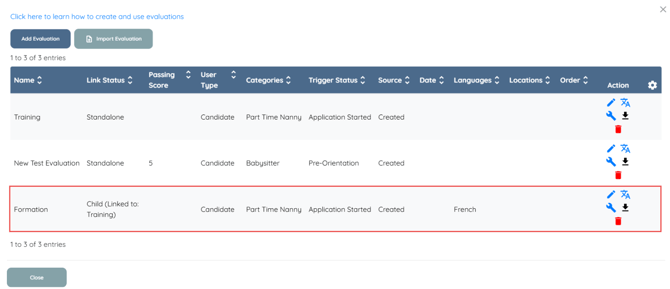
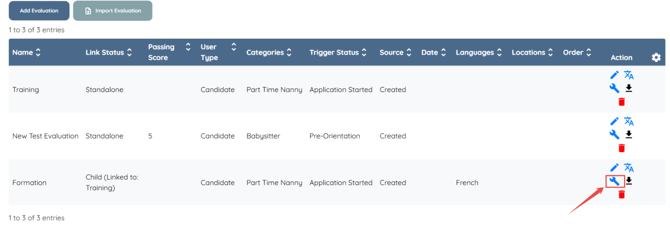
Step 10:To view the evaluation form in your chosen language, simply click the Wrench icon next to this new entry.
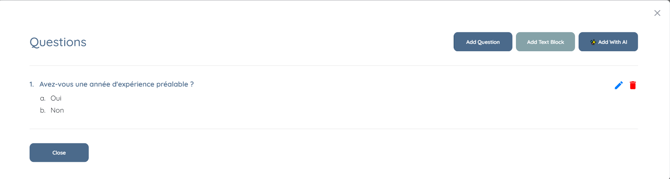
You are all set! The Evaluation form will now be displayed in your selected language.
If you need any further assistance, feel free to contact our support team by clicking here: https://share.hsforms.com/1yIx2IRKyQQaVcMJW8kLbJg39wil