![enginehire logo thin dark 1.0.png]](https://learn.enginehire.io/hs-fs/hubfs/enginehire%20logo%20thin%20dark%201.0.png?height=40&name=enginehire%20logo%20thin%20dark%201.0.png)
Let's get started 🚀
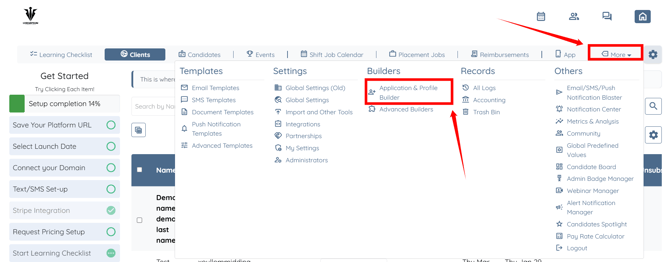
Step 1: Log in to your agent dashboard and click More > Application & Profile Builder as shown in the screenshot below.
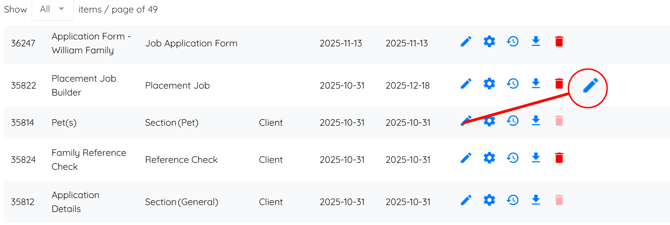
Step 2: Scroll down and click the pencil icon corresponding to the section where you want to set all fields as required.
Step 3: Click the All Required button.
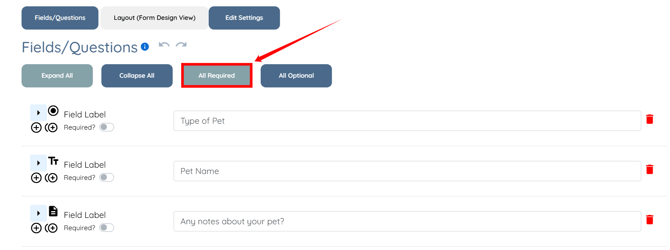
All the fields in the section will be successfully set to required.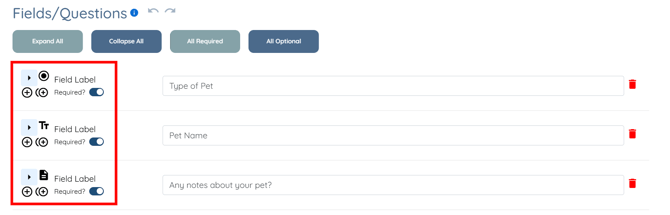
Step 4: Click the All Optional button to set the fields back to optional.
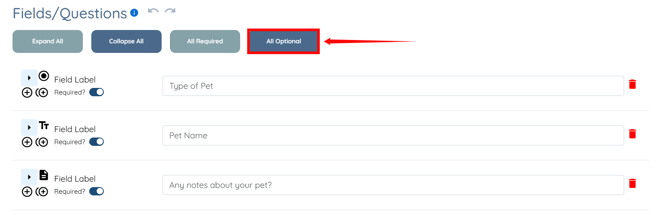
All the fields in the section will be set to not required successfully.

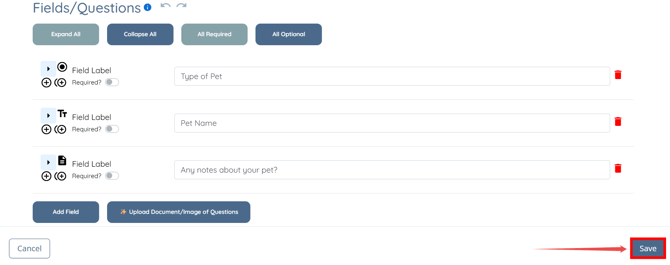
Step 5: After making the required changes, click the Save button to proceed.