![enginehire logo thin dark 1.0.png]](https://learn.enginehire.io/hs-fs/hubfs/enginehire%20logo%20thin%20dark%201.0.png?height=40&name=enginehire%20logo%20thin%20dark%201.0.png)
Let’s get started 🚀
Step 1: Log in to your agent dashboard and click on Shift Job Calendar in the navigation bar.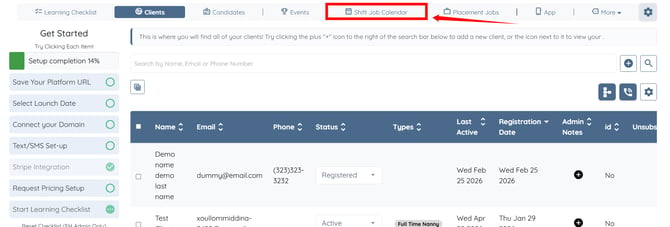
Step 2: Click the Multi-Day Shift button.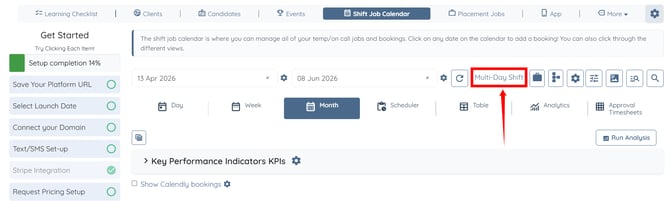
Step 3: Select the dates on the calendar for which you want to schedule shifts.
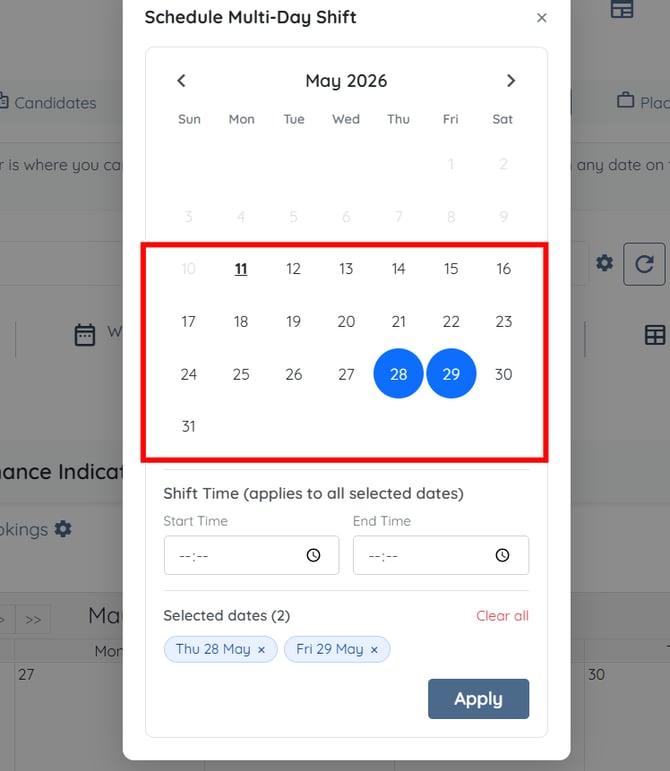
Step 4: Enter the shift time for the selected dates.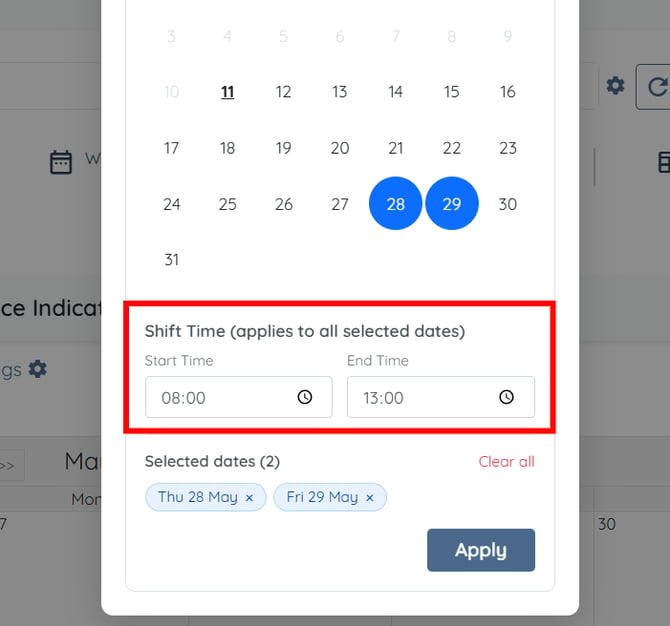
Step 5: Click the Apply button to proceed.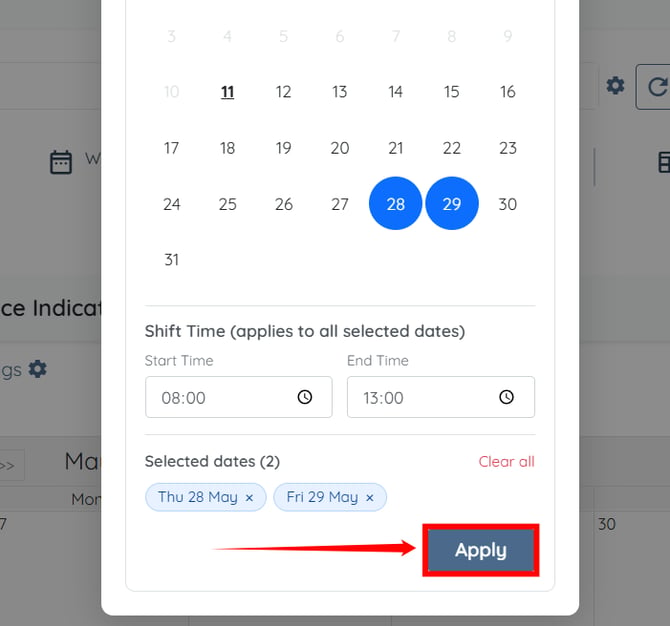
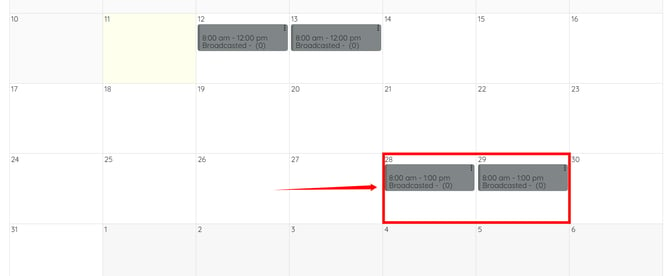
The shifts for the selected dates will be scheduled successfully.